
DESi Utopic R Manuel utilisateur

USER MANUAL
Wireless Motorized Cylinder

!
GENERAL INFORMATIONS and WARNINGS
- Before using your motorized cylinder, Locking way and Number of turns should be adjusted
properly. Otherwise, the device would not work in a correct way.
- For emergancy conditions, we recommend you to put the keys to an accessible place (like car,
bag etc.)
- If there is any problem with door or locking mechanism, first of all, those problems need to be
solved. Door's mechanical parts and locking mechanism should be working properly.
- If there is a problem with the device, first look to the troubleshooting part of this manual. If you
cannot solve the problem, contact with your dealer.
- All the system need to be protected from water, direct sunlight and shocks.
- Auto-rotating parts of device may cause injuries during installation. BE CAREFUL!
2

3
Controlling Options and Compatible Accessories
Wireless Fingerprint Readers
Wireless Keypad
Wireless Auto-Locking Module
Wireless Home Automation Interface
Remote Controllers
Remote Access Module
1.2. BOX CONTENT
(May vary according to model number)
1x Wireless Motorized Cylinder (with keys)
1x Charging Cable (USB)
1x Installation screw and Hex key
User Manual
1. FEATURES OF THE DEVICE
Structure
ABS Plastic
Cylinder Length
(outside) 31 mm x 35 mm (inside)
Inside part can extensile up to 47 mm
(Different cylinder lengths are available)
Batteries and Battery Life
Rechargable Lithium Ion batteries.
4 months or 2.000 operations (locking or unlocking) for 3
turn locks
Communication Capability
Bluetooth Low Energy
ISM RF 434 Mhz

4
2. PARTS OF DEVICE and INSTALLATION
Control
Buttons
Cylinder
Handle for
Manual
Operation
microUSB
Charging Port
1.STEP
Remove
existing
cylinder.
2. STEP
Install
motorized
cylinder and
tighten
the screw

5
In some security doors, even if you remove cylinder screw, you cannot remove cylinder due to cramped installation of
cylinder defender. Follow the instructions below, for that kind of situations:
- Untighten screws of cylinder defender (don’t remove the screws)
- Remove cylinder screw and take out the old cylinder.
- Disassemble the motozied part from the cylinder.
- Install the cylinder part to the door and tighten the cylinder screw.
- Tighten the screws of cylinder defender.
- Assemble the motorized part with cylinder.
DETACHING / ATTACHING MOTOR AND
CYLINDER
Loosen the set screw
with hex key out of the
box. Pull the motor part out.
To attach two parts, push the motor
properly in to cylinder and tighten
the set screw. Set Screw
The first controller enrolled to motorized cylinder is accepted as master
controller. The rest of controller will be user controllers.
3. MASTER CONTROLLER AND USER CONTROLLERS
Both, master and user controllers can be used to lock/unlock the motorized cylinder but only the master controller can
change settings of motorized cylinder.
If your device’s master controller is “Wireless Fingerprint Reader V1” jump to page 6.
If your device’s master controller is “Wireless Fingerprint Reader V2” jump to page 26.
If your device’s master controller is “Smart Phone” jump to page 46.

Display
Touch Button #1
Set Screw
Touch Button #2
Wake Up Button
Sensor
WIRELESS FINGERPRINT
READER (V1)
6
In this section, you can find details about installation and
usage of Wireless Fingerprint Reader Version 1.
If motorized cylinder bundled with fingerprint reader,
it would be the master controller of your motorized cylinder.
Before you use your motorized cylinder, you should adjust it
properly according to the lock which motorized
cylinder will work together. First, you should adjust
“direction of locking (4.3.5)” and than
“number of rotation (4.3.4)”.
If you want to change the master controller of motorized
cylinder, check “HOW TO RESET MOTORIZED CYLINDER”
topic on last page.

7
4.1. INSTALLATION OF WIRELESS FINGERPRINT READER V1
First of all, unscrew the set screw at the bottom of reader with a 19 mm (3/4") hex key and seperate metal part and plastic
part. After that, remove the battery, if it is already placed. Use one of the methods below:
4.1.1. First Method (from Inside)
1st Step1st Step1st Step 3rd Step3rd Step3rd Step
4th Step4th Step4th Step
2nd Step2nd Step2nd Step
5th Step5th Step5th Step 6th Step6th Step6th Step
Place reader
to the door
and make a
sign with a
pen through
hole.
Drill a hole
(side to side)
from signed
point with 5
mm bit.
Put the long
screw with
washer to hole
from inside.
Outcoming
part need to
be at most 12
mms.
Place reader
as in 1st step.
Tighten the
short screw
by using
pointed hole.
Install
battery and
fix the metal
cover with
long screw
installed at
3rd step.
Tighten the
set screw.
8
4.1.2. Second Method (from Outside)
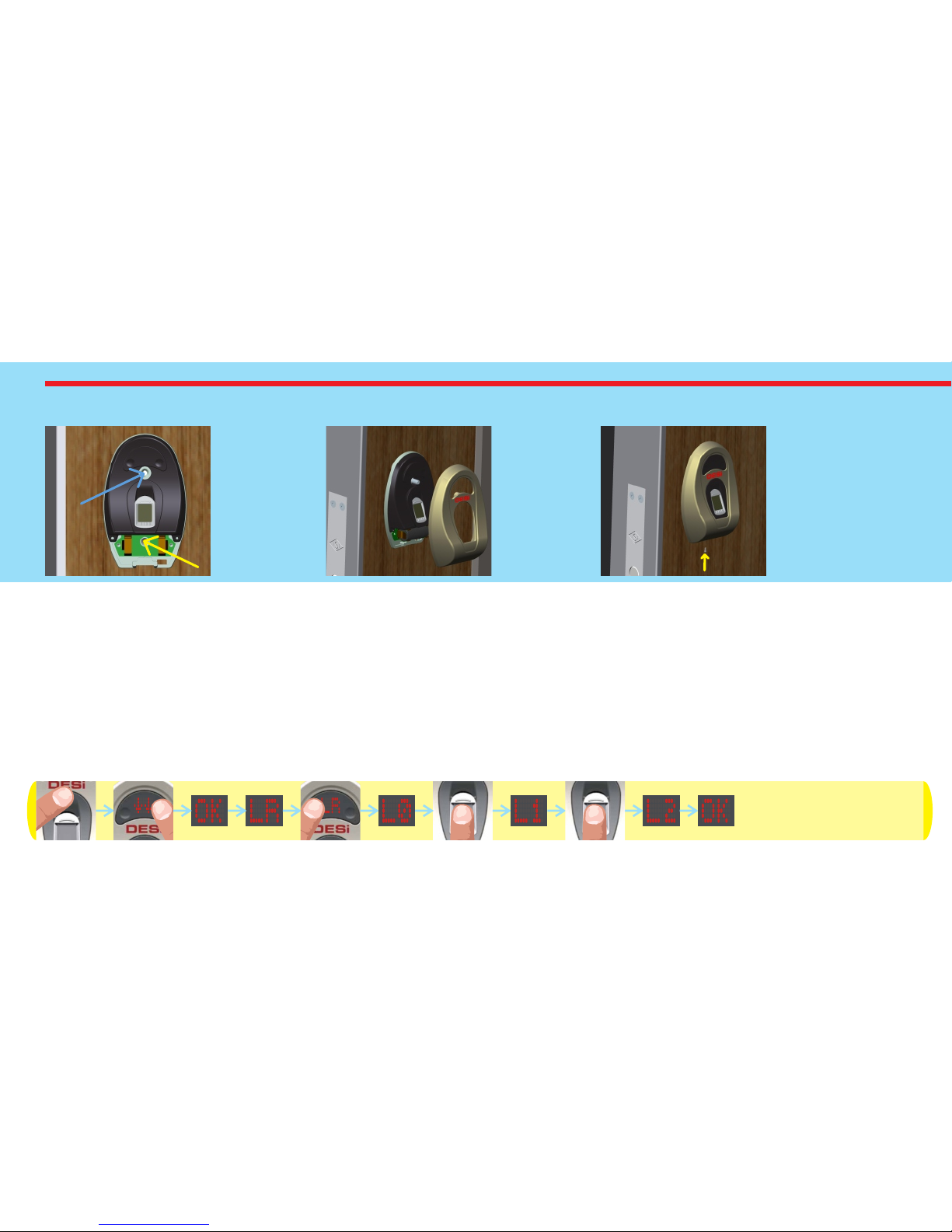
4.2. ENROLLING FIRST (MASTER) FINGERPRINT
Fingerprint reader comes without any fingerprint in its memory. The first 3 fingerprints are accepted as master
fingerprints and administrative activities like enrolling or deleting fingerprint can be done by master fingerprints only.
Master fingerprints need to be chosen carefully. on’t enroll a child’s finger or a finger which is deformed D ny (or can be
d ) a eformed easily as master finger. To enroll first fingerprint:
- Touch to “wake up” and than “2". First “OK” and than “LR” will be displayed.
- Touch to “1". “L0" code will be displayed.
- Put the finger to the reader. “L1" code will be displayed.
- Put the same finger again. First “L2" and than “OK” code will be displayed.
Install
battery and
place the
metal cover.
1st Step1st Step1st Step 2nd Step2nd Step2nd Step 3rd Step3rd Step3rd Step
Place reader
to the door
and tighten it
with short
screws from
two holes.
Tighten
the set
screw.

9
4.3. SETTINGS / ADMINISTRATION MENU
You can change settings of your motorized cylinder and perform administrative activities via this menu. Before using your
smart cylinder, “number of turns” and “locking way” settings should be adjusted properly. Otherwise, it would damage the
device’s mechanical structure.
The menu items and order is as follows:
LR
DL
CL
TC
MW
UC
BU
RF
Display
Enrolling new fingerprints
Deleting enrolled fingerprints one by one
Deleting all fingerprints (Reseting fingerprint reader)
Adjusting motorized cylinder according to lock’s number of rotation to lock/unlock
Adjusting direction of locking according to door’s opening way
Showing total number of enrolled fingerprints in the device’s memory
Enabling or disabling buzzer sound (Warning tones are always active)
Enabling or disabling automatic locking mode which locks cylinder 1 minute after it is unlocked
Function
2
2
2
2
2
2
2
2
1
1
1
1
1
1
1
1
MA Enabling or disabling delayed locking which locks 5 s. after locking button on the cylinder is pressed.
1
2
ML
MD
MC
HT
Shifting the motorized cylinder to enrolling mode to learn new controllers
Deleting all controllers enrolled to cylinder except master controller.
Reporting number of controllers enrolled to motorized cylinder via buzzer sound
Adjusting latch retraction period.
2
2
2
1
1
1
1
2
* Not available in some versions of fingerprint reader.

10
4.3.1. ENROLLING A NEW FINGERPRINT (LR)
If you want to enroll a new fingerprint to the reader, follow the steps below:
- Touch “WAKE UP”. Two arrows will appear on display. Than touch “2”. “AD” will be shown.
- Put one of the master fingers to the reader. First “OK” and than “LR” will be shown.
- Touch to “1” when “LR” is on display. “L0” will be shown.
- Put the new finger you want to enroll to the sensor. “L1” will be shown.
- Put the same finger again. First “L2” and than “OK” will be shown.
In this way, the new finperprint will be enrolled to the device. Schematic representation of operation is as follows:
NOTE 1: System assigns an id to fingers and this id is shown when finger is read.
NOTE 2: During enrollment, device reads the finger 2 times. If 2 reads don’t match, “EE” code will be displayed and reader
turns back to “L0" step. In this case, enrolling need to be repeated. Try to put your finger to the sensor in a similar way
during both read steps of enrollment
Autres manuels pour Utopic R
1
Table des matières
Autres manuels DESi Serrure de porte


