
Deister electronic UDL5 Manuel utilisateur

UDL5 – UHF mouse
Quick start manual
V27/09/07

© Copyright 2007 y deister electronic Gm H
All rights reserved. No part of this publication may be reproduced, stored in a retrieval
system, or transmitted, in any form or by any means, electronic, mechanical, photocopying,
recording, or other ise, ithout prior ritten permission of deister electronic GmbH.
deister electronic GmbH reserves the right to make changes to any and all parts of this
documentation ithout obligation to notify any person or entity of such changes.
September 2007 SK
deister electronic GmbH
Hermann-Bahlsen Str. 11
30890 Barsinghausen
Germany
Phone: +49 (0) 51 05 - 51 61 11
Fax: +49 (0) 51 05 - 51 62 17
E-Mail: [email protected]
Web: .deister.com
2deister electronic GmbH 30890 Barsinghausen Germany V27/09/07
UDL5 - UHF mouse · Quick start manual

Content
1. UDL5 description.........................................................4
1.1 Components.......................................................................................................4
2. Mechanical Dimensions..............................................4
2.1 LEDs and Beeper.................................................................................................5
3. Configuration and setting...........................................5
3.1 Transmission protocol..........................................................................................5
4. Getting started............................................................6
4.1 Installing USB driver............................................................................................6
4.2 Installing RDemo...............................................................................................10
4.3 Get connection.................................................................................................10
4.4 Reading block data...........................................................................................14
4.5 Writing block data.............................................................................................15
4.6 EPC class1 gen2 tag functions............................................................................16
4.7 RDemo command builder..................................................................................16
5. EPC class1 gen2 memory organisation.....................17
V27/09/07 deister electronic GmbH 30890 Barsinghausen Germany 3
UDL5 - UHF mouse · Quick start manual
1. UDL5 description
1.1 Components
The UDL5 delivery contains:
•1x UDL5 – UHF mouse
•1x USB cable
•1x CD ith technical information and soft are
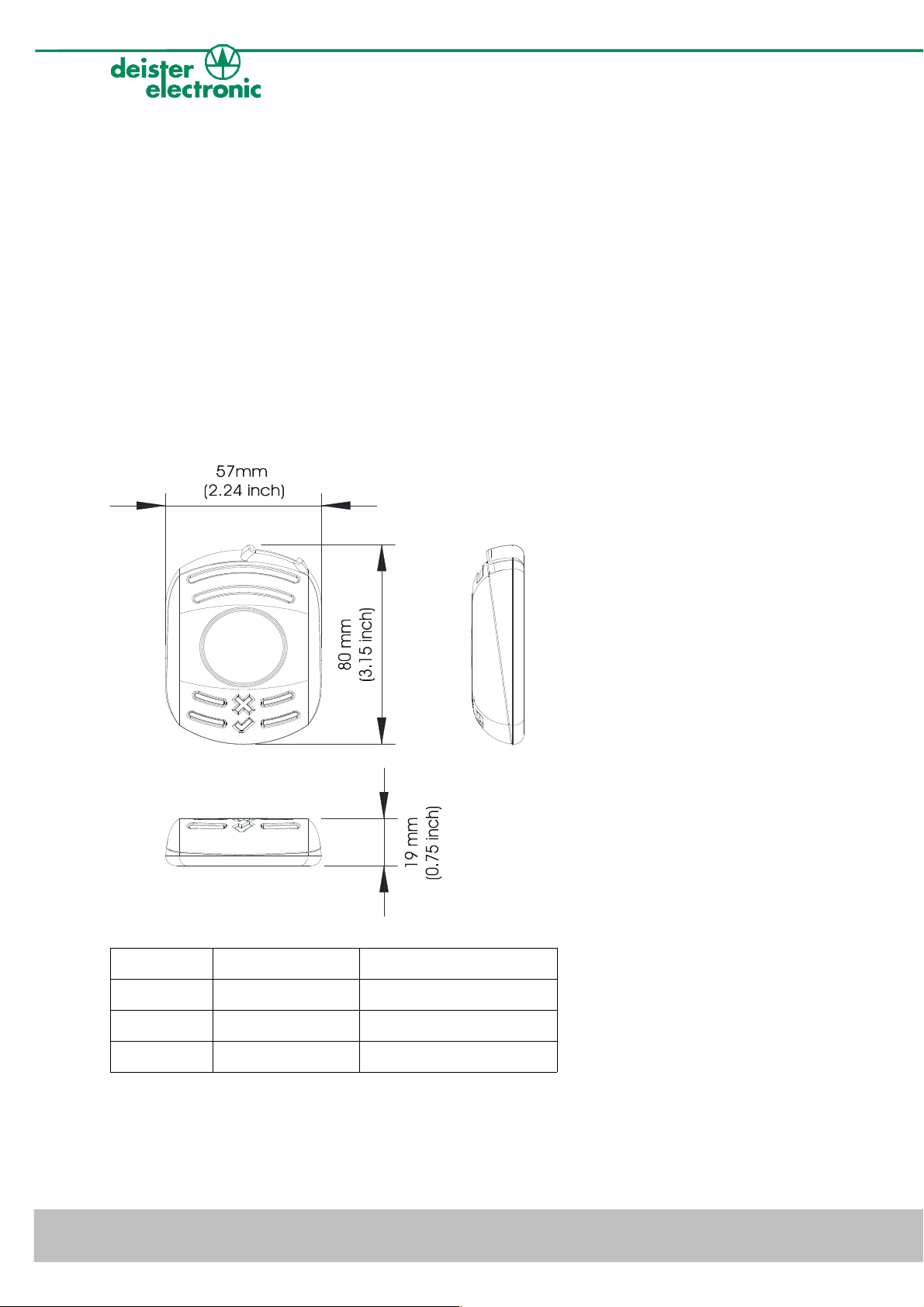
2. Mechanical Dimensions
All dimensions in mm (inch).
Symbol LED color Status
Xred RF-field on/off
√green reading/ riting tags
blue po er
Further explanation see next section 2.1 „LEDs and Beeper“.
4deister electronic GmbH 30890 Barsinghausen Germany V27/09/07
UDL5 - UHF mouse · Quick start manual

2.1 LEDs and Beeper
The device is equipped ith three LEDs and one beeper to indicate the reader status. The
follo ing table refers to the standard settings (device set in trigger mode).
LEDs Status UDL5
blue and red: on
green: off
reader is ready to operate, RF-field is s itched off
blue: on
red and green: off
reader is ready to operate, RF-field is s itched on,
reader is ready to read or rite to transponder
blue and green: on
red: off
beeper: on
reader is ready to operate, communication bet een
reader and tag (reading/ riting)
blue, green and red: on reader carries out a reset, RF-field is s itched off,
reader is not ready to operate
3. Configuration and setting
Please note: This manual is considered to e prelimiary.
In the standard configuration the device is set in “Trigger Mode“. This means the device aits
for a “Trigger On“ command to s itch the RF-field on and a „Trigger Off“ command to s itch
the RF-field off. These soft are commands can be sent to the device using RDemo soft are (to
be found on the CD hich is part of the UDL5 package).
The UDL5 in its current version is EPC class1 gen2 complicant only.
3.1 Transmission protocol
The communication of the UDL5 is based on the “deBus” protocol. For integration into user-
defined applications please contact your local sales and service center (see end of document).
V27/09/07 deister electronic GmbH 30890 Barsinghausen Germany 5
UDL5 - UHF mouse · Quick start manual

4. Getting started
4.1 Installing USB driver
First the USB driver has to be installed. The follo ing steps sho ho to install the driver
under Windo s XP (Windo s Vista is supported as ell):
•Connect the UDL5 via USB cable to a spare USB Port at your Host/PC
(USB cable as part of delivery of UDL5).
•Windo s XP indicates the ne hard are ith the message
“Found Ne Hard are: HARVEMAC“.
•The “Found Ne Hard are Wizard“ ill no be started automatically.
Select “No, not this time“ and click “Next“.
If this procedure failed, the search for ne hard are can be started manually by click on:
“Start“ -> “Settings“ -> “Control Panel“ -> “System“ -> “Hard are“ -> “Device
Manager“. Select the USB device, marked by a yello question mark.
6deister electronic GmbH 30890 Barsinghausen Germany V27/09/07
UDL5 - UHF mouse · Quick start manual

•Select “Install from a list or specific location (Advanced)“ and click “Next“.
•Select “Search for the best driver in these locations“. Enter path name into the combo-
box or bro se to path using the “Bro se“ button.
V27/09/07 deister electronic GmbH 30890 Barsinghausen Germany 7
UDL5 - UHF mouse · Quick start manual

•The screen belo ill be sho n hile Windo s XP copies the required files.
•The follo ing message indicates a successful installation process. Click “Finish“ to
close the izard. No the UDL5 is successfully installed.
8deister electronic GmbH 30890 Barsinghausen Germany V27/09/07
UDL5 - UHF mouse · Quick start manual

•After successful installation of the USB driver, the UDL5 is ready for use. The “Device
Manager“ indicates the UDL5 as an additional device named “UsbHarve.Sys for Intel
Harve RFID MAC“.
V27/09/07 deister electronic GmbH 30890 Barsinghausen Germany 9
UDL5 - UHF mouse · Quick start manual

4.2 Installing RDemo
The RDemo program can be found on the CD as part of the UDL5 package. For installation
proceed as follo s:
•Start installing RDemo ith double click on file or icon:
4.3 Get connection
•After successfull installation of RDemo start the program ith double click
on file or icon:
•Select “Port“ -> “USB“.
10 deister electronic GmbH 30890 Barsinghausen Germany V27/09/07
UDL5 - UHF mouse · Quick start manual
Table des matières


