
Creative Zen Vision W Manuel utilisateur

i
English . . . . . . . . . . . . . . . . . . . . . . . . . . . . . . . 1
Français . . . . . . . . . . . . . . . . . . . . . . . . . . . . . 16
Deutsch . . . . . . . . . . . . . . . . . . . . . . . . . . . . . 33
Italiano . . . . . . . . . . . . . . . . . . . . . . . . . . . . . . 51
Español . . . . . . . . . . . . . . . . . . . . . . . . . . . . . 67
Nederlands . . . . . . . . . . . . . . . . . . . . . . . . . . 83
Português . . . . . . . . . . . . . . . . . . . . . . . . . . . 99
Svenska . . . . . . . . . . . . . . . . . . . . . . . . . . . . 115
Norsk . . . . . . . . . . . . . . . . . . . . . . . . . . . . . 131
Dansk. . . . . . . . . . . . . . . . . . . . . . . . . . . . . . 147
Suomi. . . . . . . . . . . . . . . . . . . . . . . . . . . . . . 163
Česky. . . . . . . . . . . . . . . . . . . . . . . . . . . . . . 179
Polski . . . . . . . . . . . . . . . . . . . . . . . . . . . . . . 195
Zen Vision W (Monet WA) CLE_QS.book Page i Wednesday, September 27, 2006 10:06 AM

ii
Русский . . . . . . . . . . . . . . . . . . . . . . . . . . . 211
Ellinika . . . . . . . . . . . . . . . . . . . . . . . . . . . . . 231
Magyar . . . . . . . . . . . . . . . . . . . . . . . . . . . . . 251
Lietuvis . . . . . . . . . . . . . . . . . . . . . . . . . . . . 267
Slovensky. . . . . . . . . . . . . . . . . . . . . . . . . . . 285
Zen Vision W (Monet WA) CLE_QS.book Page ii Wednesday, September 27, 2006 10:06 AM

English
Congratulations! Thank you for purchasing Creative’s
multiformat player, Creative ZEN™ Vision W. Read on to learn how to get
started with your new player!
To get the most out of your player, also read the comprehensive User’s
Guide on your Installation and Applications CD.
3
2
1
4
5
6
8
7
COMPACT F LA SH
109
11
12
1 Infrared receiver
2 Menu/Back button
Press and hold to display the main
menu.
Press to return to the previous menu.
3 Options button
Press to display a list of options.
4 Navigation buttons
5 Play/Pause button
6 Next/Fast-Forward button
Press to go to the next track.
Press and hold to move forward
within a track.
7 Integrated speaker
8 Previous/Rewind button
Press to go to the previous track.
Press and hold to move forward
within a track.
9CompactFlashmemory
card slot
10 Headphone jack
11 A/V Out jack
12 DC IN 5V jack
Zen Vision W (Monet WA) CLE_QS.book Page 1 Wednesday, September 27, 2006 10:06 AM
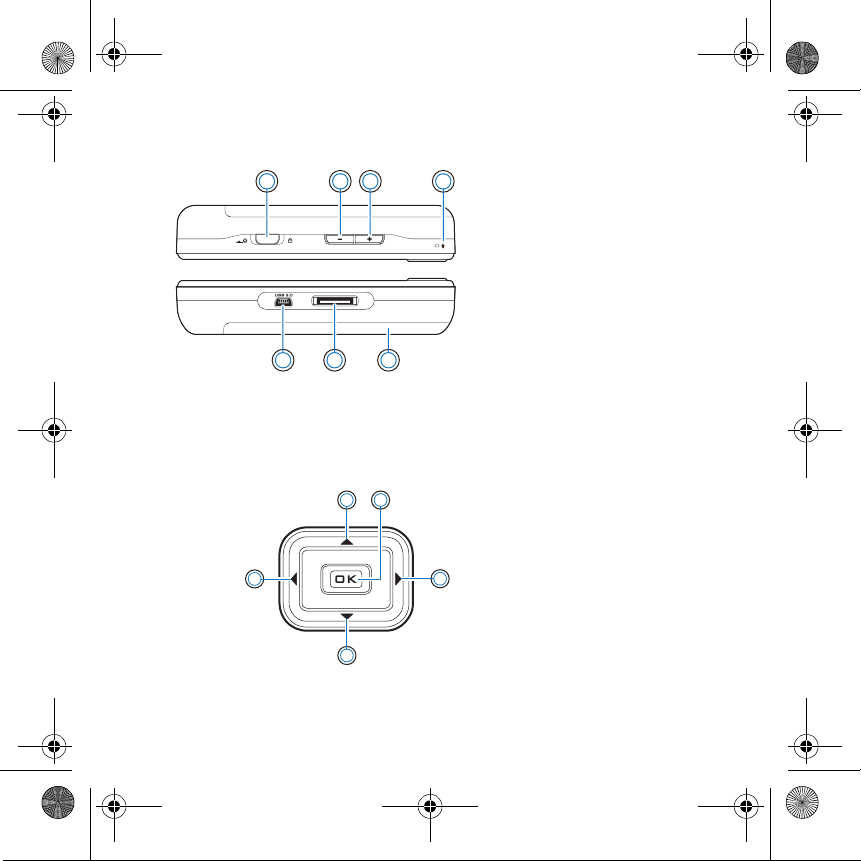
2 Selecting Options
Selecting Options
In the following sections of this document, we use the term ‘Select’ to
indicate that you should use the Up, Down, Left or Right buttons to highlight
menu options, then press the OK button to select the option.
19 18 17
13 14 15 16 13 Power switch
14 Volume Decrease button
15 Volume Increase button
16 Microphone
17 Removeable Lithium-Ion
battery
18 Dock connector
19 USB 2.0 port
12
3
4
5
1 Up button
2 OK button
3 Right button
4 Down button
5 Left button
Zen Vision W (Monet WA) CLE_QS.book Page 2 Wednesday, September 27, 2006 10:06 AM

Getting Started 3
Getting Started
Step 1: Charge Your Player
The high performance lithium-ion battery supplied with your player needs
to be fully charged before you use your player. The battery is fully charged in
approximately three hours. To charge your player's battery, connect the
power adapter cable to your player and a power outlet as shown in the
diagram below.
NOTES Depending on your region of purchase, your power adapter may
differ from the one shown here.
2
1
1DCIN5Vjack
2 Power adapter cable
Zen Vision W (Monet WA) CLE_QS.book Page 3 Wednesday, September 27, 2006 10:06 AM

4 Set Up the Software
When the battery is charging, the Battery Charging icon appears on the
display. When you see the Battery Charged icon on your player’s
display, disconnect your player from the power adapter.
Step 2: Set Up the Software
1Turn on your computer.
You must log in as an administrator in Microsoft®Windows®before you can
set up the software. For more information, refer to your operating system’s
online Help.
2Insert the Installation and Applications CD into your CD-ROM/DVD-ROM
drive.
Your CD should start automatically. If it does not, follow the steps below:
i. Double-click the My Computer icon.
Alternatively, click Start My Computer.
ii. Right-click the CD-ROM/DVD-ROM drive icon, and then click Autoplay.
3Follow the instructions on the screen and when prompted, restart your
computer.
4If you want to register your product when your computer restarts, follow the
instructions on the screen to do so.
NOTES Your player will continue to charge even after it turns off, as long
as it is connected to a power outlet or a computer.
WARNING DO NOT connect your player to your computer before setting up
the software.
NOTES You need an Internet connection to register your product.
Zen Vision W (Monet WA) CLE_QS.book Page 4 Wednesday, September 27, 2006 10:06 AM

Connect Your Player to Your Computer 5
Step 3: Connect Your Player to Your Computer
If you have not done so, connect your player to your computer’s USB port
using the supplied USB cable.
NOTES • Your player’s battery charges automatically when you connect
your player to your computer’s USB port. It takes approximately
six hours to charge your player’s battery using your computer’s
USB port.
• For continuous battery charging using the USB port, make sure
your computer is not in power conservation mode. For more
information on power conservation modes, refer to your
operating system's Help.
• If your fully charged player remains connected to your computer
or a power outlet for a prolonged period, the display turns off
automatically to conserve power.
• Connect your player directly to a USB port on your computer or
a self-powered USB hub; do not connect your player to a bus-
powered USB hub.
Zen Vision W (Monet WA) CLE_QS.book Page 5 Wednesday, September 27, 2006 10:06 AM

6 Transfer Content
Step 4: Transfer Content
Use Creative Media Explorer to transfer music and other files from your CD
collection or computer. For more details, see “Managing Media and Data”
on page 10.
To start Creative Media Explorer
1Make sure your player is connected to your computer as shown on page 5.
2Double-click the ZEN Vision W Media Explorer icon on the desktop.
To transfer or ‘rip’ music from your CD collection
1In Creative Media Explorer, click the Rip Audio CDs button .
2Follow the instructions on the screen.
If you are connected to the Internet and have registered with a music
information provider, album information will automatically be retrieved.
To transfer music, videos or pictures from your computer
1In Creative Media Explorer, click the Browse Media button .
2Locate your media files, and using the drag-and-drop method, copy them to
the following folders in your player:
•Media Library\Music folder for audio files
•Media Library\Videos folder for video files
•Media Library\Pictures folder for pictures
Zen Vision W (Monet WA) CLE_QS.book Page 6 Wednesday, September 27, 2006 10:06 AM

Disconnect Your Player 7
To transfer data files from your computer
1In Creative Media Explorer, click the Browse Documents button .
2Locate your data files, and using the drag-and-drop method, transfer them
to the Data folder in your player.
To transfer ZENcast content
1Double-click the ZENcast Organizer icon on the desktop.
2Click the Transfer button .
3Follow the instructions on the screen.
4Click the Done button.
Step 5: Disconnect Your Player
Disconnect your player when you see the File Transfer Inactive icon on
the display. DO NOT disconnect your player if you see the File Transfer
Active icon on the display. File transfer is in progress and disconnecting
your player may damage the content being transferred.
NOTES You can also transfer audio files and pictures using the Browse
Documents button. They will, however, be treated as data files and
cannot be played back or viewed on your player.
NOTES With ZENcast Organizer, you can subscribe to your favorite
ZENcast channels, and download and transfer ZENcast media files
to your player. For more information, visit www.zencast.com.
Zen Vision W (Monet WA) CLE_QS.book Page 7 Wednesday, September 27, 2006 10:06 AM

8 Select Your Menu Language
Step 6: Select Your Menu Language
1If your player is not turned on, slide the Power switch towards the Power
icon and hold it there until the display lights up.
2When you turn on your player for the first time, the menu is in English. To
change the language:
i. Press and hold the Menu/Back button. The main menu appears.
ii. Select System Language, and then select the language that you want.
Step 7: Watch Videos, View Pictures and Play Music
You are now ready to play or view files, including Audible®and ZENcast
media files.
To watch videos
1In the main menu, select Videos, and select the video you want.
Video playback starts automatically.
2To adjust the viewing window size, press the Options button and select
the viewing window size that you want.
To view pictures
1In the main menu, select Photos, and select the picture you want.
2Select Zoom In, and use the Navigation buttons to pan the picture
horizontally or vertically.
NOTES • Press and hold the Menu/Back button to access the main
menu.
• Files in your player are sorted alphabetically to enable faster
searches.
Zen Vision W (Monet WA) CLE_QS.book Page 8 Wednesday, September 27, 2006 10:06 AM
Table des matières
Langues :


