Corinex ADSL2+ Wireless Gateway G Manuel utilisateur

Quick Start Guide
Corinex
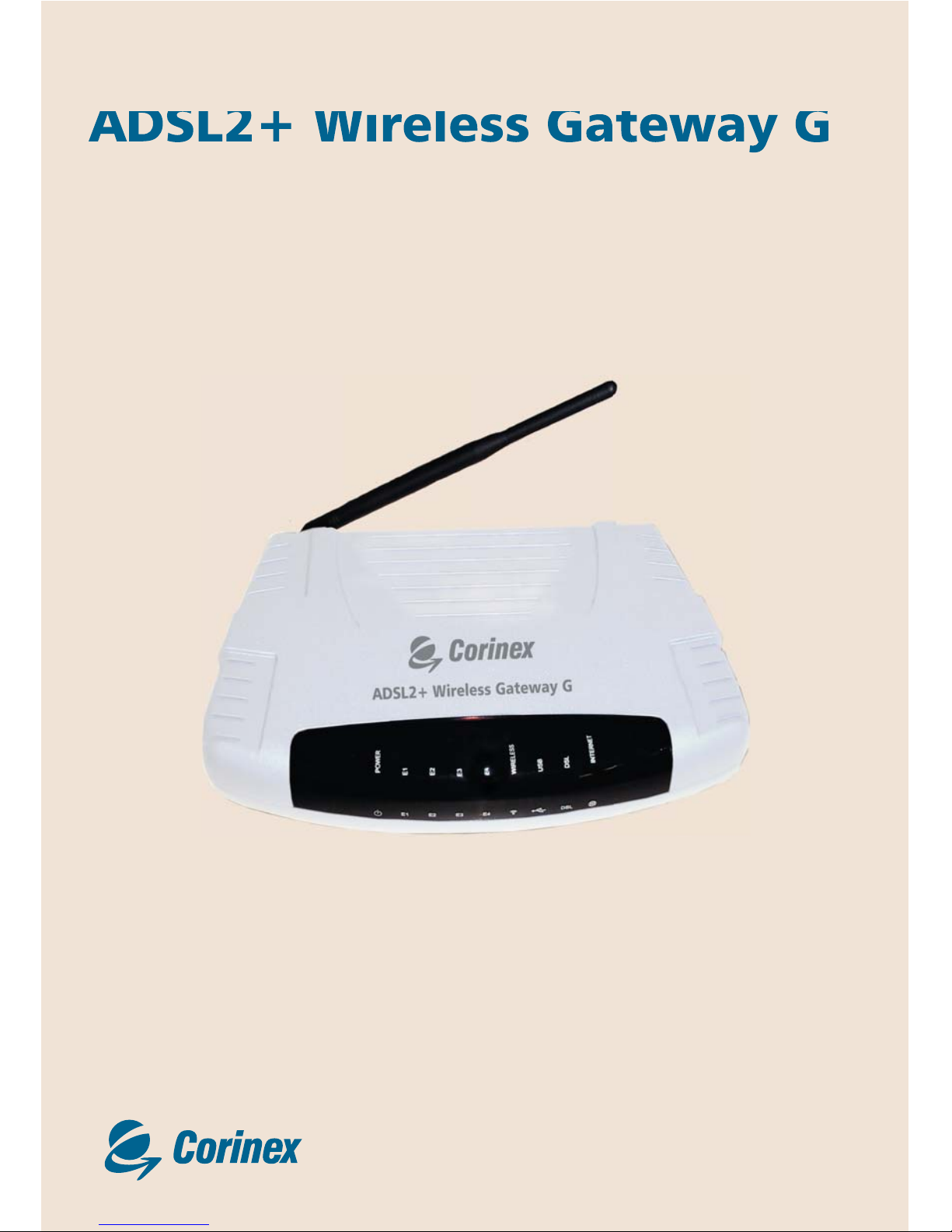
ADSL2+ Wireless Gateway G

1
Declaration of Conformity
Corinex ADSL2+ Wireless Gateway G
Declaration of Conformity
Marking by the above symbol indicates compliance with the Essential Requirements
of the R&TTE Directive of the European Union (1999/5/EC). This equipment meets
the following conformance standards:
EN300 328, EN301 489-17, EN60950
Countries of Operation and Conditions of Use in the
European Community
This device is intended to be operated in all countries of the European Community.
Requirement is for indoors vs. outdoors operation, license requirements and allowed
channels of operation apply in some countries as described in this document.
Note: The user must use the configuration utility provided with this product
to check the current channel of operation and confirm that the devices
operating in conformance with the spectrum usage rules for the European
Community countries as described below.
If operation is occurring outside of the allowable channels as indicated in this guide,
then the user must cease operating the product and consult with the local technical
support staff responsible for the wireless network.
This device may be operated indoors or outdoors in all countries of the European
Community using the 2.4GHz band: Channels 1 – 13, except where noted below:
• In Italy the end-user must apply for a license from the national spectrum authority
to operate this device outdoors.
• In France outdoor operation is only permitted using the 2.4 – 2.454 GHz band:
Channels 1 – 7.

2
RFI Warnings & Instructions
Corinex ADSL2+ Wireless Gateway G
Radio Frequency Interference
Warnings & Instructions
This equipment has been tested and found to comply with the limits for a Class B
digital device, pursuant to Part 15 of the FCC Rules. These limits are designed to
provide reasonable protection against harmful interference in a residential installation.
This equipment uses and can radiate radio frequency energy and, if not installed and
used in accordance with the instructions, may cause harmful interference to radio
communications. However, there is no guarantee that interference will not occur in
a particular installation. If this equipment does cause harmful interference to radio
or television reception, which can be determined by turning the equipment off and
on, the user is encouraged to try to correct the interference by one or more of the
following methods:
• Reorient or relocate the receiving antenna
• Increase the separation between the equipment and the receiver
• Connect the equipment into an electrical outlet on a circuit different from that
which the radio receiver is connected
• Consult the dealer or an experienced radio/TV technician for help.
Modifications made to the product, unless expressly approved by the party
responsible, could void the user’s right to operate the equipment.
RF Exposure
This device has been tested and complies with FCC RF Exposure (SAR) limits in
typical laptop computer configurations and this device can be used in desktop
or laptop computers with side mounted PCMCIA slots, which can provide 1 cm
separation distance from the antenna to the body of the user or a nearby person.
Thin laptop computers may need special attention to maintain antenna spacing
while operating. This device cannot be used with handheld PDAs (personal digital
assistants). Use in other configurations may not ensure compliance with FCC RF
exposure guidelines. This device and its antenna must not be co-located or operate
in conjunction with another antenna or transmitter.

3
Copyright
Corinex ADSL2+ Wireless Gateway G
This document, as well as the software described in it, is furnished under license
and may be used or copied only in accordance with the terms of the license. The
content of this document is furnished for informational use only, it is subject to
change without notice, and it does not represent a commitment on the part of
Corinex Communications Corp.
Corinex Communications Corp. assumes no responsibility or liability for any errors
or inaccuracies that may appear in this document.
It is our policy to enhance our products as new technologies, hardware components,
software and firmware become available; therefore, the information contained in
this document is subject to change without notice.
Some features, functions, and operations described in this document may not be
included and sold in certain countries due to government regulations or marketing
policies.
The use of the product or its features described in this document may be restricted
or regulated by law in some countries. If you are unsure which restrictions or
regulations apply, you should consult your regional Corinex office or the authorized
reseller.
Published by:
Corinex Communications Corp.
#670-789 West Pender Street
Vancouver, B.C.
Canada V6C 1H2
Tel.: +1 604 692 0520
Fax: +1 604 694 0061
Corinex is a registered trademark of Corinex Communications Corp.
Apple, MAC OS X are either registered trademarks or trademarks of Apple
Computer, Inc. in the U.S.A. and/or other countries.
Microsoft, MS-DOS, MS, Windows are either registered trademarks or trademarks
of Microsoft Corporation in the U.S.A. and/or other countries.
All products or company names mentioned herein may be the trademarks of their
respective owners.
Copyright (c) 2001-2005 by Corinex Communications Corp.

4
Content
Corinex ADSL2+ Wireless Gateway G
Content
Declaration of Conformity ............................................................................ 1
RFI Warnings & Instructions ......................................................................... 2
Copyright ....................................................................................................... 3
Contents ........................................................................................................ 4
1 Introduction ................................................................................................... 5
1.1 Minimum System Requirements ...................................................................... 5
1.2 Package Contents ............................................................................................ 5
1.3 Wireless-G Router Overview ......................................................................... 6
2 Installation Overview ..................................................................................... 8
3 Connecting the Gateway to Your Computer ................................................ 9
3.1 Connecting to the Ethernet ......................................................................... 9
3.2 Connecting to the ADSL Line ...................................................................... 9
3.3 Connecting to the Power Outlet and Powering On ...................................... 9
4 Configuring Your Ethernet Network Card / Installing Your USB Device ......... 10
4.1 Configuring Your Ethernet Network Card .................................................... 10
4.2 Installing the USB Device Driver ................................................................... 11
5 Connnecting to the Internet .......................................................................... 13

5
1Introduction
Congratulations on your purchase of the Corinex ADSL2+ Wireless Gateway G! This
gateway allows you to share a high-speed broadband Internet connection with
multiple computers using a single device with a wired, or wireless, connection.
This document describes only the initial setup and basic configuration of the
Corinex ADSL2+ Wireless Gateway G. For detailed information about the advanced
configuration of the product, it is strongly recommended that you read the User
Guide, which is available on the enclosed CD.
1.1 Minimum System Requirements
• Pentium® MMX 233MHz
• Ethernet card installed with TCP/IP Protocol (Required only if you are
onnecting to the ETHERNET port of your gateway)
• One USB port (Required if you are connecting to the USB port of the
gateway)
• IEEE 802.11b Wireless adapter (Required if you are connecting to the gateway
using a wireless connection)
• Windows/Linux/Mac OS for Ethernet or Wireless connection, Microsoft
Windows 98SE/ME/2000/XP for USB connection
• Web Browser support:
Microsoft Internet Explorer 4.0 (or later versions)
Netscape® Navigator 3.02 (or later versions)
Mozilla Firefox 1.0 (or later versions)
1.2 Package Contents
•Corinex ADSL2+ Wireless Gateway G
• AC power adapter with the appropriate plug for your region
• Telephone cable
• Ethernet cable
• USB cable
• Printed Quick Start Guide
• CD with documentation and drivers
Introduction
Corinex ADSL2+ Wireless Gateway G

6
1.3 Wireless-G Router Overview
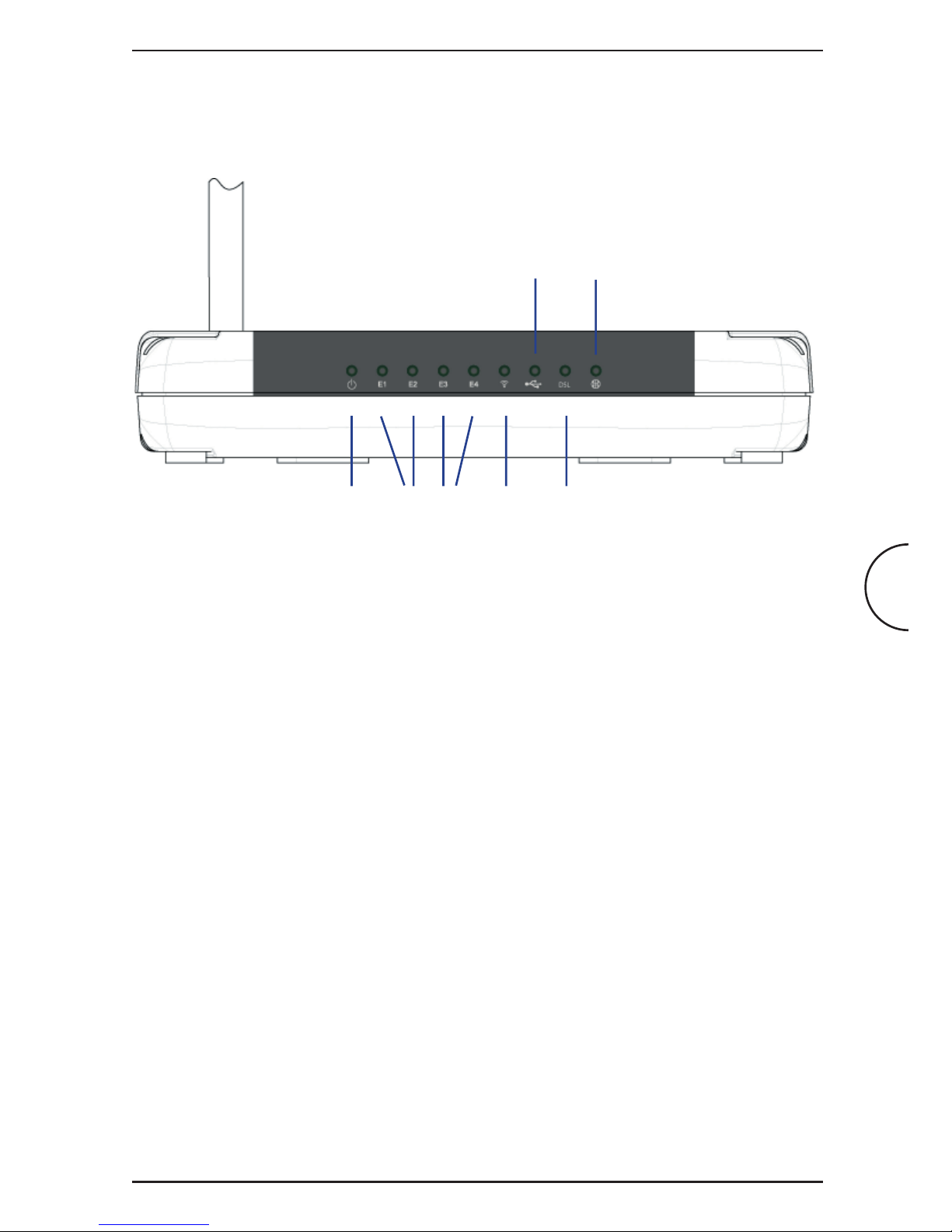
Front Indicators
Introduction
Corinex ADSL2+ Wireless Gateway G
1 POWER green On Power is supplied to the gateway.
Off The gateway is turned off.
2 ETHERNET (E1 ~ E4)
green On Connection established between the gateway and
the Ethernet device.
Off Ethernet cable is disconnected.
Blinking Receiving/transmitting data.
3 WIRELESS
green Blinking Receiving/transmitting data via wireless interface.
4 USB green On Connection established between the gateway and
the computer’s USB slot.
Off USB cable not connected.
5 DSL green On ADSL connection is established.
Off No telephone jack is connected.
Blinking The gateway is attempting to establish a
connection with your ADSL Service Provider.
6 INTERNET
green On PPP connection is established.
Off No PPP connection is established.
1235
46

7
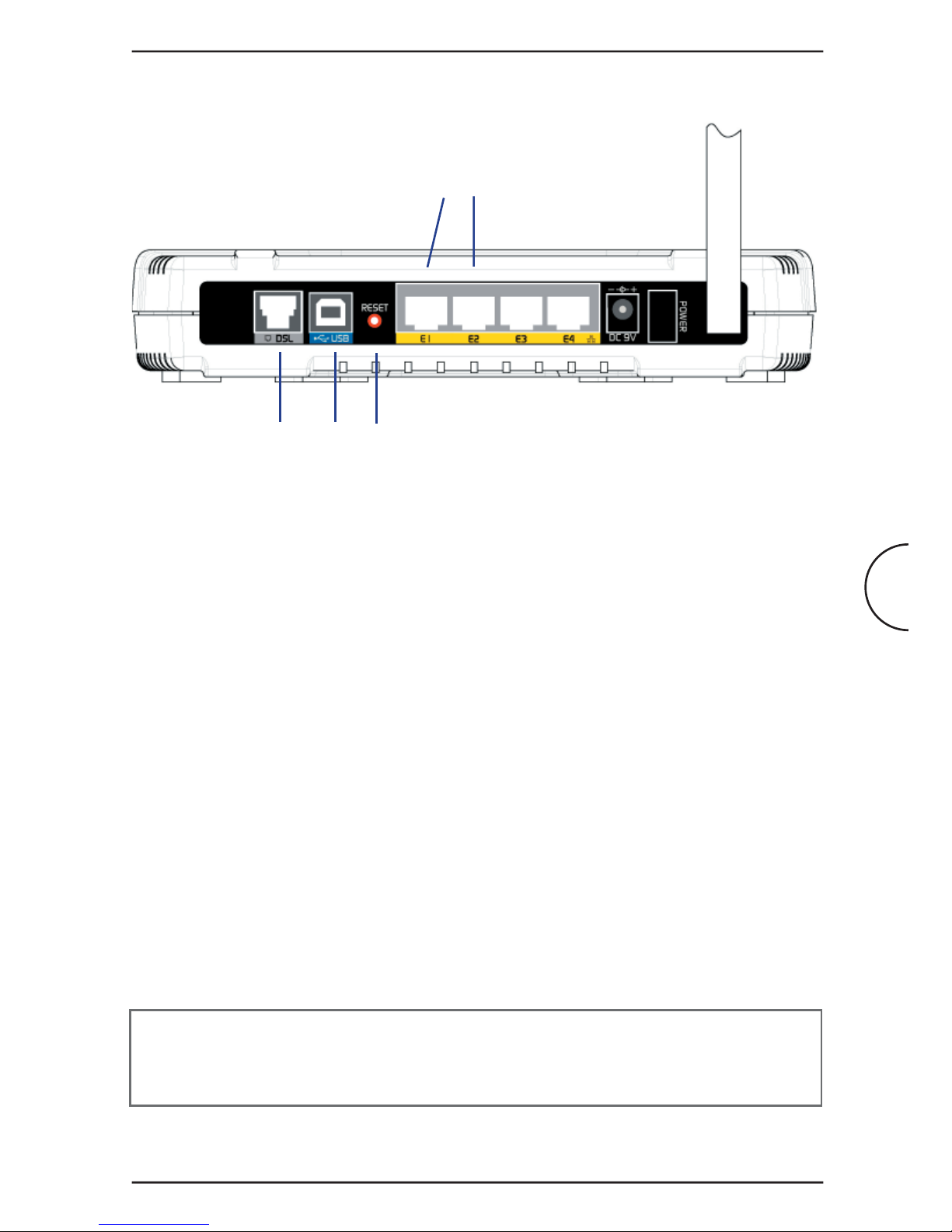
1 DSL (RJ-11) to connect to your DSL line.
2 USB to connect to your PC’s USB slot.
3 RESET to reset your ADSL Router to factory default settings.
4 ETHERNET E1-E4 (10/100 Base-T Auto-MDI/MDIX RJ-45 jack) to connect to
your PC’s Ethernet Network card or Ethernet Hub / Switch.
5 DC IN (9V) to connect to the Power Supply Adapter.
6 POWER SWITCH to power on or off the gateway (I - ON position, O - OFF
position).
7 RF Antenna 18002.4Ghz Wireless Antenna for wireless networking.
To activate the factory default reset function:
• Ensure that your ADSL Router is powered on.
• Use a paper clip or a pencil tip to press the reset button, hold for at least
5secs and release. At this point, the Wireless indicator and DSL indicator will
turn off. The reset is in progress.
• When the Wireless indicator starts blinking, it means that the reset process is
complete. The default settings are then restored.
• DSL line is synchronized once the DSL indicator color is green.
NOTE: By executing the reset procedure, all customized settings that you
have saved will be lost and the gateway will be set back to the original factory
default settings as they are described in this document.
Introduction
Corinex ADSL2+ Wireless Gateway G
Back panel
1 2 3
4

8
2Installation Overview
This Guide will assist you with the hardware installation and basic configuration of your
Corinex ADSL2+ Wireless Gateway G. It will show you how to connect your Wireless
Gateway G to the internet. If you require a more sophisticated configuration, please
refer to the Corinex ADSL2+ Wireless Gateway G User Guide, which is available on
the enclosed Installation CD.
Installation Overview
Corinex ADSL2+ Wireless Gateway G
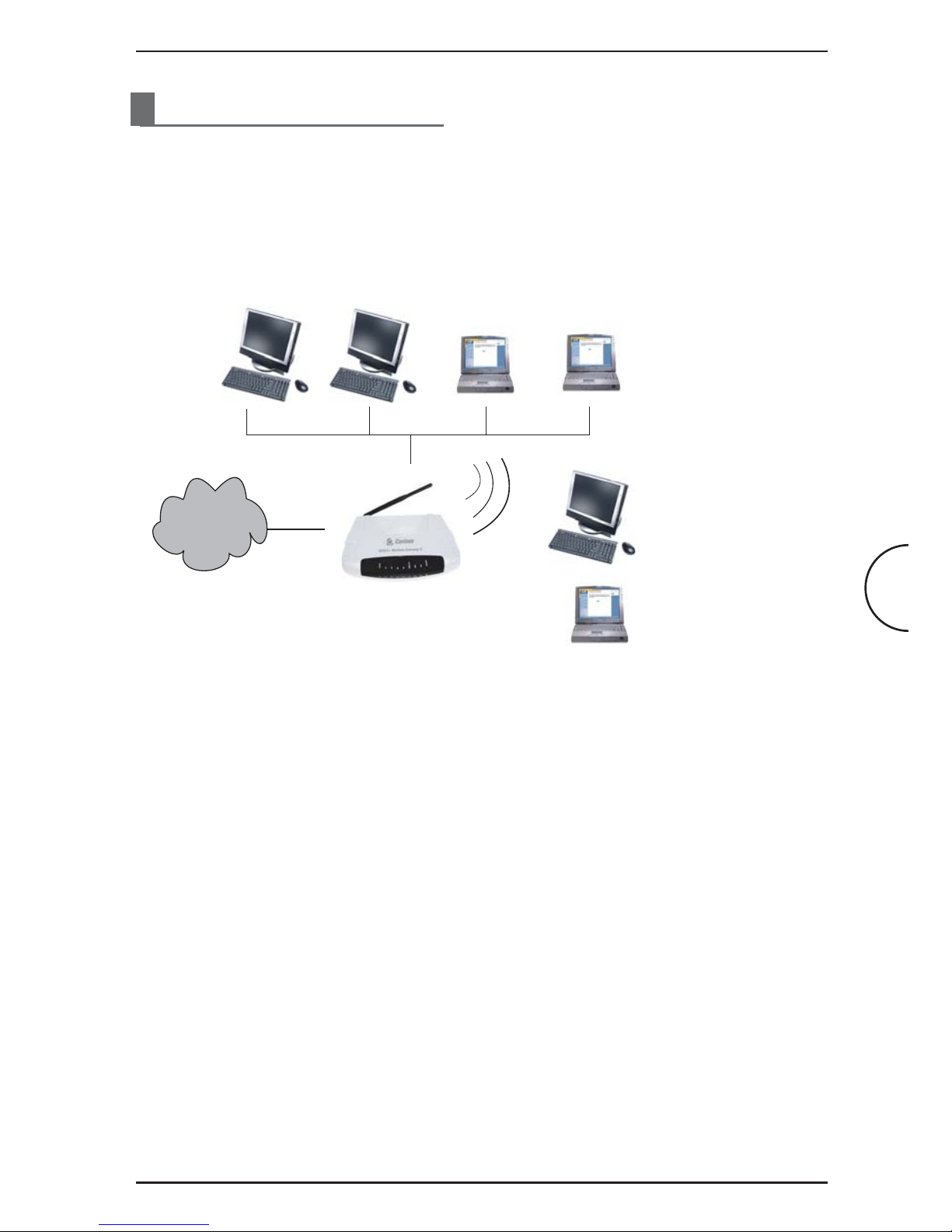
The following chapters explain how to install and configure your Corinex ADSL2+
Wireless Gateway G in a few easy steps.
#OMPUTERSOR.OTEBOOKSWITH
%THERNET.ETWORK#ARDS
#OMPUTERSOR.OTEBOOKSWITH
7IRELESS0##ARDSOR53"#LIENT
!$3,7IRELESS'ATEWAY'
!$3,

9
3 Connecting the Gateway to Your Computer
This chapter gives step-by-step instructions on how to connect your computer to
the gateway, connect the gateway to your ADSL line, and finally, to turn on all the
devices.
3.1 Connecting to the Ethernet
Connect your computer(s) to the ADSL2+ Wireless Gateway G by plugging one
end of the supplied Ethernet cable (RJ45) to the network card of your computer,
and the other end of the cable to one of the gateway’s four Ethernet LAN ports
(E1~E4).
NOTE: If you want to connect more computers to the gateway via Ethernet
cables, follow the same procedure as described above. Please note that if you
want to connect more than four computers in this way, an additional device
(a switch or a hub) is required.
3.2 Connecting to the ADSL Line
To connect the gateway to the ADSL line, please use the supplied telephone cable
(RJ11). Plug one end of the cable to the DSL port of the gateway, and plug the other
end of the telephone cable into the telephone socket in the wall. If you want to plug
a phone in at the same location, you will need to use a POTS splitter.
A POTS Splitter (with built-in Microfilter) is a device that allows you to connect both
your telephone cable and telephone set to the same wall socket. At the same time,
this splitter helps to eliminate background noise on the telephone line, ensuring the
best possible phone performance.
3.3 Connecting to the Power Outlet and Powering On
1. Connect the supplied power supply cable to the DC 9V port on the gateway.
2. Plug the power adapter into the electrical outlet.
3. Power on the gateway by toggling the POWER switch into position I.
4. Start up all computers in the network.
Connecting the Gateway to Your Computer
Corinex ADSL2+ Wireless Gateway G
Autres manuels pour ADSL2+ Wireless Gateway G
1
Table des matières
Autres manuels Corinex Porte
Manuels Porte populaires d'autres marques

LST
LST M500RFE-AS Manuel utilisateur

Kinnex
Kinnex Media Gateway Manuel utilisateur

2N Telekomunikace
2N Telekomunikace 2N StarGate Manuel utilisateur

Mitsubishi Heavy Industries
Mitsubishi Heavy Industries Superlink SC-WBGW256 Manuel utilisateur

ZyXEL Communications
ZyXEL Communications ZYWALL2 ET 2WE Manuel utilisateur

Telsey
Telsey CPVA 500 - SIP Manuel utilisateur