CCV Mobile Premium Manuel utilisateur

VERSION: 2.0
DATE: 02/2023
Quick Start Guide
POS TERMINAL
CCV

Quick Start Guide ― POS Terminal CCV
VERSION: 2.0
DATE: 02/2023
COMPUTOP PAYGATE GMBH | SCHWARZENBERGSTR. 4 | 96050 BAMBERG, GERMANY
TEL: +49 951 98009-0 | FAX: -30 | WWW.COMPUTOP.COM | HRB 3400 –AG BAMBERG
2
Table of contents
1. INTRODUCTION.....................................................................................................3
2. BASICS ....................................................................................................................4
2.1 POS TERMINAL ID ....................................................................................................... 4
2.2 SERVICE MENU ............................................................................................................ 4
2.3 SERVER CONFIGURATION PARAMETERS ................................................................. 5
2.3.1 IP PARAMETERS....................................................................................................... 5
2.3.2 CELLULAR NETWORK PARAMETERS ..................................................................... 5
3. POS TERMINAL STARTUP ......................................................................................6
3.1 STARTUP PROCEDURE................................................................................................ 6
3.2 SETTING UP COMMUNICATION MODULES........................................................... 12
3.2.1 LAN CONFIGURATION.......................................................................................... 13
3.2.2 WI-FI CONFIGURATION........................................................................................ 17
3.2.3 CELLULAR NETWORK CONFIGURATION............................................................ 21
3.2.4 ANDROID NETWORK CONFIGURATION ............................................................ 25
3.3 REGISTER INTERFACE (OPTIONAL)......................................................................... 29
3.4 ENERGY-SAVING MODE............................................................................................ 36
3.5 FACTORY SETTINGS .................................................................................................. 39
4. OVERVIEW OF MENU STRUCTURE ......................................................................43

Quick Start Guide ― POS Terminal CCV
VERSION: 2.0
DATE: 02/2023
COMPUTOP PAYGATE GMBH | SCHWARZENBERGSTR. 4 | 96050 BAMBERG, GERMANY
TEL: +49 951 98009-0 | FAX: -30 | WWW.COMPUTOP.COM | HRB 3400 –AG BAMBERG
3
1. Introduction
This Quick Start Guide will assist you with installation and support of the POS solution used by
Computop.
The CCV POS terminals used by Computop are based on PCI-certified hardware from the
manufacturer PAX. For a smoother user experience, the menu navigation is generally
standardized. There may be deviations due to technical expansions and functional
enhancements that may result from these changes.
The hardware installation and the hardware description of the POS terminal are not part of
this guide.

Quick Start Guide ― POS Terminal CCV
VERSION: 2.0
DATE: 02/2023
COMPUTOP PAYGATE GMBH | SCHWARZENBERGSTR. 4 | 96050 BAMBERG, GERMANY
TEL: +49 951 98009-0 | FAX: -30 | WWW.COMPUTOP.COM | HRB 3400 –AG BAMBERG
4
2. Basics
2.1 POS terminal ID
Each POS terminal has a unique POS terminal ID. The POS terminal ID is linked to the
associated device serial number.
Only the unique serial number of a terminal can be activated using the associated POS
terminal ID.
2.2 Service menu
The service menu of the terminal is protected by a PIN. This is:
Note: Please share this information/PIN only with those employees who need it.
In the protected area of the service menu, basic settings on the POS terminal can be changed.
In the event of incorrect configuration, this can lead to the terminal no longer working
correctly or no longer being ready for operation.
There are three menu authorization classes
•Cashier → PIN:
•Manager (contains cashier-level menu items) → PIN:
•Technician (all menu functions available) → PIN:
Depending on the menu PIN entered, only the menu items permitted for that authorization
class are displayed.

Quick Start Guide ― POS Terminal CCV
VERSION: 2.0
DATE: 02/2023
COMPUTOP PAYGATE GMBH | SCHWARZENBERGSTR. 4 | 96050 BAMBERG, GERMANY
TEL: +49 951 98009-0 | FAX: -30 | WWW.COMPUTOP.COM | HRB 3400 –AG BAMBERG
5
2.3 Server configuration parameters
Subsequent connection data may have to be taken into account on the firewall to ensure
successful connection to the server.
2.3.1 IP parameters
Live host connection data
•IP: 80.72.139.165
•Port: 9015
TEST host connection data
•IP address: 217.86.142.9
•Port: 9023
2.3.2 Cellular network parameters
A SIM card from TNS must be inserted in the terminal for use. The data for the TNS SIM card
are transferred automatically when the terminal is booted.
Connection data for cellular network
•Provider: TNS
•Access Point Name: m2m.tns.prod1
•APN user name: (empty)
•APN password: (empty)

Quick Start Guide ― POS Terminal CCV
VERSION: 2.0
DATE: 02/2023
COMPUTOP PAYGATE GMBH | SCHWARZENBERGSTR. 4 | 96050 BAMBERG, GERMANY
TEL: +49 951 98009-0 | FAX: -30 | WWW.COMPUTOP.COM | HRB 3400 –AG BAMBERG
6
3. POS terminal startup
New POS devices are usually delivered to the retailer pre-configured. For this reason, there
is generally no need to start up the POS terminal. All that is necessary is to set up
a communication module for operation via LAN or wireless LAN (WLAN). A device with a SIM
card is pre-configured and ready for use.
POS terminal startup is mandatory if the device has been reset to factory settings or if the
device was delivered unconfigured.
3.1 Startup procedure
Language selection
Various languages are available for language selection. English was selected for the
description.

Quick Start Guide ― POS Terminal CCV
VERSION: 2.0
DATE: 02/2023
COMPUTOP PAYGATE GMBH | SCHWARZENBERGSTR. 4 | 96050 BAMBERG, GERMANY
TEL: +49 951 98009-0 | FAX: -30 | WWW.COMPUTOP.COM | HRB 3400 –AG BAMBERG
7
TID entry
Here, enter the terminal ID you received with the onboarding information.
Reentering the TID
Reenter the terminal ID to confirm.
Register
To connect to a register, select “Yes” (green check mark). Otherwise, select “No” (red X). The
configuration for register operation can be found under the register interface (optional).

Quick Start Guide ― POS Terminal CCV
VERSION: 2.0
DATE: 02/2023
COMPUTOP PAYGATE GMBH | SCHWARZENBERGSTR. 4 | 96050 BAMBERG, GERMANY
TEL: +49 951 98009-0 | FAX: -30 | WWW.COMPUTOP.COM | HRB 3400 –AG BAMBERG
8
Selecting host communication
Please proceed with communication module setup as described in Setting up
communication modules.
Startup
Wi-Fi can still be set up if the wireless LAN (WLAN) communication module is also present in
the terminal, Wi-Fi can still be set up.
The terminal now tries to dial up and it checks the network settings.

Quick Start Guide ― POS Terminal CCV
VERSION: 2.0
DATE: 02/2023
COMPUTOP PAYGATE GMBH | SCHWARZENBERGSTR. 4 | 96050 BAMBERG, GERMANY
TEL: +49 951 98009-0 | FAX: -30 | WWW.COMPUTOP.COM | HRB 3400 –AG BAMBERG
9
Note:
When starting up after the factory setting, a successful connection must have been
established so that all necessary data could be loaded. If this is not successful, the terminal is
not ready for use.
Startup
Confirm the query by selecting the green check mark.
Please wait
An attempt is now made to establish a connection to the server.

Quick Start Guide ― POS Terminal CCV
VERSION: 2.0
DATE: 02/2023
COMPUTOP PAYGATE GMBH | SCHWARZENBERGSTR. 4 | 96050 BAMBERG, GERMANY
TEL: +49 951 98009-0 | FAX: -30 | WWW.COMPUTOP.COM | HRB 3400 –AG BAMBERG
10
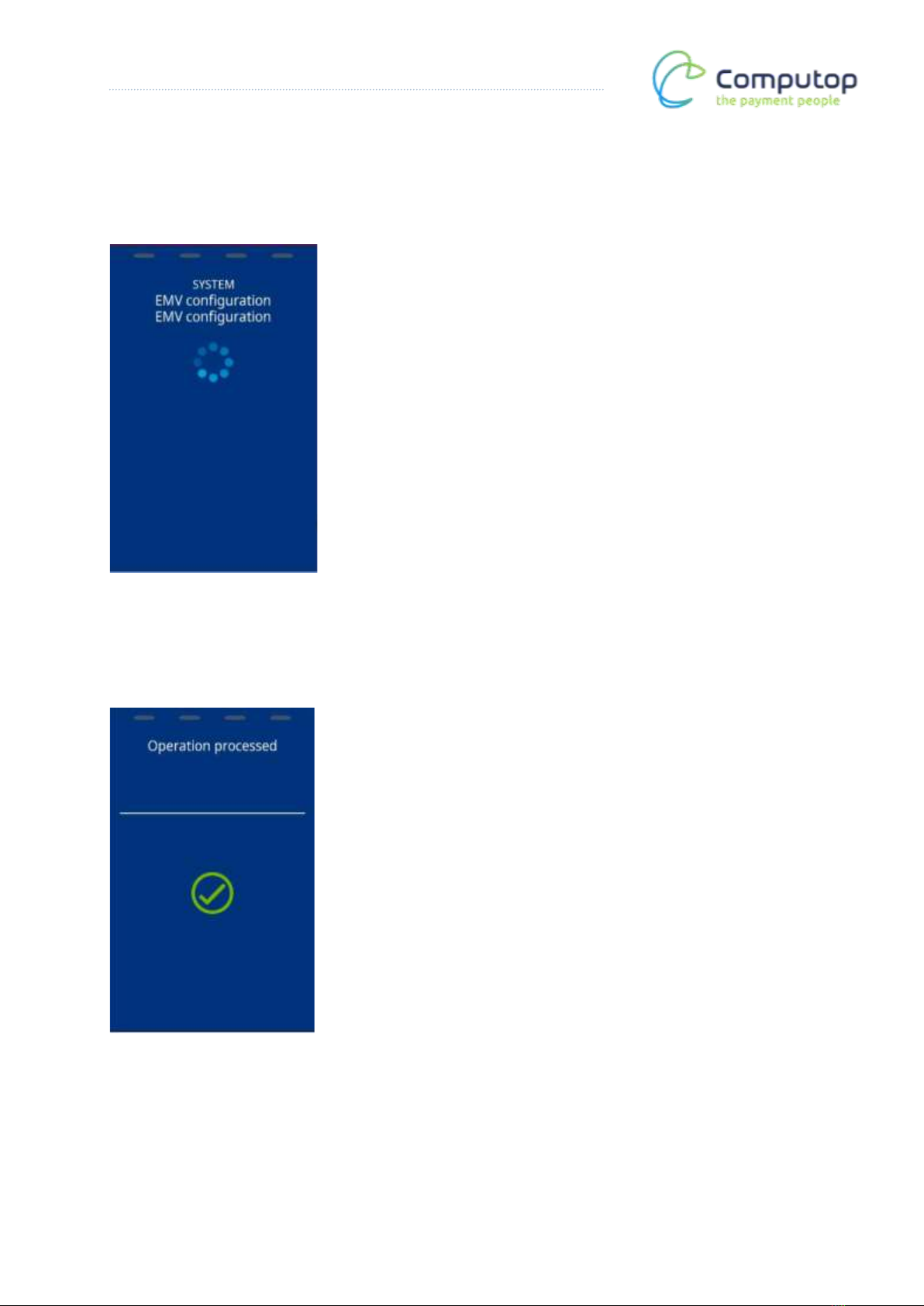
EMC configuration and diagnosis
An EMC diagnosis is now carried out and all configuration settings for card processing are
loaded.
Operation performed
Startup is now complete.
Autres manuels pour Mobile Premium
3
Ce manuel convient aux modèles suivants
1
Table des matières
Autres manuels CCV Terminal tactile
Manuels Terminal tactile populaires d'autres marques

Wincor Nixdorf
Wincor Nixdorf iPOS plus Advanced Manuel utilisateur

Ingenico
Ingenico AXIUM EX4000 Manuel utilisateur

Heisei Electronics
Heisei Electronics Q-POS 815 Manuel utilisateur

Amano
Amano MTX-15 Manuel utilisateur

FLOWBIRD
FLOWBIRD CWT Compact Touch Manuel utilisateur

Demco
Demco SP7 Manuel utilisateur