
BOXLIGHT ProColor 652U Manuel utilisateur

ProColor 652U, 702U, 752U, & 862U
BOXLIGHT.COM
ProColor Series1
User Guide
2nd
Edition

2 | USER GUIDE ProColor 652U, 702U, 752U 862U
Contents
General
Safety Warning & Statements 3
Control Panel 4
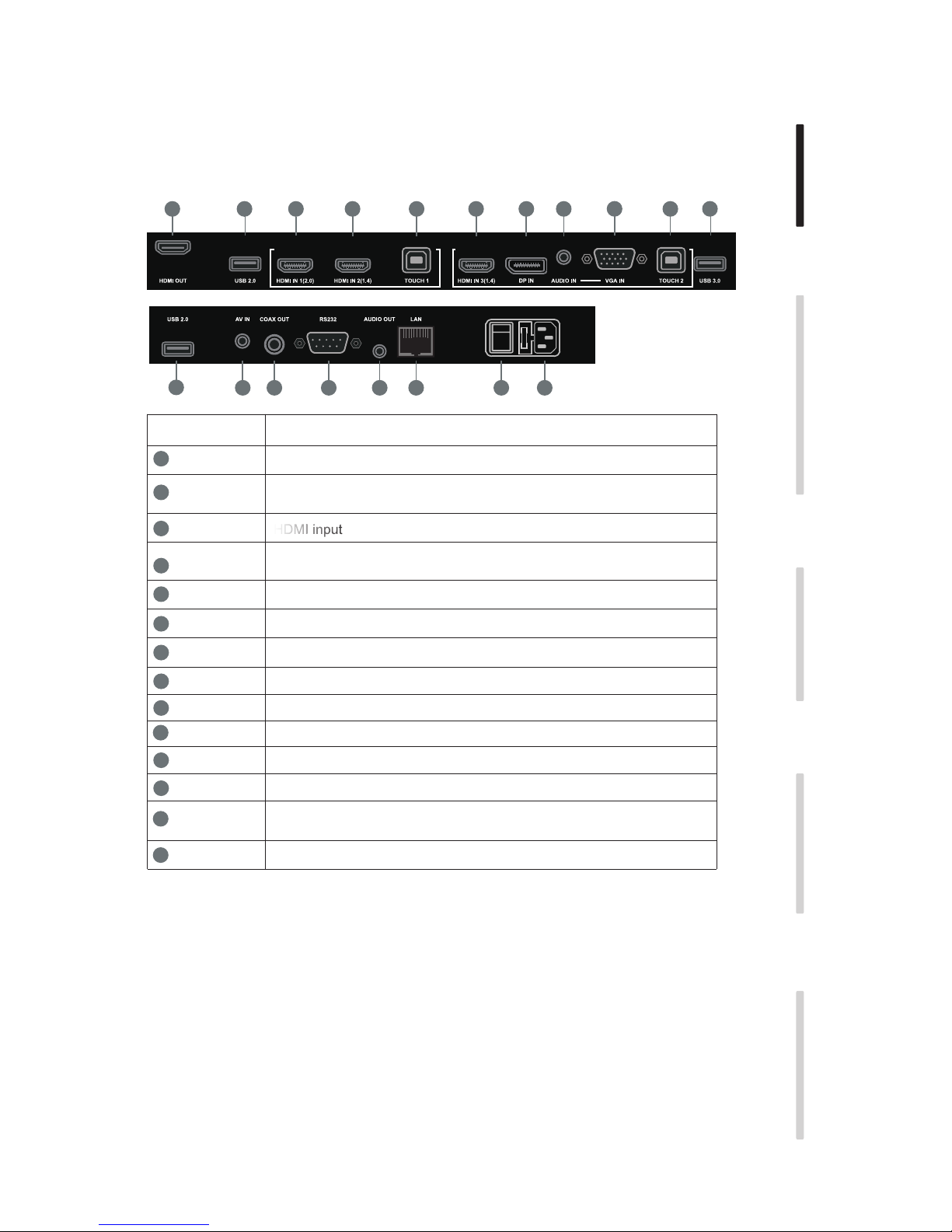
Connector Panel 5
Remote Control 6
Setup 9
Settings 13
Simple Troubleshooting 16
Maintenance 17
Android
Introduction 18
Sidebar 19
Note 22
File Finder 27
Camera/Visualizer 31
Settings 32
Cloud Drive 34
Screen Lock 34

USER GUIDE ProColor 652U, 702U, 752U 862U | 3
BOXLIGHT.COM
Safety Warning
Placement
Do not place the unit on an unstable cart, stand, tripod, bracket, table, or shelf.
Do not expose the unit to direct sunlight and other sources of heat.
Do not put the unit near appliances that generate magnetic fields.
Do not put any liquid near or on the unit, make sure do not spill any liquid inside the unit.
Do not put heavy objects on top of the unit.
Power Supply
Check that the unit’s operating voltage is identical with your local power supply.
Please unplug power supply and antenna plug when the weather is thunder-storm or lightning.
Please unplug power supply, when there is nobody home or the unit will be in idle for a long time.
Please keep power cable from physical or mechanical damage.
Please use the original power cable from the accessory bag, don't modify or lengthen it.
Please check and ensure AC source is connected with the ground.
This power cable comes with the device exclusively for this device only.
LED Screen
Never use any other hard or sharp object to replace the touch pen.
Unplug the power cable before cleaning.
Clean the screen with a soft, dustless and dry cloth.
Never use water or the spray type detergent to clean the unit.
For deep clean, please contact an authorized service center.
To extend the panel life and display performance, do not keep the panel at high brightness for long periods of time.
Temperature
Do not place the unit near or over a radiator or a heater.
If your unit is suddenly moved from a cold to a warm place, please unplug the power cable and do not turn it on at least 2 hours,
making sure the moisture inside the unit is all evaporated.
Normal operating temperature is 0 ~ 40℃.
Humidity
Do not expose the unit in rain, or place in high humidity area.
Please make sure indoor environment is dry and cool.Normal operating humidity is 10%~90%RH.
Ventilation
Please put the unit in a well ventilated place, so the heating can be released easily.
Ensure that the unit has enough space for ventilation. Space requirement: left, right and back >10cm, top> 20cm.
Earphone
Extended time periods listening to loud sounds can be damaging to your ears.
Before using earphone, please turn down the volume in advance.
Standby
It will enter standby mode but not turn off the unit after press the standby key.
Battery
Please make sure the battery get proper disposal or recycle after using.
Please keep the battery away from kids and don't throw the battery into fire.
Notes for Cleaning
There are vents on back cover, please do not use any liquid or spray directly during cleaning.
Power Switch Status Signs
“I” means power on, “O” means power off.
Notes for Maintenance
This machine can only be maintained by certified engineer.

4 | USER GUIDE ProColor 652U, 702U, 752U 862U
1. Control Panel
Prepare to Install
2
Installation Connecting and Setting Menu Operation Troubleshooting Care Maintenance
HOME button: displays home page
Return button: return to previous level menu
Menu button: brings up function menu
Volume down button: lowers volume
USB interface to Android & PC system
InfraRed receive port for remote control. Do not block or obstruct.
Volume up button: raises volume
Items Function description
Remote control
signal receiver
Tap to enter EnergySaving function
Press at least 2 seconds to enter standby mode
USB USB USB
USB
USER GUIDE ProColor 652U, 702U, 752U 862U | 5
BOXLIGHT.COM
2. Connector Panel
3
Installation Connecting and Setting Menu Operation Troubleshooting Care Maintenance
Items Function description
Connect USB devices such as mobile hard disk, U disk, USB keyboard
and mouse, USB drives, etc.
Line level audio input
VGA input
Touch signal output for connection to external computer
Composite video + audio input - 3.5mm 4-conductor
Digital audio output - “RCA” connector
RJ-45 connector
Control interface
AC power input
LAN
USB
HDMI IN
AUDIO IN
VGA IN
TOUCH
AV IN
COAX OUT
RS-232
Master power switch
13
12
11
10
9
8
7
6
5
4
3
2
1
AC IN
HDMI input
LAN
5 63
4
12337 4 2
28 9 10 11 12 13 14
HDMI OUT Displays whatever is on the screen, including Android annotation.
DP DisplayPort input
AUDIO OUT Output to an external amplifier and speaker
14
AC SWITCH
HDMI = High-definition multimedia interface

6 | USER GUIDE ProColor 652U, 702U, 752U 862U
3. Remote Control
4
Installation Connecting and Setting Menu Operation Troubleshooting Care Maintenance
1) Remote control button instruction

USER GUIDE ProColor 652U, 702U, 752U 862U | 7
BOXLIGHT.COM
Installation Connecting and Setting Menu Operation Troubleshooting Care Maintenance
Detailed Function Description
Power on/off
Mute audio
(Built-in computer Windows key
Built-in computer Space key
Built-in computer spacebar Alt + Tab
Built-in computer program window close button
Numeric keys Numeric input keys
Shows the name of the currently selected input and its resolution
Input signal source select
Android system Home
Settings menu
Disables touch and control panel functions
Disables control panel functions
Disables touch function
Activates zoom function, use buttons to adjust
Blanks the screen
Backspace key
Up key
Left key
Right key
Down key
Confirmation key
Starts annotation app
Return key
Built-in computer page (previous page)
Built-in computer page (next page)
Volume raise/lower
Built-in computer F1 - F12 function keys
NOTE: If there is no built-in computer all related function keys will have no operating function.
No function at this time
Display
Input
Home
Menu
Red
Green
Yellow
Blue
Enter
Back
PgUp
PgDn
CH.+ \ CH-.
VOL+ \ VOL-
F1-F12
No function at this time
Alt+Tab
Space
Alt+F4

8 | USER GUIDE ProColor 652U, 702U, 752U 862U
Install Batteries
(1) Open battery compartment cover on the back of the remote control
(2) Install AAA type battery with correct polarity. Do not mix using old and new batteries
(3) After batteries are installed, replace the cover
Range of remote control
2) Remote Control Instruction
The remote control will operate normally within the range of 8 m (25’), and within
30 degrees left and right from the remote control receiver.
Always dispose of batteries in an environmentally friendly manner.
6
Installation Connecting and Setting Menu Operation Troubleshooting Care Maintenance
Only use the specified battery type. Using another type can damage
the remote control and may cause the battery to burst.

USER GUIDE ProColor 652U, 702U, 752U 862U | 9
BOXLIGHT.COM
Setup
For safety reasons do not connect power until all connections are complete.
1.A. External Computer Digital Audio/Video plus Touch Connection
1.B. External Computer Analog Audio/Video plus Touch Connection
Installation Connecting and Setting Menu Operation Troubleshooting Care Maintenance
Audio Cable
VGA Cable
USB Cable
Computer
DisplayPort Cable
USB Cable
HDMI Cable
Computer
Use only one cable
HDMI or DP
The best image and sound quality will be through digital connection using HDMI or DisplayPort

10 | USER GUIDE ProColor 652U, 702U, 752U 862U
8
Installation Connecting and Setting Menu Operation Troubleshooting Care Maintenance
Video Game Set-top
Satellite TV receiver
Video recorder
Camera
DVD
AV Cable
2. Audio and Video Equipment
HDMI Cable
DVD Disc Player
1) Analog Accessory Connection
2) HDMI Accessory Connection
Autres manuels pour ProColor 652U
1
Ce manuel convient aux modèles suivants
3
Table des matières
Manuels Porte populaires d'autres marques

LST
LST M500RFE-AS Manuel utilisateur

Kinnex
Kinnex Media Gateway Manuel utilisateur

2N Telekomunikace
2N Telekomunikace 2N StarGate Manuel utilisateur

Mitsubishi Heavy Industries
Mitsubishi Heavy Industries Superlink SC-WBGW256 Manuel utilisateur

ZyXEL Communications
ZyXEL Communications ZYWALL2 ET 2WE Manuel utilisateur

Telsey
Telsey CPVA 500 - SIP Manuel utilisateur


