
Bogen NYQUIST NQ-GA10P Manuel utilisateur

VoIP Intercom Module
Configuration Guide
NQ-GA10P, NQ-GA10PV
© 2021 Bogen Communications LLC
All rights reserved.
740-00068C
230420

i
Contents
Configuring the Nyquist VoIP Intercom Module . . . . . . . . . . . . . . . . . . . . . . . . . . . . 1
Using the Dashboard . . . . . . . . . . . . . . . . . . . . . . . . . . . . . . . . . . . . . . . . . . . . . . . . . . . . . . . .3
Standalone Operation . . . . . . . . . . . . . . . . . . . . . . . . . . . . . . . . . . . . . . . . . . . . . . . . . . . . . . . .4
Updating Firmware . . . . . . . . . . . . . . . . . . . . . . . . . . . . . . . . . . . . . . . . . . . . . . . . . . . . . . . . . .5
Network Settings Tab Parameters . . . . . . . . . . . . . . . . . . . . . . . . . . . . . . . . . . . . . . . . . . . . .7
Configuration Settings Tab Parameters . . . . . . . . . . . . . . . . . . . . . . . . . . . . . . . . . . . . . . . .10
Standalone Operation Configuration Settings . . . . . . . . . . . . . . . . . . . . . . . . . . . . . . . .12
Accessing Log Files . . . . . . . . . . . . . . . . . . . . . . . . . . . . . . . . . . . . . . . . . . . . . . . . . . . . . . . . .16
Appendix A: Bogen Digital Certification Authority . . . . . . . . . . . . . . . . . . . . . . . . . 19
Installing the Bogen Digital Certification Authority . . . . . . . . . . . . . . . . . . . . . . . . . . . . . .19
Installing Certification Authority on Windows System . . . . . . . . . . . . . . . . . . . . . . . . .19
Installing Certification Authority on Mac System. . . . . . . . . . . . . . . . . . . . . . . . . . . . . .20
Installing Certification Authority on an Android Device . . . . . . . . . . . . . . . . . . . . . . . .21
Installing Certification Authority on an iOS Device . . . . . . . . . . . . . . . . . . . . . . . . . . . .21
Viewing the Certificate . . . . . . . . . . . . . . . . . . . . . . . . . . . . . . . . . . . . . . . . . . . . . . . . . . . .21

1
Configuring the Nyquist VoIP Intercom
Module
Bogen’s plenum-rated Nyquist Voice over Internet Protocol (VoIP) intercom modules
transform any low-impedance analog speaker into a full-featured Power-over-Ethernet
(PoE) IP speaker. The modules use the latest technology to deliver superior audio quality,
making them perfect for IP paging and audio distribution. The built-in talkback capability
allows these modules to be used in VoIP intercom applications.
These 10W single-channel intercom modules are available with (NQ-GA10PV) or without
(NQ-GA10P) an HDMI video output, depending upon the application needs. They also
offer a CAN bus interface to work with the NQ-E7020 Digital Call Switch and a Form-C
relay for controlling third-party devices (e.g., A/V override).
When paired with Bogen’s ANS500M microphone module (optional), these intercom
modules can be turned into an ambient noise sensor to help maintain paging and back-
ground music intelligibility in high-noise environments. Alternatively, it can be paired
with the Bogen DDU250 Dynamic Desktop Microphone and configured as a push-to-talk
microphone station, allowing it to perform a preconfigured zone page or All-Call page
(including Emergency and Multi-Site).
If an HDMI video device is attached, this device can display messages and images sent by
a Nyquist server, as well as a digital or analog clock. These messages can be used for
scheduled announcements, emergency instructions, automatically triggered messages,
simple ad-hoc messages, or many other purposes. If a Nyquist server is not present, the
device will display an analog clock. For further information on displaying and scheduling
messages, see the “Managing GA10PV Display Messages” section of the Nyquist System
Administrator Guide.
The Nyquist server or System Controller can automatically discover and configure the
VoIP intercom module, but you can also manage the device, and manually configure
some settings, through the VoIP Intercom Module’s web-based user interface (web UI).
A two-second press of the appliance’s Reset button reboots the device. If you press the
Reset button for 10 seconds, the appliance returns to the factory default configuration
settings. Returning to the default configuration settings does not change the appliance’s
firmware.
The following sections describe the process for manual configuration. For information
about using Nyquist’s automatic configuration process, refer to the appropriate Nyquist
System Administrator Guide.
Note: Do not use third-party Chrome browser extensions with the Nyquist user interface.
2
To access the appliance’s Web-based user interface (UI):
1Before accessing the web UI for the first time, the Bogen Certification Authority (CA)
digital certificate must be installed on the client. This certificate can be downloaded
from any Nyquist appliance and enables your browser to recognize the Nyquist web
application as a trusted site.
For details on how to download and install the certificate to your client computers,
see "Installing the Bogen Digital Certification Authority” on page 19.
2Access the appliance’s web UI by doing one of the following:
a) On your web browser, enter the IP address for the appliance as the URL.
b) From the Nyquist server’s web UI navigation bar, select Stations, select Stations
Status or Appliance Status, navigate to the device that you want to configure,
and then select the Link icon.
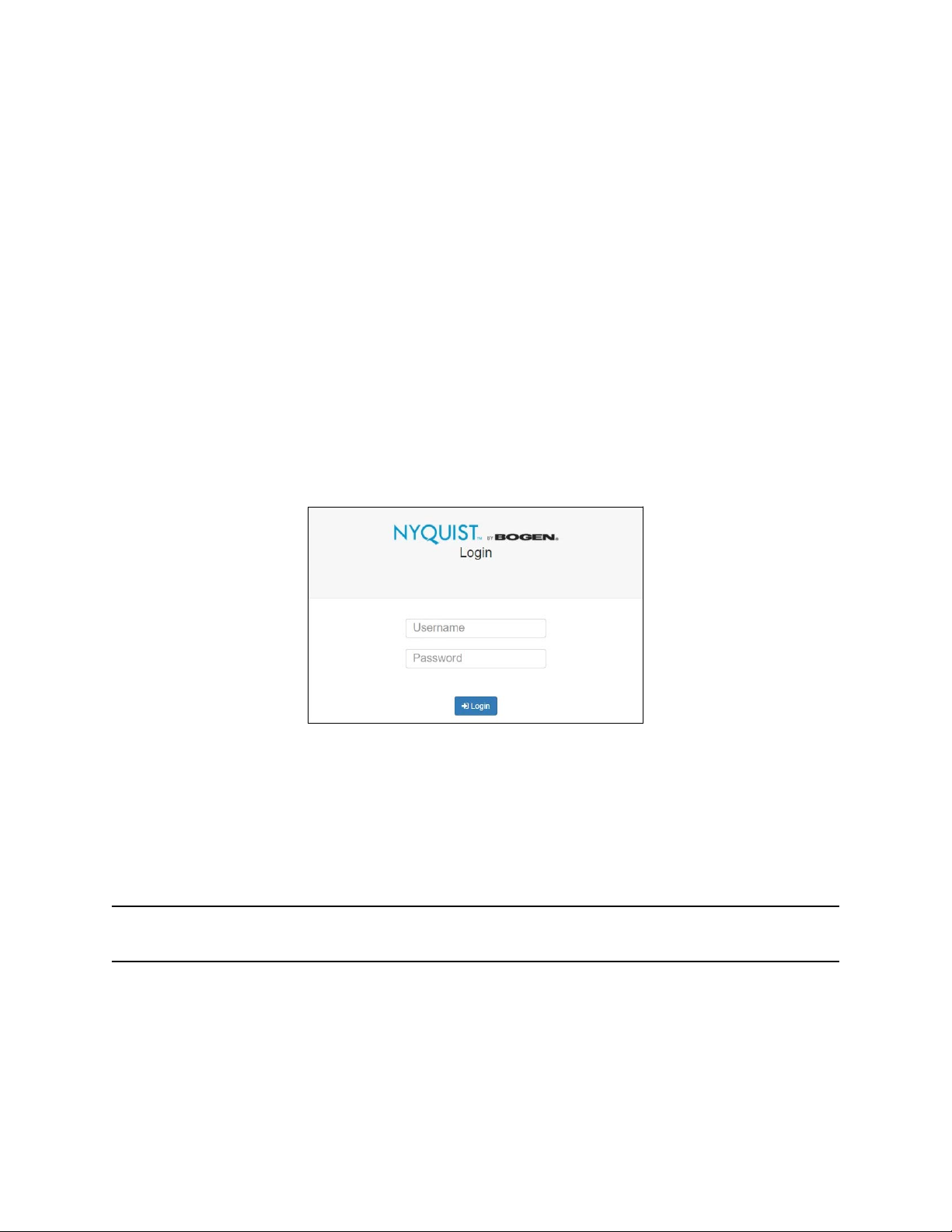
3At the Nyquist appliance’s Login page, enter username and password, then press
enter or click on the Login button.
The default username is admin; the default password is bogen.
Note: After a successful login, a warning will be displayed if the default password is still in
use. We strongly encourage changing the default password as soon as possible.
When you have logged in successfully, you will be presented with the dashboard for the
appliance.
Figure 1. Nyquist Appliance Login

3
Using the Dashboard
The dashboard displays the following fields:
The following buttons are available at the top of all pages in the application.
Figure 2. Intercom Module Dashboard
Table 1. Appliance Dashboard Fields
Device Type Identifies the model of this device.
Serial Number Identifies the serial number for the device.
MAC Address Identifies the Media Access Control (MAC) address,
which is a unique identifier assigned to network inter-
faces for communications on the physical network seg-
ment.
Firmware Version Identifies the firmware version installed on the device.
Relay Trigger Status When enabled in Configuration Settings, this field
indicates the status of the NO/NC output relay, which is
activated whenever an audio signal is being sent to the
speaker output.
Standalone Operation Enables or disables Standalone mode.

4
Standalone Operation
This device can also run in Standalone Operation mode, where it will not interact with a
Nyquist server (e.g., E7000 or C4000). This means the device will not:
• Fetch device configuration from Nyquist server
• Register with Nyquist server (via SIP)
• Store backup information to Nyquist server
• Allow access to Nyquist server-based NTP
• Display messages or images from the Nyquist server
Standalone Operation allows this device it to be used without a Nyquist server as a
generic SIP endpoint when integrated with a 3rd-party VoIP telephone system or other
SIP server-based solutions, such as a unified communications (UC) platform. In a non-SIP
environment, these devices are capable of receiving audio through one or more priori-
tized multicast channels.
Table 2. Appliance Dashboard Buttons
Dashboard Displays the dashboard.
Configuration Settings Accesses the Configuration Settings page where you can
view and set various options. If Standalone Operation is
not enabled, you can also receive configuration settings
from a Nyquist server.
Network Settings Accesses the Network Settings page where you can view
and set network settings, such as the static IP address.
Firmware Update Accesses the Firmware Update page where you can view
the current Nyquist version, update firmware to a new
version, restore the configuration to factory defaults,
and reboot the appliance.
Logs Accesses log files, which record either events or mes-
sages that occur when software runs and are used when
troubleshooting the appliance.
Help Accesses the appliance’s online help.
Manual Displays this appliance’s configuration guide.
Logout Logs out of the appliance’s web UI.

5
Updating Firmware
When you select Firmware Update from the appliance’s web UI, the Firmware Update
page appears. From this page you can determine which Nyquist firmware version the
appliance is using and if an update is available. You can also load a firmware release,
install the loaded firmware, restore the configuration to factory defaults, and reboot the
appliance.
Note: A Nyquist appliance connected to the Nyquist network receives a configuration file
from the Nyquist server that includes the latest firmware available from the server. If the
firmware is different from the one installed on the appliance, an automatic firmware
update occurs unless the Firmware parameter for the station is left blank. Refer to the
Nyquist System Administrator Guide for more information.
To use the Firmware Update page:
1On the appliance web UI’s main page, select Firmware Update to view or update the
firmware version.
• If the device is in Standalone mode, the Check for Updates button will be shown.
Selecting it checks the Bogen website for the latest firmware version available. If a
Note: Some buttons only appear on this page when applicable.
Figure 3. Firmware Update Page

6
version newer than the one currently installed is found, it is downloaded to the
appliance and the Update Firmware button will be shown.
• If you already have a firmware file you would like to install to the appliance, select
Upload Firmware to upload the firmware file from your computer to the appli-
ance. A popup screen appears that allows you to select the file that you want to
upload. You can navigate to the file’s location. After you select the file, select
Upload.
The page displays the uploaded firmware version (“New Nyquist Version”) and an
Update Firmware button appears. Select this button if you want to update the
appliance’s firmware to the uploaded version.
• If you want to return your appliance to its original factory configuration, select
Restore Factory Settings.
• Select Reboot Appliance to restart your appliance.
Table 3. Firmware Update settings
Current Nyquist Version Shows the version of the appliance’s currently
installed firmware.
New Nyquist Version Shows the version of the firmware that has been
loaded, though not installed, onto the appliance.
Update Firmware Available only when a new firmware version has
been loaded onto the appliance (as specified in
New Nyquist Version).
Installs the loaded firmware. A reboot may be
required after installation.
Upload Firmware Prompts the user to specify a firmware file, which
will then be loaded (though not installed) onto the
appliance.
Note: To obtain the firmware file for a specific version, please
contact Bogen Technical Support.
Check for Updates Available only when the appliance is configured
for Standalone mode.
Checks the Bogen website for the latest firmware
version available and, if it finds a version newer
than what is currently installed, downloads it to
the appliance.
Note: Ensure your Nyquist appliance has network access to
bogen-ssu.bogen.com, port 22.

7
Network Settings Tab Parameters
Network settings can be configured dynamically by the Nyquist server or manually by
using the appliance’s web UI.
To manually configure network settings:
1On the appliance web UI’s main page, select Network Settings.
2Select your desired network settings.
3Select Save.
Restore Factory Settings Returns the appliance to its original factory con-
figuration.
Note: This does not install the original appliance firmware.
The firmware will not be changed.
Reboot Appliance Restarts the appliance.
Table 3. Firmware Update settings

8
Network settings are described in the following table:
Figure 4. Network Settings
Table 4. Network Settings
IP Address Identifies the IP address assigned to the appliance.
Netmask Identifies the subnetwork subdivision of an IP net-
work.
Gateway Identifies the address, or route, for the default gate-
way.
VLAN ID Identifies the Virtual Local Area Network (VLAN) for
this appliance. Values range from 0 to 4094.
VLAN Priority Identifies the priority of the network traffic on the
VLAN. Priority can range from 0 through 7.
Autres manuels pour NYQUIST NQ-GA10P
2
Ce manuel convient aux modèles suivants
1
Table des matières
Autres manuels Bogen Unité de contrôle


Manuels Unité de contrôle populaires d'autres marques

Festo
Festo Compact Performance CP-FB6-E Manuel de la liste des pièces

Elo TouchSystems
Elo TouchSystems DMS-SA19P-EXTME Manuel utilisateur

JS Automation
JS Automation MPC3034A Manuel utilisateur

JAUDT
JAUDT SW GII 6406 Series Guide rapide

Spektrum
Spektrum Air Module System Manuel utilisateur

BOC Edwards
BOC Edwards Q Series Manuel utilisateur


