
Allnet ALL0233 Manuel utilisateur

ALL0233
Wireless-N USB Dongle
User Guide

Table of Contents
CHAPTER 1 INTRODUCTION .............................................................................................1
Package Contents ..............................................................................................................1
Features..............................................................................................................................1
LEDs...................................................................................................................................1
Operation...........................................................................................................................2
CHAPTER 2 INITIAL INSTALLATION..............................................................................3
Requirements.....................................................................................................................3
Procedure...........................................................................................................................3
CHAPTER 3 USING THE WINDOWS UTILITY................................................................7
Overview ............................................................................................................................7
System Tray Icon...............................................................................................................7
Network Screen .................................................................................................................8
Link Status Screen ..........................................................................................................11
Profile Screen...................................................................................................................12
Advanced Screen.............................................................................................................17
Statistics Screen...............................................................................................................19
WMM Screen...................................................................................................................21
WPS Screen......................................................................................................................23
Radio on/off Screen.........................................................................................................25
About Screen....................................................................................................................26
APPENDIX A SPECIFICATIONS .......................................................................................27
Wireless-N USB Dongle ..................................................................................................27
APPENDIX B ABOUT WIRELESS LANS..........................................................................28
Modes ...............................................................................................................................28
BSS/ESS............................................................................................................................28
Channels...........................................................................................................................29
WEP & WPA-PSK..........................................................................................................29
WPA2-PSK ......................................................................................................................29
Wireless LAN Configuration..........................................................................................30
P/N: 956YMJ0030
Copyright ©2008. All Rights Reserved.
Document Version: 1.0 (2008)
All trademarks and trade names are the properties of their respective owners.
i

Chapter 1
Introduction
This Chapter provides an overview of the Wireless-N USB Dongle's features
and capabilities.
Congratulations on the purchase of your new Wireless-N USB Dongle. The Wireless-N USB
Dongle provides a wireless network interface for your Notebook or PC.
Package Contents
The following items should be included:
• The Wireless-N USB Dongle Unit
• Quick Start Guide
• CD-ROM containing the on-line manual.
If any of the above items are damaged or missing, please contact your dealer immediately.
Features
• Compatible with Draft IEEE 802.11n, 802.11b and 802.11g 2.4GHz
• Data transmission rate is up to 300Mbps
• Supports Turbo Mode which can enhance the data transmission rate within the specific
wireless network
• Supports WMM (Wi-Fi Multimedia) function (IEEE 802.11e QoS standard) and can meet
the requirement of the multi-media data bandwidth
• Supports 64/128-bit WEP, WPA (TKIP with IEEE802.1x) and WPA2 (AES with IEEE
802.1x) functions for high level security
• Supports CCS (Cisco Compatible Extensions) for the radio monitoring and fast roaming
• Automatic fallback which increases the data security and reliability
• Supports USB 2.0 interface
LED
Wireless-N USB Dongle
The Wireless-N USB Dongle has a single Link/Activity LED.
Link/Act LED
(Blue) • On - Associated with the network.
• Off - Not associated with the network.
• Blinking - Data being transferred.
1
1

Wireless-N USB Dongle User Guide
Operation
You should install the supplied software on the CD-ROM before inserting the Wireless-N
USB Dongle.
If you have any form of the wireless utility beforehand, please uninstall it.
2

2
Chapter 2
Initial Installation
This Chapter covers the software installation of the Wireless-N USB Dongle.
Requirements
• Windows 2000/XP/Vista.
• Available USB port.
• CD-ROM drive.
• IEEE802.11b, IEEE802.11g or IEEE802.11n wireless LAN.
Procedure
You should install the supplied software BEFORE inserting the Wireless-N USB Dongle.
1. Insert the CD-ROM into the drive on your PC.
2. The installation program should start automatically. If it does not, run the Setup.exe
program.
Figure 1: Start Installation
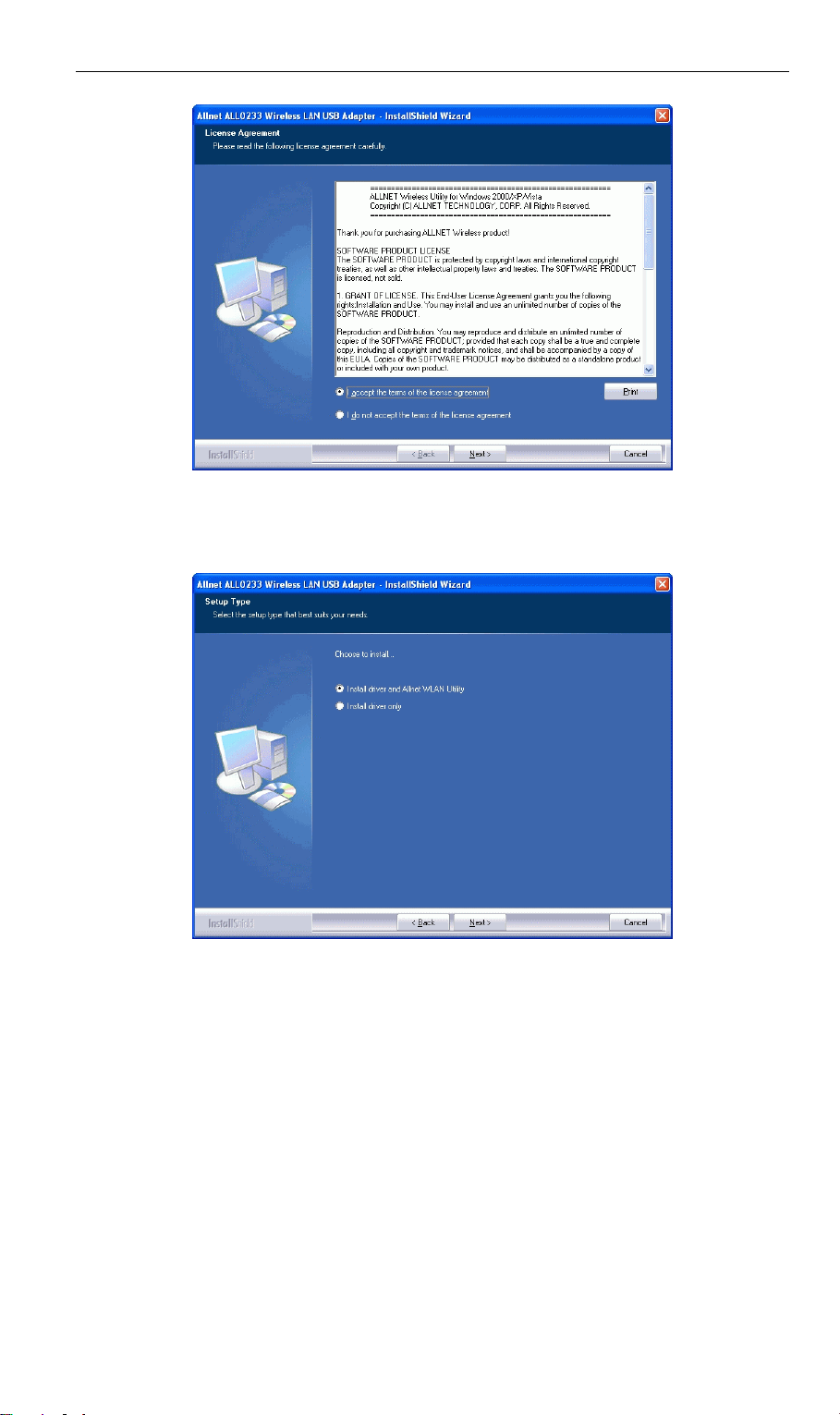
3. On the License Agreement screen, select I accept the terms of the license agreement.Click
Next.
3
Wireless-N USB Dongle User Guide
Figure 2: License Agreement Screen
4. Choose Install driver and Allnet WLAN Utility to install both the driver and Allnet utility
software, or Install driver only.
Figure 3: Setup Type Screen
5. Select either Allnet Configuration Tool or Microsoft Zero configuration Tool on the
following screen.
4

Initial Installation
Figure 4: Windows New Hardware Screen
6. On the following screen, click Install.
7. Click Finish to exit the Wizard.
8. Insert the Wireless-N USB Dongle firmly into USB port of the PC.
9. If the Wireless-N USB Dongle was installed properly, you will now have a new icon in
your system tray, as shown below.
Figure 5: System Tray Icon
5

Wireless-N USB Dongle User Guide
Wireless-N USB Dongle Icon Table
Connection to the Wireless-N USB Dongle is established. The length
of green color indicates the signal strength.
No connection to the Wireless-N USB Dongle.
The Wireless-N USB Dongle is unplugged.
10. You can double- click this icon to configure the Wireless interface. See the following
chapter for details.
6
3
Chapter 3
Using the Windows Utility
This Chapter provides Setup details for the AP mode of the Wireless-N USB
Dongle.
Overview
If using Windows, you can use the supplied utility to configure the Wireless interface.
To Use the supplied Windows utility for Configuration
• Double-click the Wireless Utility icon in the desktop.
• Click Start - Programs - Allnet-All0233 - Wireless Utility.
This Chapter assumes you are using the supplied Wireless utility.
System Tray Icon
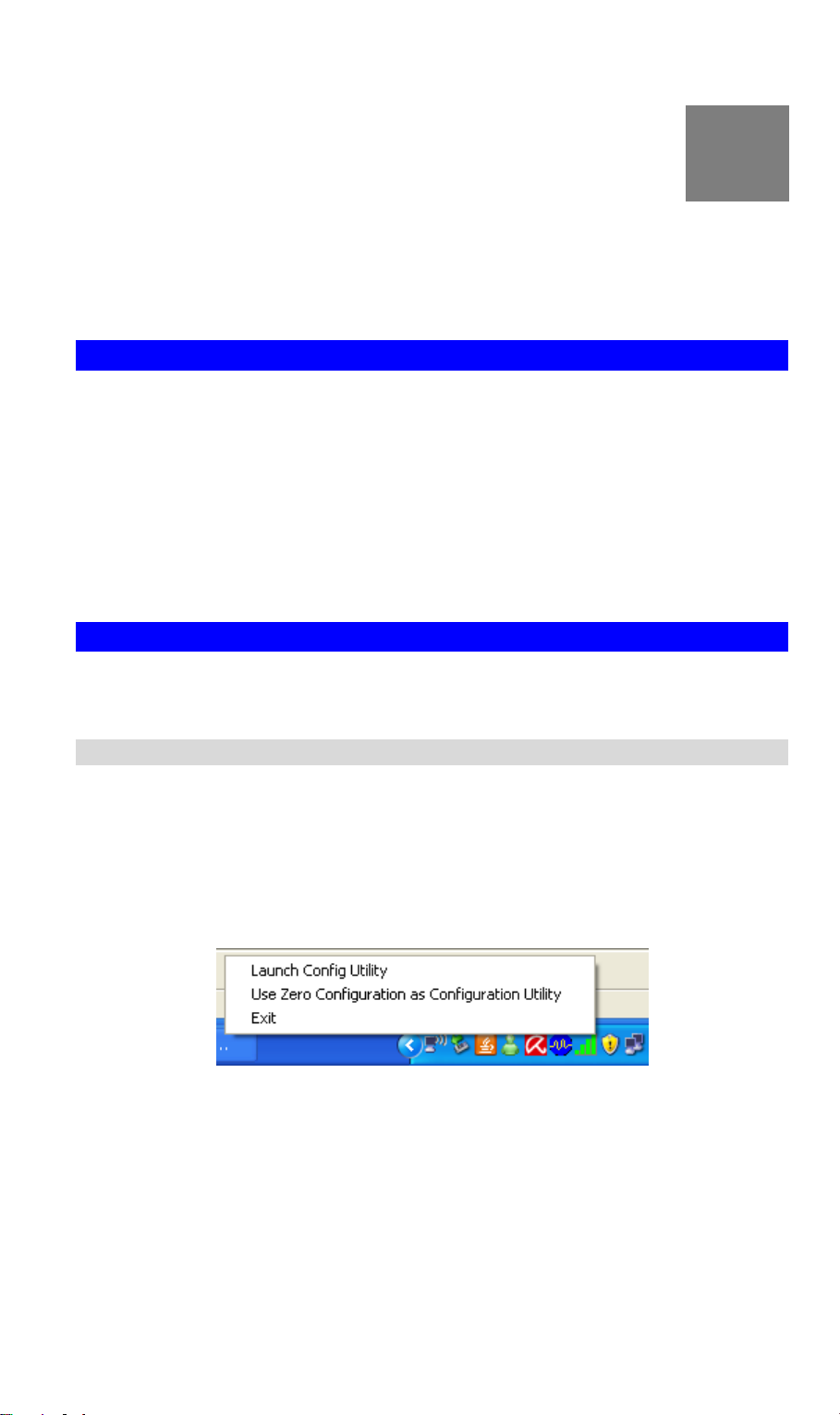
If the Wireless Utility program is running, you can double-click the icon in the System Tray or
right-click the icon and select "Launch Config Utility" to open the application.
Status Information
The menu options available from the System Tray icon are:
• Launch Config Utility - This will display the main screen of the Utility.
• Use Zero Configuration as configuration Utility - Wireless Zero Configuration (WZC),
is a service of Microsoft Windows which dynamically selects a wireless network to con-
nect.
• Exit - Terminate the connection to the Wireless-N USB Dongle.
Figure 6: Wireless-N USB Dongle menu
7

Wireless-N USB Dongle User Guide
Connecting to a Wireless Network
Double-click the Icon to open the Network screen, where you can select the Wireless network
you wish to join.
Network Screen
This screen is displayed when you double-click the system tray icon. You can also click the
Network tab in the screen.
When you open the utility program, it will scan all the channels to find all the access
points/stations within the accessible range and automatically connect to one of the wireless
devices which have the highest signal strength.
Figure 7: Network Screen
Data - Network Screen
SSID The SSID (up to 32 printable ASCII characters) is a unique name
identified in a WLAN.
Network Type It displays the Network type in use, Infrastructure for BSS, Ad-Hoc
for IBSS network.
Channel The channel used by the Wireless network.
Wireless Mode AP support wireless mode. It may support 802.11a, 802.11b, 802.11g
or 802.11n wireless mode
8
Table des matières
Manuels Matériel informatique populaires d'autres marques

EMC2
EMC2 VNX Series Manuel du propriétaire

Panasonic
Panasonic DV0PM20105 Manuel utilisateur

Mitsubishi Electric
Mitsubishi Electric Q81BD-J61BT11 Manuel utilisateur

Gigabyte
Gigabyte B660M DS3H AX DDR4 Manuel utilisateur

Raidon
Raidon iT2300 Manuel utilisateur

National Instruments
National Instruments PXI-8186 Manuel utilisateur


