Allegion Interflex IF-4041 Manuel utilisateur

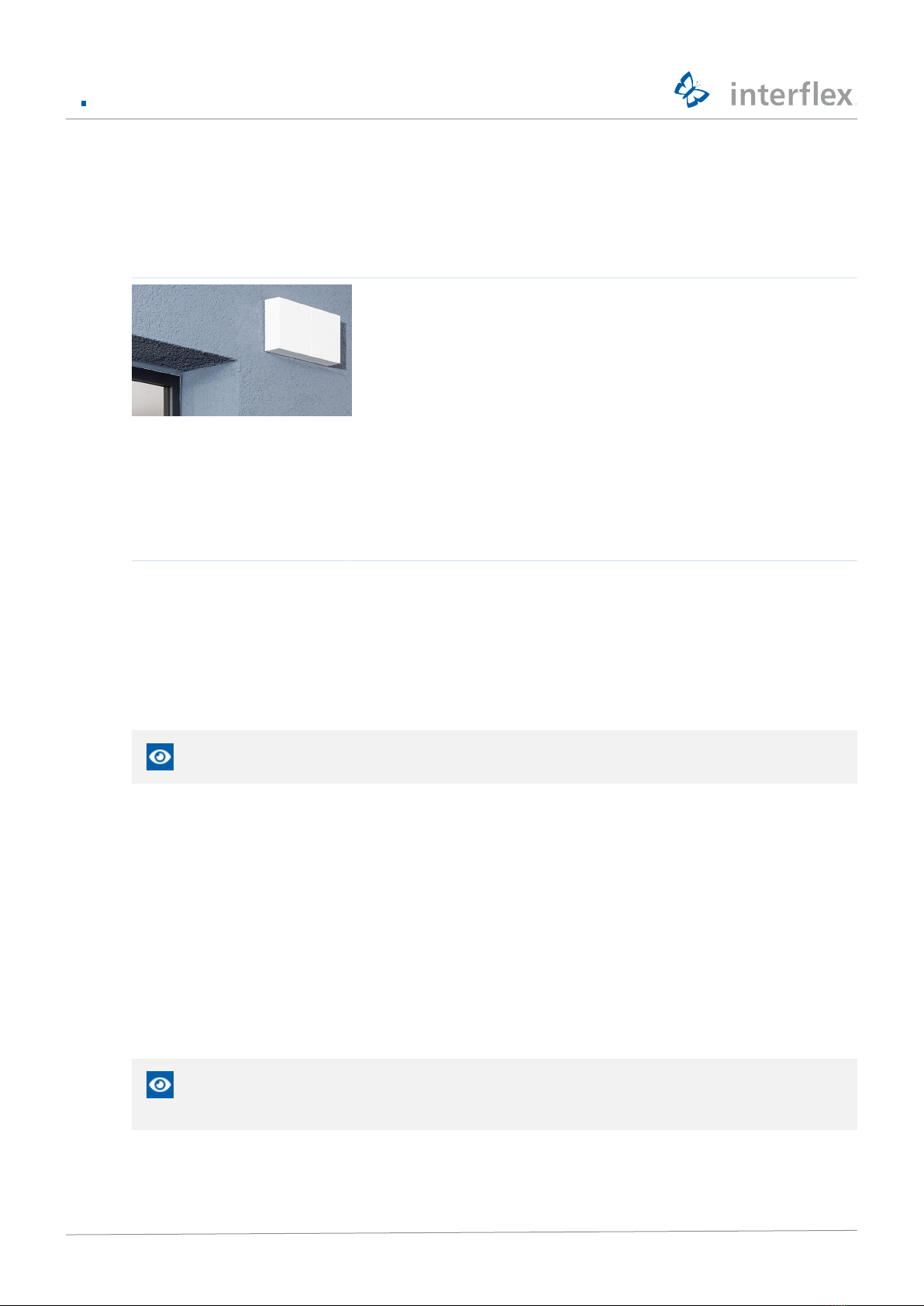
IF-4041 Gateway
Controller
00-4041-02002x

© 2021 Interflex Datensysteme GmbH IF-4041 Gateway 2
1 General information.......................................................................................................................... 4
1.1 Short description ......................................................................................................................... 4
1.2 Scope of delivery ........................................................................................................................ 4
1.3 Intended use ............................................................................................................................... 4
1.4 Target group ............................................................................................................................... 4
1.5 Safety.......................................................................................................................................... 5
1.6 Abbreviations .............................................................................................................................. 5
2 System overview............................................................................................................................... 6
2.1 Range of functions ...................................................................................................................... 6
2.2 Electronic assembly units ........................................................................................................... 7
3 Mounting the Gateway...................................................................................................................... 7
4 Connecting the Gateway.................................................................................................................. 7
5 Initial operation ................................................................................................................................. 8
5.1 Connecting the controller to the network .................................................................................... 8
IF-ServiceApp ............................................................................................................................. 8
Service interface ......................................................................................................................... 9
5.2 Configuring the controller in IF-6040........................................................................................... 10
5.3 Registering the controller ............................................................................................................ 10
IF-ServiceApp ............................................................................................................................. 10
Service interface ......................................................................................................................... 11
5.4 Connecting devices..................................................................................................................... 11
6 Further information for initial operation......................................................................................... 12
6.1 Restarting the controller.............................................................................................................. 12
6.2 Users and passwords ................................................................................................................. 14
6.3 Log files of the CloudReady controller ........................................................................................ 14
Name conventions ...................................................................................................................... 14
script showlog ........................................................................................................................... 15
6.4 Checking and setting network parameters.................................................................................. 16
Restoring the default IP address ................................................................................................ 17
Static IP address......................................................................................................................... 17
Dynamic IP address.................................................................................................................... 18
6.5 Relevant configuration files......................................................................................................... 18
6.6 Tools ........................................................................................................................................... 18
IFCertificationTool.exe................................................................................................................ 19
IFTlsCertificationTool.exe ........................................................................................................... 20

© 2021 Interflex Datensysteme GmbH IF-4041 Gateway 3
Tool for checking the certificate chain ........................................................................................ 21
6.7 Configuring PKI and TLS ............................................................................................................ 22
Configuration .............................................................................................................................. 22
7 Technical specifications .................................................................................................................. 24
8 Open Source Program Packages .................................................................................................... 24
9 Disposal............................................................................................................................................. 25
10 Declarations of Conformity.............................................................................................................. 25
10.1 EU Declaration of Conformity ..................................................................................................... 25
10.2 UKCA Declaration of Conformity ................................................................................................ 25

1 General information
© 2021 Interflex Datensysteme GmbH IF-4041 Gateway 4
1 General information
1.1 Short description
The IF-4041 Gateway offers maximum security for the seamless
connection of Opendor wireless locking components to the IF-6040
access control system. With over-the-air technology, every door
becomes an online door. The Gateway is an ideal solution for cost-
effective, uncomplicated and wireless compliance with current security
standards for a wide range of applications.
The Gateway checks the recorded bookings and transmits the data to
the access control system in real time.
Optionally, data from IF-6040 can be transferred to the Gateway and
stored there. Thus, this data is always up-to-date even if the
connection to the access control system is interrupted.
The IF-4041 Gateway from Interflex with the latest BLE 5 technology is
the link between IF-6040 and Interflex Opendor air locking components,
and it offers all the advantages of state-of-the-art encryption.
1.2 Scope of delivery
The package contains:
nIF‑4041 Gateway
nAccessory bag with mounting material
n95-10459 product info
Check the completeness and condition of the goods upon receipt and report any damage caused
during transport immediately.
1.3 Intended use
IF-4041 Gateway is designed for the following tasks:
nWireless transmission of recorded bookings to the access control system
nInitial operation and update of connected door components and terminals
Any other use is not in accordance with the intended purpose and therefore not permitted. Modifications
are not allowed.
1.4 Target group
This document is solely intended for experts and people trained in electrical engineering.
Only perform the actions described in this document if you belong to this target group. Interflex
Datensysteme GmbH is not liable for any damages caused by improper installation or initial
operation.

1 General information
© 2021 Interflex Datensysteme GmbH IF-4041 Gateway 5
1.5 Safety
WARNING
Danger to life due to electric shock
People can be seriously hurt or killed through physical contact with live parts (e.g. 230V~).
uMake sure that you cannot touch live lines during installation.
uSwitch off the power supply of the devices.
uPlease observe the applicable safety regulations and take all precautionary measures to ensure safe
installation.
NOTICE
Damage due to electrostatic discharge (ESD)
Electrical components and modules can be damaged by only slight, hardly noticeable electrostatic
discharge (ESD) without this becoming immediately obvious. ESD damages result in malfunctions and
even failure of the product.
uMake sure that effective protective measures against electrostatic discharge are in place when
working on the open device.
NOTICE
Property damage due to transient overvoltages
Transient overvoltages (surges, bursts) in the energy supply network can lead to malfunctions and
failures.
uUse suitable mains filters that are professionally installed and operated.
NOTICE
Damage to property due to manipulation of the controller
Manipulation of the controller can lead to data loss.
uInstall the controller in the secured area, taking the technical requirements into account
1.6 Abbreviations
AC Alternating Current
BLE Bluetooth Low Energy
CIDR Classless Inter-Domain Routing
DC Direct Current
DIP switch Switch in IC design, connections in two rows (Dual In-line Package)
EMC Electromagnetic Compatibility
ESD Electrostatic discharge

2 System overview
© 2021 Interflex Datensysteme GmbH IF-4041 Gateway 6
GND Ground
IEEE Institute of Electrical and Electronics Engineers
NC contact Normally closed contact
NO contact Normally open contact
PoE Power over Ethernet
RFID Radio-Frequency Identification
SH Shield
SSH Secure shell
2 System overview
2.1 Range of functions
Main functions of the IF-4041 Gateway:
nCertificate-based encryption from the terminal via the Gateway to the host
nGrant or withdraw access permissions online in real time
nNo cabling to end device required
nSeamless integration into IF-6040

3 Mounting the Gateway
© 2021 Interflex Datensysteme GmbH IF-4041 Gateway 7
2.2 Electronic assembly units
1
5
2 3
4
6
1Connection for serial service
cable
2DIP switches 3Reset button
4USB connection for dongle
of IF-ServiceApp
5Power supply without PoE 6RJ45, Ethernet 10/100
3 Mounting the Gateway
1. Open the lid of the housing.
2. Mount the Gateway to the wall with the enclosed screws
For surface-mounted routing of cabling, use a saw to cut open the ribs on the bottom shell of the
housing on both sides and break the web out and rework any sharp-edged parts with a file.
3. Close the housing cover
4 Connecting the Gateway
1. If not PoE: Connect the power supply
2. Connect the network cable

5 Initial operation
© 2021 Interflex Datensysteme GmbH IF-4041 Gateway 8
5 Initial operation
The IF-4041 Gateway is part of the Controller product family. That is why the term Controller is
used in this section and in the following sections.
Prerequisites
üService IF6040 Pki Service installed
üIF6040 Tls Proxy service installed
üCertificates set up for communication with the application server and for the TLS server (see Security
media center)
üAccessories for connecting host computer and controller (see below)
With the appropriate accessories, the following options are available for connecting the host computer to
the controller:
üVia WLAN with the IF-ServiceApp 75-99-0013
üVia service interface or USB
Service interface USB
IF-4xxx controller 75-4070-0001
service cable 4xxx (connection in housing)
IF-4070 controller 75-4070-0002
service cable 4xxx (connection via RJ45)
IF-5xxx master terminal 75-99-0006
Service cable 5xxx
5.1 Connecting the controller to the network
You can connect the controller to the network via a service cable and the serial service interface or via
WLAN with the IF-ServiceApp.
IF-ServiceApp
Prerequisites
üController is connected to the IF-ServiceApp.
Detailed information on this subject can be found in the documentation of the IF-ServiceApp.

5 Initial operation
© 2021 Interflex Datensysteme GmbH IF-4041 Gateway 9
Service interface
Accessing the controller via SSH requires the freeware PuTTY version 0.73 or higher:
1. Switching on the power supply
2. Establish serial connection between host computer and controller
3. Open PuTTY
4. Check and adjust parameters
5. Start communication with Open
6. Log in with username fieldservice
7. Specify a password
Details on valid password requirements and how to change a password can be found under
Users and passwords [}14].
Only after entering a password are the network services started and the network connection can
be established.
Network connection is activated, the default setting is DHCP
When the RUN LED lights up, an SSH connection can be established.
The start-up procedure takes up to 30 seconds.
Leave PuTTY open during the next steps as further entries are required during initial operation.

5 Initial operation
© 2021 Interflex Datensysteme GmbH IF-4041 Gateway 10
5.2 Configuring the controller in IF-6040
In IF-6040 under Access > Access management > Controllers:
1. Select Interflex CHP under Options in the Transmission protocol field
2. Enter the serial number of the controller under Connections.
3. Select a suitable Configuration under Connections > Peripheral server.
Suitable: The Controller host protocol and firmware update option is activated in the Interfaces
tab and an enabled port is entered. If required, create a suitable configuration.
4. Under Perform action, select the Update controller data on the peripheral server menu item
When configuring and troubleshooting, use the current information underSystem >
Configurations > Security > Controllers, Status tab.
Detailed information on this subject can be found in the IF-6040 documentation
5.3 Registering the controller
Prerequisites
üPKI certificate installed and configured
IF-ServiceApp
To register the controller:
1. Use the USB cable to connect the dongle to the USB port of the controller
The IF-ServiceApp is connected to the controller.
2. UnderAccess > Access management > Controllers menu sequence Perform action > Register
controller
3. Make a note of the information on the registration window (URL of the TLS server, registration
password (nonce))
4. In the IF‑ServiceApp, click on the Find controller in the left menu
5. Select the desired controller to establish a connection
A prompt for the controller password is shown
6. Assign a controller password during the initial login
7. Enter the URL of the TLS server
8. Enter registration password (nonce)
Autres manuels pour Interflex IF-4041
1
Table des matières
Autres manuels Allegion Porte
Manuels Porte populaires d'autres marques

LST
LST M500RFE-AS Manuel utilisateur

Kinnex
Kinnex Media Gateway Manuel utilisateur

2N Telekomunikace
2N Telekomunikace 2N StarGate Manuel utilisateur

Mitsubishi Heavy Industries
Mitsubishi Heavy Industries Superlink SC-WBGW256 Manuel utilisateur

ZyXEL Communications
ZyXEL Communications ZYWALL2 ET 2WE Manuel utilisateur

Telsey
Telsey CPVA 500 - SIP Manuel utilisateur