
ActronAir MGW-MODCS Manuel utilisateur
IMPORTANT NOTE:
Please read this manual carefully before installing
or operating your air conditioning unit.
Model Numbers
MGW-MODCS
VRF MODBUS
Operation Manual

01
Contents
Safety Precautions ....................................................................................................................... 2
Product Description..................................................................................................................... 4
Function Codes for Commands............................................................................................ 5
1 Debugging.................................................................................................................................. 6
1.1 Checking the Communication Between the Gateway and Refrigerant System 6
1.1.1 Opening Web Debugging Page.......................................................................... 6
1.1.2 Discrete input, Input Register............................................................................. 7
1.1.3 Determining Whether the Communication Is Normal.................................. 8
1.2 Modbus Interface Debugging........................................................................................ 8
1.2.1 Configuring Modbus Gateway............................................................................ 9
1.2.2 Modbus/RTU..........................................................................................................10
1.2.3 Modbus/TCP ..........................................................................................................20
2 Mapping Tables .......................................................................................................................32
Precautions for Integrated Development........................................................................32
2.1 Discrete input..................................................................................................................34
2.1.1 IDU ...........................................................................................................................34
2.1.2 ODU .........................................................................................................................34
2.2 Input Register...................................................................................................................35
2.2.1 IDU ...........................................................................................................................35
2.2.2 ODU .........................................................................................................................40
2.2.3 By IDU/ODU Parameter Type (Continuous Addresses)...............................43
2.3 Holding Register..............................................................................................................47
2.3.1 All-off Control Register .......................................................................................47
2.3.2 IDU Control Register-1........................................................................................48
2.3.3 IDU Control Register-2........................................................................................56
3 Web Function...........................................................................................................................61
3.1 System Settings .......................................................................................................62
3.2 DataView ...................................................................................................................63
3.3 Firmware Upgrade ..................................................................................................64
Restoring Factory Settings.......................................................................................................65
Installation ...................................................................................................................................66

02
Icon Description
Safety Precautions
The Installation & Owner's Manual of this product describes how to properly handle the product,
prevent personal injury and property losses, as well as how to use the product correctly and
safely. Read the following carefully, make sure you understand the content (symbols and
marks), and observe the precautions below.
Read the safety warnings carefully prior to installation.
Be sure to observe the important safety precautions provided below.
Meanings of labels:
After the installation is completed, confirm that no errors occur during the trial run, and
hand over the manual to the customer for safekeeping.
Indicates that improper handling may lead to personal injury or material loss.
Indicates that the operations will be affected due to ignoring a precaution.
Warning
Caution
Prohibited. Information about what is specifically prohibited is provided using
graphs or texts in the icon or nearby.
Ask your local dealer or professionals to install the product.
Installation personnel must have relevant professional
knowledge. Incorrect installation by non-professionals may lead
to a fire, electric shock, or injury.
Mandatory. A specific mandatory requirement is provided using graphs or texts in
the icon or nearby.
Commissioned
Installation
Do not use combustible paints to spray directly on the data
converter as this may cause a fire.
Do not handle the product with wet hands, and do not let water
seep into the device. Otherwise, an electric shock may occur.
Prohibited
Prohibited
Icon
Warning
of Use
Warning
Name
CAUTION

03
WARNING
CAUTION
This unit must be installed by professional technicians. Users are not allowed to install the
unit themselves; otherwise, personal injury or damage to the controller may occur.
Other electrical wiring work must be carried out by a professional technician according to
the circuit diagram. All wiring work must comply with electrical safety specifications.
It is forbidden to modify the use and function of the product without authorization.
Do not install the product in a location where flammable gas can easily leak. Any leakage
within the vicinity of the device may cause a fire.
The wiring must be compatible with controller current.
Be sure to check the wiring before powering on the product. Never install the machine
while the power is on.
In the event of any malfunction, please contact a professional technician. DO NOT
disassemble or repair the unit without authorization.
This equipment is not suitable for places where children gather.
04
MGW-MODCS Gateway (this Gateway) provides standard Modbus services for VRF units.
It is suitable for all ECOFLEX series units, that is, ECOFLEX ODUs and ECOFLEX IDUs.
Product Description
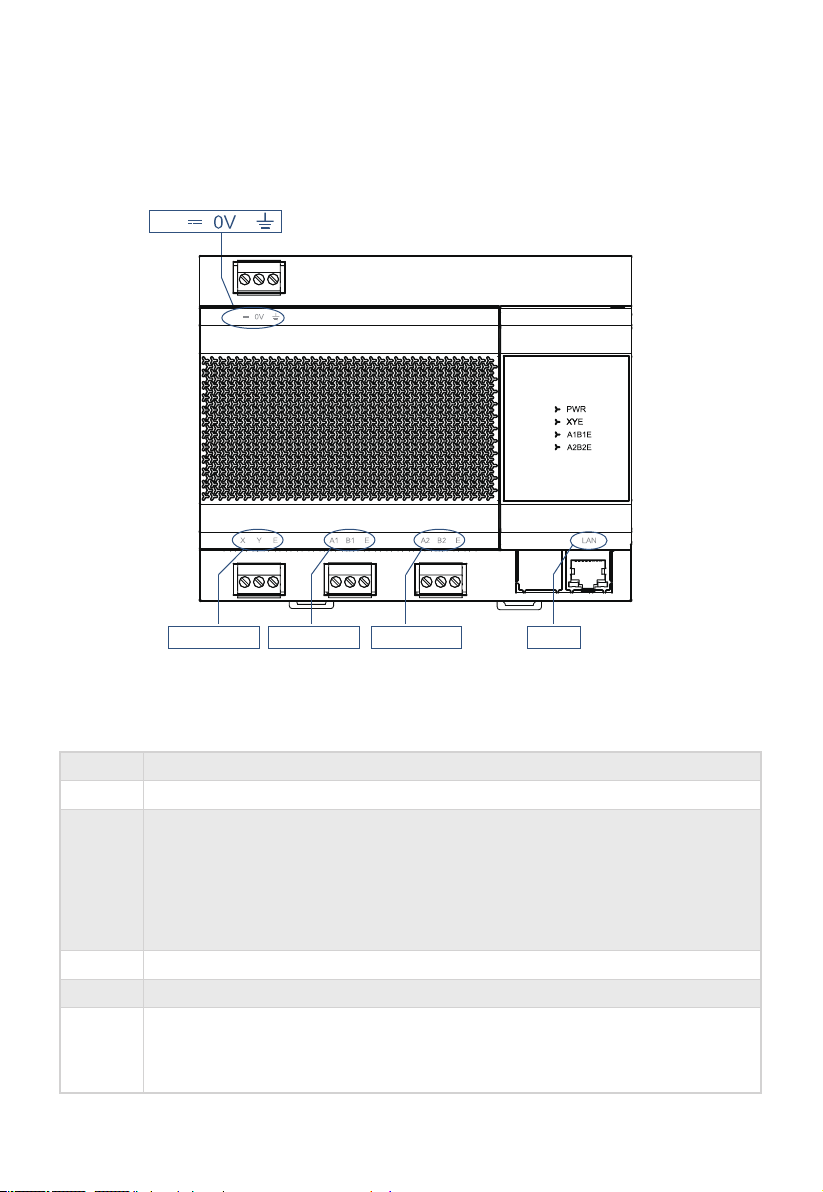
Port
12V 0V
X Y E
A1 B1 E
A2 B2 E
LAN
Function
12V DC power supply
Modbus/RTU
Reserved port
Isolated RS-485 ports, connecting to ECOFLEX VRF units in up to eight refrigerant systems
(The maximum IDU quantity is 64.)
*The X port of the Gateway is connected to the X port of the ODU, and the Y port of the
Gateway is connected to the Y port of the ODU.
When multiple refrigerant systems are connected, they need to use different addresses.
Provides the Modubus/TCP protocols, and enables web page configuration (The computer
and this Gateway need to be in the same network segment.)
* The Modbus/TCP interface of the Modbus Gateway supports only port 502.
X Y E A1 B1 E A2 B2 E LAN
12V
12V

05
PWR Power supply
Reserved
X Y E
X1Y1E
communication
status
A1 B1 E
X2Y2E
communication
status
A2 B2 E
Indicator DescriptionItem
Operating ambient temperature
Operating ambient humidity
-10°C to +50°C
RH25%~RH90%
Function Code
0x02
0x03
0x04
0x06
0x10
Discrete input
Read Holding Register
Read Input Register
Write Single Register
Write Multiple Registers
Read
Read
Read
Write
Write
Function Name Description
Function Codes for Commands
Off
Steady on
Blinking
Off/Steady on
Blinking
Off/Steady
on
Status
The Gateway is powered off.
The Gateway is powered on.
No data transmitting
Data transmitting
No data transmitting
Data transmitting

06
1 Debugging
1.1 Checking the Communication Between the Gateway and
Refrigerant System
1.1.1 Opening Web Debugging Page
According to the description above, connect the X Y E ports on the ODU to those on the access
Gateway. (*1)
A1 B1 E ports provide Modbus RTU protocol interfaces, and the LAN port provides Modus TCP
protocol interfaces. The integrator can select the access mode based on the actual project
requirements, and select the corresponding access mode for debugging.
On the web page embedded on the Gateway, check whether the Gateway and refrigerant
system are communicating normally.
Before integrated development by a third party, ensure that all steps in section 1 Debugging are
completed on the Modbus Gateway on site.
In the address bar of Chrome browser (*2), enter "http://Gateway IP address" to open the web
page of the Gateway. For example, the default IP address of the Gateway is 192.168.1.200. enter"
http://192.168.1.200" to open the web page as shown below.
(*1) When the refrigerant system is powered on, system detection will take some time.
During this period, the Gateway may obtain incorrect information of the refrigerant system.
You are advised to perform Modbus Gateway debugging after the refrigerant system is
stable (about 15 minutes after power-on, depending on the actual refrigerant system).
1. The PC and the Gateway need to be in the same network segment. For specific settings,
consult relevant IT personnel.
2. The PC OS must be Windows 7 (32-bit or 64-bit) or later versions.
(*2)
1: Chrome browser needs to be in 70.0 or any later version.
2. Other browsers may be incompatible, preventing the Web function from working proper-
ly.

07
1.1.2 Discrete Input and Input Register
Click "DataView" to check the online information of the refrigerant system that the Gateway has
obtained so far.

1.2 Modbus Interface Debugging
1.1.3 Determining Whether the Communication Is Normal
A pure number indicates an IDU, and the numeral indicates the IDU address. For example, IDU 0
"O#number" indicates an ODU, and the numeral indicates the ODU address. For example, ODU 0
You can click an address to view the specific parameters of the device, and click "Discrete
inputs" or "Input registers" to check different information.
1. The number of devices online is consistent with the actual project.
2. Device parameters are correct.
If the above two points are met, the Gateway and refrigerant system communicate normally. In
this case, you can proceed to "Modbus Interface Debugging ".
If the number of devices is inconsistent with the actual project, or the device parameters are
displayed incorrectly, check X Y E connection, and confirm whether the refrigerant system works
properly.
Interface debugging requires knowledge of the Modbus protocol. The following section deems
that the user has relevant knowledge by default.
This document uses the Modbus Poll software as an example only, and the product does not
provide the Modbus Poll software.
Offline
RGB (210,212,214) RGB (225,243,216) RGBA (87,176,254,1) 0%,
RGBA (64,144,245,1) 100%
Online Selected
08

IP
address
Network
Settings
Modbus
Settings
IP address of the LAN Gateway
Subnet mask in the IP configuration
Modbus station ID, ranging from 1 to 254. The default value is 1.
Default gateway in the IP configuration
Mask
Gateway
Station ID
Port
setting
1.2.1 Configuring Modbus Gateway
On the "Settings" page, configure Modbus parameters.
Modbus interface configuration
The first field indicates the baud rate. The default value is 9600. (Available values
include 4800, 9600, 19200, and 38400.)
The second field indicates the parity check. The default value is none. (Available
values include none, even, and odd.)
The third field indicates the stop bit. The default value is 1 StopBit. (Available
values include 1 StopBit and 2 StopBit.)
* The data bit supports only 8.
* The Modbus/TCP interface of the Modbus Gateway supports only port 502.
09
Table des matières
Autres manuels ActronAir Porte


Manuels Porte populaires d'autres marques

LST
LST M500RFE-AS Manuel utilisateur

Kinnex
Kinnex Media Gateway Manuel utilisateur

2N Telekomunikace
2N Telekomunikace 2N StarGate Manuel utilisateur

Mitsubishi Heavy Industries
Mitsubishi Heavy Industries Superlink SC-WBGW256 Manuel utilisateur

ZyXEL Communications
ZyXEL Communications ZYWALL2 ET 2WE Manuel utilisateur

Telsey
Telsey CPVA 500 - SIP Manuel utilisateur


