Contents
Notes about this Operation Manual........................................................................................................................ 2
UAC-232 overview........................................................................................................................................................5
High-quality audio inputs........................................................................................................................................... 5
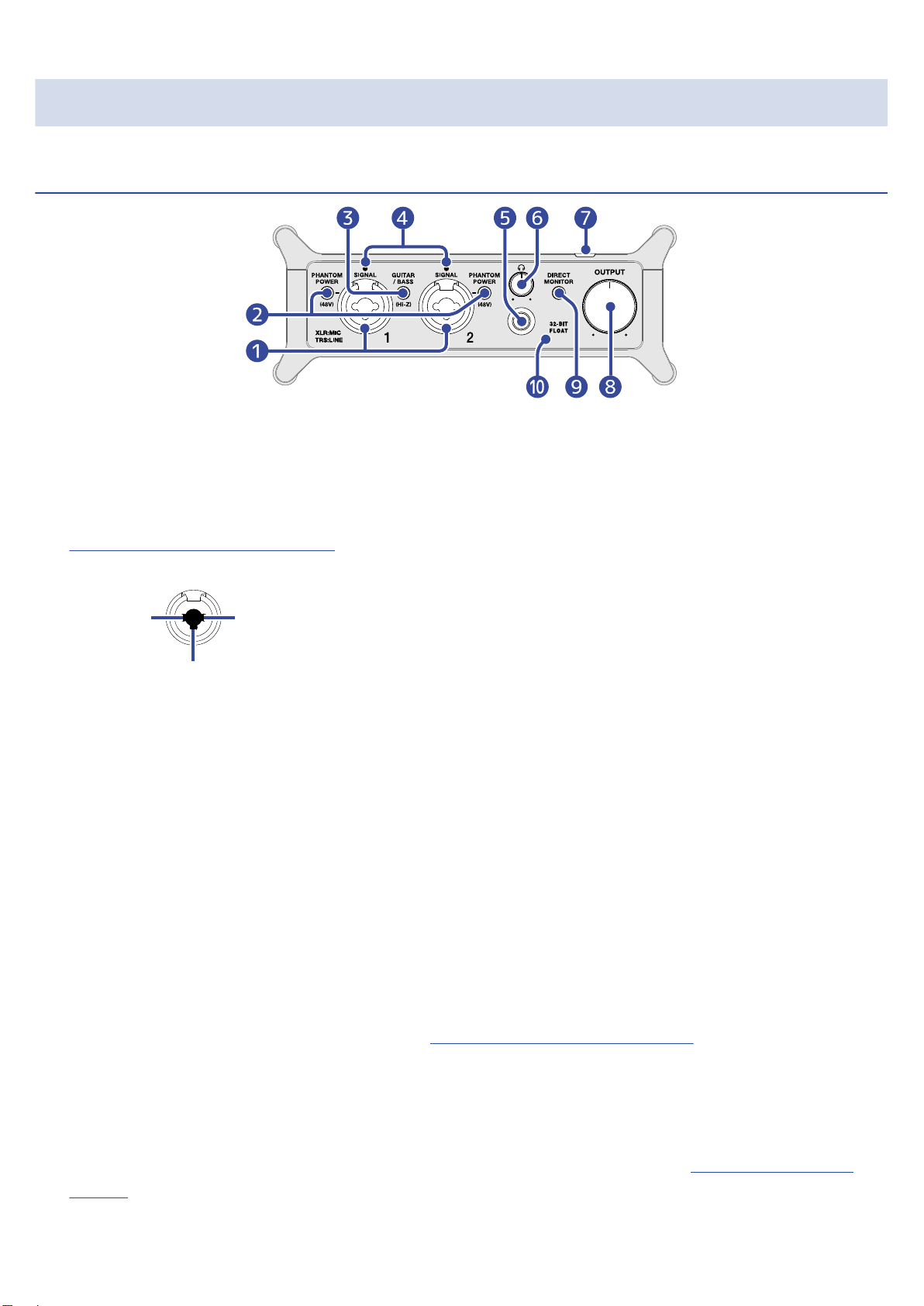
Functions of parts..................................................................................................................................................... 10
Connecting to computers........................................................................................................................................ 13
Preparing for use with a Mac computer............................................................................................................... 14
Preparing for use with a Windows computer...................................................................................................... 15
Connecting to iOS/iPadOS devices......................................................................................................................... 18
Using an external power supply.............................................................................................................................19
Connecting instruments and mics..........................................................................................................................20
Connecting instruments........................................................................................................................................... 21
Connecting mics.........................................................................................................................................................23
Using direct monitoring............................................................................................................................................25
Adjusting the volume................................................................................................................................................26
Adjusting the output volume.................................................................................................................................. 26
Adjusting the headphone volume.......................................................................................................................... 26
Using ZOOM UAC-232 Mix Control.........................................................................................................................27
Installing ZOOM UAC-232 Mix Control.................................................................................................................. 27
ZOOM UAC-232 Mix Control Screen...................................................................................................................... 28
Adjusting waveform display size.............................................................................................................................30
Overview of Music and Streaming modes............................................................................................................ 31
Adjusting direct monitoring..................................................................................................................................... 33
Adjusting the streaming mixer................................................................................................................................34
Enabling the loopback function.............................................................................................................................. 35
Restoring factory default settings.......................................................................................................................... 37
Managing the firmware............................................................................................................................................38
Checking the firmware version............................................................................................................................... 38
Updating the firmware............................................................................................................................................. 38
Use example: Making music....................................................................................................................................39
Use example: Web streaming using a computer.................................................................................................42
Use example: Web streaming using an iOS/iPadOS device................................................................................45
Using the included flat cable fasteners.................................................................................................................48
Mixer diagram............................................................................................................................................................49
Terms used in this manual......................................................................................................................................50
Troubleshooting.........................................................................................................................................................51
Not recognized by computer when connected....................................................................................................51
Cannot select or use the UAC-232 device.............................................................................................................51
The sound of the device connected to the input jack is distorted, too quiet or silent...................................51
Cannot play or record.............................................................................................................................................. 52
Playback sound cannot be heard or is quiet........................................................................................................52
3