Zenty ZT-117 Manuel utilisateur

(844) 200-1945 | [email protected] Page 4of 50 Copyright © Zenty AV
The Zenty ZT-VWC4 is a 4-input, 4-output video wall controller, a seamless matrix switcher, and a
multiviewer, all rolled in to one device. While in matrix mode, seamless route any of your 4 available
sources to any 4 displays without delay or picture loss. Want to view more than one signal on your
single display at a time? No problem. Engage the multiviewer function on your output port and choose
from 5 different multiviewer layouts, including 2×2, 1x3L, 1x3U, 1×4 & 4×1.
Reinvent your interior space by taking advantage of the video wall function and have any source signal
stretched across all 4 output displays. Arrange your output displays in up to 10 different video wall
configurations, including 2×2, 1×4 and 4×1. 10 different video wall configurations mean the user gets
the exact style and creative expression they desire.
•Route any one of the 4 sources to any one of the 4 displays.
•Seamless switching ensures no switching delay and pictures loss during transitions. The
switching speed is less than 40 milliseconds.
•Supports video wall mode and output image mirror function.
•Any one of the four outputs can be turned off independently.
•Supports PCM 2CH audio.
•EDID management
•HDCP 2.2 and HDCP1.4 compliant.
•Supports high-definition resolutions, including: 4K30Hz, 1080p@60Hz@36 b/pixels, and
other standard video formats.
•Supports output downscale to 1080P/720P/2560*1440/1920*1200/1360*768
•With panel button, Remote Control, RS232 Control, TCP/IP Control to select the source and
support for third-party platform control.
•1U rack design. Easy installation.
•DC 12V 2A power supply.
•Unit Size [L x W x H]: 438mm x 205mm x 44mm | 17.2” x 8.07” x 1.73”
Operating Temperature Range
0°C ~ 40°C (32°F ~ 104°F)
Operating Humidity Range
5 –90% RH (No Condensation)
Input Video Signal
0.5 –1.0 volts p-p
Input DDC Signal
5 volts p-p (TTL)

(844) 200-1945 | [email protected] Page 5of 50 Copyright © Zenty AV
Video Format Support
DTV / HDTV: 1080P / 1080i / 720P / 576P /
480P / 4K
Audio Format Support
LPCM 2.0
Input Ports
4 x HDMI
Output Ports
4 x HDMI
Power Consumption
20W (Max)
Dimensions (L x W x H)
438mm x 205mm x 44mm
17.2” x 8.07” x 1.73”
Weight
5.97 lbs.
•(1) x Matrix Unit
•(1) x Remote Control
•(1) x User Manual
•(1) x DC 12V/2A Power Adapter
•(1) x Mounting Ears

(844) 200-1945 | [email protected] Page 7of 50 Copyright © Zenty AV
1. Connect source devices to input ports of the matrix.
2. Connect HDMI output port to TV or other HDMI sink devices.
3. Optional: connect RS232 cable from PC RS232 port.
4. Optional: connect an Ethernet cable from the TCP/IP port on the matrix to a local area
network.
5. Connect 12V/2A POWER supply to DC power socket.
6. Power on the matrix, HDMI sources and displays.
Signal switching includes 4 switching channels, which can be randomly configured as input/output
according to requirements to form a matrix of 1×4~4×1. It can switch any input signal to 1 channel
of output or all channels of output.
Operation format: "output channel" + "input channel"
Such as:
1. Switch output 1 to input 2 source.
Operation: press "1" in Output area + "2"in IN area to complete the switch.
2. Output 1,2,4 switch to input 3 source.
Operation: press "1", "3" and "4" in Output area + "2" in IN source area to complete the switch.
3. Switch all output port to input 4 source.
Operation: press any number in Output area + "4" in IN area to complete the switch.
4. Go directly into the video wall mode of input 2 signal source.
Operation: press the number "2" in the Input area to complete the switch.

(844) 200-1945 | [email protected] Page 8of 50 Copyright © Zenty AV
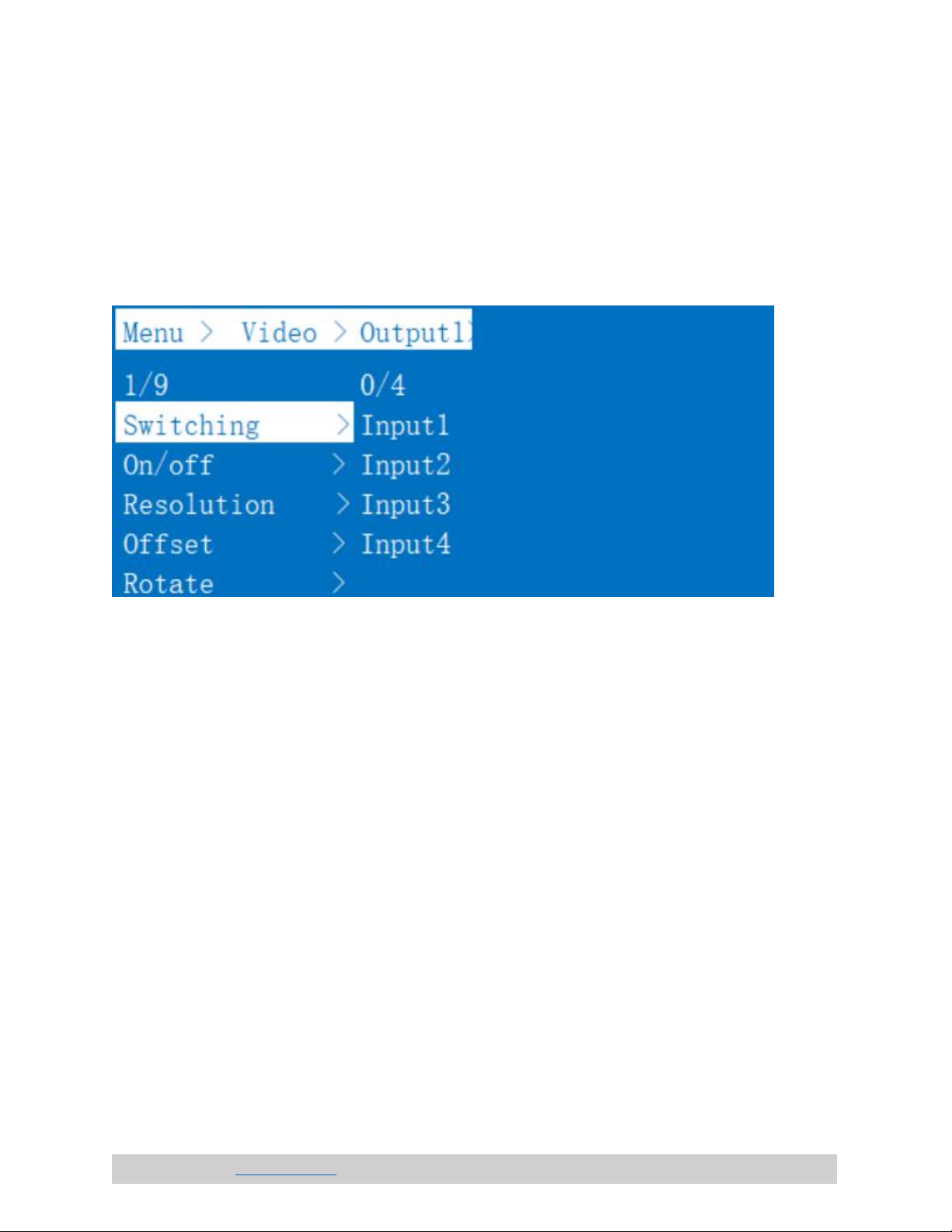
There are five submenus in the Video interface:
1). Video switching
Operation:
a. In the main menu, select "Video" to press the "OK".
b. Press “up and down” button to select "Output1" (The fifth ALL option means that all
outputs are selected)
c. Click on "OK" to enter the next submenu
d. Press the “up and down” button to select "Switching" to select the input signal source. The

(844) 200-1945 | [email protected] Page 9of 50 Copyright © Zenty AV
bottom color of the selected input is white
e. Click "OK" to enter the next submenu
f. Press the,” up and down” button to select the "Input”, and the color at the bottom of the
selected input port becomes white
g. Click on the "OK" button to complete switching
You can switch any output to any input, or all output to the same input.
2). Output Switching Control
You can open/close any of the output port, or open/close all output port.
Operation:
•In the main menu, select "Video" to press the "OK"
•Press “up and down” button to select "Output1". (The fifth ALL option means that all outputs
are selected)
•Click "OK" to enter the next submenu
•Press the “up and down” button to select the "On/Off"
•Click "OK" to enter the next submenu
•Press “up and down” button to select Off or On.
•Press the "OK" button to confirm that the output port is open/ closed

(844) 200-1945 | [email protected] Page 10 of 50 Copyright © Zenty AV
3). Output Resolution Selection
Operation:
•In the main menu, select "Video" to press the "OK"
•Press “up and down” button to select "Output1" (The fifth ALL option means that all outputs
are selected)
•Click "OK" to enter the next submenu
•press the “up and down” button to select "Resolution"
•Click "OK" to enter the next submenu
•Press the,” up and down” bottom to complete selection (There are 6 output resolution: 4K 30
Hz, 1080P 60 Hz, 720P 60 Hz,2560 X1440, 1920X1200,1360 X768 and AUTO, as shown in
the picture. The default is Auto). The color of the bottom of the selected output resolution
become white.
•Click the "OK" button to complete the output video resolution setting
Ce manuel convient aux modèles suivants
1
Autres manuels Zenty Contrôleurs