Zcom XG-2000 Manuel utilisateur

1
IEEE 802.11g 54Mbps Wireless Router

2
Copyright
The contents of this publication may not be reproduced in any part or as a whole, stored,
transcribed in an information retrieval system, translated into any language, or transmitted in
any form or by any means, mechanical, magnetic, electronic, optical, photocopying, manual, or
otherwise, without the prior written permission.
Trademarks
All products, company, brand names are trademarks or registered trademarks of their respective
companies. They are used for identification purpose only. Specifications are subject to be
changed without prior notice.

3
FCC Interference Statement
This equipment has been tested and found to comply with the limits for a Class B digital device
pursuant to Part 15 of the FCC Rules. These limits are designed to provide reasonable
protection against radio interference in a commercial environment. This equipment can
generate, use and radiate radio frequency energy and, if not installed and used in accordance
with the instructions in this manual, may cause harmful interference to radio communications.
Operation of this equipment in a residential area is likely to cause interference, in which case
the user, at his own expense, will be required to take whatever measures are necessary to
correct the interference.
CE Declaration of Conformity
This equipment complies with the requirements relating to electromagnetic compatibility, EN
55022/A1 Class B, and EN 50082-1. This meets the essential protection requirements of the
European Council Directive 89/336/EEC on the approximation of the laws of the member states
relation to electromagnetic compatibility.

4
Content
Chapter 1: Introduction.............................................................................................. 5
1.1 Five steps to success...................................................................................... 5
1.2 Functions and Features.................................................................................. 7
Chapter 2: Hardware Installation............................................................................... 9
2.1 Panel Layout.................................................................................................. 9
2.2 Procedure for hardware installation ............................................................ 10
Chapter 3: Network Settings.....................................................................................11
3.1 Client Network Settings ...............................................................................11
Chapter 4: Router Configuration ............................................................................. 14
4.1 Start-up and Log in...................................................................................... 14
4.2 System Status .............................................................................................. 14
4.3 Wizard ......................................................................................................... 15
4.4 Primary Setup.............................................................................................. 16

5
Chapter1:Introduction
Congratulations on your purchase of the outstanding Wireless Broadband
Router. This product is specifically designed for Small Office and Home Office
needs. It provides a complete SOHO solution for Internet surfing, and is easy to
configure and operate even for non-technical users. Instructions for installing
and configuring the Router can be found in this manual. Before you install and
use this product, please read this manual carefully to ensure that you take full
advantage of it’s functionality.
1.1Fivestepstosuccess
To enable a smooth entry in to the world of the Wireless LAN, you will be
guided through the installation of the individual components by way of the “Five
steps to success”. In doing so your specific level of technical expertise will be
catered for. You decide which settings are doable for you.
1. Determine your network knowledge
The success of the installation of your Router and Wireless Clients is largely

6
independent of your technical skills. The more advanced and familiar you
are with networking terminology, the more you will act intuitively. A beginner
will need more support in learning about his new networking equipment.
Some chapters are therefore supplemented with additional information,
designed for Beginners:
2. Define your network topology
Decide which PC and devices will be connected to your Network
PC
Laptop
PDA
Printer with parallel Port
Network Scanner
Network Printer
…
Chapter 2 ‘Hardware Installation’ will help you to connect these devices
properly.
3. Prepare your PCs and Devices to connect to the Router
Before an Router can be configured, an initial connection must be
established.
Chapter 3 ‘Network Settings’ will guide you through the settings.
4. Install and configure the Router
Your Router needs to be configured to work properly with each of your
networking components and your Internet connection. Security aspects and
special Router functionalities will also be covered.
see Chapter 5 ‘Router Configuration’.
5. Install additional features like Print Server
The Router is equipped with a Printer port which is wirelessly accessible by
any user in the network. Therefore a software needs to be installed on every
PC.
see Chapter 4.2 for the Software Installation and Chapter 6 for the Software

7
Configuration
1.2 Functions and Features
High speed wireless LAN connection
11Mbps data rate incorporating Direct Sequence Spread Spectrum (DSSS).
Roaming
Seamless roaming within the IEEE 802.11g WLAN infrastructure.
IEEE 802.11g compatible
Allows interoperability between multiple vendors.
Auto fallback
11M, 5M, 2M, 1M data rate with auto fallback.
Broadband modem and NAT Router
Connects multiple computers to the internet through a broadband (cable or
DSL) modem or an Ethernet router.
Auto-sensing Ethernet Switch
Equipped with a 2-port auto-sensing Ethernet switch.
VPN supported
Supports multiple PPTP sessions and allows you to setup VPN server and
VPN clients.
Printer sharing
Embeds a print server to allow all of the networked computers to share one
printer.
DHCP server supported
All of the networked computers can retrieve their TCP/IP (network
communications protocol) settings automatically.
Web-based configuring
Configurable through any networked computer’s web browser using
Netscape or Internet Explorer.
Virtual Server supported
Enables you to open WWW, FTP and other services on your LAN to Internet
users.
User-Definable Application Sensing Tunnel
User definable attributes to support special applications that require multiple
connections, such as Internet gaming, video conferencing, Internet
telephony and so on. The product then senses the application type and
opens a multi-port tunnel for it.

8
Firewall
All unwanted network packets from outside intruders are blocked to protect
your Intranet. The access rule allows you to control access to a network by
analyzing the incoming and outgoing packets and letting them pass or
blocking them based on the source and destination IP Addresses.

9
Chapter2:HardwareInstallation
2.1PanelLayout
2.1.1 Front Panel
Led Indicators
Reset Switch
To reset the system settings to factory defaults, please follow the steps:
1 Press the reset button for 10 seconds
2 Release the button
3 Watch the M1 LED, it will flash 8 times and then flash once per second

10
2.1.2 Back Panel
Ports:
2.2Procedureforhardwareinstallation
1. Decide where to place your Wireless Broadband Router.
You can place your Router on a desk or other flat surface, or mount it on a
wall. For optimal performance, place it in the center of your office (or your
home) and in a location that is away from any potential source of
interference, such as a metal wall or microwave oven. This location must be
close to a wall plug and a network connection.
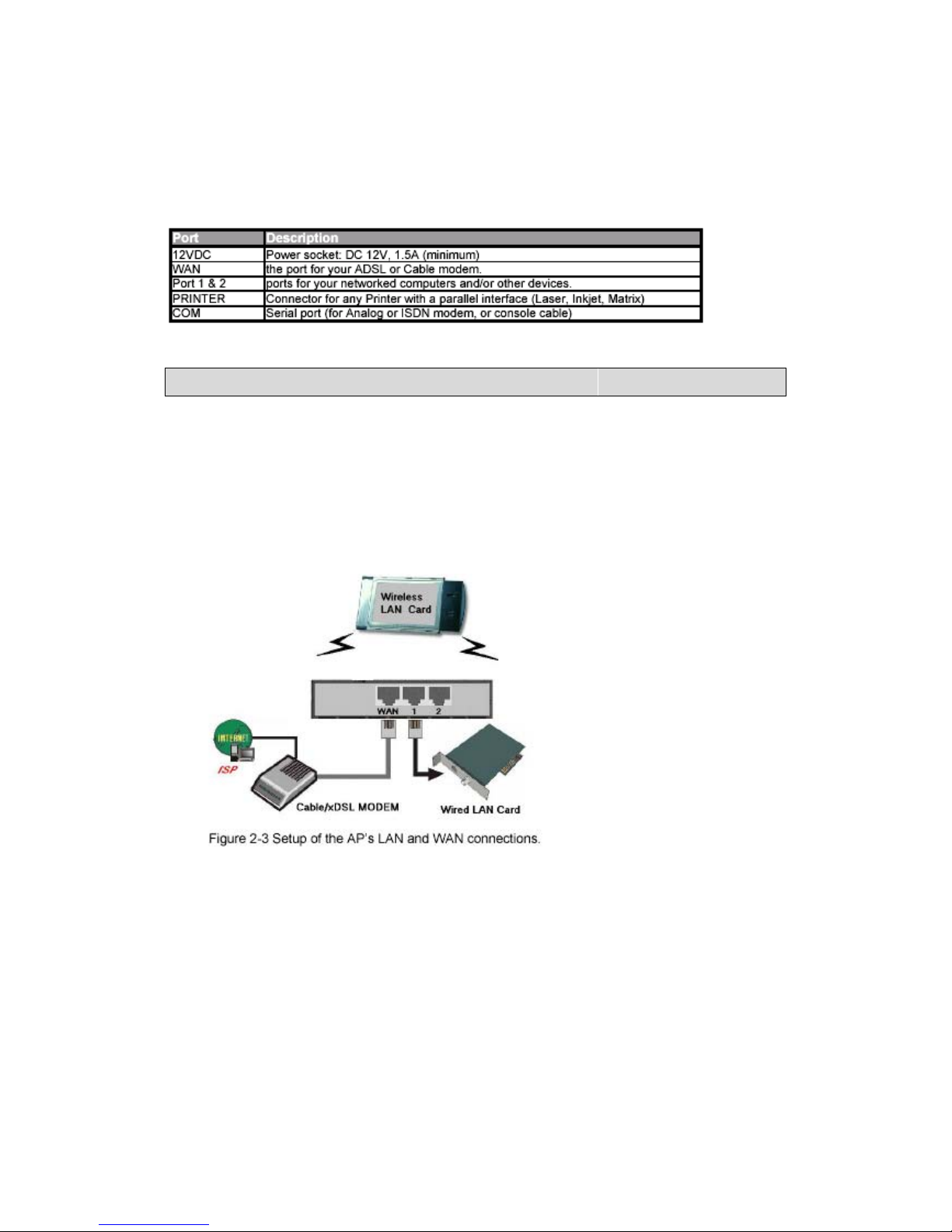
2. Set up LAN connection
a) Wired LAN connection: connects an Ethernet cable from your
computer’s Ethernet port to one of the AP’s LAN ports
b) Wireless LAN connection: locate this product at a proper position to
gain the best transmission performance.
3. Set up WAN connection
Prepare an Ethernet cable for connecting the AP to your cable/xDSL modem
or Ethernet backbone. Figure 2-3 illustrates the WAN connection.
4. Connecting the AP to your printer
Table des matières
Autres manuels Zcom Routeur sans fil