
Ximeta NetDisk Mini MNC10-40 Manuel utilisateur

www.XIMETA.com
NetDisk User Manual
NetDisk User Manual
Mac OS X 10.3 (Panther)
Powered by Technology
NetDisk, NetDisk Mini & NetDisk Office

NetDisk®User Manual Network Direct Attached Storage / NDAS®
XIMETA, Inc 2www.XIMETA.com
XIMETA, Inc.
15251 Alton Parkway
Irvine, CA 92618
United States of America
(949) 753-7900
Software Release Statement
NetDisk User Manual for Mac OS X 10.3, Software Version 1, Released 2004, Made in the
U.S.A.
Trademark Statement
NetDisk®, NDAS® and XIMETA™ are trademarks of XIMETA, Inc., registered in the U.S.A
and other countries. All other trademarks are the property of their respective owners.
Copyright Statement
Copyright © 2003 –2004 XIMETA, Inc. All rights reserved world. Reproduction, translation,
transformation or adaptation in any manner without prior written permission of XIMETA, Inc.
is strictly prohibited.
License Statement
The software described in this document is furnished under a license agreement. The soft-
ware may be used only in accordance with the terms of the license agreement
Warranty Statement
XIMETA, Inc. reserves the right to revise this publication and to make changes to the content
hereof without the obligation of XIMETA, Inc. to notify any person of such revision or
changes. XIMETA, Inc. provides this publication “as is” without warranty of any kind, either
express or implied, including but not limited to the implied warranties of merchantability or
fitness for a particular purpose.

NetDisk®User Manual Network Direct Attached Storage / NDAS®
XIMETA, Inc 3www.XIMETA.com
Table of Contents
1Introduction ·····················································································································4
1.1 User Manual ·········································································································4
1.2 NetDisk / NetDisk Mini / NetDisk Office Models Covered By This User Manual ……… 4
1.3 Package Contents ·································································································4
1.4 System Requirements ···························································································5
1.5 NetDisk Setup Overview ·······················································································5
2Cable Installation ·············································································································6
2.1 NDAS Mode ··········································································································6
2.2 USB Mode ············································································································7
3NetDisk Software Installation ··························································································8
4Add / Register NetDisk ··································································································· 11
5Using NetDisk Admin ······································································································ 12
6Using NetDisk ················································································································· 13
6.1 Read Only and Read / Write Mode ······································································· 13
6.2 Changing Read Only or Read / Write Mode ··························································· 13
7Using NetDisk in a Mixed Environment ·········································································· 15
7.1 Mixed Environment with Mac and Windows ···························································· 15
8Uninstalling NetDisk ······································································································· 16
9 FAQ ···························································································································· 17
10 Regulatory Statements ·································································································· 18
11 Product Warranty ·········································································································· 19
12 Additional Information and Assistance ········································································· 23

NetDisk®User Manual Network Direct Attached Storage / NDAS®
XIMETA, Inc 4www.XIMETA.com
Chapter 1 Introduction
Congratulations on your purchase of NetDisk / NetDisk Mini / NetDisk Office.
-Network storage via Ethernet made possible through NDAS technology!
1.1 User Manual
This User Manual is intended to help you install the NetDisk product(s) quickly and easily onto
your Personal Computer or Ethernet Network and begin using it immediately.
1.2 NetDisk / NetDisk Mini / NetDisk Office Models Covered By This User Manual
1.3 Package Contents
The following items are included in the NetDisk / NetDisk Mini / NetDisk Office packages:
NetDisk
•NDU10-80
•NDU10-120
•NDU10-160
•NDU10-250
•NDC10-80
•NDC10-120
•NDC10-160
•NDC10-250
NetDisk Mini
•MNU10-40
•MNU10-80
•MNC10-40
•MNC10-80
NetDisk Office
•NOU10-120
•NOC10-120
NetDisk NetDisk Mini NetDisk Office
or or
Software Installation CD
Ethernet Cable
USB Cable
Power Adapter and Power Cord
NetDisk®User Manual Network Direct Attached Storage / NDAS®
XIMETA, Inc 5www.XIMETA.com
1.4 System Requirements
Mac® OS X
•Mac OS X 10.3 or greater
•128 MB RAM (256 MB recommended)
•USB 1.1 Port (USB 2.0 recommended)
•CD-ROM drive for installation
•100Base-T full duplex switch for NDAS mode (for NetDisk and NetDisk Mini Only)
1.5 NetDisk Setup Overview
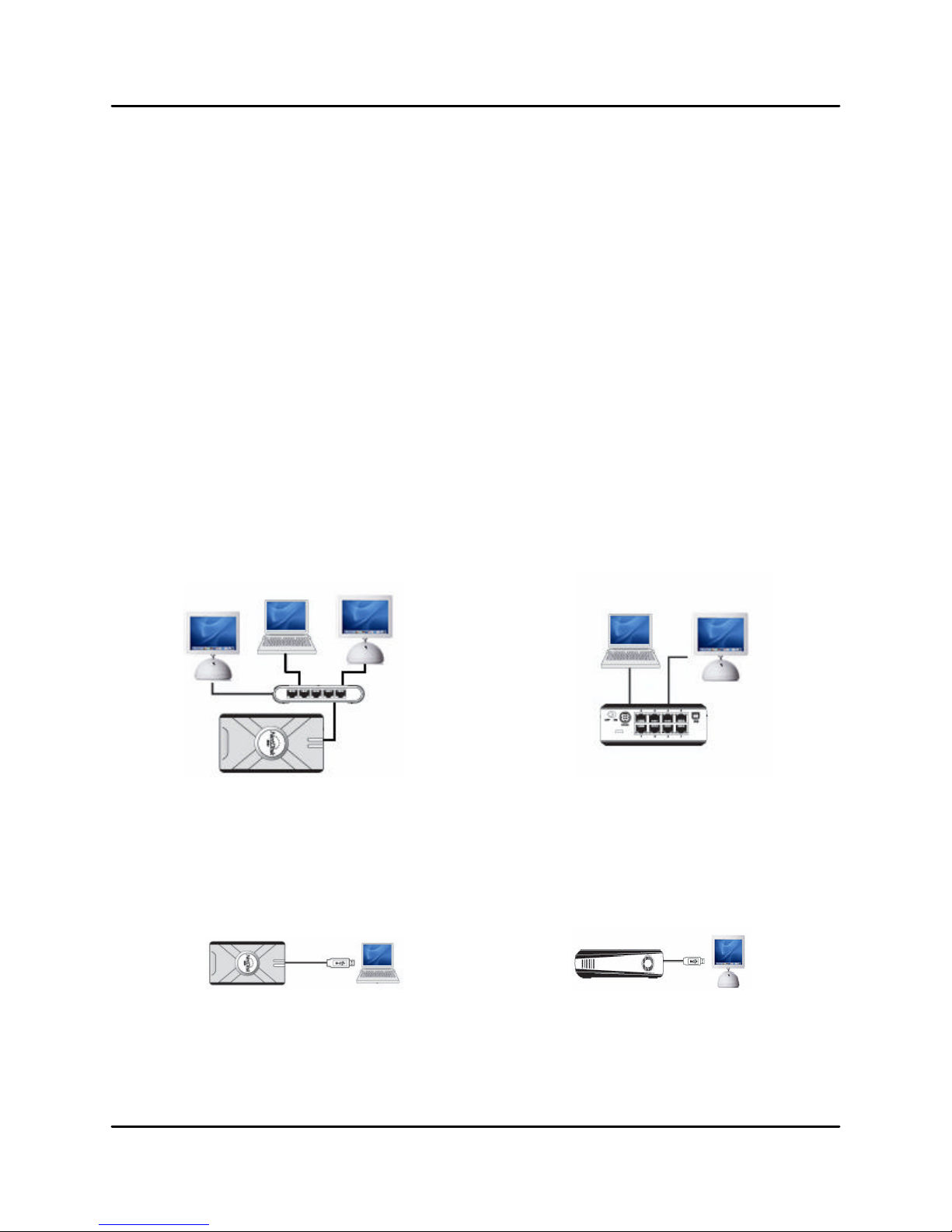
NDAS Mode
In NDAS Mode, NetDisk / NetDisk Mini / NetDisk office is directly attached to a 100MBps /
Full Duplex Fast Ethernet Switch or Wireless Access Point (Wireless Access Point applies
to NetDisk and NetDisk Mini only). Each user on the network can use NetDisk / NetDisk
Mini / NetDisk Office as if it was a local disk drive.
NetDisk / NetDisk Mini NetDisk Office
USB 2.0 Mode
In USB 2.0 Mode, NetDisk / NetDisk Mini / NetDisk Office is directly attached to a com-
puter’s USB Port.
NetDisk / NetDisk Mini NetDisk Office

NetDisk®User Manual Network Direct Attached Storage / NDAS®
XIMETA, Inc 6www.XIMETA.com
Chapter 2 Cable Installation
Warning
•Do not connect USB cable and Ethernet cable at the same time.
2.1 NDAS Mode
NetDisk and NetDisk Mini
1. If your NetDisk has dip switches on the rear panel, flip both dip switches down.
2. Connect the included Ethernet cable from the Ethernet port on NetDisk to a switch
(100 Base-T).
Wireless users: Connect NetDisk to your wireless router or access point
with included Ethernet cable.
3. Make sure the power connector is firmly attached to the NetDisk and connect the
power adapter to a power source.
4. If your NetDisk has an On/Off switch, slide the On/Off Switch to ON position.
NetDisk Office
1. Connect your Local Area Network (LAN) cable to one of the eight NetDisk Office
Switch ports. This connection provides network access from your LAN or router to
the NetDisk Office.
2. Connect the included Ethernet cable from one of the Switch ports on NetDisk Of-
fice to your computer.
Wireless users: Connect NetDisk to your wireless router or access point
with included Ethernet cable.
2. Make sure the power connector is firmly attached to the NetDisk and connect the
power adapter to a power source.
4. Slide the On/Off Switch to ON position.

NetDisk®User Manual Network Direct Attached Storage / NDAS®
XIMETA, Inc 7www.XIMETA.com
2.2 USB Mode
NetDisk and NetDisk Office
1. If your NetDisk has dip switches on the rear panel, flip both dip switches up.
2. Connect the included USB cable from USB port on NetDisk to your computer’s
USB port.
3. Make sure the power connector is connected firmly to the NetDisk and connect the
power adaptor to a power source.
4. If your NetDisk has an On/Off switch, slide the On/Off Switch to ON position.
NetDisk Mini
Without external power
1. Connect the included USB cable from the USB port on NetDisk Mini to your
computer’s USB port(s). To ensure continuous power flow please connect
both connectors with your host computer.
2. Slide the On/Off switch to OFF position.
With external power
1. Connect the included USB cable from the USB port on NetDisk Mini to your
computer’s USB port(s). Only one cable is required to be connected with your
host computer when using an external power source. It does not matter which
connector you choose to connect.
2. Slide the On/Off switch to ON position.

NetDisk®User Manual Network Direct Attached Storage / NDAS®
XIMETA, Inc 8www.XIMETA.com
Chapter 3 NetDisk Software Installation
Installation of NetDisk software is simple and easy. Insert the included “NetDisk Installation
CD” into your CD-ROM Drive. Easy-to-follow instructions will guide you through the installa-
tion.
Step 1
Authenticate
♦Enter Admin Name and Password.
Then click OK.
Step 2
Welcome to the NetDisk Installer
♦Click Continue.
Step 3
Important Information
♦Click Continue.

NetDisk®User Manual Network Direct Attached Storage / NDAS®
XIMETA, Inc 9www.XIMETA.com
Step 4
Software License Agreement
♦Click Continue.
♦If you want to continue installation
please click Agree. Otherwiseclick
Disagree.
Step 5
Select a Destination
♦Click Continue.
Step 6
Easy Install
♦ClickUpgrade.

NetDisk®User Manual Network Direct Attached Storage / NDAS®
XIMETA, Inc 10 www.XIMETA.com
Step 7
Install Software
♦When software successfully finishes
install, click Close.
Step 8
Restart your computer.
NOTE: Once NetDisk software is installed, NetDisk needs to be Added / Registered to your
computer before you can start using NetDisk.
Autres manuels pour NetDisk Mini MNC10-40
1
Ce manuel convient aux modèles suivants
13
Table des matières
Autres manuels Ximeta Matériel réseau


Manuels Matériel réseau populaires d'autres marques

Matrix Switch Corporation
Matrix Switch Corporation MSC-HD161DEL Manuel utilisateur

B&B Electronics
B&B Electronics ZXT9-IO-222R2 Manuel utilisateur

Yudor
Yudor YDS-16 Manuel utilisateur

D-Link
D-Link ShareCenter DNS-320L Manuel utilisateur

Samsung
Samsung ES1642dc Instructions d'utilisation

Honeywell Home
Honeywell Home LTEM-PV Instructions de montage


