
XenData X1500 Manuel utilisateur
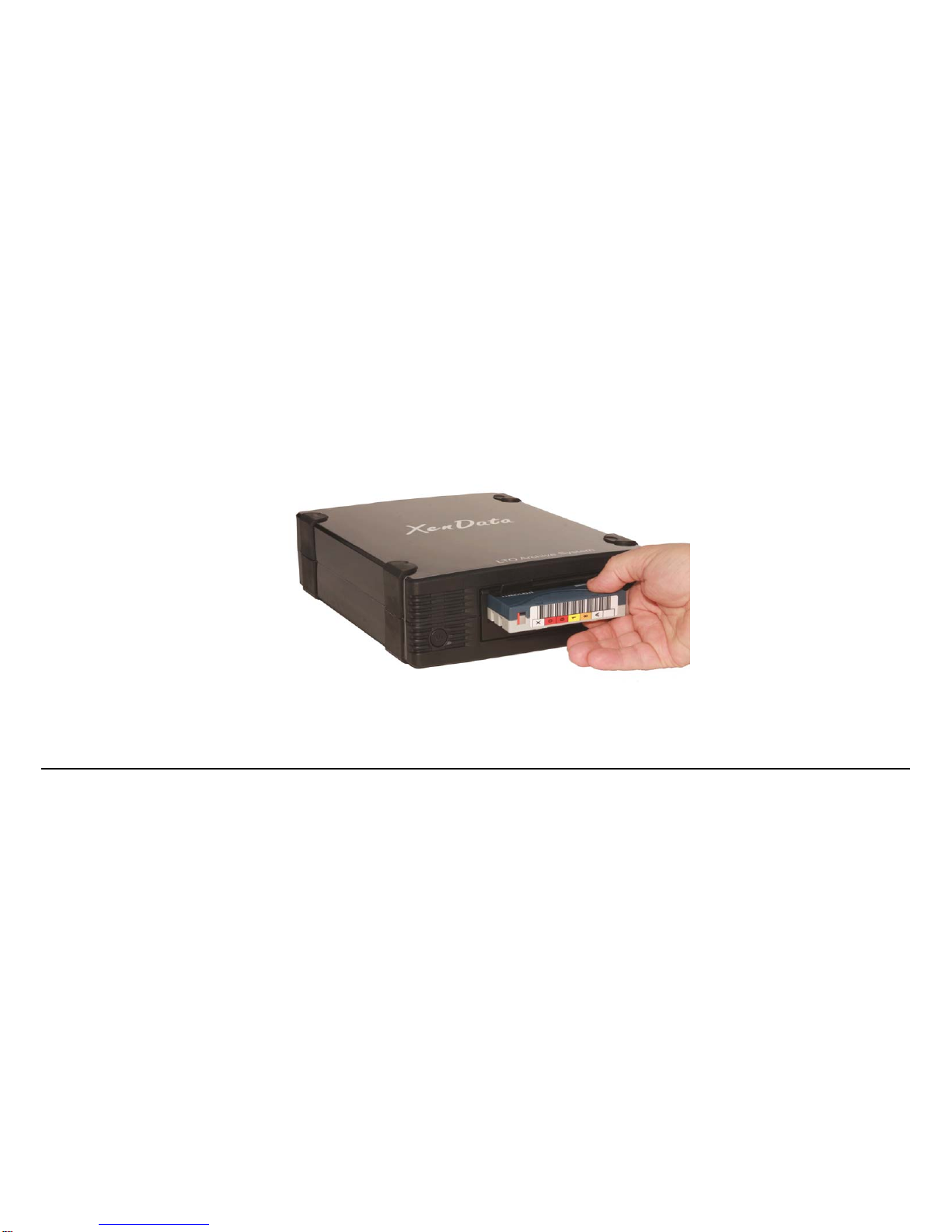
XenData X1500
User Guide
© 2011 XenData Limited. All rights reserved.
XenData is a trademark of XenData Limited.
Document last modified date: 5-Oct-11

User Guide: XenData X1500 LTO-5 Archive System
2
XenData X1500 LTO-5 Archive System User Guide
Contents
1. Overview
1.1 X1500 Contents
1.2 About LTO
1.3 LTO Archive and Restore via Drag and Drop
1.4 Offline File Management
1.5 Barcodes and Tape Labels
1.6 Use on Multiple Computers
1.7 More About XenData6 Workstation Software
2. Installation Guide
2.1 Workstation System Requirements
2.2 Connecting the Hardware
2.3 Installing the Software

User Guide: XenData X1500 LTO-5 Archive System
3
3. System Power On/Off Procedure
3.1 System Power-On
3.2 System Power-Off
3.3 Changing the Connected LTO Tape Drive(s)
4. Tape Drive Operation
4.1 Tape Drive Front View
4.2 Powering on the Tape Drive
4.3 Removing Power from the Drive
4.4 Loading a Tape Cartridge
4.5 Ejecting a Tape Cartridge
4.6 Tape Drive Cleaning
4.7 LED Sequence Diagnostics

User Guide: XenData X1500 LTO-5 Archive System
4
1. Overview
1.1 X1500 Contents
The X1500 is an LTO-5 digital archive system for installation on a Windows 7 workstation. The X1500
contains the following items.
HP LTO-5 tape drive in an external enclosure with a SAS interface
X1500 CD with documentation and XenData6 Workstation software
Dual port SAS Card - for insertion in the computer's PCI Express slot
2m SAS cable - to connect the tape drive to the SAS card
LTO Cleaning Cartridge
1.2 About LTO
Linear Tape Open (LTO) is the leading data tape format and uses technology developed by HP, IBM and
Quantum Corporation. The latest generation of LTO is LTO-5 which provides high storage capacity, high
speed file transfers and a long archival data life:
Huge storage capacity Each LTO-5 tape cartridge stores 1.5 TB without any compression. For video
files, this represents over 65 hours at a 50 Mbits/s recording rate.

User Guide: XenData X1500 LTO-5 Archive System
5
High speed file transfers An LTO-5 tape drives write to and read from tape at up to 140 MBytes/s.
Long archival data life LTO tape cartridges are available from multiple manufacturers that specify a 30
years archival data life.
LTO tape cartridges are available as rewritable or WORM. WORM is an acronym for Write Once Read
Many and the data written to WORM LTO tape cartridges cannot be altered. This means that WORM tapes
cannot be reformatted and reused, unlike rewritable cartridges.
Tape drive compatibilities are as follows.
Drive
Type 1500 GB
RW 1500 GB
WORM 800 GB
RW 800 GB
WORM 400 GB
RW 400 GB
WORM 200 GB
RW
LTO-5 Read-
Write Read-Write Read-
Write Read-Write Read-Only Read-Only Not Compatible
1.3 LTO Archive and Restore via Drag and Drop
The X1500 system archives to and restore from LTO tape using Windows Explorer. The XenData6
Workstation software extends Windows Explorer's capabilities to transfer files to and from LTO using drag
and drop or copy and paste. Files many be archived to tape from any accessible logical drive letter or
network share, including Mac shares. Similarly, files may be restored to a local drive letter or a network
location.

User Guide: XenData X1500 LTO-5 Archive System
6
Using familiar Windows Explorer functionality, the software gives an option to copy only files that have
changed or are new.
The system supports all file types, including non-video files. It maintains file and folder structures, which
allows the transfer of nested folder structures to and from LTO tapes.
1.4 Offline File Management
The X1500 system can manage a large offline LTO tape archive as the file and folder structure stored on all
tapes that have ever been inserted into the LTO tape drive may be retained. You can browse the contents
of offline tapes using Windows Explorer and should you need to restore one or more files or folders, the
system will prompt with the name of the offline tape.
The software includes a report generator which is useful for managing the archive. Options include File
Search reports that produce a list of files which meet user-defined file search criteria and identify the LTO
cartridge that contains each match. A Tape Contents report is also available which produces a list of files
contained on any LTO cartridge including offline tapes.

User Guide: XenData X1500 LTO-5 Archive System
7
1.5 Barcodes and Tape Labels
A label may be attached to an LTO tape cartridge. This can be a paper label with a descriptive volume label
which may be hand-written or it can be a barcode label as shown below.
When using a tape library, barcodes labels are the preferred method for keeping track of tapes, as most tape
libraries include a barcode reader. However stand-alone tape drives do not have the capability of reading
barcode labels but they are able to read the in-cartridge memory chip that is present in all LTO tape
cartridges. When an LTO tape having a barcode label is formatted in a tape library under control of XenData
server software, the software writes the barcode information to the in-cartridge memory chip which allows the
barcode information to be read in a stand-alone tape drive and to be displayed by XenData6 Workstation
software.

User Guide: XenData X1500 LTO-5 Archive System
8
1.6 Use on Multiple Computers
The XenData6 Workstation software license supports use of the supplied LTO tape drive on multiple
computers. When you first install the software, you will assign the supplied tape drive to your software
license. Then you may install the XenData6 Workstation software on multiple computers and use the
specific assigned LTO drive on any of those computers.
1.7 More About XenData6 Workstation Software
Please refer to the XenData6 Workstation User Guide.

User Guide: XenData X1500 LTO-5 Archive System
9
2. Installation Guide
2.1 Workstation System Requirements
The workstation computer must meet the following minimum requirements.
Windows 7 operating system - all 32 bit and 64 bit editions are supported.
Minimum of 2 GB RAM.
One available PCI Express 2.0 slot - either high profile or low profile
2.2 Connecting the Hardware
2.2.1 Power-off the workstation computer.
2.2.2 Follow the instructions specific to your computer and install the dual port SAS card into an available
PCI Express 2.0 slot.
2.2.3 Connect the LTO tape drive to either of the ports on the SAS card with the supplied 2m SAS cable.
2.2.4 Connect a power cord to the LTO tape drive.

User Guide: XenData X1500 LTO-5 Archive System
10
2.3 Installing the Software
When an Internet connection is available for the workstation computer, use the procedure described below.
2.3.1 Ensure that the hardware is connected as described above.
2.3.2 Power on the LTO tape drive(s).
2.3.3 Boot the workstation computer.
2.3.4 Configure Power Options for the workstation computer to prevent sleeping or hibernating. (This is
because any file transfers to or from LTO tape will pause if the workstation sleeps or hibernates.)
2.3.5 Ensure that the workstation computer is connected to the Internet.
2.3.6 Ensure that a device driver is installed for the LTO tape drive.
2.3.7 Select from the supplied CD or download the applicable XenData6 Workstation installation file - either
32 bit or 64 bit as appropriate for your Windows 7 operating system. Double click on the
XD6Workstation_setup file to launch the installation wizard and proceed as described below.
2.3.8 Carefully review the License Agreement and, if you agree, accept the terms of the agreement.
Table des matières
Autres manuels XenData Stockage


Manuels Stockage populaires d'autres marques


Spectra Logic
Spectra Logic T-Series Spectra T50e Manuel utilisateur

Panasonic
Panasonic LKM-F931-1 Manuel utilisateur

Tabernus
Tabernus Enterprise Erase E2400 Manuel utilisateur

Rocstor
Rocstor COMMANDER 3F series Manuel utilisateur

HP
HP P9000 Manuel utilisateur

Western Digital
Western Digital Ultrastar Data60 Manuel utilisateur