
Xeline Xup XM100-01-U Manuel utilisateur

Xup XM100-01-U
User’s Manual
Xeline Co., Ltd.

Guide on User’s Manual
Copyright 2001by Xeline Co., Ltd. All Rights Reserved.
No part of this publication may be reproduced, transcribed, stored in a retrieval system,
translated into any language, or transmitted in any form or by any means, electronic,
mechanical, magnetic, optical, chemical, photocopying, manual, or otherwise, without prior
written permission from Xeline Co., Ltd.
Please be aware that the product would be upgraded to enhance the features and performance
without any prior notice. There could be slight difference on actual installation and operation of
product from this User’s manual.
Should you have any questions or comments on this User’s manual, please communicate
through “Contact us”menu at our web site www.xeline.com.
Technical Support Center
Address:7F. Chungjin B/D., 475-22, Bangbae 2-dong, Seocho-ku, Seoul, Korea
Telephone: 822) 598-0980
Web Site: http://www.xeline.com
Trademarks
※Xup XM100-01-U is a registered trademark of Xeline Co., Ltd.
※Widows98/Windows N/T is a registered trademark of Microsoft Corporation.
※MS-Windows is a registered trademark of Microsoft Corporation.
※General Notice: Other brand and product names used herein are for identification purposes
only and may be trademarks of their respective owners.

Contents
1. Product Introduction………………………………………… 4
1.1 Product Characteristics …………………………………………… 4
1.2 Product Contents …………………………………………………… 4
1.3 Product Details …………………………………………………… 5
Product Outfit ……………………………………… …………… 5
Specifications ………………………………………………… ………… 6
2. Installation Guide …………………………………………………… 7
2.1 Installation …………………………………………………… ……… 7
Set up Xup XM100-01-U ……………………………… 7
Installation of Xup XM100-01-U Driver ……………………………………… 8
TCP/IP setting ………………………..…… 11
3. Useful Notes ……………………………………………………… 15
3.1 Useful notes ……………………………………………………… 15
Cautions ……………………………………………………… 15
Troubleshooting ……………………………………………………… 16
Warranty ……………………………………………………… 16

1. Product Introduction
1.1 Product Characteristics
Xup XM100-01-U is enabling the data transmission over powerline. As powerline
communications technology offers network by utilizing existing power lines at home or small
office, therefore no additional cost is incurred for additional wiring. Xup brings networking
solution with ease of installation and no special networking configuration work. It adds more
convenience for PC with USB Interface as it does not require set up of LAN CARD.
1.2 Product Contents
Xup XM100-01-U
Power Cable USB Cable
User’s Manual Driver Installation Diskette

1.3 Product Details
Product Outfit
Front
PWR Turned on when power is connected and power switch is on.
ACT Blinks when communication is in normal operation.
STA Turned on when power is connected, and initialization is properly completed.
LNK Turned on when connection to PC is properly done.
Rear
Power Inlet Connection point to connect power cable.
Power switch To turn on/off the Xup.
USB Interface Interface between PC and Xup for communication.
Performance Selection DIP Switch
DIP Switch Configuration

FEC OFF/ON
Mode to stabilize the communications status and increase the reliability though possibly yield
lower data rate.
(Set as “OFF”when shipped)
Hi-Z OFF/ON
Mode to improve the receptive sensitivity of Xup.
Set as “OFF”when the power line environment has many noise sources.
(Set as “ON”when shipped)
GA(Group Address)
To set up the address of Xup Products in communications.
All the Xup Products in communications should be configured with the same address.
(Set as “0001”when shipped)
Specifications
User PC Requirements
CPU :Pentium 166MHz or above
MEMORY :32Mbyte or above
VGA :Resolution 640*480 ~1280*1024 (16Bit color or above)
OS :Windows98/ Windows NT
USB Port :One or more USB Ports
Specifications
Specifications Remarks
Data Rate Up to 1Mbps
Interface USB Connect to PC USB
Dimension 186 X 143 X 40 mm (W X D X H)
Weight 750 g
Power AC120V, 60Hz
Power Consumption Max 15W or below

2. Installation Guide
2.1 Installation
Set up Xup XM100-01-U
Turn off the power of PC.
Ensure the PC has USB Port available.
Connect USB Cable to PC.
Connect Power Cable to Xup XM100-01-U.
Connect Xup XM100-01-U and PC with USB Cable.
Ensure all the connections made as figures below.
Installation of Xup XM100-01-U Driver
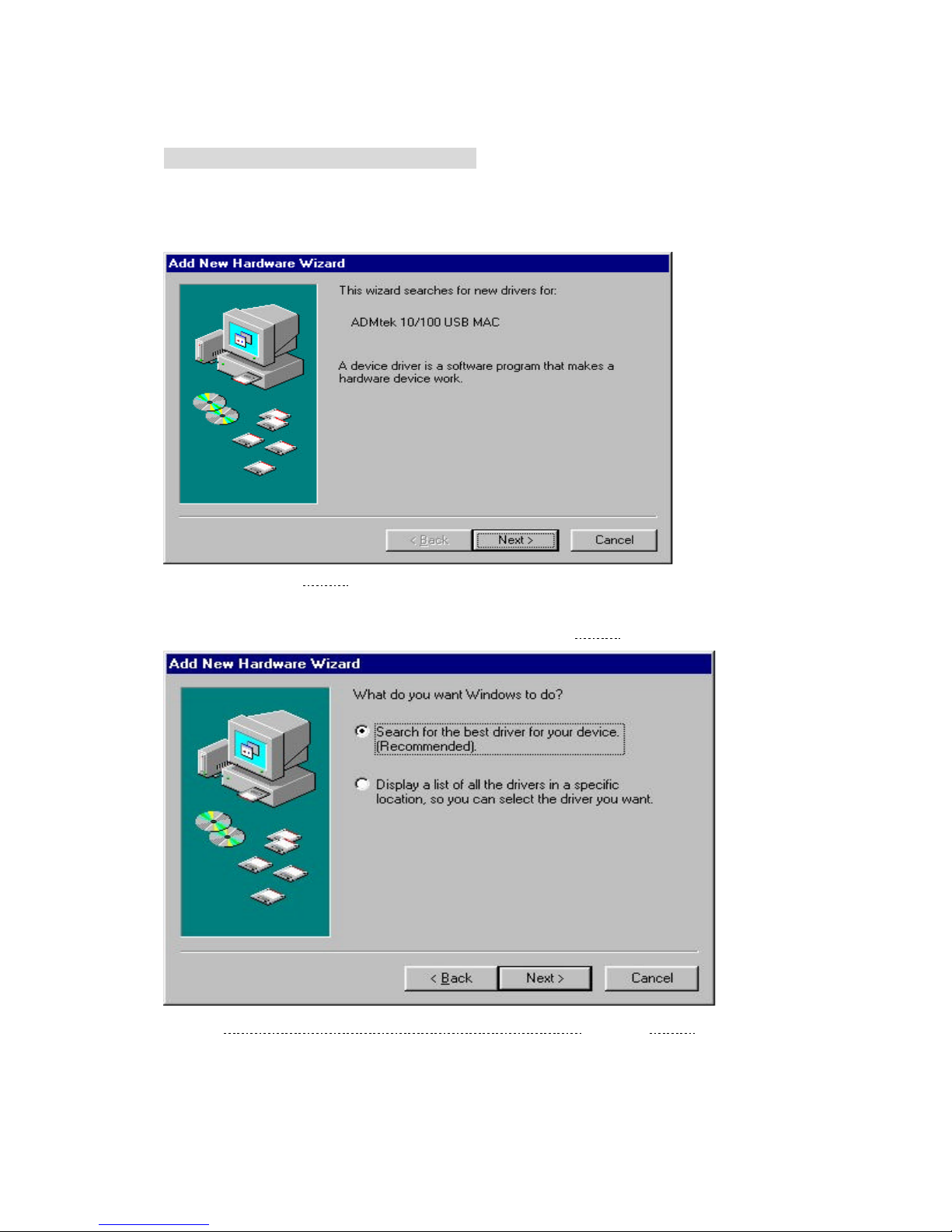
Turn on your PC and Xup XM100-01-U . Find the new device and display the ”ADMtek
10/100 USB MAC ”window to install the hardware device driver. (Based on Windows98)
Continue and click [Next>].
The Add New Hardware Wizard will search for the driver. Click [Next>].
Select Search for the best driver for your device[Recommended] and click [Next>].
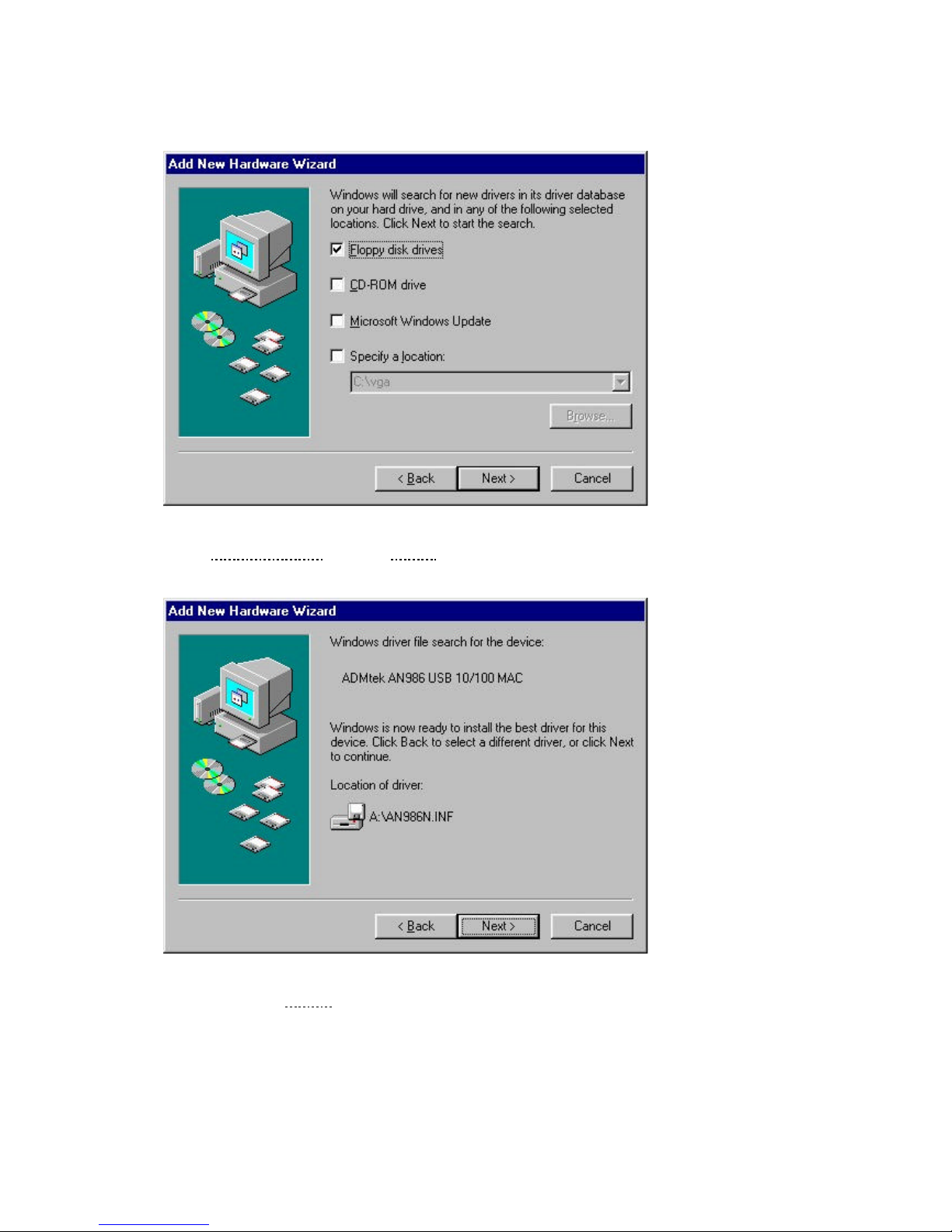
Specify the location to install the control device driver.
Select Floppy disk drives and click [Next>].
Find ”ADMtek AN986 USB 10/100 MAC ”from the floppy disk to bring up the above screen.
Continue and click [Next>].

When you click the [Next>]button, the software installation for the new ”ADMtek AN986 USB
10/100 MAC ”hardware will be finished.
Click [Finish>] and complete the installation.
Installation of the Xup XM100-01-U driver is now finished. Once the hardware installation has
been completed, click Control Panel
à
Device Manager
à
Network Adapters and check if it is
set up to display ”ADMtek AN986 USB 10/100 MAC.”If not, the installation process must be
done over again from the beginning. If the driver has been properly installed, you will see the
following screen.
Table des matières
Manuels Système de microphone populaires d'autres marques


Sennheiser
Sennheiser Evolution Wireless Digital EW-DX EM 2 Manuel utilisateur

Alpha Technologies
Alpha Technologies RBMS Manuel utilisateur

SWIT Electronics Co.,LTD.
SWIT Electronics Co.,LTD. CW-S150 Manuel utilisateur

Shure
Shure UA844 Manuel utilisateur

Panasonic
Panasonic SHFX70 - DVD HOME THEATER WIRELESS SYSTEM Manuel utilisateur

Pyle
Pyle PDWM5000 Manuel utilisateur