Wordcraft DryFire Manuel utilisateur

DryFire Version 5 User Guide
User Guide Version 5.1 issued 1st January, 2021.
Please see the web site for the latest version and for more documentation that may help you:
https://wordcraft.com/support
Safety
You are personally responsible for your own safety and the safety of others around you.
Wordcraft International cannot be held responsible if you ignore these warnings.
Ensure your gun is unloaded before using it with DryFire - double check semi-automatics.
Just as at the shooting ground, never point a gun at anyone.
Keep batteries and other small parts way from young children.
Avoid explosions and fire by never recharging batteries unless they say "Rechargeable".
Use a cable protector to ensure you don't trip over trailing mains or USB cables.
To prevent damage to your eyes, and the eyes of others, never look into a laser and never point it at
anyone.
Translation
1. Download this PDF document to your PC.
2. Visit the Google translate page:
https://translate.google.com/?sl=auto&tl=en&op=docs
3. Select the language you require.
4. Locate this PDF document on your PC.
5. Click on “Translate”.
6. The text will be translated but you will need this English PDF for the illustrations.
1

Table of Contents
1 What’s in the box...........................................................................................................................................5
1.1 DryFire...................................................................................................................................................5
1.2 Swing.....................................................................................................................................................5
2 Installation.....................................................................................................................................................6
2.1 Preparing your room..............................................................................................................................6
2.1.1 Lighting...........................................................................................................................................6
2.1.2 Measurements................................................................................................................................6
2.2 Detailed preparation...............................................................................................................................8
2.3 Gun assembly setup..............................................................................................................................9
2.3.1 Trigger switch fitting........................................................................................................................9
2.3.2 UGA Safety.....................................................................................................................................9
2.3.3 UGA battery charging...................................................................................................................10
2.3.4 UGA fitting and use.......................................................................................................................10
2.4 Software installation.............................................................................................................................10
2.5 Muzzle alignment.................................................................................................................................12
2.6 Your first target.....................................................................................................................................13
2.7 Camera setup.......................................................................................................................................14
2.8 Microphone setup.................................................................................................................................15
3 Projection add-on setup...............................................................................................................................16
3.1 Laser targets first.................................................................................................................................16
3.2 Quick setup..........................................................................................................................................16
3.2.1 Before setup.................................................................................................................................16
3.2.2 Setup............................................................................................................................................17
3.3 Extended mode....................................................................................................................................17
3.3.1 An easy check for extended or duplicated mode..........................................................................17
3.3.2 Two displays but one mouse cursor..............................................................................................17
3.4 Wrong image size................................................................................................................................18
3.4.1 Checking for cropping...................................................................................................................18
3.5 Illustration of the procedure..................................................................................................................18
3.6 Setup procedure in detail.....................................................................................................................19
3.7 Report of problem with Windows 10 and extended mode....................................................................20
4 Swing setup.................................................................................................................................................21
4.1 Before installation.................................................................................................................................21
2

4.2 Installation and calibration....................................................................................................................22
4.3 Setting the home position.....................................................................................................................23
4.4 Setting the laser ahead position...........................................................................................................24
4.4.1 Swing to wall distance..................................................................................................................25
4.5 Setting the shooter position..................................................................................................................25
4.6 Target selection....................................................................................................................................25
5 Screen layout...............................................................................................................................................27
6 Selecting a simulation..................................................................................................................................28
7 Releasing targets.........................................................................................................................................30
7.1 More information about targets.............................................................................................................32
8 Results and feedback..................................................................................................................................33
9 Shooters......................................................................................................................................................35
10 Firearms....................................................................................................................................................36
11 Settings......................................................................................................................................................38
11.1 Calibration..........................................................................................................................................38
11.2 Background........................................................................................................................................38
11.3 Scaling...............................................................................................................................................39
11.4 Target release....................................................................................................................................39
11.5 Clays..................................................................................................................................................40
11.5.1 Note about clay speed................................................................................................................40
11.6 Results...............................................................................................................................................41
11.7 Wind...................................................................................................................................................42
11.8 Sounds...............................................................................................................................................42
11.9 Localisation........................................................................................................................................43
11.10 Add-ons............................................................................................................................................43
11.11 Miscellaneous:.................................................................................................................................43
12 Installing adds-ons.....................................................................................................................................44
13 Designer add-on........................................................................................................................................45
14 Rifle & Pistol add-on..................................................................................................................................49
15 Competition add-on...................................................................................................................................50
15.1 Squads, multiple users and multiple guns..........................................................................................50
15.2 Getting started....................................................................................................................................50
16 Gun Motion add-on....................................................................................................................................55
16.1 Important note....................................................................................................................................55
16.2 Requirements.....................................................................................................................................55
3

16.3 Using Gun Motion..............................................................................................................................55
16.4 Post-shot analysis..............................................................................................................................57
17 Report Generator add-on...........................................................................................................................58
17.1 Requirements.....................................................................................................................................58
17.2 Using Report Generator.....................................................................................................................58
18 Getting support..........................................................................................................................................61
18.1 Trouble shooter..................................................................................................................................61
18.2 Sending a support request.................................................................................................................61
18.3 Advanced support options..................................................................................................................62
19 Advanced room setup................................................................................................................................65
20 Advanced UGA setup................................................................................................................................67
20.1 Configuring the UGA..........................................................................................................................67
20.2 Bluetooth problems............................................................................................................................68
21 Warranty....................................................................................................................................................69
4

1 What’s in the box
Check you have the following items and contact us if anything is missing.
1.1 DryFire
Simulator with two heads.
Power supply with mains cable.
The DryFire power supply generates 5V to power the simulator. Most homes have lots of different
power supplies lying around – using the wrong one will damage the simulator.
The two heads on the simulator will nod up and down when the USB cable is connected to a PC and
the power supply is connected to the simulator and switched on at the mains.
If this doesn’t happen it probably means that the wrong power supply has been used at some time.
Please follow this link for a test procedure.
https://wordcraft.com/dryfire/help/df_sim_test
Universal Gun Assembly (UGA) and barrel clamp.
Trigger switch and cable.
USB cable.
1.2 Swing
USB cable
No power supply is required for Swing because it has an internal battery which is being charged
continuously over the USB port. The battery provides the energy for the two servo motors moving the
laser spot.
5

2 Installation
2.1 Preparing your room
2.1.1 Lighting
DryFire detects a pulse of infrared (IR) light fired from the Universal Gun Assembly (UGA) so you require a
room with subdued lighting and with no direct sunlight or artificial light falling on the wall/screen or being
reflected from it.
You will probably want a darker room if you are using the projection add-on - so you can see the screen better.
Be careful with targets taken beyond your normal break zone - the cameras may be seeing light to the sides
and you may get false shots. Check for reflected light from doors or windows, reduce overall lighting and try
again. If all else fails, you can reduce the sensitivity of the cameras.
2.1.2 Measurements
To present accurate targets DryFire needs to know two things:
where the simulator is (distance from wall and height above floor).
where your eyes are (distance from wall and eye height when you are in your shooting stance).
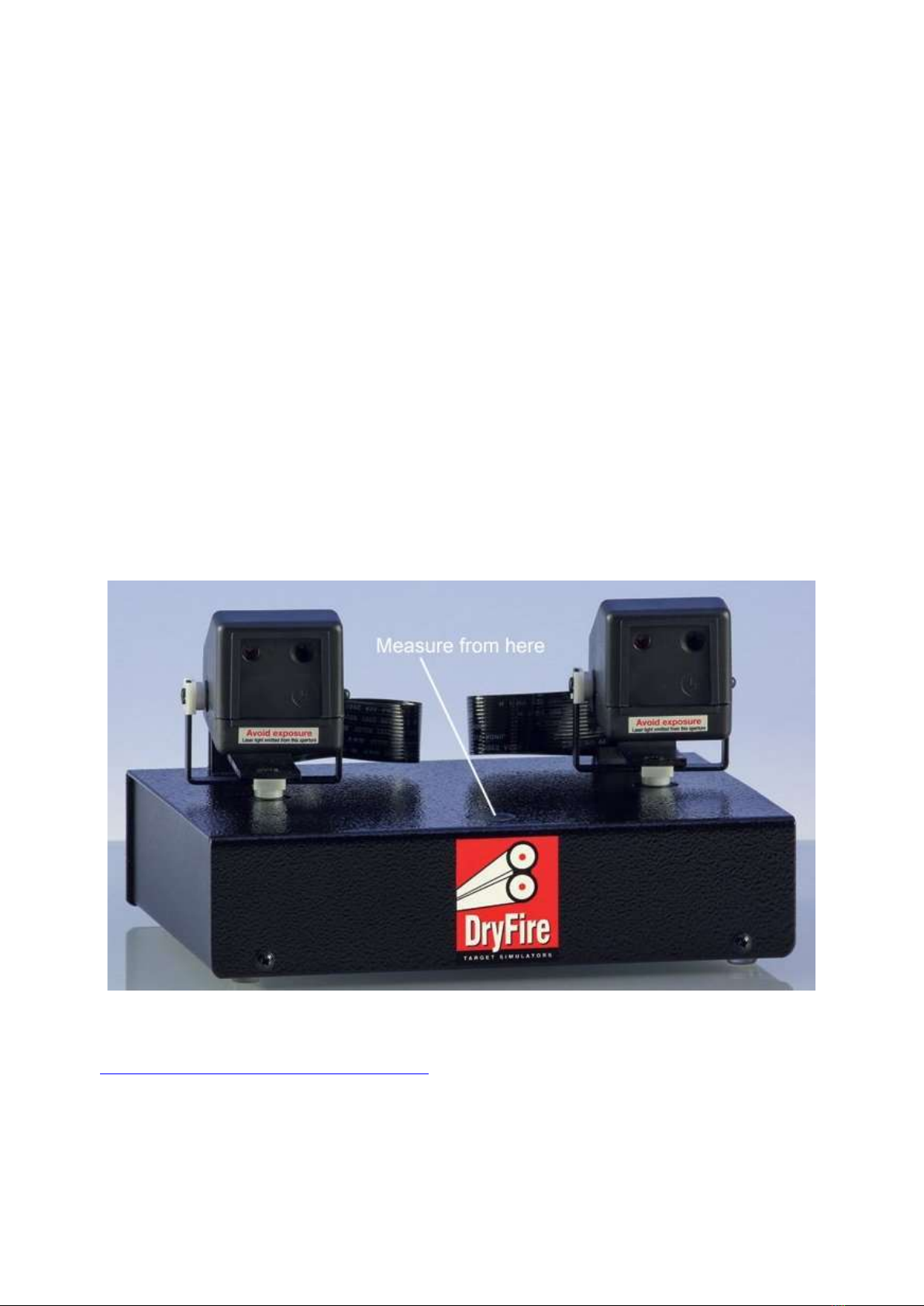
The reference point for measurements is the centre of the circular indentation on the top surface of the
simulator's metal case
The drawing below has the simulator mounted on the DryFire shooting stand:
https://wordcraft.com/dryfire/articles/cabinet
The drawing shows:
simulator to wall: 1.75m,
simulator from floor: 0.65m,
shooter from wall: 2.50m,
6

the lower Post-it note marking the simulator straight ahead position - directly in front of, and at the
same height as, the simulator,
the upper Post-it note marking the shooter straight ahead position - directly in front of, and at the same
height as the shooters eye's when in the shooting stance.
This is an example only - your measurements will probably be different.
Take great care with "shooter straight ahead".
DryFire calculates everything from the viewpoint of your eyes when in the shooting stance.
This is not the same as your physical height and not the same as your eye height when standing up.
Imagine a shooter 1.83m (6') tall.
When in the shooting stance, with the barrels perfectly level, the bead points to a location 1.52m (5')
from the floor. That is the shooter straight ahead height for the Post-it note.
The spreadsheet below shows suitable measurements for use with DryFire. The ceiling, slope, left wall and
right wall values are rarely used.
7

2.2 Detailed preparation
Prepare two Post-It notes (see the drawing above) by drawing diagonal lines to mark their centres.
The DryFire simulator should face the centre of the wall/screen and be absolutely parallel with it.
The reference point for DryFire measurements is the centre of the indented circle on the top of the
simulator's metal case.
The simulator should be between 1.5m and 2.0m from the wall/screen.
The simulator should be between 0.5m and 1.0m from the floor.
The optional DryFire Shooting Stand is ideal for this - the simulator will be 0.65m from the floor.
Put a Post-It note on the wall/screen directly in front of the simulator and at the same height - this is the
"simulator straight ahead" position. Measure the distance from the wall/screen and the height from the
floor.
Measure how far the left and right walls are from the simulator.
Measure the ceiling height.
If the wall has a slope, measure how far up from the floor it starts and how far the top extends into the
room.
Decide your shooting position and measure the distance from the wall/screen.
Stand in your shooting position, adopt a shooting position pointing straight ahead with your gun barrel
horizontal. (Get someone to put a spirit level on your barrel to ensure it is horizontal.) Use a Post-It
note to mark the position your are pointing at on the wall/screen. This is the "shooter straight ahead"
position
If your shooting position is not directly behind the simulator measure how far it is to the right (entered
as a positive value, e.g. 0.60m) or left (entered as a negative value, e.g. -0.60m) of the simulator
straight ahead position.
Write down all your measurements before running the software. Keep the list safe for future reference
8

2.3 Gun assembly setup
The gun assembly has two parts: a trigger switch and a Universal Gun Assembly (UGA).
2.3.1 Trigger switch fitting
Wrap the trigger switch round the trigger as tightly as possible and wrap the excess cable round the trigger
guard. Fit the switch so the rubber tail is out of the way of your trigger finger – this it will be different for left
and right handed shooters.
Some people have fitted the switch the other way round so it is activated when pressed against the back of the
trigger guard. There is no "right" or "wrong" way as long as it works!
2.3.2 UGA Safety
9

The Universal Gun Assembly (UGA) sends out a short pulse of low power infrared (IR) laser light when you
press the trigger. IR is invisible to the human eye but can still be dangerous so never look directly into the
laser and never point it at anyone
2.3.3 UGA battery charging
The UGA contains a rechargeable battery which may be charged from any USB port or USB charger.
The UGA requires charging before first use. A yellow "charging" LED will illuminate when charging and a
green LED will illuminate when fully charged.
It is worth periodically charging the UGA until the green LED is illuminated even if it is still functioning correctly.
Strange things can happen on low charge, e.g. you may be able to carry out muzzle alignment but DryFire
may not report shots when you fire at targets.
2.3.4 UGA fitting and use
Clamp the UGA under your barrel, close to the end of the forestock.
Plug the trigger switch cable into the socket on the back of the UGA.
Secure the excess cable out of the way.
Switch on the UGA - the red LED will flash.
Press the trigger switch, the red LED should flash each time you do this.
The red LED will continue to flash periodically to show the UGA is switched on.
Switch off the UGA after use.
Recharge the UGA from a USB port or USB charger.
The UGA comes ready for normal "press to shoot" mode, see the Advanced UGA setup section for "release
to shoot" mode.
2.4 Software installation
Click the link below to watch a video covering DryFire installation and first use:
https://vimeo.com/495157095
10
Table des matières