
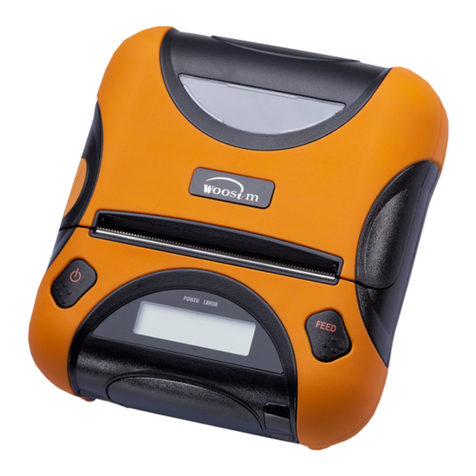
Woosim Systems PORTI-SW40 Manuel utilisateur

http://www.woosim.com
All specifications are subjected to change without notice
MODEL PORTI-SW40
WOOSIM SYSTEMS Inc.
#501, Daerung Technotown 3th,
448, Gasan-Dong, GeumChun-Ku,
Seoul, Korea
Tel : +82-2-2107-3700
Fax : +82-2-2107-3707
URL: http://www.woosim.com

http://www.woosim.com 2
C
Co
op
py
yr
ri
ig
gh
ht
t
PORTI-SW40 portable printer operator’s manual.
Copyright 2007 by Woosim System Inc.གྷ
All rights reserved.
The information contained in this manual is the property of Woosim Systems Inc. and
may not be reproduced in whole or in part without the prior written permission of
Woosim Systems Inc.
Trademark
a registered trademark of Woosim Systems Inc.
All other trademark are the properties of their respective companies.
Caution
Some semiconductor devices are easily damaged by static electricity. You should turn
the printer “OFF”, before you connect or removed the cable on the rear side, in order to
guard the printer against the static electricity.
If the printer is damaged by the static electricity, you should turn the printer “OFF”.
Notice
The contents of this manual are subject to change without notice.
"Changes or modifications not expressly approved by the party responsible for compliance
could void the user's authority to operate the equipment."

http://www.woosim.com 3
Introduction
The PORTI-SW40 is suitable designed for use with a growing variety of mobile
devices. IrDA/Serial or Bluetooth/Serial interfaces make the PORTI-SW40 the perfect
comrade for applications such as point of transaction warehousing, distribution, point
of sales, hospitality, gaming and healthcare.
The general features of PORTI-SW40 printer are as follows:
XPocket size (107.5mm x 88.5mm x 45mm).
XLight weight(360g) for true mobility.
XVery silent printing thru direct thermal printing method.
XHigh speed (40mm/sec)
XHigh resolution (203dpi, 8dot/mm)
XRS-232C or TTL , Bluetooth interface
XEasier paper roll loading by CLAMSHELL design.
XEasier maintenance with self-diagnostic.
XMicrosoft Windows 98/ME/XP/2000 compatible.
XSupport bit-image(logo) download.
XFlow control : Software (XON/XOFF)
Hardware flow control not supported in printer.ଖ
G

http://www.woosim.com 4
Operating Precaution
Please follow the precautions below to enjoy and maintain the full performance of
the printer.
X
Using the Printer
ƔBe careful not to drop or bump the printer on a hard surface.
ƔDo not install the printer in direct sunlight or such areas.
Suitable environment for the use of the printer is as follows :
Operating temperature :ଝ-10°C to 40°C
Relative humidity : 10% toଝ90% (No condensation)
ƔDo not install the printer near devices that generate strong
electromagnetic fields such as a copy machine.
ƔDo not open the platen cover during printing .
ƔDo not remove or reinstall the communication cable during printing
or transmission.
ƔDo not touch the connectors of the communication cable and
to close up the Infrared transmitter /receiver during printing.
ƔSwitch the POWER OFF when not in use.
ƔDo not use alcohol or other solvent.
ƔThe AC adapter, the battery charger and the battery pack may
become warm when in use. This is normal and is not a malfunction.
ƔWhen the battery pack is used at low temperature, the length of time
the printer can be used may be shortened.

http://www.woosim.com 5
XThermal Paper Handling
ƔStore the thermal paper in a cool, dry and dark place.
ƔDo not rub the paper with hard object.
ƔDo not leave the paper with hard object.
ƔDo not allow plastic film, erasers, or adhesive tape to touch the paper
for long periods.
ƔDo not stack the thermal paper with diazo copies immediately
after copying or wet-type copies.
ƔDo not use chemical glue.
ƔAlways use the clean thermal paper.
Note
This equipment has been tested and found to comply with the limits for a Class B digital
device, pursuant to Part 15 the FCC Rules. These limits are designed to provide reasonable
protection against farmful interference in a residential installation. Thes equipment generates,
uses and can radiate radio frequency energy and, if not installed and used in accordance with
the instructions, may cause harmful interfrernce to radio communications. However, there is
no guarantee that interference will not occur in a particular installation. If this equipment does
cause farmful interference to radio or television reception , which can be determined by
turning the equipment off and on, the user is encouraged to try to correct the interference by
one or more of the following measures:
--Reorient or relocate the receiving antenna.
--Increase the separation between the equipment and receiver.
--Connect the equipment into an outlet on a circuit different from that to which the
reciver is connected.
--Consult the dealer or an experienced radio/TV technician for help.
Modifications not expressly approved by the manufacturer could void the user's authority to
operated the equipment under FCC rules.

http://www.woosim.com 6
CONTENTS
1. Outline............................................................................................................................................7G
1.1. Model classifications ............................................................................................................7G
1.2. Product Part Number System................................................................................................7G
1.3. Specifications........................................................................................................................8G
2. Setting up the printer ....................................................................................................................9G
2.1. Printer & Accessories ...........................................................................................................9G
2.2. Printer Features...................................................................................................................10G
2.2.1. Part name .................................................................................................................10G
2.2.2. Dimensions ..............................................................................................................10G
2.3. Replacing paper roll............................................................................................................11G
2.4. Power supply ......................................................................................................................12G
2.4.1. Internal power supply ..............................................................................................12G
2.4.2. Installing the Battery................................................................................................12G
2.4.3. Recharging the battery pack.....................................................................................13G
2.5. Set operation mode .............................................................................................................14G
3. Interface........................................................................................................................................17G
3.1. RS-232C .............................................................................................................................17G
3.2. Bluetooth ............................................................................................................................18G
4. Using the printer..........................................................................................................................19G
4.1. Control panel ......................................................................................................................19G
4.2. Self test ...............................................................................................................................20G
5. Consumable parts........................................................................................................................21G
5.1. Recommended paper...........................................................................................................21G
5.2. Printing position..................................................................................................................21G

http://www.woosim.com 7
1
1.
.O
Ou
ut
tl
li
in
ne
e
1
1.
.1
1.
.M
Mo
od
de
el
lc
cl
la
as
ss
si
if
fi
ic
ca
at
ti
io
on
ns
s
1
1.
.2
2.
.P
Pr
ro
od
du
uc
ct
tP
Pa
ar
rt
tN
Nu
um
mb
be
er
rS
Sy
ys
st
te
em
m
PORTI-SW40 ( ) ( )
Model Name
Interface
None : IrDA/Serial
BT : Bluetooth/Serial
Power
None : DC 8.4V
Model name / Interface Spec.
Example) 1. Porti-S40 Serial/Bluetooth Part No. ൽS40/A1
2. Porti-SC30 Bluetooth Only Part No. ൽG SC30/Z1
S40
SC30
W25
.
.
.
Wired Wireless
A RS-232C 1 Bluetooth
B TTL 2 IrDA
C USB 3 HPIR
D RS-485 0 None
E Parallel
Z None

http://www.woosim.com 8
1
1.
.3
3.
.S
Sp
pe
ec
ci
if
fi
ic
ca
at
ti
io
on
ns
s
Item Specification
Printing method Direct thermal line printing
Characters per line 64cpl
Character size Eng. : 9*24dots, 12*24dots Kor. : 16*24dots, [24*24dots]
Resolution 203dpi, 8dots/mm
Print width 3-inch (72mm, 576dots)
Printing speed 40mm / sec
Dimensions 107.5 * 88.5 * 45 mm
Weight 360g (Including battery & roll paper)
Interface RS-232C or TTL / Bluetooth
Paper supplied Thermal roll paper (80mm wide, 38ø)
Barcode supplied PDF417(2-dimension), Code128, Code39, I2/5, Code93
UPC, EAN, KAN, JAN, CODABAR
Receive buffer size 10K bytes
Note Printing speed may be slower, depending on the data
transmission speed and the combination of control commands.
Battery Rechargeable 7.4V DC, 1400mAh(Li-ion)
Battery duration 1 hour continuous printing
Battery Charger Input (100~250VAC, 50~60Hz)
Output(8.4VDC/0.8A), 4hours full charge time
Temperature -10¶C ~ 40¶C (operating)
-10¶C ~ 70¶C (storage)
Environment
Conditions Humidity
30% - 80% (operating)
10% - 90% (storage)
Mechanical 37,000,000 lines
MCBF (Mean Cycle
Between failure) Head Approximately 50 Km

http://www.woosim.com 9
2
2.
.S
Se
et
tt
ti
in
ng
gu
up
pt
th
he
ep
pr
ri
in
nt
te
er
r
2
2.
.1
1.
.P
Pr
ri
in
nt
te
er
r&
&A
Ac
cc
ce
es
ss
so
or
ri
ie
es
s
Your printer box should include these items. If any items are damaged or missing,
please contact your dealer for assistance.
PORTI-SW40
Battery Pack Roll Paper
Battery Charger
Communication Cable
G
OPTIONAL
Extra Charger

http://www.woosim.com 10
2
2.
.2
2.
.P
Pr
ri
in
nt
te
er
rF
Fe
ea
at
tu
ur
re
es
s
2
2.
.2
2.
.1
1.
.P
Pa
ar
rt
tn
na
am
me
e
2
2.
.2
2.
.2
2.
.D
Di
im
me
en
ns
si
io
on
ns
s
Table des matières
Autres manuels Woosim Systems Imprimante

Woosim Systems
Woosim Systems PORTI-SC40N Manuel utilisateur

Woosim Systems
Woosim Systems WSP-DT380 Manuel utilisateur

Woosim Systems
Woosim Systems WSP-R240 Manuel utilisateur

Woosim Systems
Woosim Systems WSP-R231 Manuel utilisateur
Woosim Systems
Woosim Systems WSP-i350 Manuel utilisateur

Woosim Systems
Woosim Systems WSP-SW25 Manuel utilisateur

Woosim Systems
Woosim Systems PORTI-KT40 Manuel utilisateur

Woosim Systems
Woosim Systems PORTI-SB50 Manuel utilisateur

Woosim Systems
Woosim Systems WSP-CP Manuel utilisateur

Woosim Systems
Woosim Systems WSP-i450 Manuel utilisateur


