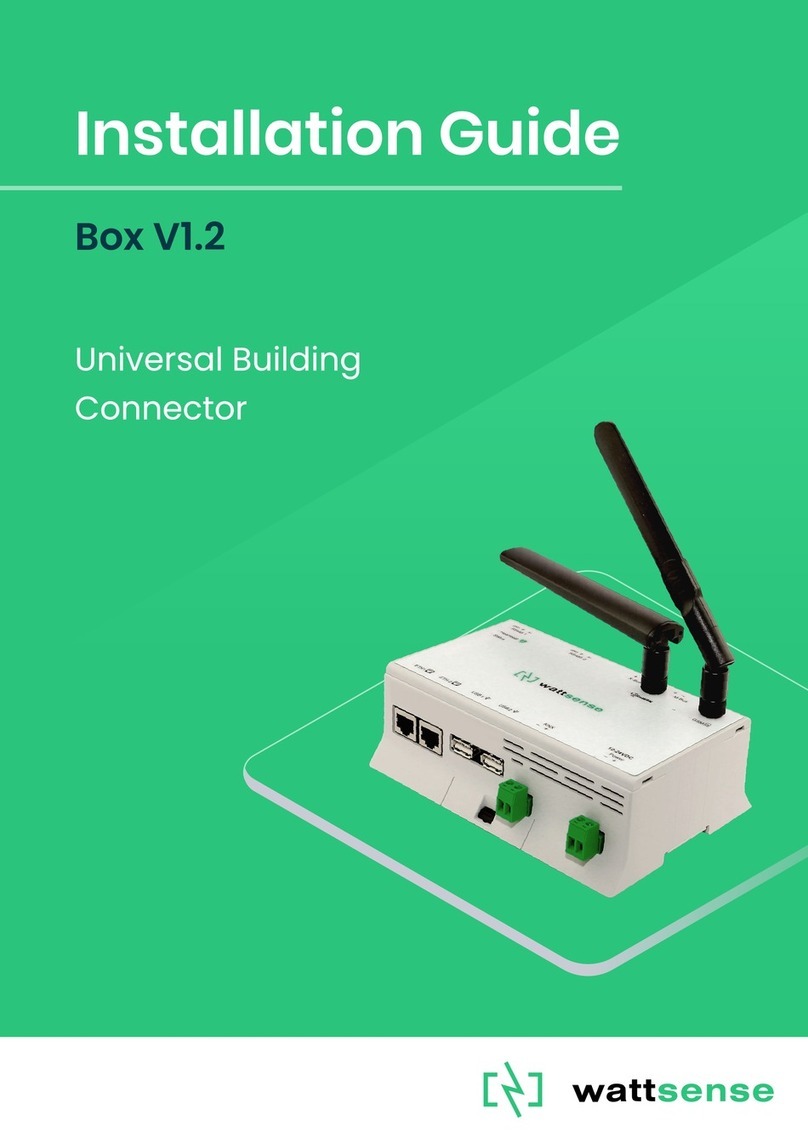
Wattsense BOX Manuel utilisateur

BOX
Installation Guide
Univers l Buildin
Connector
2020-12-V1.3
Made in France

2020-12-V1.3
1
Table of Contents
What do you need before starting? 2
Provided material 2
Required material 2
Optional hardware depending on the type of connection 3
Computer access to the Wattsense console 3
The power supply of the Box 4
GSM Antenna 9
To connect the Box to the BMS 10
In case of IP network (Except LON) 10
In case of LON IP-852 network 13
In case of LON FT10 network 16
To connect the Box directly to the technical equipment in the absence of a BMS 18
The equipment communicates in Modbus IP 18
The equipment communicates in Modbus RTU (RS485) 23
The equipment communicates in BACnet IP 29
The equipment communicates in LON FT10 33
The equipment communicates in LON IP-852 35
The equipment communicates in LPB 37
To connect the Box to LoRaWAN sensors 40

2020-12-V1.3
2
What do you need before starting?
Provided material
● Box
○ Dimensions: 160 x 110 x 55 mm
○ Weight: 340 g
● GSM standard antenna
● LoRa standard antenna
Required material
● Powerline voltage (100 to 250VAC) to 12V-24V DC +/-10% power supply
● Cable between the power supply and the Box: 2 wires (red, black), 22 AWG,
minimum section: 0.35 mm²
● Flat screwdriver
● Cutting pliers
● Wire stripper

2020-12-V1.3
3
Optional hardware depending on the type of connection
● Bus connection cable: 2 wires, 24 AWG, minimum section: 0.22 mm² + braid
● Ethernet cables
● Ethernet switch
● Echelon U60 FT DIN USB Gateway (for LON FT10)
● High-gain GSM antenna
● High-gain LoRa antenna
● GSM or LoRa antenna cable
● Double-sided high performance adhesive tape
● Technical documentation of equipment
● Technical documentation of IoT sensors
● Schematic of the communication network(s) of the BMS
Computer access to the Wattsense console
● Each customer has a dedicated space on the Wattsense User Console at
https://console.wattsense.com. This interface allows them to manage their fleet of
Boxes.
● A Box must have been activated in advance before it can be fully installed and
configured.
● If the Box hasn’t been activated, ask the administrator of the account to create an
"installation" access on the Wattsense user console and retrieve the login
information (email address and password).
● Once on-site, activate the Box on the console:
○ How to Log in to the console: enter the email and password provided by the
administrator and click on "Log in".
○ Enter the alphanumeric identifier of the Box in the search rectangle at the
top.
○ Click on "Activate".
○ It is required to give the Box a name in the "Name" field (for example, the
name of the site where it will be installed).
○ If necessary, add additional information in the "Description" field in order to
clearly identify the Box (for example the floor or the precise place of
installation if on the same site there are several Boxes).
○ Click on "Activate the Box".
● You will then be able to access the configuration tools.

2020-12-V1.3
4
The power supply of the Box
Make sure that the Box has been activated beforehand on the user console.
● Ideally, place the Box in an electrical enclosure or cabinet.
● This type of equipment is not suitable for installation in places that can
accommodate children.
● Attach the Box:
○ Mount the Box on a DIN rail.
○ Or attach 2 screws to a wall and hook the Box using the notches on the back
of the case: Screws of maximum 4 mm in diameter, with a head of maximum

2020-12-V1.3
5
7.5 mm diameter, a spacing of 89.4 mm.
● To avoid any risk of injury caused by the Box falling, the Box must not be installed
more than 2 meters from the ground.
● Use a DC power supply of 12V to 24V +/-10%, 2A.
● Screw the cable into the power connector of the Box.

2020-12-V1.3
6
● Connect the cable to the power supply.
● Check that the "Power" LED is lit (steady green light).

2020-12-V1.3
7
● The Box is protected against overvoltage, undervoltage, overcurrent from the power
supply with indication by LED: green LED when the power supply is compatible, red
LED if it is not suitable.
● Wait for ten seconds: the "Heartbeat" LED flashes (green light).

2020-12-V1.3
8
● Wait for the GSM LED to flash; if the LED does not flash after a few minutes, see
the GSM Antenna chapter.
● Check that the Box appears on the console: the presence indicator of the Box
changes from red to green.
● If the Box appears on the console, it is functional; you can go to the connection step
of the Box to the equipment and/or the network of the building.
● If the Box does not appear on the console, see the GSM Antenna chapter.

2020-12-V1.3
9
GSM Antenna
The Box is supplied with a standard GSM antenna.
● If the quality of the GSM signal is good: keep the original antenna installed on the
Box.
● If the signal quality is insufficient: move the original antenna out of the cabinet; use
an RF extension cord with SMA connector, up to 2 meters, + 1 adhesive support to
hold the antenna.
● If the signal quality is still insufficient: use a high-gain antenna with a maximum of
10 meters of cable; this antenna can, for example, be moved to the outside or to the
other floors to obtain a better signal quality. Please note that, beyond 15 meters of
cable, the GSM signal is significantly weakened.
Table des matières
Autres manuels Wattsense Câbles et connecteurs