
Vernier LabQuest 2 Manuel utilisateur

1
Before you use your LabQuest 2:
Install the battery.
Connect the power adapter.
Charge for at least 8 hours.
Read the safety information
and operating instructions
found in this guide.
Get the complete user guide at
www.vernier.com/labquest/guide
TABLE OF CONTENTS
Safety Information.................................. 2–4
Warranty...................................................... 5
Hardware Overview .................................6–7
LabQuest App............................................. 8
Quick Data Collection............................. 9
Meter Screen ....................................10–11
Graph Screen....................................12–13
Data Analysis....................................14–15
Table Screen .....................................16–17
Other Screens ...................................18–19
Printing.............................................20–21
Use with Computers and Tablets.........22–23
Other Applications...............................24–25
Care of LabQuest..................................26–27
Accessories................................................. 28
1
2
3
4
2
QUICK-START GUIDE

23
IC STATEMENTFEDERAL COMMUNICATION COMMISSION INTERFERENCE STATEMENT
This equipment has been tested and found to comply with the limits for a Class B digital device, pursuant to Part 15 of the
FCC rules. These limits are designed to provide reasonable protection against harmful interference in a residential installation.
This equipment generates, uses and can radiate radio frequency energy and, if not installed and used in accordance with the
instructions, may cause harmful interference to radio communications. However, there is no guarantee that interference will not
occur in a particular installation. If this equipment does cause harmful interference to radio or television reception, which can be
determined by turning the equipment off and on, the user is encouraged to try to correct the interference by one or more of the
following measures:
• Reorient or relocate the receiving antenna.
• Increase the separation between the equipment and receiver.
• Connect the equipment into an outlet on a circuit different from that to which the receiver is connected.
• Consult the dealer or an experienced radio/TV technician for help.
FCC Caution
This device complies with Part 15 of the FCC Rules. Operation is subject to the following two conditions:
(1) this device may not cause harmful interference and
(2) this device must accept any interference received, including interference that may cause undesired operation
RF Exposure Warning
The equipment complies with RF exposure limits set forth for an uncontrolled environment. The antenna(s) used for this
transmitter must not be co-located or operating in conjunction with any other antenna or transmitter.
You are cautioned that changes or modications not expressly approved by the party responsible for compliance could void your
authority to operate the equipment.
This device complies with Industry Canada license-exempt RSS standard(s). Operation is subject to the following two conditions:
(1) this device may not cause interference, and (2) this device must accept any interference, including interference that may cause
undesired operation of the device.
Industry Canada - Class B This digital apparatus does not exceed the Class B limits for radio noise emissions from digital apparatus
as set out in the interference-causing equipment standard entitled “Digital Apparatus,” ICES-003 of Industry Canada.
Operation is subject to the following two conditions: (1) this device may not cause interference, and (2) this device must accept
any interference, including interference that may cause undesired operation of the device.
To reduce potential radio interference to other users, the antenna type and its gain should be so chosen that the equivalent
isotropically radiated power (e.i.r.p.) is not more than that permitted for successful communication.
RF exposure warning: The equipment complies with RF exposure limits set forth for an uncontrolled environment. The antenna(s)
used for this transmitter must not be co-located or operating in conjunction with any other antenna or transmitter.
Le présent appareil est conforme aux CNR d’Industrie Canada applicables aux appareils radio exempts de licence. L’exploitation est
autorisée aux deux conditions suivantes : (1) l’appareil ne doit pas produire de brouillage, et (2) l’appareil doit accepter tout
interférence radioélectrique, même si cela résulte à un brouillage susceptible d’en compromettre le fonctionnement.
Cet appareil numérique respecte les limites de bruits radioélectriques applicables aux appareils numériques de Classe B prescrites dans
la norme sur le matériel interférant-brouilleur: “Appareils Numériques,” NMB-003 édictée par industrie Canada.
L’utilisation est soumise aux deux conditions suivantes: (1) cet appareil ne peut causer d’interférences, et (2) cet appareil doit accepter
toutes interférences, y comprises celles susceptibles de provoquer un disfonctionnement du dispositif.
Afin de réduire les interférences radio potentielles pour les autres utilisateurs, le type d’antenne et son gain doivent être choisie de
telle façon que l’équivalent de puissance isotrope émis (e.i.r.p) n’est pas plus grand que celui permis pour une communication établie.
Avertissement d’exposition RF: L’équipement est conforme aux limites d’exposition aux RF établies pour un environnement non
supervisé. L’antenne (s) utilisée pour ce transmetteur ne doit pas être jumelés ou fonctionner en conjonction avec toute autre
antenne ou transmetteur.

45
What is included with your
LabQuest 2:
• LabQuest 2 interface
• Rechargeable battery
• Power adapter
• USB cable
• Quick-Start Guide
• Stylus (in unit)
• Stylus tether
• Logger Lite CD
WARRANTYSAFETY INFORMATION
Read all safety information and operating instructions included in this Quick-Start Guide
prior to using LabQuest 2.
LabQuest is designed to be splash resistant, however, avoid water immersion and
standing liquid on the display. If water gets in the device, immediately shut down the
device (tap System on the Home screen, then tap Shut Down, or hold down the power
button until the shutdown sequence begins). Remove battery, connected cables, SD card,
and any other accessories. Allow to dry thoroughly before restarting. Do not attempt to
dry using an external heat source.
Safe operating temperatures are from 0°C to 45°C. Storage temperatures are -30°C to
60°C. Exposures to low or high extreme temperatures will temporarily reduce battery
life. Avoid rapid temperature changes as condensation may form inside the device. Do
not leave in a car, as temperatures can exceed the maximum storage range.
LabQuest contains a Lithium-Ion battery. Use only the supplied battery for this device.
Do not puncture or expose to excessive heat or ame.
Do not store LabQuest in a chemical closet or in areas of concentrated chemical gases.
Warranty Information
LabQuest 2 – Vernier warrants this product
to be free from defects in materials and
workmanship for a period of five years from the
date of shipment.
LabQuest 2 Battery – Vernier warrants this
product to be free from defects in materials and
workmanship for a period of one year from the
date of shipment.
This warranty does not cover damage to the
product caused by abuse or improper use.

Docking Port
for LabQuest
Charging Station
Resistive Touch
Screen for touch
or stylus
Internal
Light Sensor
Internal
Microphone
HARDWARE OVERVIEW
67
Digital Sensor
Ports for Motion
Detectors and
other digital
sensors
Analog Sensor
Ports for
temperature,
pH, CO2, and
other analog
sensors
USB 2.0 for
USB sensors
and ash drives
AC Power
Power Button
Computer
Connectivity
to transfer
data or to use
as a computer
interface
Audio In
for external
microphone
Audio Out
for speakers,
headphones,
and Power
Amplifier
Micro
SD/MMC
Card Slot
Collect – Control
data collection
Wi-Fi Status
Power Button
Home – Access
applications
Escape – Exit
menus/applications
Stylus Storage
Battery Level/
Charge Indicator
HARDWARE OVERVIEW

LABQUEST APP – NAVIGATION LABQUEST APP – QUICK DATA COLLECTION
89
LabQuest App switches to the Graph screen
when data collection begins. Tap to end
collection early.
Tap the tabs to access different
screens of the LabQuest App:
A– Meter
B– Graph
C– Table
D– Lab Instructions
E– Notes
Tap the buttons to collect data:
F – Start/Stop
G– Keep (shown during
event-based data
collection only)
AD E
B C
F G
Three steps to collect data:
Turn on LabQuest.
LabQuest App launches
automatically.
Connect a sensor.
The sensor will auto-ID. The
default collection rate for the
sensor is set up.
Tap Collect .
You are now collecting data.
1
2
3

LABQUEST APP – METER SCREEN LABQUEST APP – METER SCREEN
10 11
A. Digital Meter – The Meter screen displays a digital meter for each connected sensor.
Tap on a meter to change units, calibrate, zero, or reverse the sensor.
B. Data-Collection Details – A summary of the data-collection setup is shown. Tap
anywhere on the details box to modify the settings.
C. Sensors Menu – You can access all of the setup options using the Sensors menu.
Use the Sensor Setup option to activate internal sensors or to set up sensors that do
not auto-ID.
D. File Menu – This menu is available from every screen. Use this menu to save files for
analysis at a later time, print, or open an existing le.
A
B
CD
Use the Meter screen to set up your experiment.

LABQUEST APP – GRAPH SCREEN LABQUEST APP – GRAPH SCREEN
12 13
A. Axis Label – The Graph is set to display your sensor data. When you have more than one
sensor or run, you can change what is plotted on the axis by tapping on the label and
selecting the desired data column.
B. Examine Point – Tap any point to activate the examine cursor. Tap a different point or
use the Examine buttons to move to a new point.
C. Current Reading – The coordinates of your examine point are displayed to the right of
the graph. During collection, the live sensor reading is shown.
D. Store Run – To collect multiple trials of an experiment, store the run before collecting
more data.
E. Graph Menu – Use the Graph menu for even more graph options.
A
B
C
D
E
When data collection is complete, the graph autoscales to the data.

LABQUEST APP – ANALYZE DATA LABQUEST APP – ANALYZE DATA
14 15
A. Analyze Menu – Tap this menu to access the analysis tools. Your options include tangent
lines, statistics, integrals, curve fits, models, and more. Choose your analysis tool, then
select the desired data column for analysis.
B. Select a Region – You can analyze all the displayed data or just a portion of it. To analyze
only a portion of the data, tap and drag across the desired region before choosing your
analysis tool. If no region is selected, the analysis will apply to all displayed data.
C. Analysis Details – The results of your analysis are displayed next to the graph. To view
a full-screen display of the results, tap on this box. To remove an analysis, choose the
analysis tool again, and clear the check box.
B
A
C
Statistical analysis of your data is done on the Graph screen.
LABQUEST APP – TABLE SCREEN LABQUEST APP – TABLE SCREEN
16 17
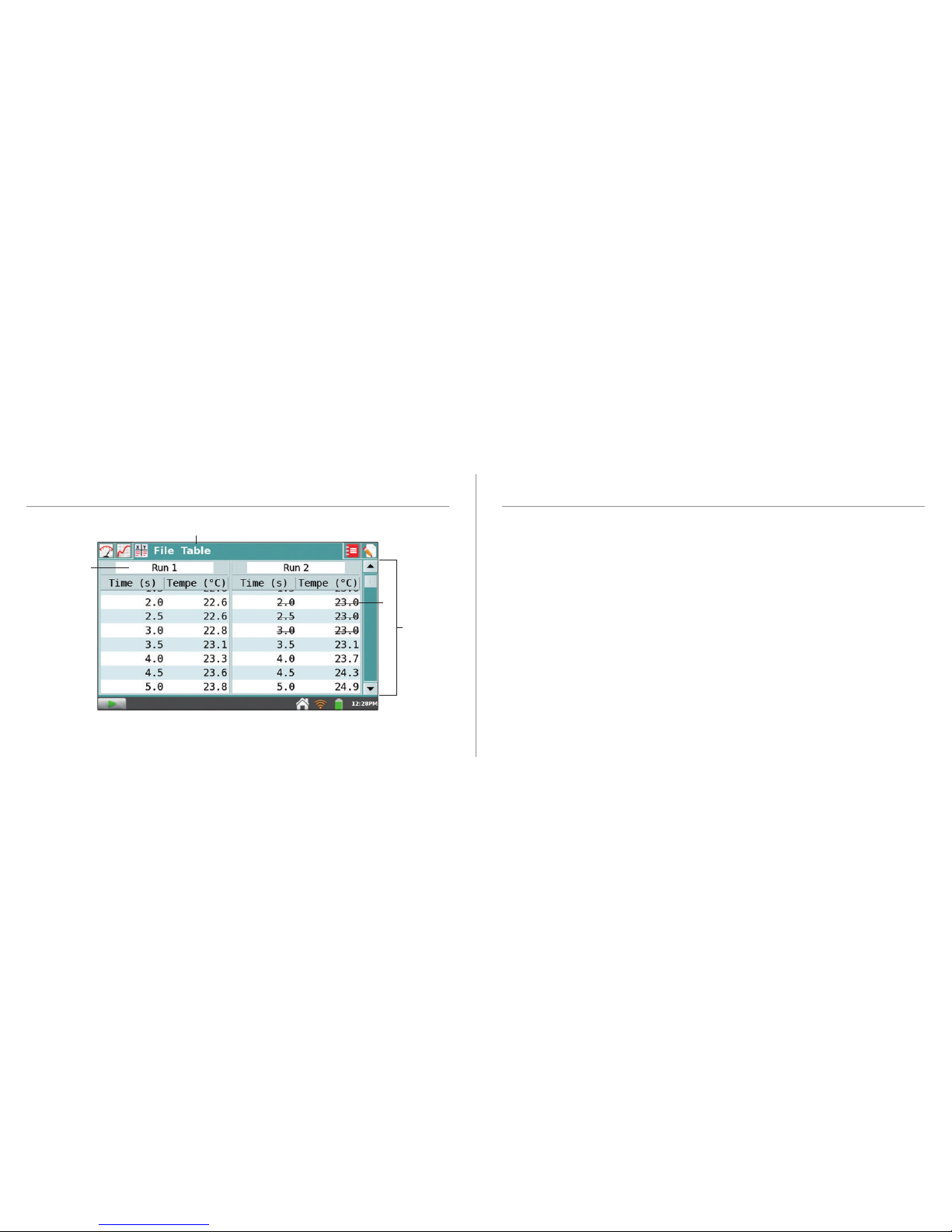
A. Scroll Bar – Use the scroll bar to view your data. Tap and drag the slider or tap the arrow
keys to scroll the table.
B. Table Menu – Use the Table menu to manage your data. You can also create new manual
or calculated columns to enhance your data analysis.
C. Run Name – Individual data sets can be renamed. Tap on the name and enter the desired
name. A keyboard will automatically launch.
D. Struck Data – You can non-destructively remove data points from your graphs and
statistical calculations using the Strike Through Data option. First, select a region on the
graph or in the table, then choose Strike Through Data from the Table (or Graph) menu.
You can also manually enter data into the data table.
C
B
D
A

LABQUEST APP – OTHER SCREENS LABQUEST APP – OTHER VIEWS
18 19
Portrait
Orientation
Rotate LabQuest
to a portrait
orientation to
better view
two graphs,
tables, and lab
instructions.
High Contrast
Mode
Use high
contrast mode
when viewing a
LabQuest in bright
light. To access
this option, tap
Preferences on
the Home Screen,
then tap Light &
Power.
Lab Instructions: Over 100 labs are preloaded.
Even more are available online at
www.vernier.com/labquest/organizer
Notes: Enter notes about your experiment.
Autres manuels pour LabQuest 2
3
Table des matières
Autres manuels Vernier Enregistreur de données


