
VDO M1WL Mode d’emploi

1
M1 WL
www.vdocyclecomputing.com/service
ENGLISH
Installation video
Operating video
Settings video

2
M1 WL
Preface
Pack contents
Table of contents
Congratulations
In choosing a VDO computer, you have opted for high-quality
device with first rate technology.
To optimally use the computer, we recommend that you read
this manual carefully. It contains full operating instructions
and many useful tips.
We hope you enjoy cycling with your VDO computer.
Cycle Parts GmbH
First, please ensure that the contents of this pack are
complete:
1 VDO computer, battery separate
1 speed transmitter, battery installed,
rubber shim
1 universal handlebar bracket
1 spoke magnet (clip magnet)
cable ties for attaching the bracket and the transmitter
1 quick-start instruction manual
Display .................................................................. 03
Buttons ................................................................. 03
Functions .............................................................. 04
Operation while cycling ......................................... 05
Wireless transmission of the speed ....................... 06
Attaching the handlebar bracket ........................... 06
Attaching the speed transmitter ............................ 07
Inserting the computer into the bracket ................. 08
Testing the wireless transmission ......................... 08
Sleep mode and wireless receiver ......................... 09
Settings ................................................................ 10
Language....................................................................... 10
Wheel circumference ..................................................... 11
Unit................................................................................ 14
Clock ............................................................................. 15
Speed indicator settings................................................. 18
Total distance ................................................................ 19
Resetting trip data after the trip ............................ 22
Battery status indicator ......................................... 23
Replacing the battery in the computer ................... 23
Replacing the battery in the transmitter ................ 24
Terms of guarantee ............................................... 25
Troubleshooting .................................................... 26
Technical specifications ........................................ 26

3
M1 WL
Display
The VDO M1 WL has a large, easy-to-read display that can be
divided into three areas.
– The top line of the display shows the value
for the selected function.
– The middle line displays “am” or “pm” if the 12-hour
clock format is used. It also displays whether kmh or mph
has been selected for the speed indicator.
– The bottom line of the display shows the name
of the selected function in clear text.
Only ONE function at a time appears on the display.
To return to the speed indicator from a selected function,
e.g. ride time, press the SET button.
The SETTINGS can also be used to establish that the speed
indicator is automatically displayed from all other functions
after five seconds.
See page 18: Settings – speed indicator settings
Buttons
The VDO M1 WL has two buttons
SET
In function mode:
– Return to the speed indicator
from any display function
– Open setting mode
(press and hold)
In setting mode:
– Open the setting
– Confirm the setting once ready
– Exit setting mode
and return to function mode
TOP
BOTTOM
MIDDLE
BIKE
In function mode:
– Access functions
– Reset trip data to zero
(press and hold)
In setting mode:
– Scroll in the setting menu
– Change the data to be set

4
M1 WL
Functions
The VDO M1 WL has the following functions
Current speed
With a wheel circumference of 2,155 mm,
the maximum possible speed is 199 kmh or 124 mph.
Current distance
The current distance counts up to 999.99 km or miles.
If this maximum value is exceeded, the counter restarts the
current distance calculation at zero.
Current ride time
The current ride time counts up to 99:59:59 HH:MM:SS.
If this value is exceeded, the ride time counter restarts at
zero.
Current time
(in 24-h or 12-h format)
Total distance
(Cumulative value for all trips)
The total distance counts up to 99,999 km or miles.
If this value is exceeded, the total distance counter restarts at
zero.
If the unit is switched from miles to km and the conversion
result is greater than 100,000 km, the counter is reset to
zero.
24-H format 12-H format

5
M1 WL
1x
SET
BIKE
Operation while cycling
While cycling, the display functions can be accessed by
pressing the BIKE button.
Pressing the BIKE button shows the next function on the
display.
Only ONE function at a time is shown on the display.
To once again display the speed, the SET button must be
pressed.
The SETTINGS can also be used to enable the automatic
return to the speed indicator from all function displays.
See page 18: Settings – speed indicator settings
Wireless transmission of the speed
The VDO M1 WL comes with analogue wireless transmission.
The wireless range is approx. 75 cm between the transmitter
on the fork and the computer/receiver on the handlebars.
During attachment, make sure you attach the transmitter to
the left-hand fork leg if you attach the computer to the stem
or the left of the handlebar.
If you attach the computer to the right of the handlebars, you
can also attach the transmitter to the right-hand fork leg.
Note: LED front lights can interfere with analogue wireless
transmission.

6
M1 WL
90°
3
3
4
4
1
2
1
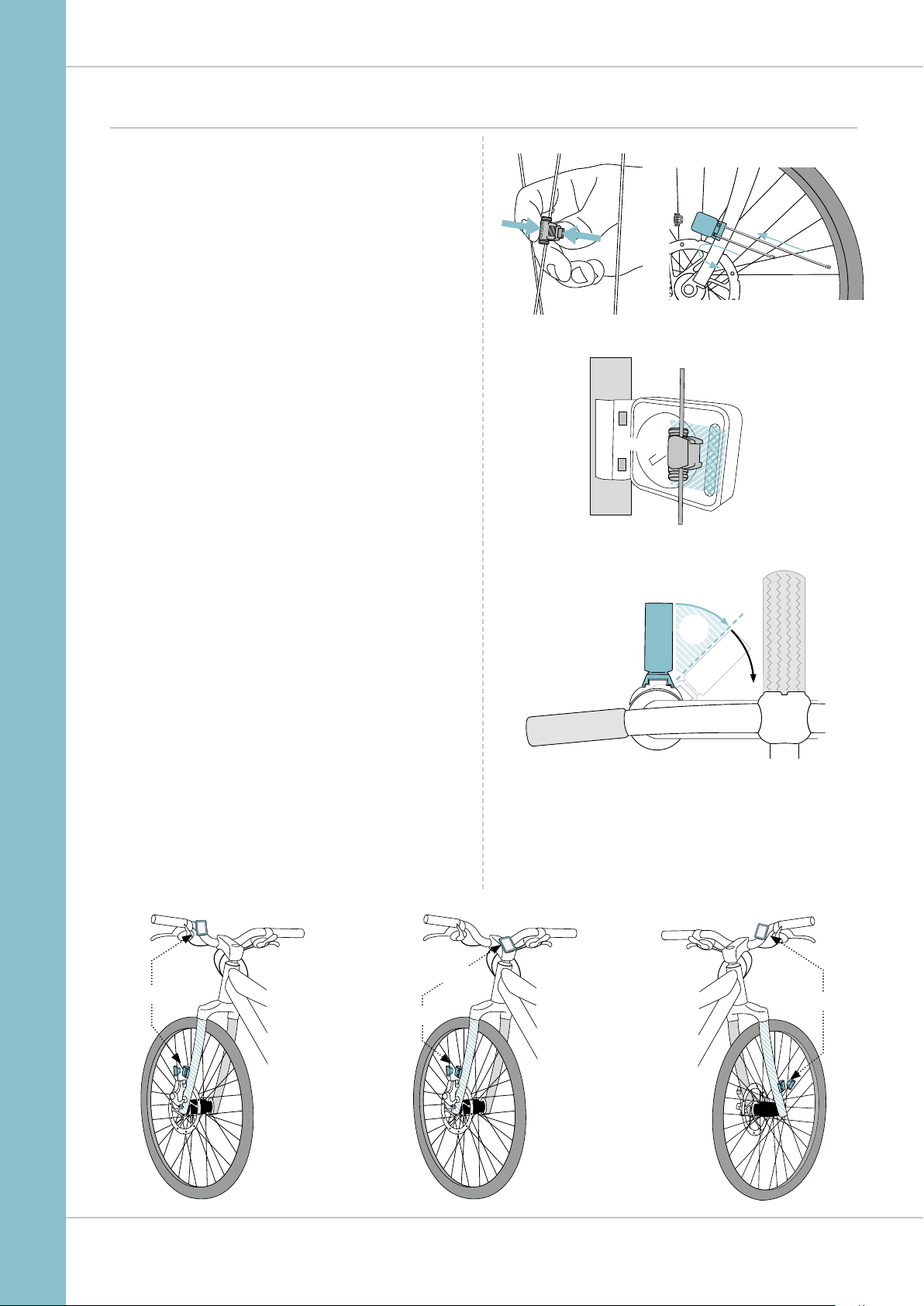
Attaching the handlebar bracket
You can attach the computer to the right or left of the handle-
bars or the centre of the stem. Attach the handlebar bracket
in the corresponding position.
STEP 1
Decide whether you want to attach the computer
to the handlebars or the stem.
STEP 2
Rotate the foot of the handlebar bracket by 90° accordingly.
To do so, undo the screws in the bracket, remove the foot and
rotate it 90° then insert and tighten the screws again.
Attention: do not overtighten the screws.
STEP 3
Guide the cable ties through the slot in the handlebar bracket,
place around the handlebars or the stem and pull (do not pull
tight just yet).
STEP 4
For handlebar attachment: align the computer angle
to achieve optimum readability. Now pull the cable ties tight.
Use clippers to snip off protruding ends.
7
M1 WL
90° °
✔
✘
MAGNET
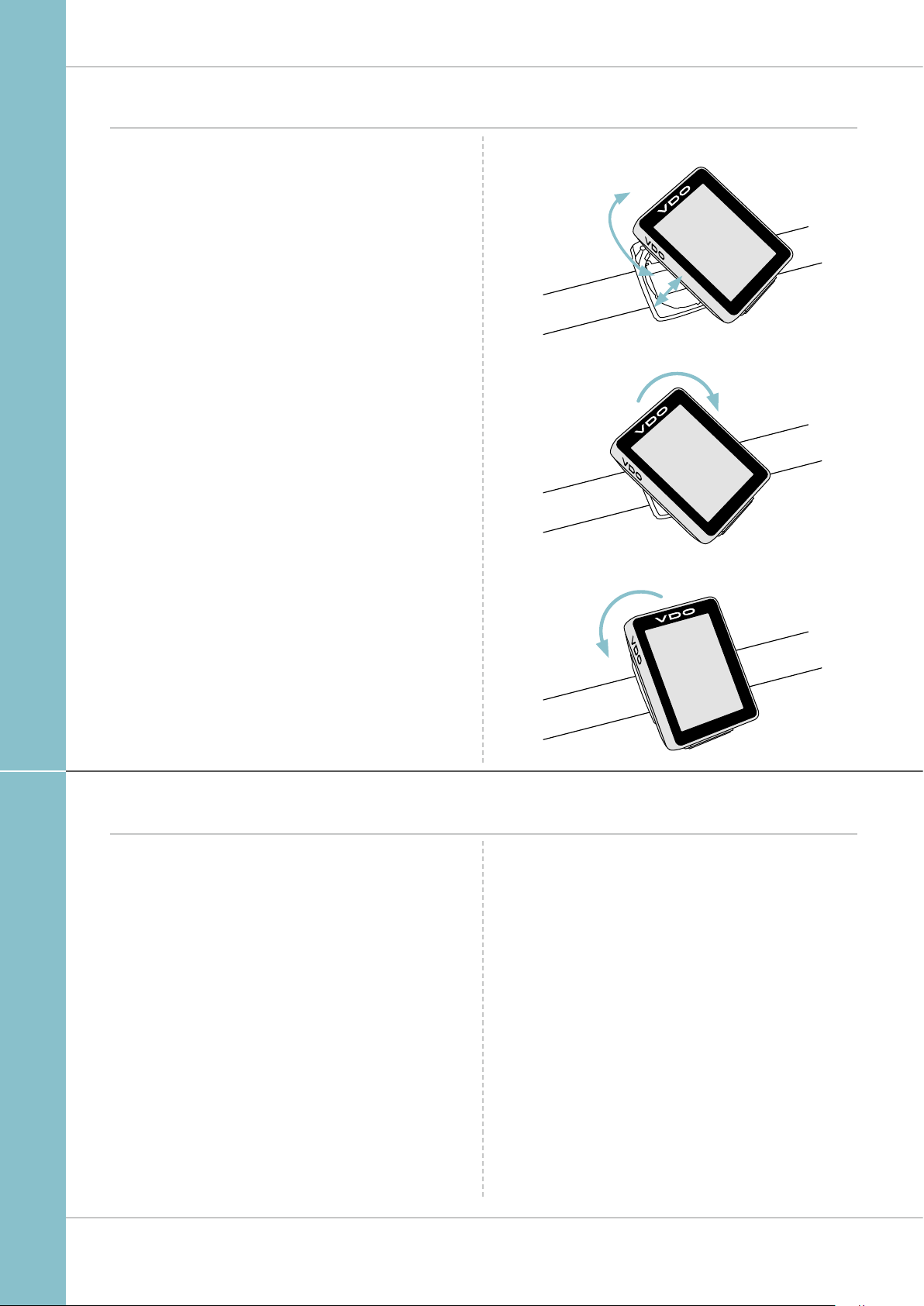
Attaching the speed transmitter
The transmitter can be attached to the fork leg on the right or
left.
Note:
If you have attached the computer to the stem or the
left of the handlebars, the speed transmitter MUST be
attached to the LEFT fork leg.
STEP 1
Place the rubber shim under the transmitter.
Fit the transmitter to the fork side that corresponds to the side
on which you later want to fit the computer to the handlebars
(right or left) using the cable ties supplied (loosely at first,
do not pull tight just yet).
ATTENTION: The cross-hatched marking on the lid of
the transmitter‘s battery compartment must point
toward the spokes.
Depending on the available space, the transmitter can be
mounted along the front of the fork, on the inside of the fork,
or the back of the fork.
STEP 2
Place the spoke magnet around an outside spoke. The VDO
logo of the rod-shaped magnet core should point toward the
transmitter. Align the magnet with the cross-hatched sensor
marking on the transmitter at a distance of 1- 5 mm.
STEP 3
Align the transmitter and magnet in their final positions and
fasten them in place:
pull the cable ties tight and push the magnet in firmly.
The transmitter should be folded down at a maximum angle
of 45° to the spokes. If you cannot achieve this angle, move
the transmitter down along the fork leg towards the hub until
you have reduced the angle to less than 45°.
LEFT RIGHT
STEM
LEFT
8
M1 WL
. LOCK . CLICK
. UNLOCK
UNLOCK
LOCK
Inserting the computer into the bracket
The VDO twist-click system securely connects the computer
to the handlebar bracket.
How to insert the computer:
STEP 1
Place the computer into the bracket in a 10 o’clock position.
STEP 2
Rotate the computer to the right into the 12 o’clock position
and click it into the bracket system. A noticeable resistance
must be overcome to move it into place.
STEP 3
To remove the computer, rotate it to the left (without pushing
or pulling).
Memory aid: Rigid to the Right, Loose to the Left
Testing the wireless transmission
Once attached, test the wireless transmission.
Do this as follows:
– Insert the computer into the bracket
– Lift and spin the front wheel
– An LED should flash on the transmitter for a few seconds.
Flashing LED: the transmitter is sending a signal
– A speed should now be displayed on the computer.
If no speed is displayed, there can be several reasons for
this. The possible reasons are described in the “Trouble-
shooting” section.

9
M1 WL
Sleep mode and wireless receiver
If you take a break and the M1 WL is still in the handlebar
bracket the computer switches to standby mode after five
minutes.
The wireless receiver is still ON.
This can be seen from the flashing antenna icon.
If you now set off cycling again, the auto-start function is
used. The VDO M1 WL instantly switches back to the function
mode. The current speed is once again displayed. This can
take up to eight seconds.
If you take a break for more than two hours,
the wireless receiver switches off to conserve the battery.
You can see from the display if this has happened –
the flashing antenna icon no longer appears.
You must press a button before setting off again.
Once a button has been pressed, the receiver is once again
activated. You can now set off again.
If you remove the VDO M1 WL from the bracket, the
wireless receiver is immediately switched off and the
computer switches to sleep mode after five minutes.

10
M1 WL
Settings – language
The following display languages can be selected for the
VDO M1 WL:
– German
– English
– French
– Italian
– Spanish
– Dutch
– Polish
How to select the language:
Press and hold the SET button until the settings menu
opens.
“Language” appears on the display.
Press SET to open the language setting.
English flashes.
You can now press the BIKE button to select a different
language.
Press the SET button to confirm your language setting.
The response “Set Ok” appears on the display.
If you want to configure further settings,
press the BIKE button to access these.
If you do not want to configure any other settings,
press and hold the SET button.
The settings menu closes.
The VDO M1 WL returns to function mode.
Table des matières
Autres manuels VDO Accessoires pour vélos

VDO
VDO MC 2.0 WL Manuel utilisateur

VDO
VDO A4+ Manuel utilisateur

VDO
VDO X2 Manuel utilisateur

VDO
VDO X1DW Manuel utilisateur

VDO
VDO M5 Manuel utilisateur

VDO
VDO M1 WR Manuel utilisateur

VDO
VDO X1DW Manuel utilisateur

VDO
VDO M1.1 WL Manuel utilisateur

VDO
VDO X3DW Manuel utilisateur

VDO
VDO M5 Manuel utilisateur

VDO
VDO M3WL Manuel utilisateur

VDO
VDO M3 WR Manuel utilisateur

VDO
VDO M2WL Guide d'installation et d'utilisation

VDO
VDO X2DW Manuel utilisateur
VDO
VDO M5 Manuel utilisateur

VDO
VDO A8+ Manuel utilisateur

VDO
VDO X1 Manuel utilisateur

VDO
VDO X1 Manuel utilisateur

VDO
VDO MC 2.0 WR Manuel utilisateur

VDO
VDO MC 2.0 WR Manuel utilisateur


