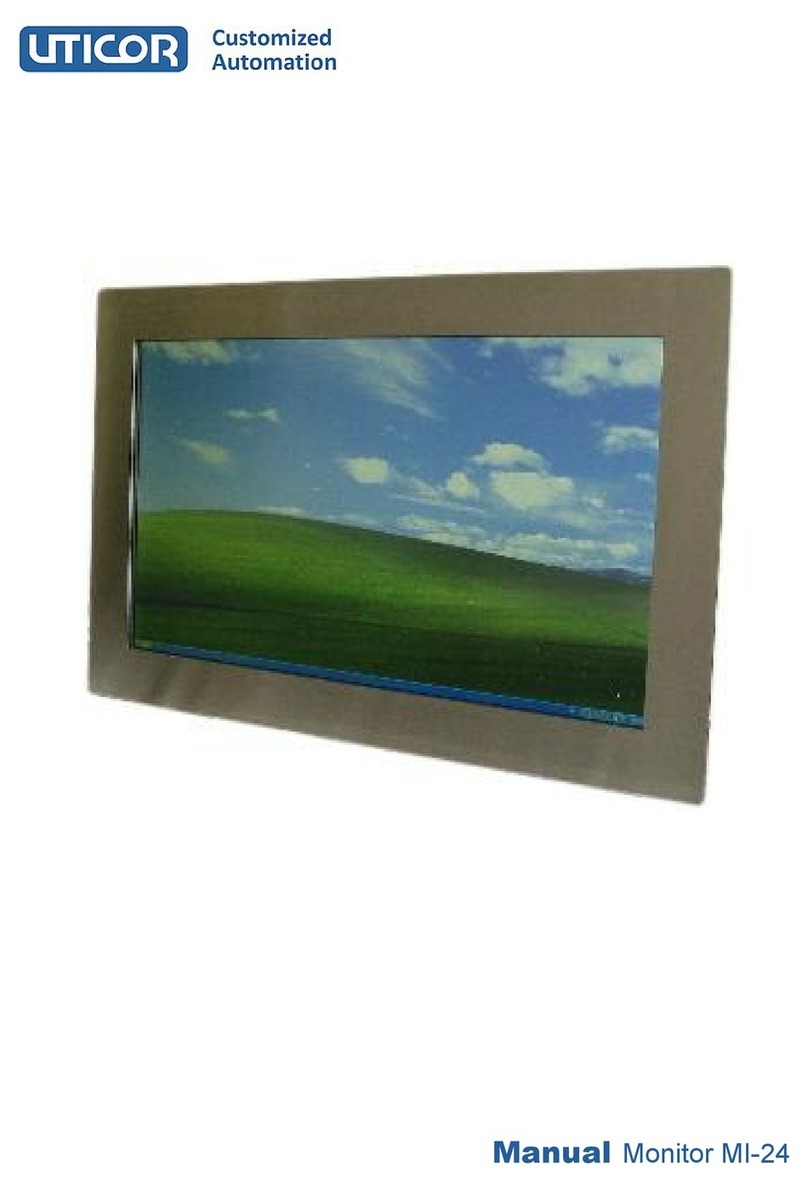
UTICOR MI-10 Manuel utilisateur

Manual
Monitor MI-10

Page 2
Contents:
Page
1 General 4
2 Technical data 5
3 Power Supply 6
3 1 Monitor with 12 VDC power supply
3 2 Monitor with 24 VDC power supply
3 3 Monitor with 230 VAC power supply
4 Backside Monitor 7
5 OSD Menu 7
5 1 Picture 8
Adjust of the backlight
Adjust the brightness
Contrast setting
Adjust the Sharpness
5 2 Display 9
Optimal picture adjustment
H position
V position
Pixel clock
Phase
5 3 Color 10
Gamma value
Color Temp
Color Effect
Color Demo
Color Format
Hue
Saturation
5 4 Advance 11
Aspect Ratio
Overscan
DDCCI
Ultra Vivid
5 5 Input 12
VGA / DVI / DP
5 6 Other 13
Reset
Menu Time
OSD H Position
OSD V Position
Language
Transparency
Rotate
5 7 Information 14

Contents:
Page
6 Touch Screen 15
7 Monitor care 16
8
8 Screensaver 16
9 security 16
10 Mechanical dimensions 17
10 1 Monitor with Standard or Stainless Steel Front Plate 17
10 2 Monitor with 19“ Front Plate
11 Front panel cutout monitor with 18
Standard or stainless steel front plate
Notes 19
Page 3

1 - General
The monitor has a 10,4 "TFT display with a
resolution of 800 x 600 or 1024 x 768 pixels
The connection to the PC takes place via a
VGA interface with 15-pin VGA plug or via a
DVI interface with DVI-I Dual Link plug (24 +
1 pin) or the display port for the transmission
of digital image signals
Optionally, the monitor can be equipped with
a resistive touch screen The touch has a
USB interface
Monitor with stainless steel front plate
If the monitor is equipped without a touch, the display is protected against contact and contact
with moisture and aggressive substances through a glass There is a standard protective glass
and a visually anti-glare protective glass available
The monitor is available with a standard or stainless steel front plate and mounting bolts on the
back These two versions are intended for installation in a control cabinet or control panel The
front panel has a gasket The degree of protection is IP 65
Page 4
Monitor Back with standard front plate
and mounting olts
The monitors have a standard 12 VDC
power supply and are supplied with an
external 230 VAC / 12 VDC power
supply All monitors are optional with a
supply voltage of 24 VDC or with an in-
ternal power supply of 230 VAC
available

2 - Technical specifications
Page 5
Reserve technical changes
Technical specifications
LCD - Type 10,4“ TFT
resolution (Pixel) 800 x 600 1024 x 768
act. screen area(mm) 211,2 x 158,4 210,4 x 157,8
pixel density (mm) 0,264 x 0,264 0,205 x 0,205
rightness (cd / m²) 250 400
contrast 400 : 1 1200 : 1
reaction time TR/TF (msec.) 6 / 19 15 / 10
Colors 262144 16,2 Mio
Angle of view horizontally
vertical
R / L = 65° / 65°
O / U = 55° / 55°
R / L = 88° / 88°
O / U = 88° / 88°
Lifetime illumination
(half-life)
25 000 Std 50 000 Std
Touch (Option) Analog resistive touch
with USB interface
Resolution 1024 x 1024 (10 bits)
VGA Port SVGA XGA
DVI Port DVI I Dual Link (24 + 1 Pin Stecker)
DP Port Display Port (digital image signals)
OSD - Menü Yes
supply voltage 12 VDC
optional 24 VDC (intern)
optional 100 - 230 VAC (intern)
power consumption 15 W
operating temperatur 0 to 50 °C -10 to 60 °C
storage temperature -20 to 60 °C -20 to 70 °C
Front Plate Front panel black powder coated, RAL 9005, with fixing bolts
Stainless steel front plate with mounting bolts
Degree of protection front
panel
IP 65 (Stainless steel and standard front)
VESA connection No
weight 3,0 KG

3 - Power supply
Page 6
3.1 Monitor with 12 VDC power supply
The connector is located on the back of the monitor
The inner pin is plus, the outer minus
The inner plug has a diameter of 2 5 mm
An external power supply unit with a supply voltage of 100 -
240 VAC / 12 VDC and 60 VA output is included in this ver-
sion
-
Attention: pay attention to polarity
3.2 Monitor with 24 VDC power supply
On the back there is a 3-pin screw terminal connection
The supply voltage is 20 - 28 VDC
The power consumption is about 40 watts
GND
- MINUS
+ PLUS
24 VDC
External power supply unit 230 VAC / 12 VDC
3.3 Monitor with 230 VAC power supply
On the back there is a 3-pin screw terminal connection
The supply voltage is 100 - 230 VAC
The power consumption is about 40 watts
100 - 230 VAC
GND
L2
L1

Page 7
On the back of the monitor is the power supply connector, the VGA input, the DVI input, the DP
connector, the connector on the Touch if the monitor is equipped with a touch screen, and 5
buttons for adjusting the OSD menu
Die Tasten sind bezeichnet mit:
4 - Monitor Back
Button OSD menu on the ack of the monitor
POWER:
Monitor on / off
MENU:
Enable and disable the OSD menu
SELECT:
Confirm selection in OSD main menu or OSD submenu
DOWN:
Selection of icons in the main and submenu as well as setting the values
The value to be set is lowered
UP:
Selection of icons in the main and submenu as well as setting the values
The value to be set is increased
5 - OSD Menü
After pressing the MENU button, the OSD menu is displayed as shown in the lower picture
Then you can use the UP / DOWN buttons to select the various main menus By pressing the
SELECT key, the selected main menu with the associated submenu items is selected and the
submenu items can be selected using the UP / DOWN keys These are also acknowledged
with the SELECT key
Then select the desired value with the UP / DOWN keys and confirm with SELECT Exit vari-
ous menu items by pressing the MENU key
Attention: The OSD menu can only e activated when the input signal is present!

Page 8
5.1 Picture
Backlight: Adjustment of the backlight
Brightness: Adjust the brightness
Contrast: Contrast adjustment
Sharpness: Adjust the focus

Page 9
5.2 Display
Auto Adjustment: The optimal picture setting is activated
H Position: The horizontal position can be adjusted
V Position: The vertical position can be adjusted
Pixel Clock: The clock frequency can be adjusted
Phase: The clock rate can be adjusted

Page 10
5.3 Color
Gamma: The gamma value can be adjusted
Color Temp : The color temperature can be adjusted
Color Effect: A color effect can be set
Color Demo: Selection for hue and saturation
Color Format: Color space selection
Hue: Adjust the color balance
Saturation: Adjust the saturation
Table des matières
Autres manuels UTICOR Moniteur