uRTime Nano Manuel utilisateur

1
uRTime
www.urtime.net || Email: [email protected]
1Contents
1 Contents .................................................................................................................................. 1
2 Table of Figures ....................................................................................................................... 4
3 Introduction............................................................................................................................. 7
4 Getting started ........................................................................................................................ 8
4.1 Nano device..................................................................................................................... 8
4.1.1 ON / OFF switch........................................................................................................... 8
4.1.2 Battery......................................................................................................................... 8
4.1.3 Red button................................................................................................................... 9
4.1.4 Screen.......................................................................................................................... 9
4.2 Reading chips................................................................................................................. 10
4.3 Programming chips........................................................................................................ 11
5 Gear ....................................................................................................................................... 13
5.1 ON / OFF switch............................................................................................................. 13
5.2 SD card........................................................................................................................... 13
5.3 Bottom cover................................................................................................................. 14
5.3.1 Battery....................................................................................................................... 15
5.3.2 SIM card..................................................................................................................... 15
5.4 USB Connector............................................................................................................... 16
5.5 LED (charge, read,status)............................................................................................... 16
5.6 Red button..................................................................................................................... 17
6 Screen.................................................................................................................................... 18
6.1 Top banner .................................................................................................................... 18
6.1.1 General information.................................................................................................. 18
6.1.2 GSM configuration..................................................................................................... 19
6.1.3 Wi-Fi configuration.................................................................................................... 19
6.1.4 Xbee configuration .................................................................................................... 20
6.1.5 Satellite configuration ............................................................................................... 20
6.2 Menu ............................................................................................................................. 21
6.2.1 Reader ....................................................................................................................... 21
6.2.2 Messages ................................................................................................................... 23
6.2.3 Explorer ..................................................................................................................... 23
6.3 Settings menu................................................................................................................ 24
6.3.1 Nano identity............................................................................................................. 24

2
uRTime
www.urtime.net || Email: [email protected]
6.3.2 Power management .................................................................................................. 25
6.3.3 Clock .......................................................................................................................... 26
6.3.4 Flip Screen ................................................................................................................. 26
6.3.5 Load Settings ............................................................................................................. 27
6.3.6 Lock............................................................................................................................ 27
6.3.7 Advanced................................................................................................................... 28
6.4 Apps menu..................................................................................................................... 29
6.4.1 uRLive menu .............................................................................................................. 31
6.4.2 Modem menu............................................................................................................ 33
6.4.3 Wi-Fi menu ................................................................................................................ 37
6.4.4 XBee menu ................................................................................................................ 39
6.4.5 Satellite menu............................................................................................................ 40
6.4.6 Encoder...................................................................................................................... 40
7 Configuration files ................................................................................................................. 43
7.1 Global configuration file................................................................................................ 43
7.1.1 Nano identity............................................................................................................. 43
7.1.2 General settings......................................................................................................... 44
7.1.3 Encoding .................................................................................................................... 44
7.1.4 Power management .................................................................................................. 44
7.1.5 Modem configuration................................................................................................ 45
7.1.6 Wi-Fi configuration.................................................................................................... 45
7.1.7 XBee configuration .................................................................................................... 46
7.1.8 uRLive service ............................................................................................................ 46
7.2 Example file ................................................................................................................... 47
7.3 APN List.......................................................................................................................... 48
8 Connections........................................................................................................................... 49
8.1 Output file ..................................................................................................................... 49
8.1.1 Description ................................................................................................................ 49
8.1.2 Field description ........................................................................................................ 49
8.1.3 Example ..................................................................................................................... 49
8.1.4 Location ..................................................................................................................... 49
8.2 XBee connection............................................................................................................ 50
8.2.1 Driver installation ...................................................................................................... 50
8.2.2 Software installation ................................................................................................. 51

3
uRTime
www.urtime.net || Email: [email protected]
8.2.3 Starting the NanoStation for PC ................................................................................ 52
8.2.4 Nano XBee protocol................................................................................................... 54
8.3 GPRS data post & consultation...................................................................................... 56
8.3.1 Definitions of the identifiers...................................................................................... 56
8.3.2 Incremental data post ............................................................................................... 57
8.3.3 Request of the last received tag................................................................................ 57
8.3.4 Instant Messages....................................................................................................... 58
8.3.5 Consultation .............................................................................................................. 60
9 Update procedure ................................................................................................................. 63
9.1 Installation of the tools ................................................................................................. 63
9.1.1 FLIP software installation .......................................................................................... 63
9.1.2 Device installation ..................................................................................................... 65
9.2 Nano update.................................................................................................................. 67
9.2.1 Update preparation................................................................................................... 67
9.2.2 Firmware update ....................................................................................................... 67
9.2.3 Images screen update ............................................................................................... 69
10 Identifying the hardware....................................................................................................... 70
10.1 Screen............................................................................................................................ 70
10.2 RFID reader.................................................................................................................... 71
10.3 Modem type .................................................................................................................. 72
10.4 Wi-Fi / XBee module...................................................................................................... 75
10.5 Satellite module............................................................................................................. 77
10.6 NV Settings .................................................................................................................... 79

4
uRTime
www.urtime.net || Email: [email protected]
2Table of Figures
Figure 1 : Side of the Nano .............................................................................................................. 8
Figure 2 : Battery replacement........................................................................................................ 8
Figure 3 : Red button used to control the RFID reader ................................................................... 9
Figure 4 : Important information on the screen.............................................................................. 9
Figure 5 : Reader mode ................................................................................................................. 10
Figure 6 : Runner pulled out in reader mode ................................................................................ 10
Figure 7 : Manual input in reader mode........................................................................................ 11
Figure 8 : Writer mode .................................................................................................................. 11
Figure 9 : Encoder mode after encoding successfully ................................................................... 12
Figure 10 : Encoder mode when no tag in field............................................................................. 12
Figure 11 : ON/OFF switch in the ON position .............................................................................. 13
Figure 12 : MicroSD Card Slot........................................................................................................ 13
Figure 13 : MicroSD internal card Slot........................................................................................... 14
Figure 14 : A Nano without its back cover..................................................................................... 14
Figure 15 : A Nano without its back cover..................................................................................... 14
Figure 16 : Battery replacement.................................................................................................... 15
Figure 17 : USB connection............................................................................................................ 16
Figure 18 : Status LED .................................................................................................................... 16
Figure 19 : red button used to control the RFID reader................................................................ 17
Figure 20 : Top banner................................................................................................................... 18
Figure 21 : Top banner for a GSM configuration........................................................................... 19
Figure 22 : Top banner for a Wi-Fi configuration .......................................................................... 19
Figure 23 : Top banner for an Xbee configuration ........................................................................ 20
Figure 24 : Top banner for a satellite configuration...................................................................... 20
Figure 25 : Home menu ................................................................................................................. 21
Figure 26 : Reader mode ............................................................................................................... 21
Figure 27 : Runner dropping out in reader mode.......................................................................... 22
Figure 28 : Manual input in reader mode...................................................................................... 22
Figure 29 : List of output files in Explorer...................................................................................... 23
Figure 30 : An output file............................................................................................................... 23
Figure 31 : Settings menu.............................................................................................................. 24
Figure 32 : Nano identity............................................................................................................... 24
Figure 33 : Power menu................................................................................................................. 25
Figure 34 : Scan mode selection.................................................................................................... 25
Figure 35 : Time setting ................................................................................................................. 26
Figure 36 : Date setting ................................................................................................................. 26
Figure 37 : Left-hander screen (on the left) and right-hander screen (on the right) .................... 26
Figure 38 : List of configuration files ............................................................................................. 27
Figure 39 : Numeric keypad to enter password ............................................................................ 27
Figure 40 : Advanced settings menu ............................................................................................. 28
Figure 41 : Nano type menu .......................................................................................................... 29
Figure 42 : Apps menu - GSM ........................................................................................................ 29
Figure 43 : Apps menu –Wi-Fi....................................................................................................... 30

5
uRTime
www.urtime.net || Email: [email protected]
Figure 44 : Apps menu - XBee........................................................................................................ 30
Figure 45 : Apps menu –Satellite.................................................................................................. 30
Figure 46 : uRLive settings............................................................................................................. 31
Figure 47 : uRLive URLs configuration for send data with the GSM and with socket enabled ..... 32
Figure 48 : uRLive URLs configuration for send data with the GSM and with socket disabled..... 32
Figure 49 : uRLive URLs configuration to send data via satellite................................................... 33
Figure 50 : Modem menu .............................................................................................................. 33
Figure 51 : Modem information .................................................................................................... 34
Figure 52 : APN Settings ................................................................................................................ 35
Figure 53 : APN List........................................................................................................................ 35
Figure 54 : Operator information .................................................................................................. 36
Figure 55 : Operator's scan............................................................................................................ 36
Figure 56 : Wi-Fi status.................................................................................................................. 37
Figure 57 : Wi-Fi settings ............................................................................................................... 37
Figure 58 : Wi-Fi scan..................................................................................................................... 38
Figure 59 : Wi-Fi encryption type .................................................................................................. 38
Figure 60 : Nano correctly connected to Wi-Fi.............................................................................. 39
Figure 61 : XBee settings ............................................................................................................... 39
Figure 62 : Satellite menu.............................................................................................................. 40
Figure 63 : Encoder mode.............................................................................................................. 40
Figure 64 : Encoder after encoding successfully ........................................................................... 41
Figure 65 : Encoder mode when no tag in field............................................................................. 41
Figure 66 : Remaining credit in writer mode................................................................................. 42
Figure 67 : Reload credit in Encoder mode ................................................................................... 42
Figure 68 : Uninstalled NanoStation in the device manager......................................................... 50
Figure 69 : XBee algorithm ............................................................................................................ 54
Figure 70 : Microchip website to download FLIP Controller ......................................................... 63
Figure 71 : Java Runtime Environment installation....................................................................... 64
Figure 72 : Flip installation ............................................................................................................ 64
Figure 73 : Device manager with an uninstalled Nano.................................................................. 65
Figure 74 : Latest Nano software release to be downloaded on the support website................. 67
Figure 75 : Nano update window .................................................................................................. 68
Figure 76 : Advanced menu........................................................................................................... 69
Figure 77 : SCE screen.................................................................................................................... 70
Figure 78 : PICASO screen.............................................................................................................. 70
Figure 79 : QUARK RFID ................................................................................................................. 71
Figure 80 : QUARK RFID ................................................................................................................. 71
Figure 81 : RS500 RFID................................................................................................................... 72
Figure 82 : 2G GSM module (GC864)............................................................................................. 72
Figure 83 : 3G GSM module (HE910)............................................................................................. 73
Figure 84 : 3G GSM module (HE910)............................................................................................. 73
Figure 85 : 3G GSM module (HE910)............................................................................................. 74
Figure 86 : Module position........................................................................................................... 75
Figure 87 : Wi-Fi module ............................................................................................................... 75

6
uRTime
www.urtime.net || Email: [email protected]
Figure 88 : XBee module................................................................................................................ 75
Figure 89 : Intermediate version ................................................................................................... 76
Figure 90 : New version with Wi-Fi module .................................................................................. 76
Figure 91 : Satellite module on old hardware version .................................................................. 77
Figure 92 : Satellite module on new hardware version................................................................. 77
Figure 93 : Nano with satellite antenna ........................................................................................ 78

7
uRTime
www.urtime.net || Email: [email protected]
3Introduction
The uRTime Nano is a handheld RFID reader made for trail and other outdoor races. It is the
perfect solution to scan runners at remote checkpoints, without electrical supply.
The touchscreen and intuitive software allow you to easily read and program RFID chips. Data is
saved on a micro SD card and can be directly sent to your computer or your website, using GPRS, XBEE
wireless communication, Wi-Fi or satellite transmission. Use the uRLive service receive data online.
This document presents the Nano, its different menus, the setup possibilities, the connectivity,
and the update procedure.

8
uRTime
www.urtime.net || Email: [email protected]
4Getting started
You will also find a quick start-up guide in these videos:
•English: https://www.youtube.com/watch?v=S7Ih3g2kS24
•French: https://www.youtube.com/watch?v=A7Xc8Sf_S40
4.1 Nano device
4.1.1 ON / OFF switch
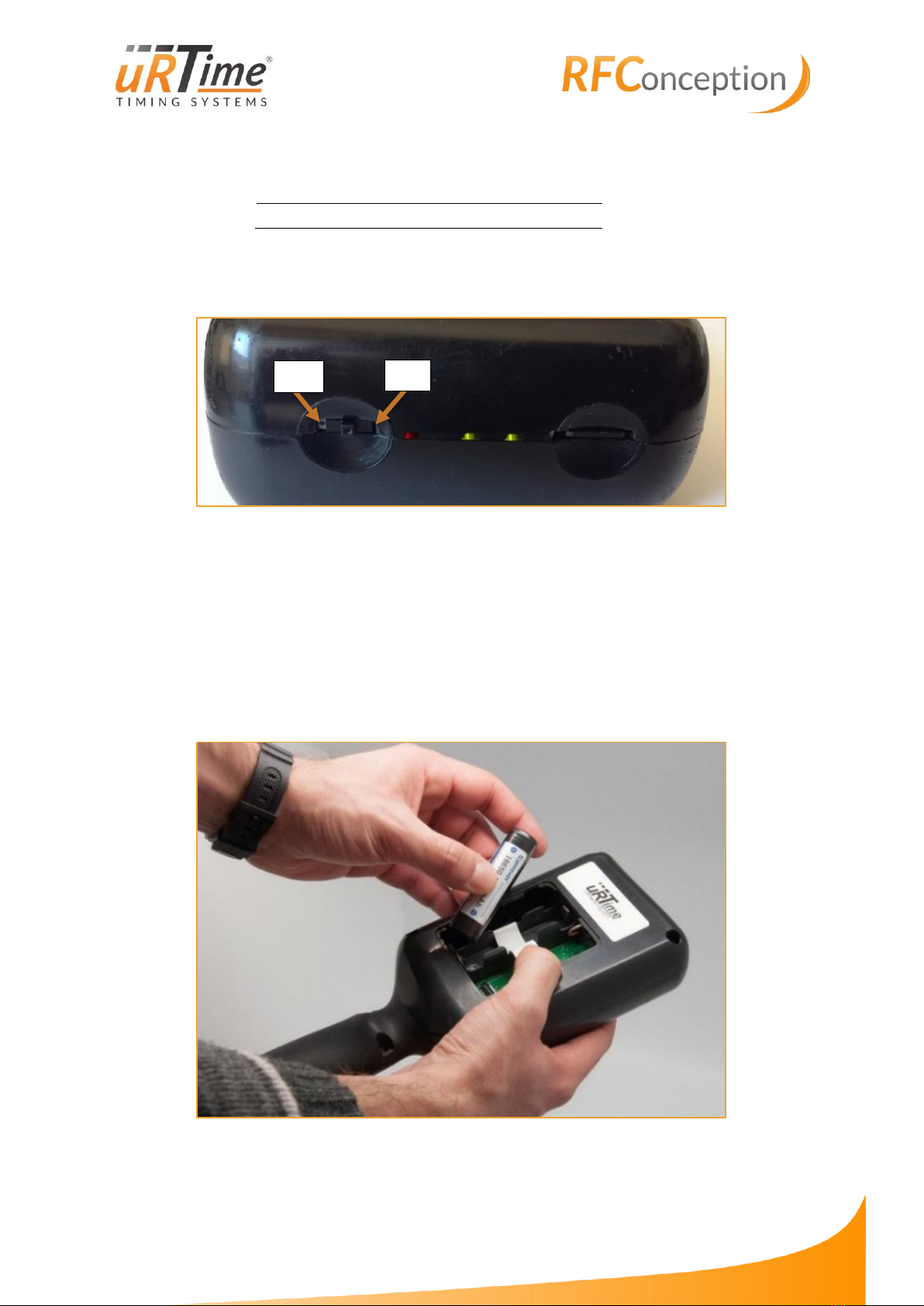
Figure 1 : Side of the Nano
Use the power switch to start the Nano. The Nano vibrates, and the screen turns on.
Note: the Nano doesn’t start if there is no SD card in it.
4.1.2 Battery
Turn the Nano over and remove the cover to access to the battery. The battery lifetime is about
3 hours in normal use. To preserve the battery lifetime, please charge the battery only if it is completely
empty. The white strip helps you to remove the battery; don’t forget to place it under the new battery.
The polarity must be carefully respected to avoid irreversible damages.
Figure 2 : Battery replacement
ON
OFF

9
uRTime
www.urtime.net || Email: [email protected]
4.1.3 Red button
Figure 3 : Red button used to control the RFID reader
The red button controls the RFID reader with four available modes:
•Scan until Time Out: when the user presses the button, the reader is enabled for a certain
time. After every read, the timer starts again. If no tag is read for about 10s, the reader is disabled.
This mode is recommended for most races.
•Hold and scan: the user must hold the button down to enable the reader. This mode is
optimized for test or office use.
•Press to enable / Press to disable: press the button to enable the reader and press it again to
disable it.
•Reader always on: the button is disabled. The reader is always on.
4.1.4 Screen
When turned on, the screen of the Nano displays some important information.
Figure 4 : Important information on the screen
RFID is written in red letters when the reader is on.
Date and time
RFID state
Battery
Autres manuels pour Nano
1
Table des matières