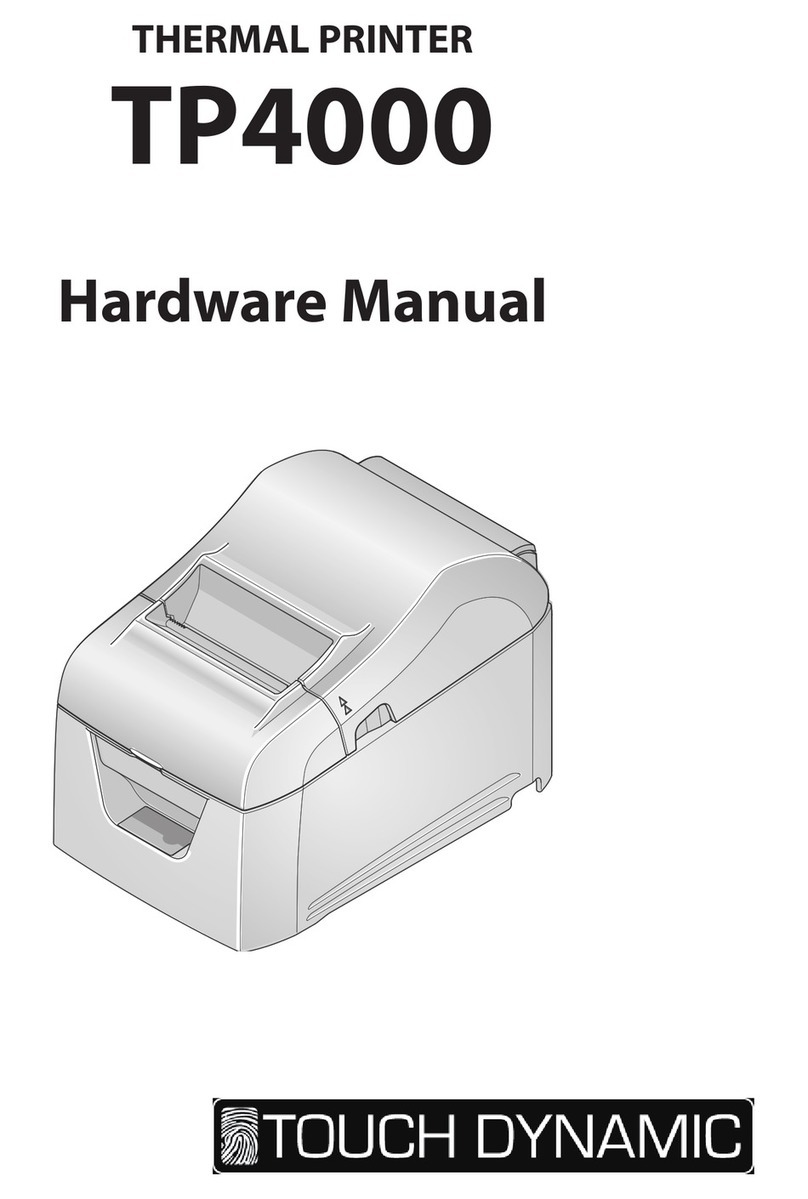
Touch Dynamic PR-TB4 Manuel utilisateur

Hardware Manual
THERMAL PRINTER
PR-TB4

Notice
•All rights reserved. Reproduction of any part of this manual in any form whatsoever, without Touch Dynam-
ic’s express permission is forbidden.
•The contents of this manual are subject to change without notice.
•All efforts have been made to ensure the accuracy of the contents of this manual at the time of going to press.
However, should any errors be detected, TB4 would greatly appreciate being informed of them.
•The above notwithstanding, TB4 can assume no responsibility for any errors in this manual.
Copyright © Touch Dynamic TB4
Federal Communications Commission
Radio Frequency Interference
Statement
This device complies with Part 15 of the FCC Rules. Operation is subject to the following two conditions: (1) This
device may not cause harmful interference, and (2) this device must accept any interference received, including
interference that may cause undesired operation.
NOTE: This equipment has been tested and found to comply with the limits for a Class A digital device,
pursuant to Part 15 of the FCC Rules. These limits are designed to provide reasonable protection against harmful
interference when the equipment is operated in a commercial environment. This equipment generates, uses and can
radiate radio frequency energy and, if not installed and used in accordance with the instruction manual, may cause
harmful interference to radio communications. Operation of this equipment in a residential area is likely to cause
harmful interference in which case the user will be required to correct the interference at his own expense.
This statement will be applied only for the equipments marketed in U.S.A.
FCC WARNING
Changes or modications not expressly approved by the party responsible for compliance could void the user’s
authority to operate the equipment.
For compliance with the Federal Noise Interference Standard, this equipment requires a shielded cable.
For RF interference suppression, if a ferrite core is provided with this device, afx it to the interface cable.
Statement of
The Canadian Department of Communications
Radio Interference Regulations
This Class A digital apparatus complies with Canadian ICES-003.
Cet appareil numérique de la classe A est conforme à la norme NMB-003 du Canada.
The above statement applies only to equipments marketed in Canada.
Warning:
This is a class A product. In a domestic environment this product may cause radio interference in which case the
user may be required to take adequate measures.
Trademark acknowledgments
TB4: Touch Dynamic TB4

TABLE OF CONTENTS
1. Unpacking and Installation...................................................................................1
1-1. Unpacking.......................................................................................................................1
1-2. Notes about Installation ..................................................................................................1
2. Parts Identication and Nomenclature................................................................2
3. Setup........................................................................................................................3
3-1. Connecting the Interface Cable to the PC ......................................................................3
3-2. Connecting the Interface Cable to the Printer ................................................................4
3-3. Connecting the AC Adapter............................................................................................6
3-4. Turning the Power On ....................................................................................................7
3-5. Connecting to a Peripheral Device .................................................................................7
3-6. Loading a Paper Roll ......................................................................................................8
3-7. Changing the Paper Width............................................................................................10
3-8. Setup Precautions .........................................................................................................11
4. Attaching the Accessories ....................................................................................13
4-1. Attaching the Holder Plate ...........................................................................................13
5. Troubleshooting....................................................................................................15
5-1. Error Indicators.............................................................................................................15
6. Preventing and Removing Paper Jams ..............................................................16
6-1. Preventing Paper Jams..................................................................................................16
6-2. Removing Paper Jams ..................................................................................................16
6-3. Releasing the Cutter Lock ............................................................................................17
7. Maintenance .........................................................................................................18
7-1. Thermal Head ...............................................................................................................18
7-2. Platen Rubber Roller ....................................................................................................18
7-3. Paper Holder .................................................................................................................18
7-4. Sensors and Their Surrounding Area............................................................................18

-
1
-
1. Unpacking and Installation
1-1. Unpacking
After unpacking the unit, check that all the necessary accessories are included in the package.
1-2. Notes about Installation
1. Choose a rm, level surface where the printer will not be exposed to vibration.
2. The power outlet you plan to connect to for power should be nearby and unobstructed.
3. Make sure that the printer is close enough to your host computer for you to connect the two.
4. Make sure that the printer is not exposed to direct sunlight.
5. Make sure that the printer is well away from heaters and other sources of extreme heat.
6. Make sure that the surrounding area is clean, dry, and free of dust.
7. Make sure that the printer is connected to a reliable power outlet. It should not be on the same electric circuit as copiers,
refrigerators, or other appliances that cause power spikes.
8. Make sure that the room where you are using the printer is not too humid.
9. Use the printer within the boundaries indicated in the environmental requirements. Even when the ambient temperature
and humidity are within the specications, avoid radical changes in environmental conditions. The suitable operating
temperature range is as follows:
Operating temperature: 5°C to 45°C
10. When disposing of the printer, obey local regulations.
Printer
Safety Instructions
Power Unit
USB Cable
Two Screws
Holding Plate

-
2
-
2. Parts Identication and Nomenclature
Control panel
Features lamps that indicate
printer status and a button for
operating the printer.
Rear cover
Open to replace paper.
Do not open while printing.
DC24V DK
Power switch
Turns the printer on
and off.
Connects to peripheral devices
such as cash drawers.
Do not connect this to a telephone
line.
Peripheral drive connector
Connects to an AC
adapter.
Power inlet
Connects to a host PC
through a USB cable.
USB port
Connects to a host PC
through a cable.
Interface connector
Lights when the printer is online.
This lamp also indicates errors, in
combination with other lamps.
Lights when the cover is open.
This lamp also indicates errors, in
combination with other lamps.
When the printer is online, pressing
this button feeds the paper roll.
POWER lamp (green) ERROR lamp (red)
FEED button

-
3
-
3. Setup
3-1. Connecting the Interface Cable to the PC
3-1-1. USB Cable
Connect the USB cable to a USB port on your PC.
3-1-2. Parallel Cable
Connect the parallel cable to a parallel port on your PC.
3-1-3. RS-232C Cable
Connect the RS-232C cable to a RS-232C port on your PC.

-
4
-
3-2. Connecting the Interface Cable to the Printer
Obtain an appropriate cable that complies with the specications beforehand.
Because the appropriate interface cable differs depending on the system that you are connecting the printer to, contact the dealer
that you bought the product from if you are unsure about what cable to use.
Before connecting or disconnecting an interface cable, be sure to disconnect the AC adapter’s power cord from the outlet.
3-2-1. USB Cable
To connect a USB cable, follow the procedure given below.
1) Make sure that the AC adapter’s power cord is not connected to the outlet.
2) Connect the USB cable to the USB port.
3) As shown in the gure, pass the cable through the cable hooks to hold it in place.
Cable hook
USB cable

-
5
-
3-2-3. RS-232C Cable
To connect an RS-232C cable, follow the procedure given below.
1) Make sure that the AC adapter’s power cord is not connected to the outlet.
2) Connect the RS-232C cable to the connector on the RS-232C interface board, and tighten the left and right screws.
3-2-2. Parallel Cable
To connect a parallel cable, follow the procedure given below.
1) Make sure that the AC adapter’s power cord is not connected to the outlet.
2) Connect the parallel cable to the connector on the parallel interface board, and fasten the connector clasps.
RS-232C cable
Parallel cable

-
6
-
3-3. Connecting the AC Adapter
Note: Before connecting or disconnecting the AC adapter, make sure that the printer and all the devices connected to it
are turned off.
Then remove the power cord from the outlet.
1) Connect the AC adapter to the power cord.
2) Connect the AC adapter to the connector on the printer.
3) Insert the power cable plug into an AC outlet.
CAUTION
When disconnecting the cable, take hold of the cable
connector to pull it out. Releasing the lock makes it
easy to disconnect the connector.
Pulling the cable excessively could cause damage to
the connector.

-
7
-
3-4. Turning the Power On
Connect the power cord according to the procedure in section 3-3, “Connecting the AC Adapter”.
Turn on the power switch, which is on the left side of the printer.
The POWER lamp on the control panel will light.
3-5. Connecting to a Peripheral Device
You can connect a peripheral device to the printer using a modular plug.
Follow the procedure given below.
1) Make sure that the AC adapter’s power cord is not connected to the outlet.
2) Connect the modular jack plug to the peripheral drive connector on the rear panel of the printer.
Connect the other end of the cable to the modular jack of the peripheral device.
CAUTION: Do not connect a telephone line to the peripheral drive connector. Doing so may cause the printer
to malfunction. Also, for safety purposes, do not connect a wire that may carry excessive voltage
to the peripheral drive connector.
Power switch
Table des matières
Autres manuels Touch Dynamic Imprimante

Touch Dynamic
Touch Dynamic TP3000 Manuel utilisateur

Touch Dynamic
Touch Dynamic TP3000 Manuel utilisateur

Touch Dynamic
Touch Dynamic PR-TB-650-N Manuel utilisateur

Touch Dynamic
Touch Dynamic WTP-150 Manuel utilisateur

Touch Dynamic
Touch Dynamic TP4000 Manuel utilisateur

Touch Dynamic
Touch Dynamic PR-T25 Manuel utilisateur