
The GigRig G3 Manuel utilisateur

ATOM
THE ADVANCED SWITCHING SYSTEM
USER MANUAL

THE ADVANCED SWITCHING SYSTEM
2
November 13th, 2023
CONTENTS
1. Introduction
2. Quick Start Guide
2.1 Back Panel Connections
2.2 Top Panel
2.3 Connections
2.4 Programming
2.5 Stompbox Mode
2.6 Deep Edit Menu
3. Connections
3.1 Input
3.2 Tuner
3.3 Effects Loops
3.4 Outputs
3.5 Remote Switches
3.6 Bank Remote Switch
3.7 MIDI
3.8 Power
3.9 Expression Pedals
3.10 Connection Examples:
a. MONO effects
b. STEREO effects
c. Amplifiers’ Effects Loop
4. Basic Programming
4.1 Preset Programming
4.2 Stomp Box Mode
4.3 Changing Banks
5. Deep Edit
5.1 Deep Edit Introduction
5.2 The Deep Edit Functions
5.2.1 Naming Presets
5.2.2 Midi
5.2.3 Expression
5.2.4 Loop Order
5.2.5 Stomp-box
5.2.6 Trails
5.2.7 Parallel
5.2.8 Tap Tempo

THE ADVANCED SWITCHING SYSTEM
3
November 13th, 2023
5.2.9 Hidden Pre-set
6. Global Setup
6.1 Number of Banks
6.2 Bank RMT Switch
6.3 Bank Preset
6.4 Bluetooth
6.5 Hidden Preset
6.6 Stereo Pairs
6.7 Global Phase
6.8 Backlight
6.9 Bank Reset
6.10 Factory Reset
6.11 Version
6.12 Update
7. The G3 App and Bluetooth
8. Tech Spec
9. Warranty
THE ADVANCED SWITCHING SYSTEM
4
November 13th, 2023
1. INTRODUCTION
When we launched G3 ATOM in 2020 we introduced the world to a new level of control over effects
pedals. We started from scratch and designed the G3 series from the ground up, obsessively testing
and retesting every aspect of its design to ensure we delivered the most robust, fully featured, tonally
transparent switching system in the world.
However, there was one feature that we were continually asked for, a feature I had wanted for the
longest time, and finally, it’s here.
Introducing G3S ATOM
G3S ATOM functions the same in every regard as G3 ATOM with the addition of digital scribble strips
in the form of OLED screens next to each footswitch. Now as you change bank you can see the name of
the preset change so you know where you’re going.
After years of design and testing, using G3S ATOM with every scenario imaginable, I can honestly say
I’m so excited for you to dive in and explore its possibilities. Using a mix of the fully movable loops,
phase reversible parallel blend, programable stereo output voltage-controlled amplifiers and stereo
trails, I’ve been achieving some of the most inspirational sounds I’ve ever had. I cannot wait to see
what you do with it.
I am so proud to head a team who are passionate about ensuring you have the best experience possible
using our gear. If there’s any way we can help you, please get in touch
Daniel Steinhardt

THE ADVANCED SWITCHING SYSTEM
5
November 13th, 2023

THE ADVANCED SWITCHING SYSTEM
6
November 13th, 2023
2. QUICK START GUIDE
We are delighted to introduce TheGigRig G3 ATOM S pedalboard switching system.
The Atom S functions in exactly the same way as the original Atom with the addition of led screens to display
preset names next to the footswitches with the exception of footswitches 1&5. Preset names for these
footswitches can be seen on the main display. The new software also enables you to sync your Atom S to our
web editor for easy MIDI editing and preset naming. Head to thegigrig.com for more details.
We want you to jump right in, so here is what you need to know to get started.
BACK PANEL CONNECTIONS
TOP PANEL
CONNECTIONS
To connect your effects to the back panel of G3 ATOM:
1. Connect G3 Atom FX Loop SEND to FX Pedal Input.
2. Connect FX Pedal OUTPUT to G3 ATOM Loop Return.

THE ADVANCED SWITCHING SYSTEM
7
November 13th, 2023
3. Connect your amp(s). PLEASE NOTE, if you are only using one amplifier/DAW you MUST use OUT1 as this is
your earth/ground. Connect to your second amplifier or channel/DAW using OUT2, as this is isolated and
phase reversible.
4. Connect your tuner to the TUNER/AUX Output.
5. Connect any MIDI enabled pedals using the MIDI INPUT/OUTPUT.
6. Connect your Remote Switch controllable devices (i.e. Amp channel, Remote Loopy 2, Tap Tempo) using G3
ATOM’s REMOTE SWITCH sockets.
7. Connect your power to G3 ATOM. We strongly recommend using TheGigRig Generator, supplied with your
G3 ATOM.
PROGRAMMING
1. Choose the preset that you wish to programme by pressing a PRESET FOOTSWITCH. It will light up and the
corresponding number will also appear on the LCD screen.
2. Select the EFFECTS LOOPS and CONTROL FUNCTIONS you wish to use with that preset.
3. Repeat for the other presets you wish to programme.
4. There is no store button. The G3 Atom remembers every time you press a button and automatically saves
after each step.
STOMPBOX MODE
This enables you to add any LOOP or combination of LOOPS and CONTROL FUNCTIONS on top of any standard
preset. This enables you to create and build sounds on the fly without being tied to traditional presets.
1. Choose the PRESET you want to turn into a STOMPBOX Mode preset, ie: using PRESET 7.
2. Select the LOOP(s) you want to turn on. In this example I want to add a delay that is in LOOP 6
3. Now make sure everything else is turned off, including OUTPUTS and PHASE OUT2.
4. Now press the STOMPBOX MODE button. A yellow LED will turn on next to the main preset LED.
5. Preset 7 is now in STOMPBOX Mode and will add the delay in LOOP 6, ON TOP of any other
preset.
You can add as many STOMPBOX MODE presets as you like. All Stompbox Mode presets will clear
when you press any normal preset. This can, however, be changed in the DEEP EDIT MENU, by
selecting either Sticky Stomp or Flash.
THE ADVANCED SWITCHING SYSTEM
8
November 13th, 2023
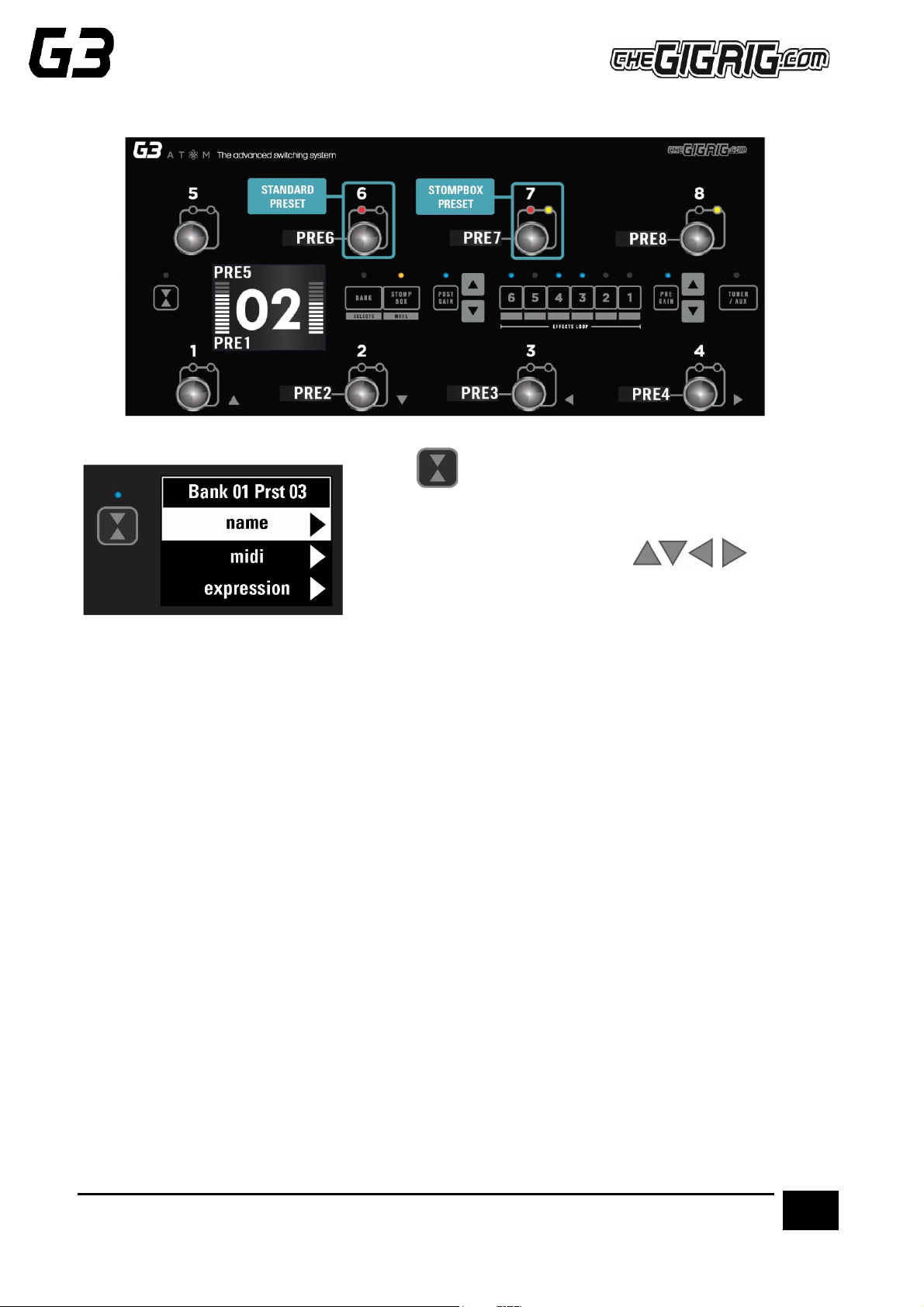
NAVIGATING THE DEEP EDIT MENU
Press the button on the left-hand side of the LCD screen to access
the DEEP EDIT MENU.
To navigate through the Deep Edit Menu, use
footswitches 1,2,3 & 4 which correspond to Up, Down, Back,
Scroll/Enter respectively.
Editing menu options include:
MIDI, PARALLEL & WET/DRY SIGNAL PATHS, DELAY/REVERB TRAILS, PRESET NAMES, BLUETOOTH
SOFTWARE UPDATES, STOMPBOX MODES, PRESET BANK COPY & PASTE, SCREEN BRIGHTNESS, etc.
Status Bar
To display the names of the left-hand side presets on the main screen, go to GLOBALS, then to STATUS BAR
and select SPLIT.

THE ADVANCED SWITCHING SYSTEM
9
November 13th, 2023
3. CONNECTIONS
All of G3 Atoms’connections are made via the back panel.
3.1. INPUT - Connect your guitar here. Seems obvious, but this is the input.
3.2. TUNER/ AUX OUT –Connect your tuner here so you can tune silently on stage. The TUNER/AUX
send includes a TRS Return, so effectively you can use it as another effects loop.
3.3. EFFECTS LOOPS - There are 6 effects loops in G3 Atom. Each has the capacity to be a stereo loop
by using a TRS connector, you can also connect them to your amplifier’s preamp (four cable method),
connect your volume pedal, basically anything that you would use in an effects loop gets connected
here. The loops can be re-ordered in any sequence you like and can also be configured in parallel,
wet/dry, or sending different effects to different outputs.
3.4. OUTPUTS - These two outputs are where we connect our amplifiers, or audio interface.
IMPORTANT! Output 1 is your EARTH/GROUND and MUST be connected. Output 2 is isolated with an
audio transformer to prevent earth loops when using two amps, so this is where you connect your
second amp, but if you are only using one amp you MUST connect to Output 1.
3.5. REMOTE SWITCHES - This pair of TRS remote switches which are programmable from the Deep
Edit Menu of G3 Atom, are ideal for changing the channels in your amplifier, controlling tap tempo
effects and anything that uses isolated latching or momentary switches.
3.6. BANK REMOTE SWITCH - Simply connect a momentary switch into the BANK input to control your
G3 banks remotely. BANKING up is as simple as tapping the momentary switch. To BANK down, simply
press and hold the footswitch and you will see the bank numbers start to descend. PLEASE NOTE –a
latching switch will NOT work here.
3.7. MIDI IN & OUT - This is where you connect your midi in and midi out cables from G3 Atom to
control your midi effects. The connection here is a standard five pin din.
3.8. POWER - 9V DC - G3 Atom uses a standard centre negative a -9 V DC input connection and
operates around 650 mA. It is important that your power supply can provide enough current, otherwise
G3 will not operate correctly. We recommend using the GigRig Generator Power Supply, which is
included with your G3 Atom.

THE ADVANCED SWITCHING SYSTEM
10
November 13th, 2023
3.9. EXPRESSION PEDALS - EXP1 & EXP2 - G3 Atom has two expression pedal ports using a TRS
connector for sending MIDI CC info, as well as being able to control the PRE GAIN and POST GAIN
levels.
3.10 CONNECTION EXAMPLES:
CONNECTING MONO EFFECTS
The way we’ll mostly be using these effects loops is to connect our pedals. The effects SEND from a G3
Atom loop is connected to the pedal INPUT, then the pedal OUTPUT is connected to the G3 Atom
effects loop RETURN. So, if you are using a single amp or dual mono setup as per the above diagram
you have 12 effects loops that you can use.
CONNECTING STEREO EFFECTS
To use stereo effects with G3 Atom, simply use TRS cables with G3 Atoms effects loops. Each of G3
Atom’s loops has the capacity to do this so you can literally have up to 6 stereo effects.
Once you have connected your stereo effects with a TRS connector, simply go into the menu, then to
GLOBAL. Scroll to STEREO SELECT and set those loops to stereo.
Autres manuels pour G3
2
Ce manuel convient aux modèles suivants
1
Table des matières
Autres manuels The GigRig Changer


