6 Teradek, LLC 2021. All rights reserved. v1-0521
CONNECT TO A WI-FI NETWORK
Fig. 2-4
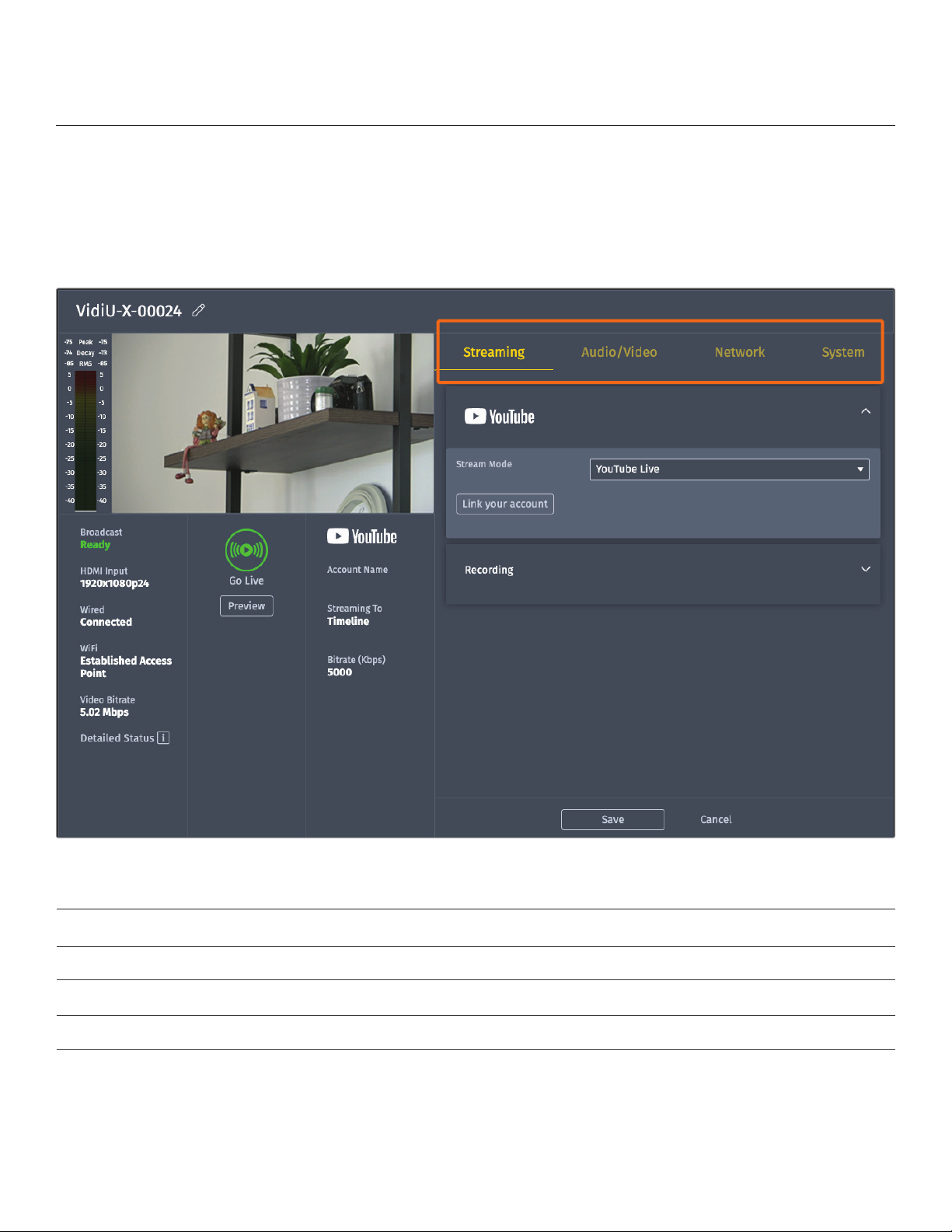
You can use the Vidiu app, the Web User Interface (Web UI), or the front panel interface to connect
Vidiu X to a network. Select one of the following options.
CONNECT TO A NETWORK
USING THE VIDIU APP
The Vidiu app allows you to remotely monitor and configure Vidiu X from your iOS or
Android device. Download the Vidiu app, then choose one of the following methods to
get Vidiu X online.
From the front panel:
1. Use the Menu Navigation Button to navigate to the
Network Settings menu, then select WiFi.
2. Select Client Mode, then select [Setup].
3. Select Visible Networks to scan for available
networks. Select a Wi-Fi Network, then enter your
credentials.
4. Once the device is configured, select [INFO] to view
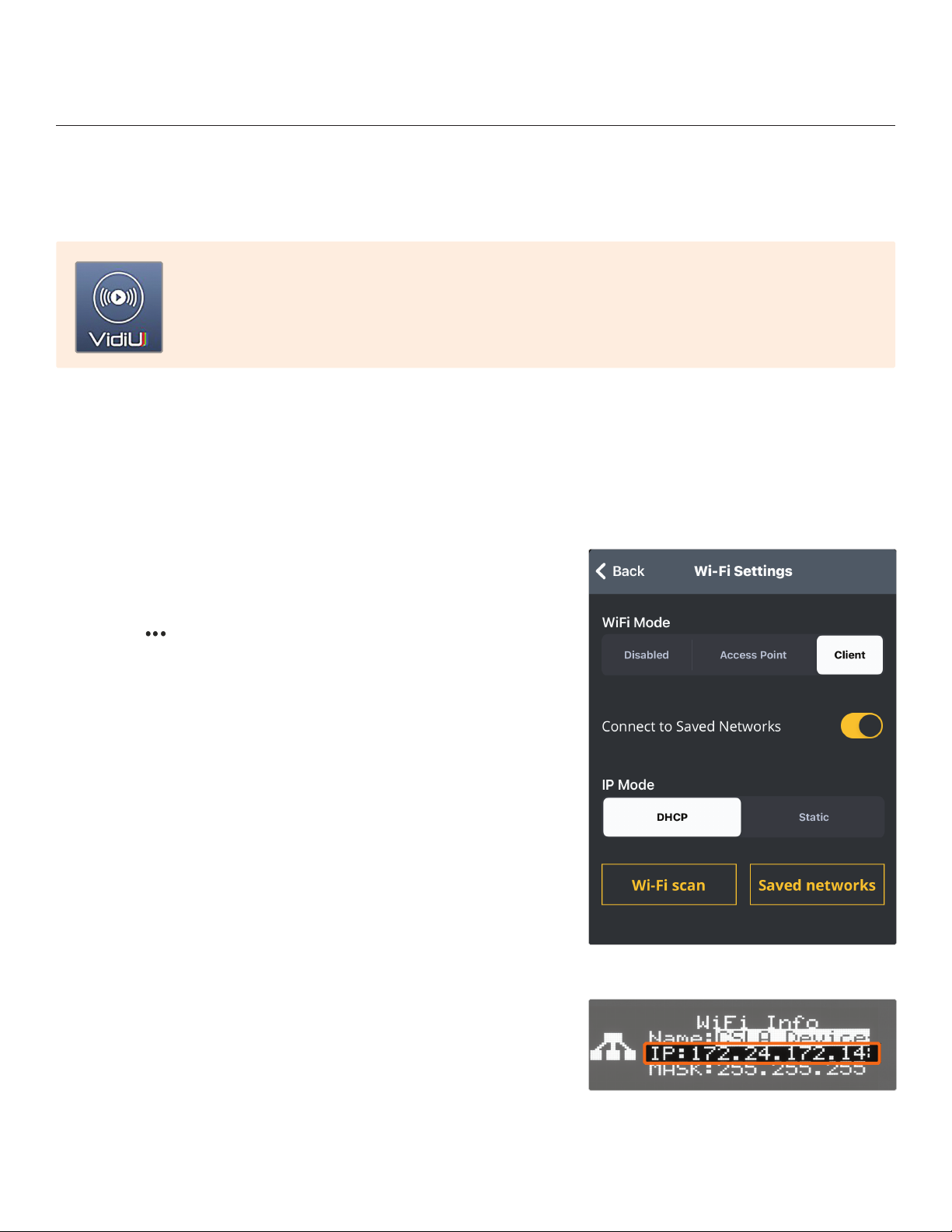
the IP address (Fig. 2-5).
5. To access the Web UI, enter Vidiu X’s IP address in
your web browser’s navigation bar, then enter the
default password “admin”.
Fig. 2-5
From the Vidiu app:
1. Connect your cellular device to Vidiu X’s Access Point
network (AP Mode), then open the Vidiu App.
2. Tap the button at the top of the display, select
Network, then select Wi-Fi.
3. Select Client Mode, then tap Wi-Fi scan (Fig. 2-4).
4. Select a network, then enter your credentials.
Vidiu X supports two wireless (Wi-Fi) modes; Access Point (AP) Mode and Client Mode. In AP Mode,
Vidiu X generates a Wi-Fi network for your phone or laptop to connect to. To use Wi-Fi as your
Internet connection, you’ll need to connect Vidiu X to another network using Client mode.