
Telpo TPX820 Manuel utilisateur
TPX820 User Manual
Page 1/62
TPX820 User Manual
V1.0
TPX820 User Manual
Page 2/62
1.LEDIndicators& Cables
Before you use this product, you must first have a general
understandingofLEDindicators,andhowtoconnect.
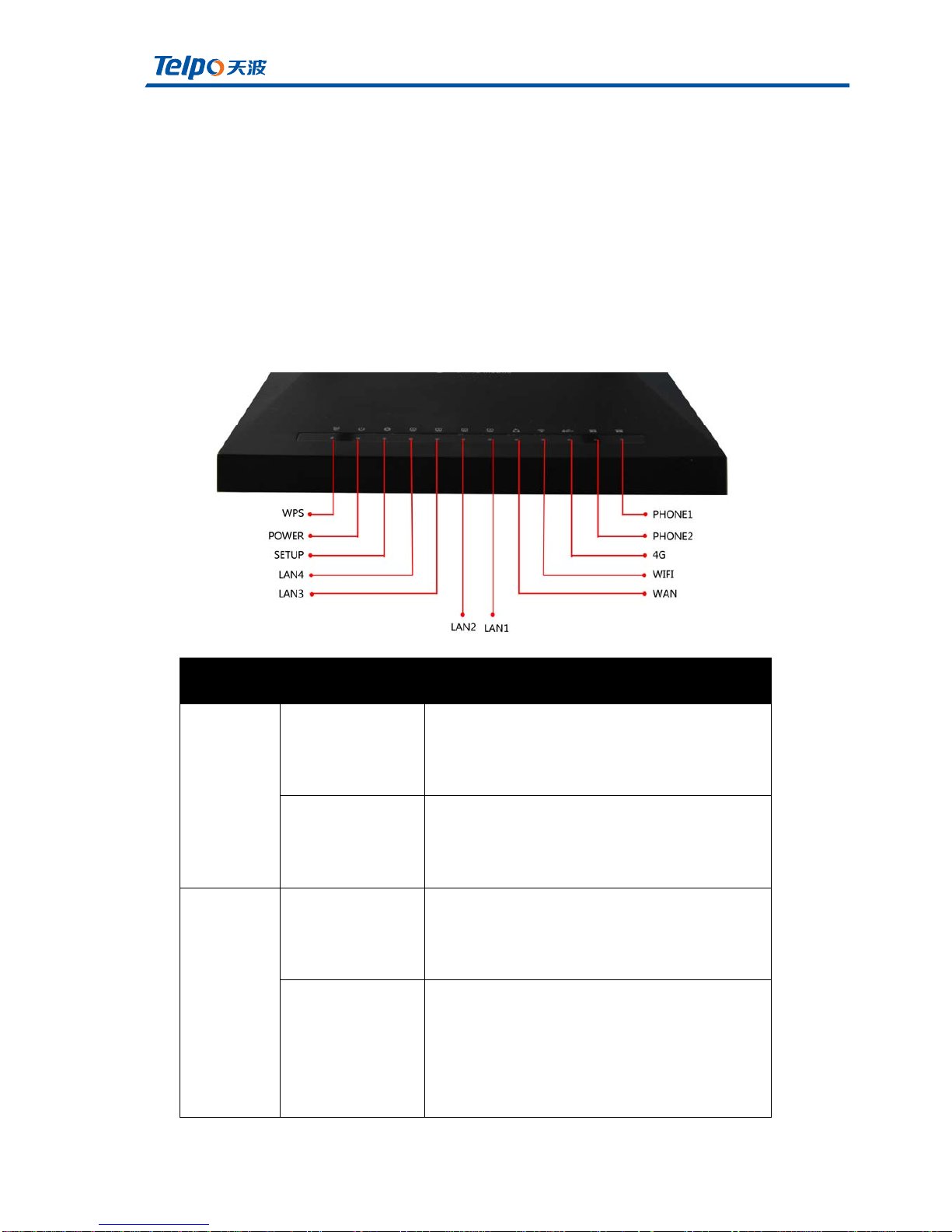
1.1LEDindicator
(1)Front View
LEDStatusDescription
Phone1/2
Flashing(green)
There is a service stream or is being
registered
Steady(Green)
Successfullyregisteredtothesoftswitch,but
nobusinessflow
LAN
1/2/3/4
Steady(Green)
Network interface is connected, but no
datatransmission.
Off
The system is not powered on or the
network interface is not connected to the
networkdevice
TPX820 User Manual
Page 3/62
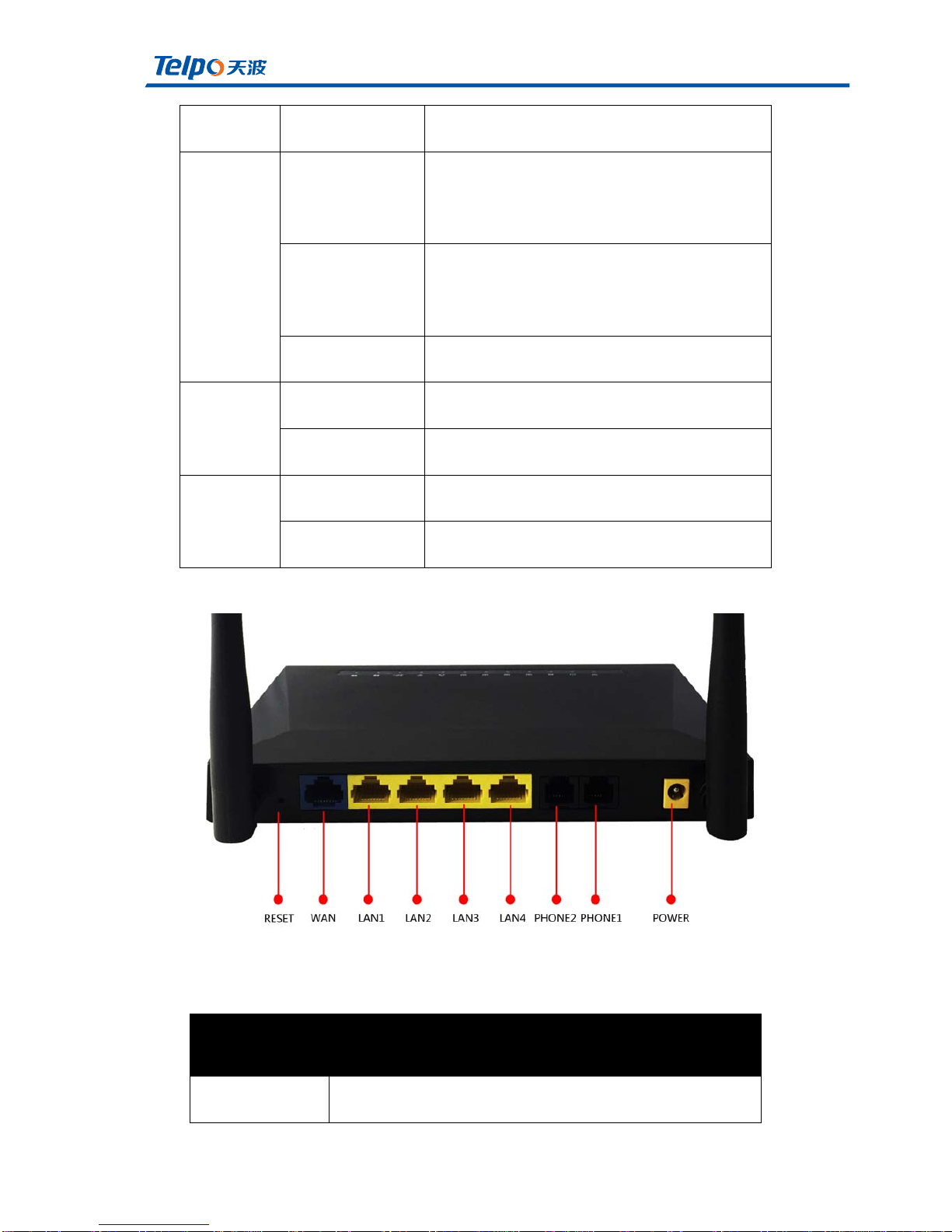
(2)Back View
Flashing(green) Thereisdatatransmission
WAN
Steady(Green)
The network connection is successful and
thephysicalconnectionhasbeenestablished
Off
Thenetworkisnotconnectedorthe
connectionfails
Flashing(green) Thereisdatatransmission
POWER
Steady(red) Thesystemispoweredupnormally
Off Thesystemisnotpoweredon
WLAN
Steady(Green) WIFIswitchisturnedon,APwork
Flashing(green) Thereisdatatransmission
Interface Description
Power Connectthepoweradapter

TPX820 User Manual
Page 4/62
1.2HardwareInstallation
Beforesettingupyourhomegateway,youmustconnectyourdevicecorrectly:
UseEthernetasUplink
1. WithRJ-11cabletoconnectatelephonetoafixedtelephonejackport;
2. DevicewithanEthernetcableandamodemconnectedwanport;
3. TheLANportyourcomputerdeviceconnectedviaRJ-45cable;
4. Oneendofthepowercordisconnectedtothepowerinterfaceofthe
deviceandtheotherendisconnectedtoanelectricaloutlet;
5. Starttherouter
6. Checkthepower,wanLANportopeningandanLEDlamptoensure
networkconnection.
UseLTEasuplink
1. WithRJ-11cabletoconnectatelephonetoafixedtelephonejackport;
2. CheckthattheSIMcardisconnected;
3. TheLANportyourcomputerdeviceconnectedviaRJ-45cable;
Phone1/2 Connectthephone
USB USBinterface
WAN ConnectaccesstotheInternet
LAN(1/2/3/4) WIFInetworkdeviceconnectedtoalocalswitch

TPX820 User Manual
Page 5/62
4. Oneendofthepowercordisconnectedtothepowerinterfaceofthe
deviceandtheotherendisconnectedtoanelectricaloutlet;
5. Starttherouter
6. Checkpower,LTEandLANportLEDlamptoensurenetworkconnection.
Warning–
Part15.19
1.ThisdevicecomplieswithPart15oftheFCCRules.Operationissubjectto
thefollowingtwoconditions:
(1)Thisdevicemaynotcauseharmfulinterference.
(2)Thisdevicemustacceptanyinterferencereceived,includinginterference
thatmaycauseundesiredoperation.
Part15.21
2.Changesormodificationsnotexpresslyapprovedbythepartyresponsible
forcompliancecouldvoidtheuser'sauthoritytooperatetheequipment.
Part15.105
NOTE:Thisequipmenthasbeentestedandfoundtocomplywiththelimitsfor
aClassBdigitaldevice,pursuanttoPart15oftheFCCRules.Theselimitsare
designedtoprovidereasonableprotectionagainstharmfulinterferenceina
residentialinstallation.
Thisequipmentgeneratesusesandcanradiateradiofrequencyenergyand,if
notinstalledandusedinaccordancewiththeinstructions,maycauseharmful

TPX820 User Manual
Page 6/62
interferencetoradiocommunications.However,thereisnoguaranteethat
interferencewillnotoccurinaparticularinstallation.Ifthisequipmentdoes
causeharmfulinterferencetoradioortelevisionreception,whichcanbe
determinedbyturningtheequipmentoffandon,theuserisencouragedtotry
tocorrecttheinterferencebyoneormoreofthefollowingmeasures:
Reorientorrelocatethereceivingantenna.
Increasetheseparationbetweentheequipmentandreceiver.
Connecttheequipmentintoanoutletonacircuitdifferentfromthatto
whichthereceiverisconnected.
Consultthedealeroranexperiencedradio/TVtechnicianforhelp.
FCCRFRadiationExposureStatement
ThisequipmentcomplieswithFCCRFradiationexposurelimitssetforthforan
uncontrolledenvironment.Thisequipmentshouldbe installedandoperated
withaminimumdistanceof20centimetersbetweentheradiatorand your
body.
TPX820 User Manual
Page 7/62
2.Web admin page settings
2.1WEBloginpage
Built-inWebserverdevicein response toHTTP get / postrequest.Users
canuseaWebbrowser,suchasMicrosoft'sIEtothelogintheWEBadminpage
andconfigurethedevice.
2.1.1URLformat
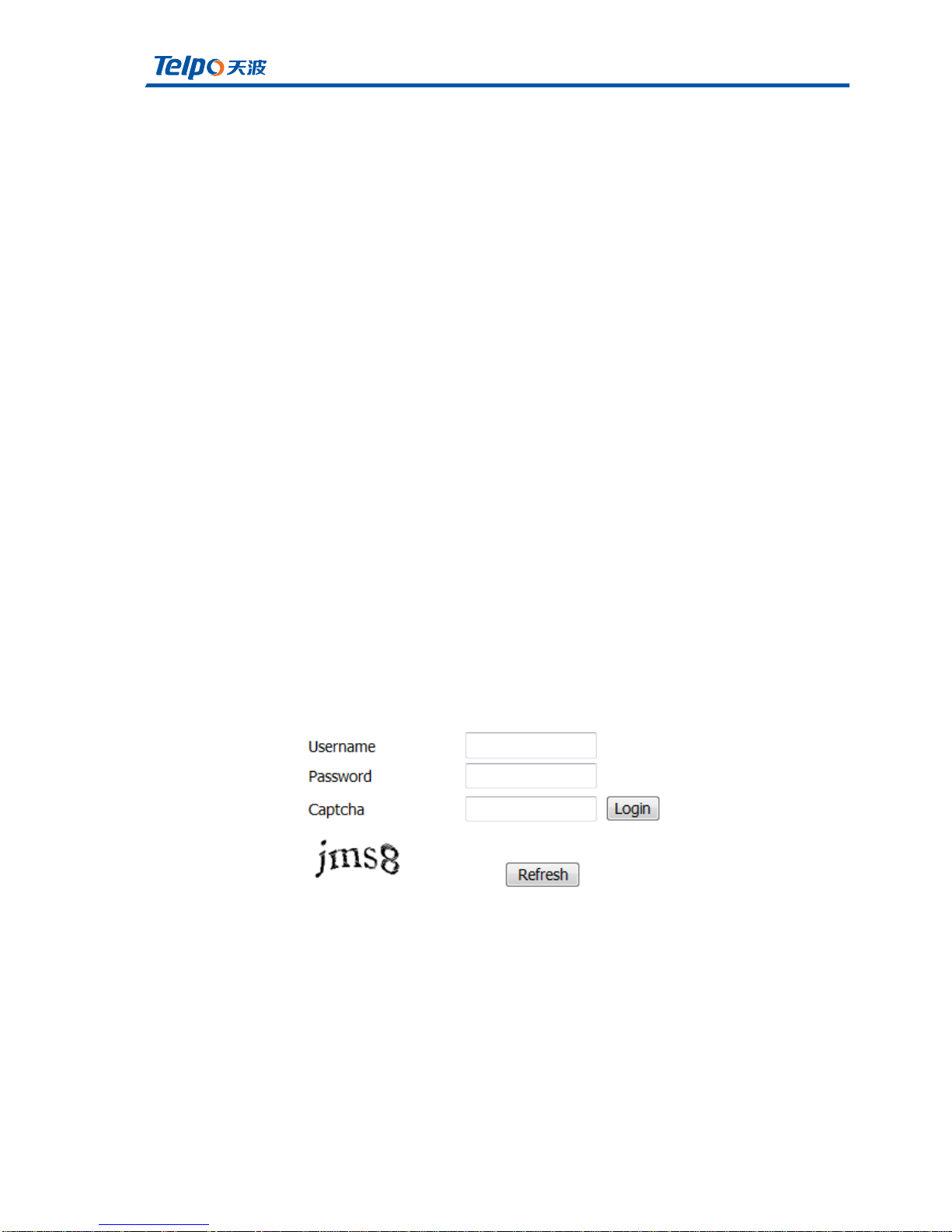
URLformatloginwebpageis:
http://LANportIPaddress
UsuallythedefaultLANportIPaddress:192.168.3.1,entertheappropriate
addressintheaddressinputfield,andthepagewilljumptotheloginpagefor
thedevice,Asshownbelow:
2.1.2 About password
Log levelTPX820has two, namely general and administrator-level user
level,differentstandardshavedifferentpasswords.

TPX820 User Manual
Page 8/62
GeneralleveluserstobrowseandconfigureallTPX820parameters,
inadditiontotheSIPlinecannotbechangedinsomeparameters,suchas
serveraddressandport;theadministratorlevelusercanconfigureallother
parameters.
TPX820defaultmanagement-levelpassword:admin
TPX820defaultnormaluserpassword:user
TPX820 User Manual
Page 9/62
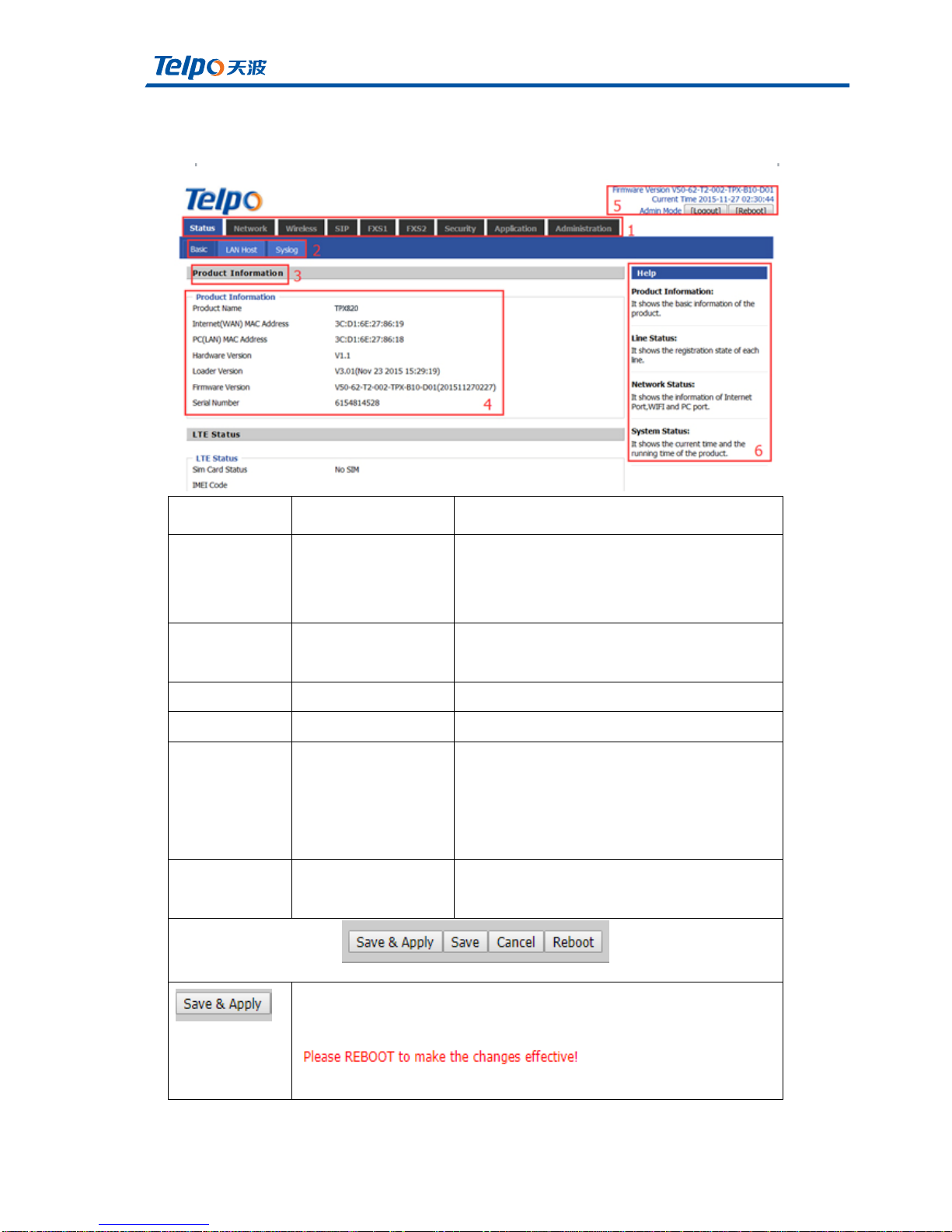
2.2WEBadminpage
Numbering name description
1
Timesthe
navigationbar
Click the secondary navigation bar, the
corresponding sub navigation bar will
appear
2Subnavigationbar
Clickthechildnavigationbartoenterthe
correspondingconfigurationpage
3title Configurethetitle
4Configurationbar Configurationbar
5DeviceInformation
TPX820displayfirmware
version,DSPversion, the current time and
management.The user presses the exit to
exit, press restart to restart.
6Help
Displayhelpinformation,theusercanget
helphere
After the parameters are changed, you need to click the button to
save to make it functional. When you see notifications like
you are most likely need
to reboot the device.

TPX820 User Manual
Page 10/62
The single Save button means your parameters will be saved but it
won’t be effective until you really apply them or reboot the device.
Clickthisbuttontocancelthechange
Clickthisbuttontorestartthedevice
Table des matières
Manuels Routeur réseau populaires d'autres marques


NETGEAR
NETGEAR FS526T - Switch Manuel utilisateur

Korenix
Korenix JetNet 5710G Series Manuel utilisateur

Automated Logic
Automated Logic ZN551 Manuel du propriétaire

Cisco
Cisco ASR 1000 Series Manuel de l'opérateur

EnGenius
EnGenius ESR-9710 Manuel utilisateur

Cisco
Cisco 805 Series Instructions d'utilisation et de sécurité