
Telguard FlexHub TGFX-HUB1 Manuel utilisateur
FlexHub
Installation Guide
Model # TGFX-HUB1

Table of Contents
Forward 3
Telguard Support 3
About This Guide 3
Terms and Conditions 3
Introduction 4
What is Z Wave? 4
Features 5
Add and Control Z- Wave Devices 5
FlexHub Controller Hardware 5
Free HomeControl Flex Apps 5
Package Contents 6
FlexHub Specications 6
System Overview 8
LED Indicators 8
Connections and Buttons 10
Installation 12
Using HomeControl Flex 13
HomeControl Flex Web Portal 13
HomeControl Flex Mobile Apps 21
Glossary 26
Regulatory Information and Warranty 27
Wireless Product Notice 27
Repair and Warranty 28

Model TGFX-HUB1 © 2018 Telguard 3
Foreword
FlexHub is not a life safety device. FlexHub is a lifestyle accessory used to offer integrated control of
Z-Wave electronic accessories that may be added to the facility.
Support for all Telguard products is available Toll Free at 800-229-2326.
• Option 1 for Registration and Customer Service
• Option 5 for Sales
• Option 9 for Technical Support
Email Support is provided by:
[email protected]: Customer Service and Registration
[email protected]: RMA requests
Telguard also hosts two sites for public and dealer access:
www.telguard.com: public access site.
The material and instructions covered have been carefully checked for accuracy and should provide
enough guidance for a successful installation.
Note: Visit www.telguard.com to download the latest product information.
Terms and Conditions FlexHub is not a life safety device. FlexHub is a lifestyle accessory used to offer
integrated control of Z-Wave electronic accessories that may be added to the facility.
“Telguard Terms and Conditions of Sale” as well as “Telguard Master Reseller Agreement – Telguard
Services” are applicable. For more information, visit the dealer portal at www.telguard.com or contact
Customer Service.
For Telguard Support

Model TGFX-HUB1 © 2018 Telguard 4
Introduction
Congratulations on the purchase of your new Telguard FlexHub Z-Wave Controller. This Security
Enabled Z-Wave Plus Controller is a consumer electronic device, used to monitor and control Z-Wave
devices within your home or business using Telguard’s HomeControl Flex service. By adding the
FlexHub to your system, you gain access to many new Z-Wave devices in the Internet of Things that
are designed to enhance your life.
The Telguard FlexHub can monitor and control Z-Wave devices offered by other Z-Wave product
manufacturers. By adding a FlexHub to their system, HomeControl Flex customers can now integrate
Z-Wave devices such as Lights, Locks and Thermostats into their home or business and use the
free HomeControl Flex App or HomeControl Flex web portal to control those devices from virtually
anywhere.
WHAT IS Z-WAVE?
Z-Wave is an ITU standard for wireless communication in smart homes and buildings where
manufacturers agree to develop and test products that offer interoperability and backwards
compatibility between products from different manufacturers.
Regardless of the manufacturer, non-battery powered Z-Wave devices from various manufacturers
and product categories act as repeaters in a Z-Wave network to forward commands from the
controller to other devices in the network. These repeating nodes can also “beam” or wakeup a
battery powered “listening” device such as a door lock or battery-powered thermostat so that it is
ready to accept commands from a controller that is beyond the range for direct communication by the
Controller in the Z-Wave network. This concept of cross vendor interoperability is a cornerstone of
Z-Wave Plus.

Model TGFX-HUB1 © 2018 Telguard 5
Features
Add and Control Z-Wave Devices
When you add a Telguard FlexHub to your system, you can enjoy the many benets offered through
Z-Wave technology. Simply add Z-Wave lights, locks and thermostats to your FlexHub and use the
HomeControl Flex web portal or mobile app to control your Z-Wave devices from virtually anywhere.
FlexHub Controller Hardware:
• Z-Wave Transceiver
• Five LED Indicators
• One Ethernet Port
• 12 VDC Power Connector
• USB Connector (Not Used)
• Recessed Reset Button
• Sync Button (Future Use)
• WPS Button
Free HomeControl Apps
Download the HomeControl Flex app to your favorite device by visiting the Apple App Store or Google
Play and search for HomeControl Flex. Then, simply login to your HomeControl Flex site using your
secure user name and password.

Model TGFX-HUB1 © 2018 Telguard 6
Package Contents
• TGFX-HUB1 Z-Wave Controller
• 12 VDC Power Adapter
• Ethernet Cable
If any of these items are damaged or missing, please contact your dealer immediately.
FlexHub Specications
The Telguard FlexHub utilizes the Sigma Designs Z-Wave Plus - Series 5 chipset.
• Power Supply
• Input: 100-240V AC, 50-60Hz, 0.5A (max)
• Output: 12V DC, 1A (max)
• LAN - 10/100 Ethernet Port
The following Z-Wave Command and Control Classes are supported.
Supported Command Classes:
• Application Status Command Class, Version 2
• Association Command Class, Version 2
• Association Group Information Command Class, Version 1
• CRC-16 Encapsulation Command Class, Version 1
• Device Reset Locally Command Class, Version 1
• Manufacturer Specic Command Class, Version 1
• Power-level Command Class, Version 1
• Security Command Class, Version 1
• Version Command Class, Version 2
• Z-Wave Plus Info Command Class, Version 2
Controlled Command Classes:
• Alarm Command Class, Version 2
• Association Command Class, Version 2*
• Association Group Information Command Class, Version 1*
• Basic Command Class, Version 2

Model TGFX-HUB1 © 2018 Telguard 7
• Binary Switch Command Class, Version 2
• CRC-16 Encapsulation Command Class, Version 1
• Door Lock Command Class, Version 3
• Manufacturer Specic Command Class, Version 1
• Multi Channel Command Class, Version 4
• Multi Channel Association Command Class, Version 2
• Multilevel Sensor Command Class, Version 1
• Multilevel Switch Command Class, Version 3
• No Operation Command Class, Version 1
• Security Command Class, Version 1
• Thermostat Mode Command Class, Version 1
• Thermostat Setpoint Command Class, Version 1
• Version Command Class, Version 2
• Wake Up Command Class, Version 2
• Z-Wave Plus Info Command Class, Version 2
*Note: FlexHub has one association group, the “Lifeline” group, which supports sending associated
devices reset notications when the FlexHub is factory reset.
Model TGFX-HUB1 © 2018 Telguard 8
System Overview
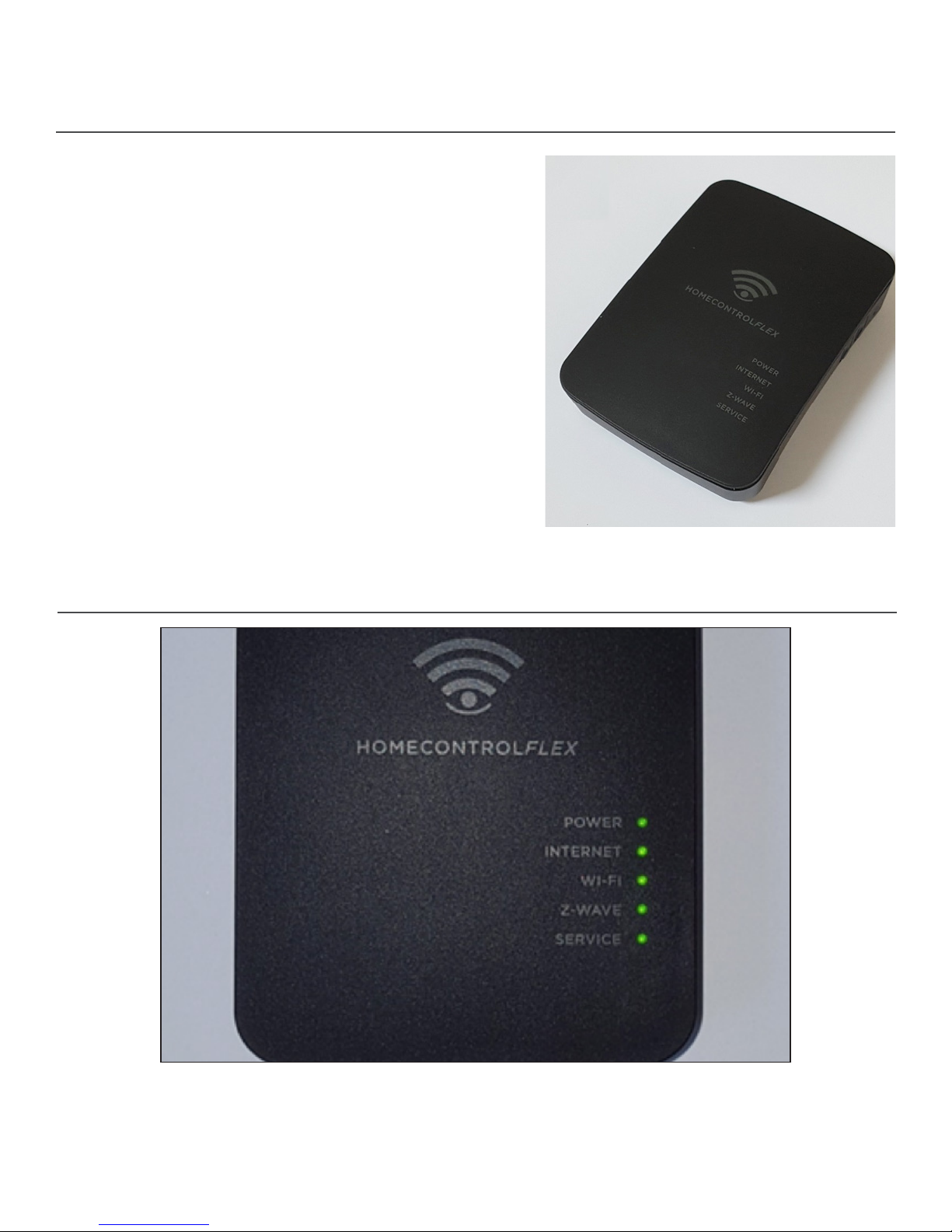
FlexHub offers a signicant enhancement to
HomeControl Flex sites by adding Z-Wave connectivity
to their systems. Both Dealers and Customers now have
an opportunity to add and install Z-Wave Lights, Door
Locks and Thermostats from numerous Z-Wave Certied
Manufacturers and customers can control those devices
from their Mobile Device or Computer.
The attractive FlexHub Controller can be located almost
anywhere the unit can be connected to an Internet
connected router and AC power. To offer optimal Z-Wave
performance, the unit should be located where it has the
best line-of-site connectivity to the other Z-Wave nodes
in the Z-Wave network.
LED Indicators
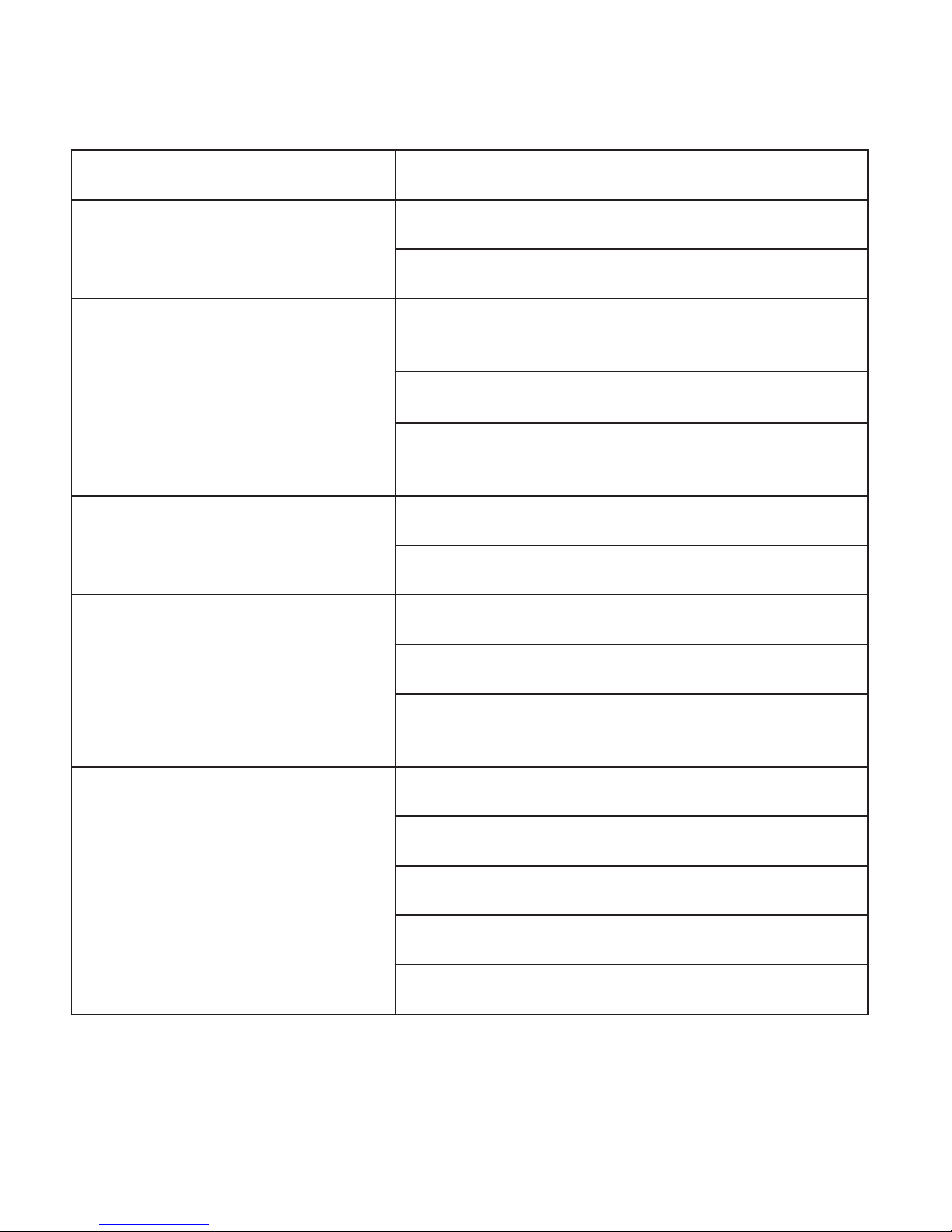
The FlexHub Z-Wave Controller has ve LED indicators as shown in the chart on the following page.
A functional description for each LED is listed in the table.
Model TGFX-HUB1 © 2018 Telguard 9
LED LABEL DESCRIPTION
Power
On - Power On
Off - Power Off
Internet
On - Connection established with HomeControl
Flex server.
Off - Not activated.
Flashing - Establishing connection with Home-
Control Flex server.
Wi-Fi
On - Wi-Fi access point is active
Flashing - WPS mode is active
Z-Wave
On - Z-Wave function enabled.
Off - Z-Wave function disabled.
Flashing - FlexHub is in Include or Exclude mode
or is determining Z-Wave network.
Service
On - FlexHub is activated with the TCC.
Off - FlexHub is not activated with the TCC.
Flashing - Activating with the TCC.
Double Flashing - Activation with TCC failed.
Triple Flashing - Communication issue with TCC.
Model TGFX-HUB1 © 2018 Telguard 10
Connections and Buttons
CONNECTOR DESCRIPTION
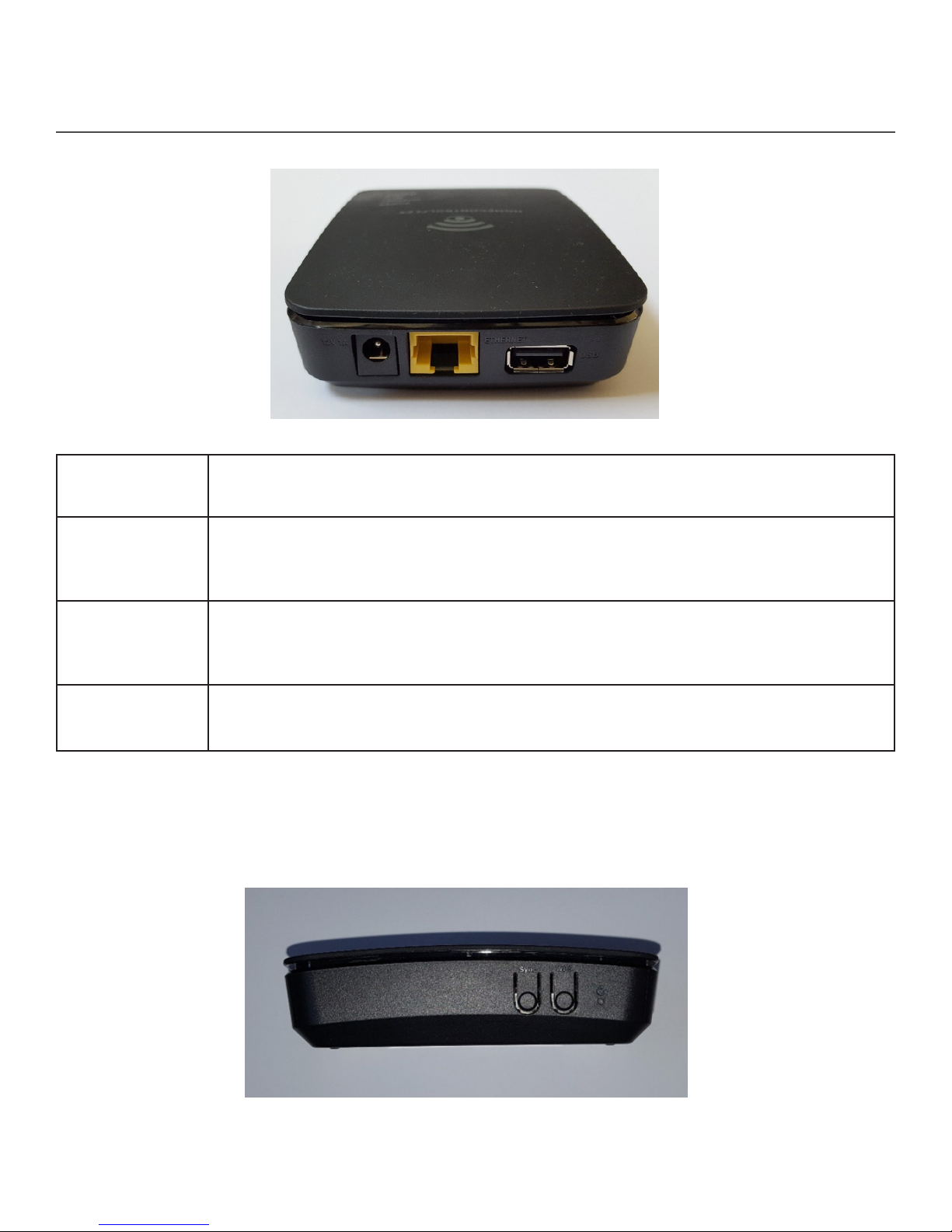
Power Connect the supplied 12-volt dc power adapter to FlexHub and plug the power
adapter into a standard AC power outlet.
Ethernet Connect a standard Ethernet cable (provided) from this port to an available LAN
port on your local router. The local router must have access to the Internet.
USB Disabled for customer use.
On the right side of the unit, FlexHub has three buttons. Each button and its current purpose are
described in the following table.
Table des matières
Manuels Routeur réseau populaires d'autres marques


NETGEAR
NETGEAR FS526T - Switch Manuel utilisateur

Korenix
Korenix JetNet 5710G Series Manuel utilisateur

Automated Logic
Automated Logic ZN551 Manuel du propriétaire

Cisco
Cisco ASR 1000 Series Manuel de l'opérateur

EnGenius
EnGenius ESR-9710 Manuel utilisateur

Cisco
Cisco 805 Series Instructions d'utilisation et de sécurité