TechVision ID-S2LIR100W2 Manuel utilisateur

2MP IP Fixed Lens Dome
ID-S2LIR100W2

Notes on Safety
Please use the specified power supply to connect.
Do not attempt to disassemble the camera; in order to prevent electric shock, do not
remove screws or covers.
There are no user-serviceable parts inside. Please contact the nearest service center as
soon as possible if there is any failure.
Avoid from incorrect operation, shock vibration, heavy pressing which can cause
damage to product.
Do not use corrosive detergent to clean main body of the camera. If necessary, please
use soft dry cloth to wipe dirt; for hard contamination, use neutral detergent. Any
cleanser for high grade furniture is applicable.
Avoid aiming the camera directly towards extremely bright objects, such as, sun, as this
may damage the image sensor.
Please follow the instructions to install the camera. Do not reverse the camera, or the
reversing image will be received.
Do not operate it in case temperature, Relative humidity and power supply are beyond
the limited stipulations.
Keep away from heat sources such as radiators, heat registers, stove, etc.
Do not expose the product to the direct airflow from an air conditioner.
This is product instructions not quality warranty. We may reserve the rights of amending
the typographical errors, inconsistencies with the latest version, software upgrades and
product improvements, interpretation and modification. These changes will be published
in the latest version without special notification.
When this product is in use, the relevant contents of Microsoft, Apple and Google will
be involved in. The pictures and screenshots in this manual are only used to explain the
usage of our product. The ownerships of trademarks, logos and other intellectual
properties related to Microsoft, Apple and Google belong to the above-mentioned
companies.
This manual is suitable for IR water-proof network camera. All pictures and examples
used in the manual are for reference only.

Disclaimer
With regard to the product with internet access, the use of product shall be wholly at your
own risks. Our company shall be irresponsible for abnormal operation, privacy leakage or
other damages resulting from cyber attack, hacker attack, virus inspection, or other internet
security risks; however, Our company will provide timely technical support if necessary.
Surveillance laws vary from country to country. Check all laws in your local region before
using this product for surveillance purposes. We shall not take the responsibility for any
consequences resulting from illegal operations.
Cybersecurity Recommendations
Use a strong password. At least 8 characters or a combination of characters, numbers, and
upper and lower case letters should be used in your password.
Regularly change the passwords of your devices to ensure that only authorized users can
access the system (recommended time is 90 days).
It is recommended to change the service default ports (like HTTP-80, HTTPS-443, etc.) to
reduce the risk of outsiders being able to access.
It is recommended to set the firewall of your router. But note that some important ports
cannot be closed (like HTTP port, HTTPS port, Data Port).
It is not recommended to expose the device to the public network. When it is necessary to
be exposed to the public network, please set the external hardware firewall and the
corresponding firewall policy.
In order to enhance the security of WEB client access, please create a TLS certificate to
enable HTTPS.
Use black and white list to filter the IP address. This will prevent everyone, except those
specified IP addresses from accessing the system.
If you add multiple users, please limit functions of guest accounts.
If you enable UPnP, it will automatically try to forward ports in your router or modem. It
is really very convenient for users, but this will increase the risk of data leakage when the
system automatically forwards ports. Disabling UPnP is recommended when the function is
not used in real applications.
Check the log. If you want to know whether your device has been accessed by
unauthorized users or not, you can check the log. The system log will show you which IP
addresses were used to log in your system and what was accessed.

Regulatory Information
FCC Information
1. FCC compliance
The products have been tested and found in compliance with the council FCC rules and
regulations part 15 subpart B. These limits are designed to provide reasonable protection
against harmful interference. This equipment generates uses and can radiate radio frequency
energy and, if not installed and used in accordance with the instruction manual, may cause
harmful interference to radio communication. However, there is no guarantee that interference
will not occur in a particular installation. The user will be required to correct the interface at
his own expense in case the harmful interference occurs.
2. FCC conditions:
Operation of this product is subject the following two conditions: (1) this device may not
cause harmful interface, and (2) this device must accept any interference received, including
interference that may cause undesired operation.
CE Information
The products have been manufactured to comply with the following directives.
EMC Directive 2014/30/EU
RoHS
The products have been designed and manufactured in accordance with Directive EU RoHS
Directive 2011/65/EU and its amendment Directive EU 2015/863 on the restriction of the use
of certain hazardous substances in electrical and electronic equipment.
2012/19/EU (WEEE directive): The Directive on waste electrical and electronic
equipment (WEEE Directive). To improve the environmental management of
WEEE, the improvement of collection, treatment and recycling of electronics at
the end of their life is essential. Therefore, the product marked with this symbol
must be disposed of in a responsible manner.
Directive 94/62/EC: The Directive aims at the management of packaging and packaging
waste and environmental protection. The packaging and packaging waste of the product in
this manual refers to must be disposed of at designated collection points for proper recycling
and environmental protection.
REACH(EC1907/2006): REACH concerns the Registration, Evaluation, Authorization and
Restriction of Chemicals, which aims to ensure a high level of protection of human health and
the environment through better and earlier identification of the intrinsic properties of chemical
substances. The product in this manual refers to conforms to the rules and regulations of
REACH. For more information of REACH, please refer to DG GROWTH or ECHA websites.

Table of Contents
1Introduction ................................................................................................................... 1
2Network Connection ......................................................................................................2
2.1 LAN ...................................................................................................................2
2.1.1 Access through IP-Tool ............................................................................2
2.1.2 Directly Access through IE ....................................................................... 4
2.2 WAN .................................................................................................................. 5
3Live View ........................................................................................................................ 8
4Configuration .................................................................................................................9
4.1 System Configuration ........................................................................................9
4.1.1 Basic Information .....................................................................................9
4.1.2 Date & Time .............................................................................................9
4.1.3 Local Configuration................................................................................ 10
4.1.4 Storage.................................................................................................... 10
4.2 Image Configuration ........................................................................................ 12
4.2.1 Display Configuration ............................................................................ 13
4.2.2 Video/Audio Settings.............................................................................. 14
4.2.3 OSD Configuration................................................................................. 16
4.2.4 Video Mask ............................................................................................ 16
4.2.5 ROI Configuration.................................................................................. 17
4.3 Alarm Configuration........................................................................................ 18
4.3.1 Motion Detection.................................................................................... 18
4.3.2 Other Alarms .......................................................................................... 20
4.3.3 Alarm Server .......................................................................................... 20
4.4 Event Configuration......................................................................................... 21
4.4.1 Object Removal ...................................................................................... 21
4.4.2 Exception................................................................................................ 23
4.4.3 Line Crossing.......................................................................................... 24
4.4.4 Intrusion.................................................................................................. 25
4.5 Network Configuration .................................................................................... 26
4.5.1 TCP/IP .................................................................................................... 26
4.5.2 Port ......................................................................................................... 28
4.5.3 Server Configuration .............................................................................. 28
4.5.4 DDNS Configuration .............................................................................. 28
4.5.5 802.1x ..................................................................................................... 30
4.5.6 RTSP....................................................................................................... 30
4.5.7 UPNP...................................................................................................... 32
4.5.8 Mail Configuration ................................................................................. 32
4.5.9 FTP ......................................................................................................... 33
4.5.10 HTTPS ............................................................................................... 33
4.5.11 QoS .................................................................................................... 35

Network Camera User Manual
4.6 Security Configuration..................................................................................... 35
4.6.1 User Configuration ................................................................................. 35
4.6.2 Online Video User .................................................................................. 37
4.6.3 Block and Allow List .............................................................................. 37
4.6.4 Security Management ............................................................................. 37
4.7 Maintenance Configuration.............................................................................. 38
4.7.1 Backup and Restore ................................................................................ 38
4.7.2 Reboot .................................................................................................... 38
4.7.3 Upgrade .................................................................................................. 39
4.7.4 Operation Log......................................................................................... 39
5Search ........................................................................................................................... 40
5.1 Image Search ................................................................................................... 40
5.2 Video Search.................................................................................................... 42
5.2.1 Local Video Search................................................................................. 42
5.2.2 SD Card Video Search ............................................................................ 43
Appendix................................................................................................................................ 45
Appendix 1 Q & A.............................................................................................................. 45
Appendix 2 Specifications ................................................................................................. 46

1
Network Camera User Manual
1Introduction
This IP-CAMERA (short for IP-CAM) is designed for high performance CCTV solutions. It
adopts state-of-the-art video processing chips, integrated with the most advanced technologies
(like video encoding and decoding technology) to make the image transmission more stable
and smooth. Moreover, the built-in WEB server of this series improves the performance of the
traditional surveillance system so that users can be easy to operate and monitor.
This product is widely used in banks, telecommunication systems, electricity power
departments, law systems, factories, storehouses, uptowns, etc. In addition, it is also an ideal
choice for surveillance sites with middle or high risks.
Main Features
ICR auto switch, true day/night
3D DNR, digital WDR, defog, BLC, HLC
ROI coding
Support mobile surveillance by smart phones
Surveillance Application

2
Network Camera User Manual
2Network Connection
Connect IP-CAM via LAN or WAN. Here only take IE browser for example. The details are
as follows:
2.1 LAN
In LAN, there are two ways to access IP-CAM: 1. access through IP-Tool; 2. directly access
through IE browser.
2.1.1 Access through IP-Tool
Network connection:
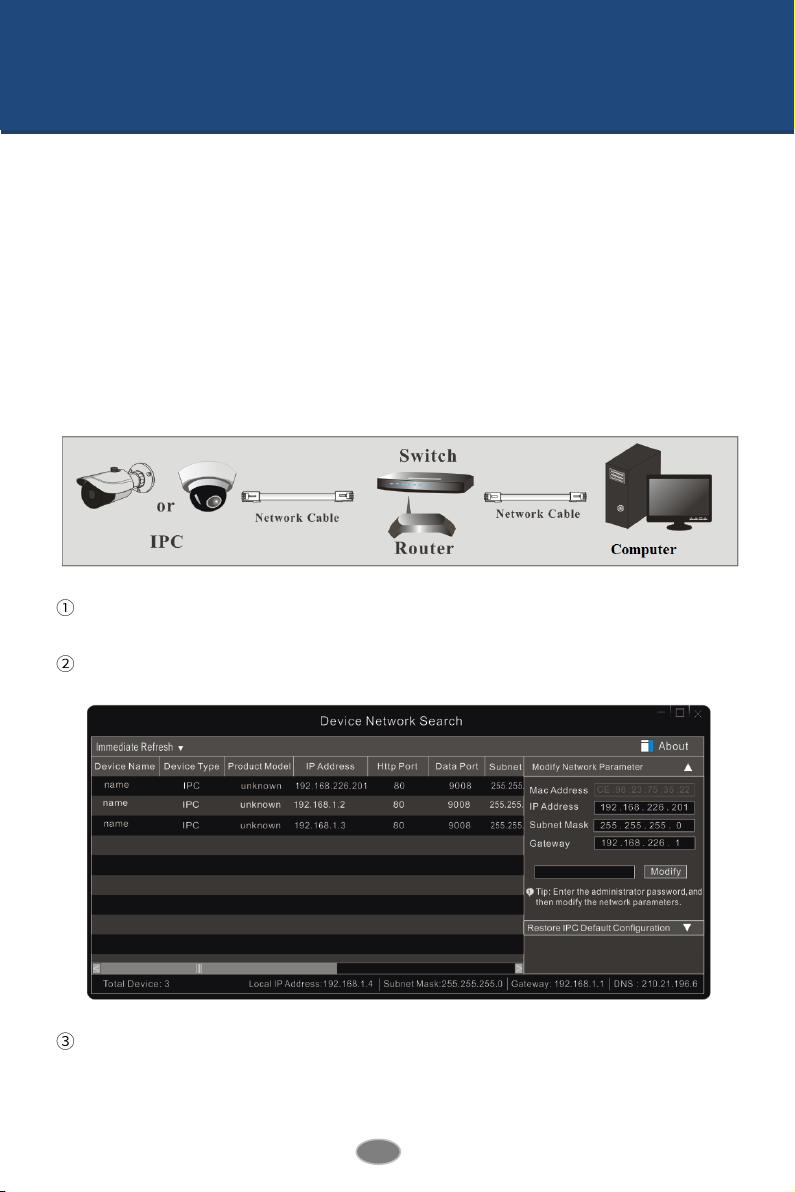
Make sure the PC and IP-CAM are connected to the LAN and the IP-Tool is installed in
the PC from the CD.
Double click the IP-Tool icon on the desktop to run this software as shown below:
Modify the IP address. The default IP address of this camera is 192.168.226.201. Click the
information of the camera listed in the above table to show the network information on the
right hand. Modify the IP address and gateway of the camera and make sure its network
address is in the same local network segment as the computer’s. Please modify the IP address

3
Network Camera User Manual
of your device according to the practical situation.
For example, the IP address of your computer is 192.168.1.4. So the IP address of the camera
shall be changed to 192.168.1.X. After modification, please enter the password of the
administrator and click “Modify” button to modify the setting.
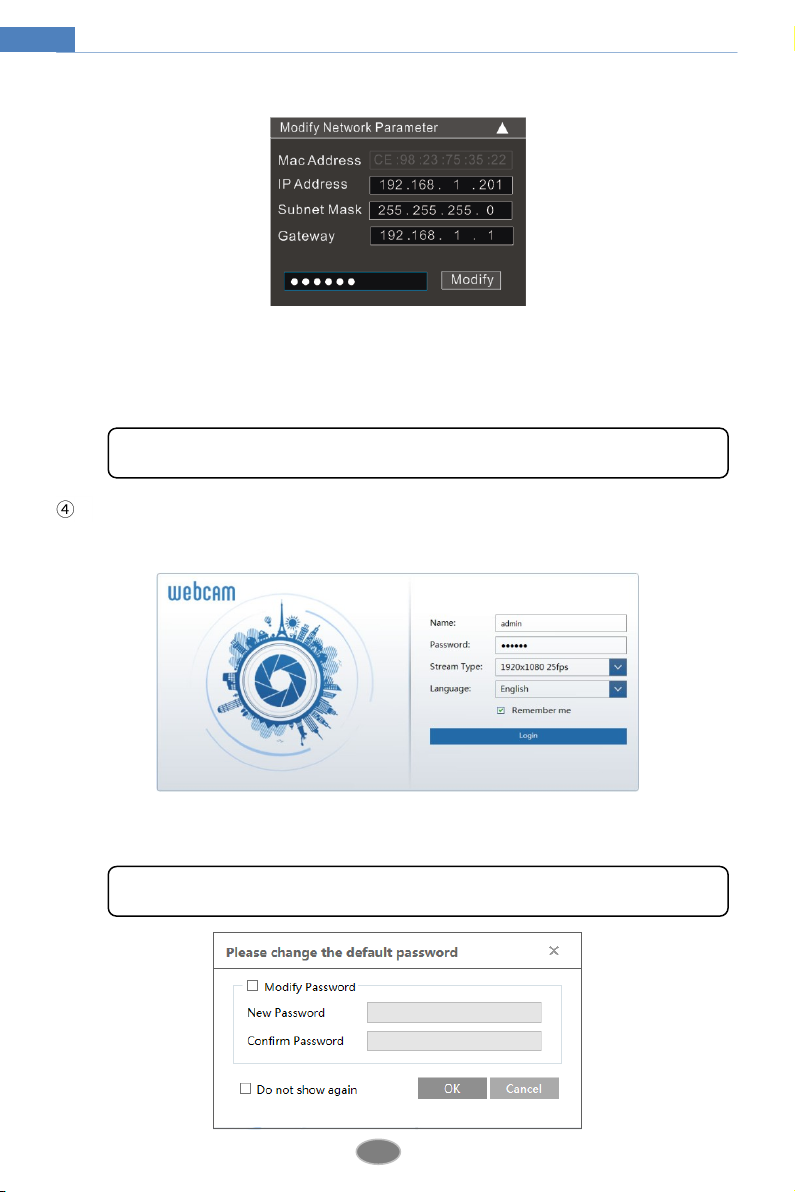
Double click the IP address and then the system will pop up the IE browser to connect
IP-CAM. Then follow directions to install and run the applicable plug-in.
Enter the username and password to log in.
The default password of the administrator is “123456”.
The default username is “admin”; the default password is “123456”.

4
Network Camera User Manual
The system will pop up the above-mentioned textbox to ask you to change the default
password. It is strongly recommended to change the default password for account security. If
“Do not show again” is checked, the textbox will not appear next time.
2.1.2 Directly Access through IE
The default network settings are as shown below:
IP address: 192.168.226.201
Subnet Mask: 255.255.255.0
Gateway: 192.168.226.1
HTTP: 80
Data port: 9008
Use the above default settings when logging in the camera for the first time. Directly connect
the camera to the computer through the network cable.
Manually set the IP address of the PC and the network segment should be as the same as
the default settings of the IP camera. Open the network and share center. Click “Local Area
Connection” to pop up the following window.
Select “Properties” and then select internet protocol according to the actual situation (for
example: IPv4). Next, click “Properties” button to set the network of the PC.
Table des matières
Autres manuels TechVision Caméra de sécurité

TechVision
TechVision HDE2P2W2-S Manuel utilisateur

TechVision
TechVision PDS8P3WZ-I/A Manuel utilisateur

TechVision
TechVision PVS5P1W2-I/A Manuel utilisateur

TechVision
TechVision PBS2L1W2-2 Manuel utilisateur

TechVision
TechVision PDS8E2W2-I/A Manuel utilisateur

TechVision
TechVision PAS5P1W2-I/A Manuel utilisateur

TechVision
TechVision PBS8E2W2-I Manuel utilisateur

TechVision
TechVision PDE4L3WZ-I Manuel utilisateur

TechVision
TechVision HBE5P4WZ-S/A Manuel utilisateur

TechVision
TechVision PDS5E3WZ-A Manuel utilisateur