
Targus PA610U Manuel utilisateur

Mobile Computer
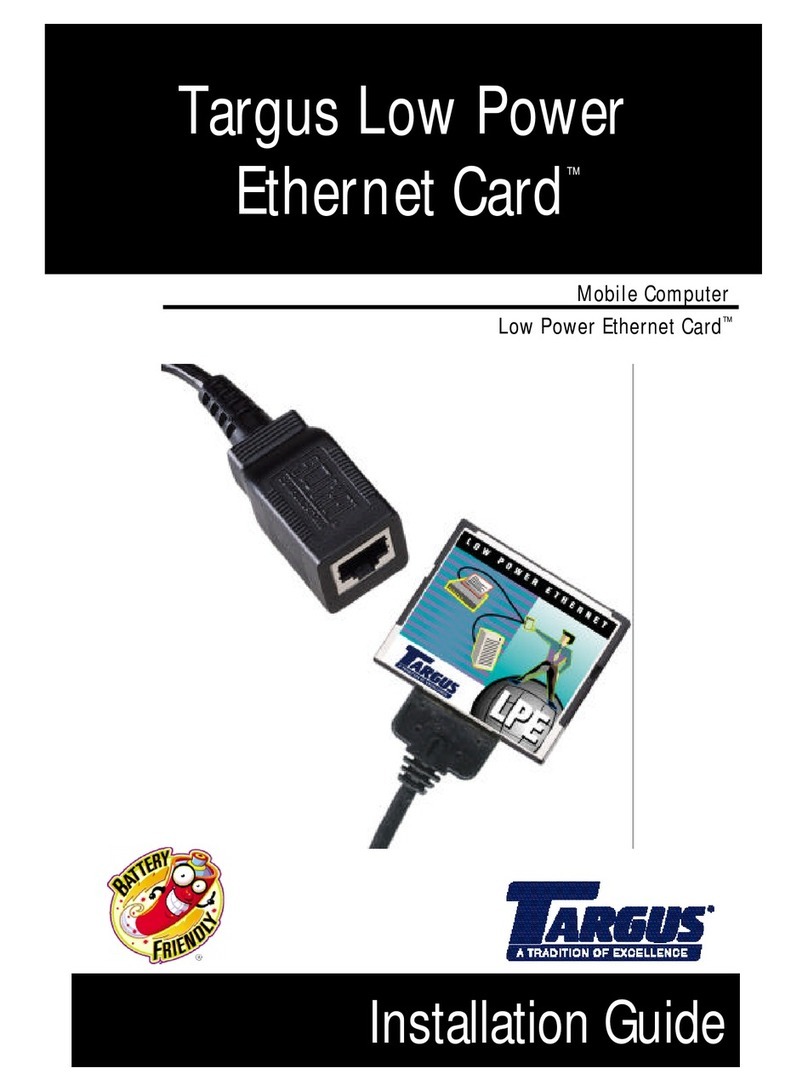
LowPowerEthernetCard™
User’sGuide
®
EthernetCard
Targus Low Power
TM

2
Chapter 1 - Quick Start
Overview
This chapter summarizes how to install the LP-E Card
software for Pocket PCs and Windows CE-based Palm-size
PCs, Handheld Pros, or pen tablets. It assumes you are
familiar with network settings and the devices you are using.
For more detailed instructions, refer to Pocket PC Setup, on
page 10, or Windows CE Setup, on page 21.
Pocket PCs
This procedure applies only to Pocket PCs.
To install software for Windows CE-based mobile
computers, refer to the section titled Windows CE, on page
4.
NOTE: Complete the software installation steps before
inserting the LP-E Card.
1Connect your Pocket PC to the host PC using the
synchronizing cradle and cable.
2Create an active partnership between your Pocket PC
and the host PC.
3Insert the LP-E Card Installation CD into the host PC.

Quick Start
Pocket PCs 3
4RunSETUP from the CD-ROM.
NOTE: If asked to confirm file replacing, choose Yes to All.
5When downloading is complete, click OK.
6Reset your Pocket PC to load the new software.
7When Setup is complete, click OK and remove your
Pocket PC from its cradle.
8Plug the LP-E Card into an active Ethernet connection.
9Insert the LP-E Card into your Pocket PC’s
CompactFlash I/O card slot.
When your Pocket PC displays the following message,
tap OK.
10 Use the IP Address screen to configure your network
settings, then tap OK.
11 Remove the LP-E Card, then reinsert itand connect the
cable to your network.
CAUTION: The new IP settings will not take effect until you
reinsertthe card.

Quick Start
Windows CE 4
12 On the ActiveSync screen, choose Network
Connection and the name of the host PC, then tap
Connect….
By default, ActiveSync starts whenever you insert the LP-E
Card. To preventthis, or torun a different program whenyou
insert the card, use Targus’ LP-E Card Applet. This applet
enables you to:
❖Specify which program (if any) to launch automatically
upon card insertion
❖Enable/disable network status icons in the task tray
❖Determine the frequency with which the system checks
network status
❖View a summary of IP information
❖Specify a delay before the driver attempts to connect to
the network or launch a program.
For more information, refer to LP-E Card Applet, on page
17.
Windows CE
This procedure applies only to Windows CE-based mobile
computers.
To install software for Pocket PCs, refer to the section titled
Pocket PCs, on page 2.
The Windows CE screens you see may differ from the
examples given depending on the type of mobile computer
you use.
NOTE: Complete the software installation steps before
inserting the LP-E Card.

Quick Start
Windows CE 5
1Connect your mobile computer to a host PC using the
serial cable that came with the device.
2Create an active partnership between your mobile
computer and the host PC.
3Insert the LP-E Card Installation CD into the host PC.
4Run SETUP from the CD-ROM.
5When your mobile computer displays the ActiveSync
screen, set your configuration options then tap Finish.
NOTE: For instructions on how to configure ActiveSync,
refer to LP-E Card Applet, on page 27.
6When the Setup Complete screen appears, tap OK,
then reset your mobile computer to load the new
software.
7Remove the serial cable from your mobile computer,
then plug the LP-E Card into an active Ethernet
connection.
8Insert the LP-E Card into your mobile computer.
NOTE: For instructions on card insertion, refer to
Connecting the LP-E Card to Your Computer, on
page 36.
9When the Targus LP-E Driver message appears, tap
OK.
10 Use the IP Address screen to configure your network
settings, then tap OK.

Quick Start
Windows CE 6
11 Remove the LP-E Card, then reinsert it and plug the
LP-E cable into the network.
CAUTION: The new IP settings will not take effect until you
reinsertthe card.
12 In the ActiveSync screen, select Network Connection
and the name of the host PC, then tap Connect.
By default, ActiveSync will be initiated every time you insert
the LP-E Card. To prevent this, or to run a different program
when you insert the card, you can use Targus’LP-E Card
Applet. This applet also allows you to control other unique
features of Targus’Ethernet software.
For more information, refer to LP-E Card Applet, on page
27.

7
Chapter 2 - Introduction
How This Manual Is Organized
This manual is designed to help you install and operate the
CompactFlash version of Targus’Low Power Ethernet
(LP-E) Card on a Windows Powered Pocket PC or a
Windows CE-based Palm-size PC, Handheld Pro or pen
tablet.
This chapter explains where to find information about your
LP-E Card and describes the product’s key features. This
chapter also identifies the parts included in the package.
Chapter 3 - Pocket PC Setup, on page 10, describes how to
install the LP-E Card software, configure network settings,
and use the LP-E Card Applet for a Windows Powered
Pocket PC.
Chapter 4 - Windows CE Setup, on page 21,describes how
to install the LP-E Card software, configure network
settings, and use the LP-E Card Applet for a Windows CE-
based mobile computer.
Chapter 5 - Hardware Setup, on page 36, explains how to
connect the LP-E Card to your Ethernet network, and how
to insert and remove the card.
Chapter 6 - Troubleshooting, on page 39, gives advice for
correcting the most common problems you may encounter,
explains how to obtain technical assistance, and tells you
what information to have before contacting Targus.
Appendix - Specifications, on page 42, provides technical
data about the LP-E Card.

Introduction
Features 8
Features
Targus’Low Power Ethernet Card is the first Ethernet
adaptercompatiblewithWindowsPoweredPocketPCsand
Windows CE-based mobile computers, including Palm-size
PCs, Handheld Pros, and pen tablets.
You can use the LP-E Card with Microsoft’s ActiveSync™
software to connect your mobile computer to a partner PC
and perform fast, location-independent synchronization of
files, contacts, appointments, tasks, email or channel
content. You canalso use the LP-E Card tobackup files and
install software.
Targus’Ethernet software saves time by launching
ActiveSync, or any other program, automatically and saves
power by displaying network activity status icons on the
Windows taskbar instead of using hardware LEDs.
Key Features
❖10 megabit-per-second performance via 10BaseT
twisted pair Ethernet
❖Location-independent operation means you can use
the LP-E Card to stay connected to your data from any
port on your local area network
❖Battery Friendly™card conserves energy and reduces
the need to carry and connect AC adapters or replace/
recharge batteries
❖Plugs into the CompactFlash I/O card slot
❖Targus’Ethernet software can launch ActiveSync, or
any other program you specify, automatically on card
insertion

Introduction
Key Features 9
❖Targus’LP-E Card Applet for mobile computers
includes icons that display GoodLink and Activity on the
Windows status bar. You can use the applet to enable
or disable automatic program launching. This applet
alsoshowsconsolidatednetwork datasuch astheLP-E
Card’s IP Address, MAC address, gateway address,
etc.
❖The Ruggedized LP-E Card has a fixed cable with
integrated strain relief
❖Lifetime warranty on the CompactFlash CF Card and
non-removable cable

10
Chapter 3 - Pocket PC
Setup
Overview
This chapter describes how to install the LP-E Card
software, configure network settings, and manage the LP-E
Card Applet for a Windows Powered Pocket PC.
After installing the LP-E Card, you will no longer require a
serial connectionfortasks such assynchronization,backup,
program installation, email or web browsing.
If you have a Windows CE-based Palm-size PC, Handheld
Pro or pen tablet, refer to Windows CE Setup, on page 21,
for installation instructions.
What You Need to Know
Before installing the LP-E Card make sure you:
❖Know how to reset and restart your Pocket PC.
❖Know how to establish a partnership with a Windows
9x/2000/NT computer.
❖Consult your network administrator regarding proper
TCP/IP protocols to avoid conflicts with other network
devices.
❖Back up all important data.
HINT: For more detailed information on resetting,restarting,
and establishing a partnership for yourPocketPC, refer to
Microsoft’s Pocket PC documentation.
Autres manuels pour PA610U
1
Table des matières
Autres manuels Targus Carte réseau


Manuels Carte réseau populaires d'autres marques


3Com
3Com EtherLink 3C509B Manuel utilisateur

TRENDnet
TRENDnet TEG-PCITX Manuel utilisateur

Cisco
Cisco MC16E Manuel utilisateur

Delta Electronics
Delta Electronics Braking Modules VFDB Series Manuel utilisateur

TwinMOS
TwinMOS Booming Manuel utilisateur

Dialogic
Dialogic Media Board DM/V1200BTEPEQ Manuel utilisateur

Buffalo
Buffalo AirStation WLI-PCM-L11GP Manuel utilisateur

National Instruments
National Instruments NI 9234 Manuel utilisateur

Hama
Hama 49276 Manuel utilisateur

Linksys
Linksys WCF54G - Wireless-G Compact Flash Card Manuel d'utilisation

Compaq
Compaq Wireless LAN 100 Manuel utilisateur

Bose
Bose PowerMatch Dante Manuel utilisateur