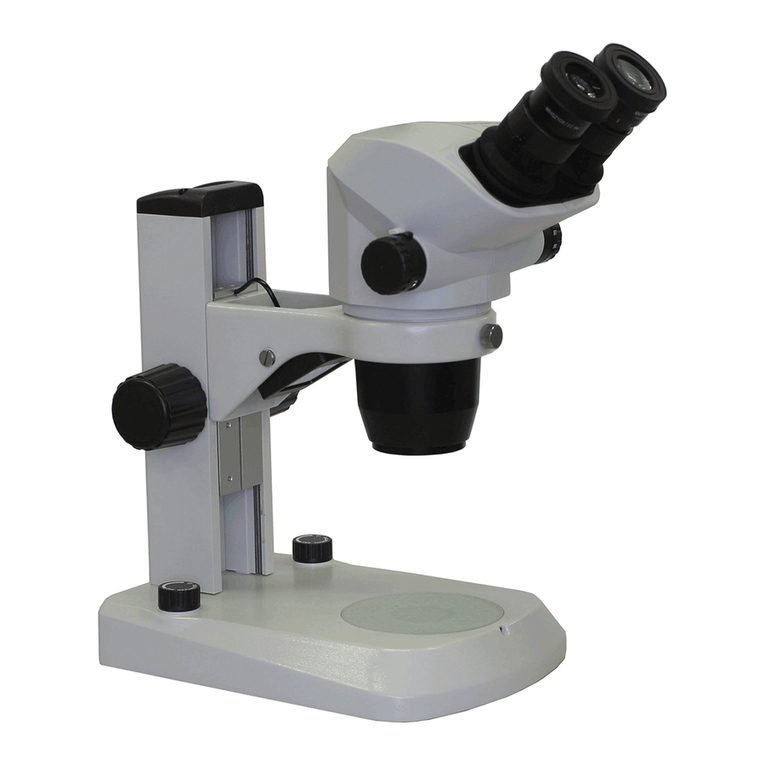
tagarno FHD PRESTIGE Manuel utilisateur

VERSION: 2.4 | FIRMWARE 5.20 | 2020-09-15
1
CONTENTS
1. INTENDED USE 2
2. WARNINGS 2
3. TIPS 2
4. YOU HAVE RECEIVED 3
5. ASSEMBLING 4
6. CONNECTING 5
7. OPERATION 6
8. SETUP MENU 10
9. STANDARD APPS 15
11. SYSTEM UPDATE 18
12. LICENSE ACTIVATION 20
13. TECHNICAL SPECIFICATIONS 21
14. PC REQUIREMENTS 23
15. MAINTENANCE 24
16. WARRANTY 24
18. ERGONOMIC RECOMMENDATIONS 24
19. DECLARATION OF CONFORMITY 25
20. COMPLIANCE STATEMENTS 26
MANUAL | TAGARNO FHD PRESTIGE
Go to tagarno.com/productmanuals to nd manuals and tutorial videos.

2
1. Read the manual before you use the product
2. Use the product only as specied, or the protection supplied by the product can
be compromised
3. Do not position the equipment so that it is difcult to operate the disconnecting
device (appliance inlet of external power supply, equipment input connector)
4. If fluids are spilled on the product, turn the system off immediately by pulling the power
supply out of the electrical outlet
5. In case of re close to the microscope, please turn off and disconnect the system
6. Avoid subjecting the lens to sharp or hard objects
7. Please do not connect the microscope, if visible damages appear
8. Do not dismantle any parts of the microscope, except where noted in the manual
9. Never disassemble or clean internal optical surfaces
10. Use only the power supply provided from TAGARNO
11. Always turn off the system before unplugging, when possible
WARNINGS
The product is a digital magnifying system consisting of a camera unit, PCBs, mechanical
parts and a power supply. The product is intended for marketing worldwide and is designed for
manual visual inspection.
INTENDED USE
Read all safety information before you use the product.
Please pay attention when you see a warning label on the product.
This product is for indoor use only.
You must not discard this electrical/electronic product in domestic household waste.
Please dispose at your local recycling centre.
1. INTENDED USE
2. WARNINGS
3. TIPS
12. Do not touch the light source. It gets hot when using the product
13. Do not look directly into the light source
14. Connect the power plug to a grounded power outlet
WARNING: This is a Class A product. In a domestic environment, this product may cause
radio interference, in which case the user may be required to take appropriate measures.
1. Avoid touching the lens glass
2. Use both hands to adjust the height of the product

3
SMART GUIDE
USB Hub
Lens 1x Plan Magnetic lens kit
Ring light white Diffusor lens kit Fresnel lens kit
(100 mm for Lens 1x Plan)
4. YOU HAVE RECEIVED
Smart guide Camera arm with lens BaseRod, washers, screw
OPTIONS
XPLUS FHD control box
Power supply USB A-B 3.0 cable Hex keys x 3HDMI - HDMI cable USB memory stick
Lights control box
Polarizer kit

4
Assemble base and rod with the screw. Tighten the rod both below
the base vertically and horizontally on top of the base.
Fasten the two washers with the screw on top of the rod.
Pull the release button and place the camera arm on the rod.
The complete microscope with base.
5. ASSEMBLING
TIP!
Find the "How to Install" tutorial video here: www.tagarno.com/installprestige

5
6.
8.
1.
2.
7.
3.
4.
5.
6. CONNECTING
Connect USB 2.0 (see options below) (1+2), control box (3),
monitor (4), ethernet (5), USB 3.0 (6), ESD (Only black models) (7)
and power supply (8) in that order.
USB 2.0 (1+2): Keyboard, mouse, USB key, USB hard drive, scanner
Connect keyboard and mouse in the USB 2.0 inputs (only for use
with some applications). Keyboard and mouse need to be HID
compliant.
When more than 2 USB plugs are needed, use a USB hub. If you
have received a USB hub with your purchase, remove the foil,
connect it to one of the USB ports and attach it to the back of the
microscope.
Connector Description Type Connect to Specication
1+2 USB 2.0 input USB 2.0 Type A Socket Keyboard
Mouse
USB key
USB hard drive
Barcode scanner
USB 2.0 Host. Output: 5V 500mA
3Control box D-SUB 9-Pin Female Control box Output: 3.3V 6A Max
Use only control boxes supplied by TAGARNO
4Output HDMI Standard Type A Monitor HDMI Out 1080p60
5Ethernet RJ-45 Ethernet wall socket Ethernet LAN, 100BASE-TX/1000BASE-T
6USB 3.0 output USB 3.0 Type B Socket Computer USB 3.0 Device. Self-powered
7ESD Snap Socket, 10mm ESD Grounding point ESD Grounding point. Only black models
8Power supply
(DC)
DC Jack Power socket Input: 12V 1.7A
Use only the power supply provided by TAGARNO:
Brand/Model: Mean Well/GSM40A12
Protection Class I
Input: 100-240V 1.0-0.5A, 50/60Hz
Overvoltage category ll
Output: 12V 3.34A Max
HDMI - HDMI cable
Live image
The microscope can be connected directly to a monitor.
Live image and image capturing through USB 3.0 / 3rd part software.
See system recommended (third-party) under system requirements.
You are still able to connect monitor(s) as described above.
NB: Do not connect the HDMI cable to a PC.
Live image
/ image capture
USB 3.0
Ethernet cable
D-SUB
Ethernet cable (or WiFi)

7
XPLUS FHD Control box for TAGARNO FHD functions.
Do only connect equipment distributed by TAGARNO.
Dimensions
H: 45mm/1.8" | W: 120mm/4.7" | D: 150mm/5.9".
On screen display (OSD)
The on-screen display provides you with the relevant information
when you push a button on the control box or Setup menu.
For instance if you change the level of magnication, the white
balance, iris, etc. In this way you always know which function you are
activating and which parameters you are using.
These settings will also be activated in Auto exposure mode.
Otherwise, exposure compensation is the only setting
visible. Iris, gain and exposure time will automatically be
adjusted to recommended settings and cannot be adjusted
in this mode.
Wait a few seconds for the menu to close and save your
settings.
Manual focus
Turn autofocus off by pushing both zoom buttons (plus
and minus) on the control box at the same time until you
hear a beep. You can now adjust focus manually with the
help of the zoom buttons.
Push this button on the control box to adjust focus if you
wish to focus on something very close.
Push this button on the control box to adjust focus if you
wish to focus on something that is farther away.
To turn the autofocus on again, simply push both zoom
buttons (plus and minus) at the same time until you hear
a beep. The focus values will show via On Screen Display.
Setup menu
Access the Setup menu by pressing the round center
button for 1 second. See separate section regarding
the Setup menu.
Zoom
Push this button on the control box to zoom in.
Push this button on the control box to zoom out.
The magnication level will show via On Screen Display.
Manual and Auto exposure mode
Open current exposure mode menu with key arrows up
and down in standard magnication mode or any active
application. Then, navigate the menu with arrows up and
down and adjust each setting with key arrows left and
right.
Switch between Manual and Auto exposure mode with a
short press to the round center button.
In Manual exposure mode, you can manually adjust the
iris, gain and exposure time with key arrows left and right.
Activate advanced camera settings in the microscope
camera settings to also enable contrast, saturation,
sharpness and noise reduction adjustment.
OPERATION | XPLUS FHD CONTROL BOX (2/4)

8
Preset Function
To save a favorite setting, press the "P" button.
A Preset Manager menu appears. Here you can choose
which of the 10 presets to use/overwrite. This is done by
marking and clicking the right hand icon to save the given
preset. To prevent users from accidentally overwriting
a saved preset, lock presets in the microscope general
settings.
To use a preset, simply press "P" on the control box and
press the center button to choose the preset you want to
recall. Alternatively, use key number 0-9 on a keyboard
or numpad.
491190 - Folie til XPLUS FHD - 13-06-2017
Save image on USB memory stick
The image will be saved on the inserted USB memory stick.
However, if your USB memory stick is not compatible with your
microscope, a pop-up warning will instead ask you to format your
USB memory stick (for more information, see section 4 in Setup
Menu).
When clicking OK, a second pop-up will ask you to conrm your
selection. All les on the USB memory stick will be deleted once
formatting begins. Formatting time will vary.
Press the image capture button again to take a new photo and
save it directly to your USB memory stick.
Save image on microscope
If a USB memory stick is not attached, the image is saved internally
on the microscope, provided the share le mode is turned on.
Otherwise, an error message will appear and you are not able to
save images.
To access saved les, see manual section ACCESS SAVED FILES.
Snapshot function
To take a picture and transfer it to USB or your microscope
internal storage, press the image capture button until you
hear a beep. Long press on the same button will save an
image with graphics, causing the live image to freeze for a
few seconds. This button also turns Auto Snapshot on/off
when activated via the Setup menu.
When taking a picture, an information window will appear
for a few seconds showing the le name and storage
location.
The preset values will show via On Screen Display.
To rename a preset, choose the given preset in the
Preset Manager and press F2. Complete the renaming by
pressing "Enter". Please note that presets can be renamed
regardless of whether the presets are locked or not.
Laser pointer (TAGARNO FHD TREND)
Press this button to turn the laser pointer on/off.
You will hear a warning when turning the laser pointer on.
NB! Never look directly into the laser pointer. The laser
pointer can only be used with lenses +3, +4 and +5.
If you are using another TAGARNO unit than TAGARNO
FHD TREND, a window on the screen will provide you with
information.
Light on/off
Press and hold this button to turn the light on/off.
Application shortcut
Program an individual application shortcut by long-
pressing the button and choosing a listed application.
You are now able to quickly access this application by
short-pressing the button.
Factory default directs to the Ruler application with both
horizontal og vertical ruler activated.
Multi Function Buttons
When the Setup menu is deactivated, you are able to use
the Multi Function Buttons to control the iris, gain and
exposure time.
Press the center button to switch between auto and
manual exposure mode.
OPERATION | XPLUS FHD CONTROL BOX (3/4)

9
When using a keyboard, you can use the shortcuts below to
operate your TAGARNO FHD digital microscope.
NB: These shortcuts only work when you are not using one of the
applications or renaming a photo.
Open menu and navigate menu (arrows)
Use the up and down arrows to open the microscope menu. These
arrow can also be used to move up and down the menu.
Use the right and left arrows to choose between the different
settings in the microscope menu.
Activate an application or submenu by pressing Enter. If you have
selected Exit, pressing Enter will close down the menu.
Activate presets (number keys 0-9)
Using number keys 0-9 will activate Preset 1 to 10. Press number
key 1 to activate Preset 1, key 2 to activate Preset 2 and so on.
Press number key 0 to activate Preset 10.
NB: The applications may have app specic shortcuts as well. To
learn more about these, we refer to the application manuals.
OPERATION | KEYBOARD (4/4)

10
The setup menu in your TAGARNO FHD microscope provides you
with 2 entrances to setup your microscope exactly as you like it.
Access the Setup menu by holding the round center
button on the XPLUS FHD control box until the Setup menu
appears.
The Setup menu contains 5 submenus:
1. Camera settings 2. General settings
3. Applications 4. Information
5. On/off
To navigate in the set-up menu, use the multi function
buttons on the control box.
When applicable, sliding the button to the right, will activate
the feature. Sliding the button left will deactivate the
functionality.
Exit setup menu
You can always exit the setup menu by pressing the center button on
the control box for 1 second or by choosing Exit in the Setup menu.
Same procedure is valid regardless of the menu option accessed.
1. CAMERA SETTINGS
1. White balance calibration
Perform an automatic white balance adjustment in order to get
colors displayed correctly on screen. There must be a white object
present in the camera’s eld of view when the white balance is being
adjusted. A white balance calibration is made each time the camera
is turned on to adjust to the given light conditions.
NB: If the camera’s eld of view does not contain a white object,
when the unit is turned on, the white balance will be incorrect and it
will be necessary to perform the white balance adjustment process
as described previously.
2. Optimal working distance
This setup works in 2 steps and needs to be carried out on a flat
surface. Follow the on-screen directions to nd the optimal working
distance. The magnication settings prior to performance will be
restored.
3. Close-up Lens
Indicate which lens is mounted on your TAGARNO microscope,
to get the right magnication levels displayed in the On Screen
Display when zooming in and out.
4. Start magnication
Choose the start magnication level you want your TAGARNO
microscope to automatically set when turning your system on.
5. Lock magnication
Lock your magnication level, so your microscope is always
working at your start magnication level and you are not able to
manually zoom in/out.
6. Advanced camera settings
When activated, the advanced camera settings can be modied in
detail for optimum visual inspection result. Deactivated by default.
7. Wide dynamic range
When this option is selected and auto exposure mode is active, the
camera uses individual exposure settings for dark and light areas. This
option can be useful to reduce glare when inspecting reflective objects.
NB: If the camera live image is grainy, increase Exposure
compensation in Auto exposure mode.
8. Picture ip
Select if you want to display your image on screen as placed below
the camera or flip it 180 degrees.
9. IR lter
Turn Infrared lter off when using Infrared ring light.
To use regular ring lights turn the Infrared lter on.
10. White balance calibration at LED light change
Switch on if you want an automatic white balance calibration to be
performed when LED light is changed. Deactivated by default.
Switch off if you do not want an automatic white balance calibration to
be performed when LED light is changed.
SETUP MENU (1/5)
8. SETUP MENU
Ce manuel convient aux modèles suivants
2
Table des matières
Autres manuels tagarno Microscope
Manuels Microscope populaires d'autres marques

VWR
VWR VisiScope 384 Series Manuel utilisateur

Nikon
Nikon ECLIPSE E200 POL Manuel utilisateur

Leica
Leica DI C800 Manuel

ThermoFisher Scientific
ThermoFisher Scientific Continuµm Manuel utilisateur

ThermoFisher Scientific
ThermoFisher Scientific Continuµm Manuel utilisateur

Olympus
Olympus SZ61 Manuel utilisateur