
Tactacam REVEAL X Manuel utilisateur

INSTRUCTION MANUAL
REVEALCELLCAM.COM

2
REVEAL APP DOWNLOAD
VISIT YOUR APP STORE TO DOWNLOAD
DOWNLOAD THE
TACTACAM REVEAL APP

3
TABLE OF CONTENTS
INTRODUCTION
Front View
Bottom View of Camera
Internal and Side View of Camera
QUICK START
What is in the Box?
Get Camera and App Ready
Add Camera to the App Account
Start Using the Reveal
CAMERA SETTINGS
SPECIFICATION
TROUBLESHOOTING
Photos Do Not Capture the Subject of Interest
Camera Stops Taking Images or Won’t Take Images
Night Vision Flash Range Doesn’t Meet Expectations
WARRANTY
3
4
4
4
4
6
6
6
6
7
8
11
12
12
12
12
13
TABLE OF CONTENTS

4
1
5
2
6
10
14
18
3
7
11
15
19
20
4
8
12
16
9
13
17
INTRODUCTION
PIR Motion Sensor
Antenna
Lens
IR LEDs
Camera Working Status Indicator (Red)
WiFi Indicator Light (Blue)
SD Card Indicator (Red/Green)
Device Status Indicator Light (Green/Blue)
SIM Slot (DO NOT REMOVE)
Power Switch (ON/SETUP/OFF)
Battery Eject Button
Microphone
Battery Level Indicator
4G Signal Indicator
SD Card Slot
Test Button
Reset Button
External Battery In/DC Port
USB Port
Tripod/Mount Attachment

5
• (1) Trail Camera
• (1) Instruction Manual
• (1) Mounting Strap
• (1) Antenna
• (1) Pre-Installed SIM Card
(DO NOT REMOVE)
• 12 AA Batteries
• SD Card - Class 10, U3, 16GB-32GB
• Recommended Brands: Tactacam,
Lexar, SanDisk
(Other brands of lower end SD cards are
incompatible with the Reveal X and will yield
unexpected results)
QUICK START GUIDE
WHAT IS IN THE BOX? WHAT YOU WILL NEED
RECOMMENDED CAMERA ACCESSORIES (NOT INCLUDED)
VIEW AND PURCHASE ALL ACCESSORIES AT REVEALCELLCAM.COM
SOLAR
PANEL

6
1. Search “Tactacam Reveal” in
the App Store or Google Play.
Download and install the app on
your smart device.
1. Install camera’s antenna.
2. Install a Class 10 U3 SD card
(16GB or 32GB).
3. Install 12 AA batteries.
DOWNLOADING THE APP
SETTING UP THE CAMERA
QUICK START GUIDE
• Tighten securely to prevent
internal moisture/condensation
inside the lens.
• To install the batteries, press the EJECT button on the
Reveal X. Be sure to install the batteries in the correct
orientation on the front and back of the tray.
• See battery details on page 13 under Best Practices.
• Recommended brands are: SanDisk, Lexar and Tactacam
7
4. DO NOT REMOVE the SIM Card that is Pre-installed in the Reveal X
5. Turn the power switch to SETUP
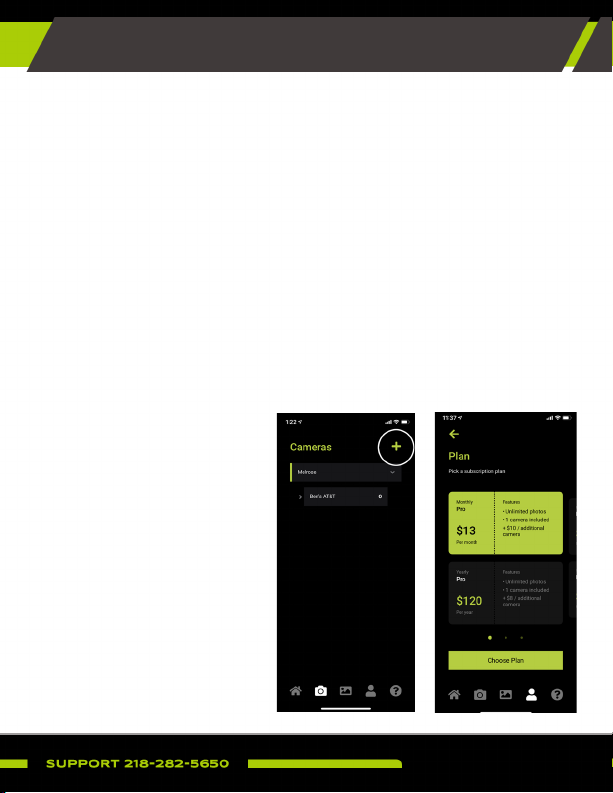
1. Open the Reveal App.
2. Click the camera icon at
the bottom of the screen.
3. Click the (+) in the upper
right corner to select a
data plan and add your
rst camera.
4. Select the data plan for
your camera and enter
your payment information.
5. Follow the prompts to
connect your camera.
SETTING UP THE CAMERA (CONTINUED)
ADD CAMERA TO THE APP
• Check the indicator LED status lights; you will see all green when
the camera is ready. Only the WiFi indicator light will be blue.
• If the SD card indicator light is not green, the SD card is bad
and needs to be changed. Be sure to always use a formatted SD
card.
• Next to the SD indicator light is the WiFi indicator light. This will
be slowly ashing blue, meaning it is in pairing mode.
• Default camera WiFi SSID is Reveal_****
• Default camera WiFi password is Reveal2021
QUICK START GUIDE

8
• Two ways to activate your camera
• Scanning the QR Code
• QR code will be inside the door of the camera
• Pair over WiFi Connection
• Does not require your phone or camera to be hooked up
to your home or work WiFi
• The camera will pair to your phone using a WiFi connection,
similar to linking devices via Bluetooth
• Follow the prompts on your phone to connect to your
camera WiFi
• This will activate the SIM card and data plan
6. After your camera is activated, you will see the signal status
indicator searching, and then connect showing the signal strength.
7. You can automatically change and apply the camera settings when
your phone is connected to the camera’s WiFi. This will not work
unless you are next to the camera.
ADD CAMERA TO THE APP (CONTINUED)
QUICK START GUIDE
• You can also remotely change the camera settings from the
App, it will take up to 24 hours for settings to be applied.
1. Allow the camera to connect to 4G signal. The LED signal indicator
light will be constant green.
SENDING A TEST PICTURE
• After your camera is activated, you will see the signal status
indicator searching, and then connect showing the signal
strength.

9
QUICK START GUIDE
1. While your camera is connected to your phone with WiFi, you will be
able to access a live preview to help with camera setup and proper
placement.
2. Ensure that the antenna is securely tightened.
3. Wipe down the seal, removing any dirt or debris.
4. Format your SD card in the App.
5. As long as your phone picks up a signal, be sure a motion detected
picture is sent to your phone via the App.
2. Refer to the app to be sure the picture is successfully sent.
3. While your camera is connected to your phone with WiFi, you will be
able to access a live preview to help with camera setup and proper
placement.
SENDING A TEST PICTURE (CONTINUED)
LEAVING YOUR CAMERA IN THE FIELD
• After the camera has connected, push the test button to send
a photograph.
• You will see the status light blinking as the image is sending.
• When the test picture sends successfully, the status light will
turn green.
• If the status light turns red there may have been an issue
trying to send the test photo. This is usually caused by signal
strength.

10
SETTINGS / SPECIFICATIONS
Camera Mode Photo; Photo+Video
Day/Night Mode Daytime: Color, Nighttime: B+W
IR Range 96+ Feet
PIR Angle 45*
Flash 4 Infrared High Power LED bulbs;
850mn-High Power IR LED
Operating Keys (2) 1x Power slide switch; 1x Test button
Lens F=6mm; F/No=2.0;
FOV=60* Auto IR-Cut-Remove (at night)
SD Card Class 10, U3, 16GB-32GB, minimum 90mb/sec
SD Indicator 1 LED; Green=Good, 1 Red = Bad
Battery Indicator 4 LED Lights
4G Signal Indicator 4 LED Lights, Red= no service
WiFi Indicator 1 LED Light;
Blinking blue=pairing mode / Solid blue=paired
Picture Size 8MP/12MP/24MP; Default 8MP
Picture Format JPEG
Multishot Optional
Video Optional
Trigger Speed 0.5 seconds
SD Card Loop Optional
Autres manuels pour REVEAL X
1
Table des matières
Autres manuels Tactacam Appareil photo numérique


