
STL U-1100 Manuel utilisateur

USB 3.0 Dual Video Docking Station
User Manual
Ver. 1.00
All brand names and trademarks are properties of their
respective owners.

Contents:
Chapter 1: Introduction ......................................................3
1.1 Product Introduction ....................................................3
1.2 Features........................................................................3
1.3 System Requirements ..................................................4
1.4 Package Contents.........................................................4
1.5 Hardware Layout .........................................................5
Chapter 2: Getting Started .................................................6
2.1 Driver Installation........................................................6
2.1.1 Installation for Windows.......................................6
2.1.2 Installation for Mac OS X.....................................7
2.2 Hardware Installation ..................................................8
2.3 Verifying the installation............................................10
2.3.1 Verifying for Windows........................................10
2.3.2 Verifying for Mac OS X......................................11
2.4 Display Configuration ...............................................12
MN3000100012 Page 2

Chapter 1: Introduction
1.1 Product Introduction
This USB 3.0 Dual Video Docking Station is designed to expand
connectivity to your Ultrabook™ or Hybrid tablet/laptop via single
USB 3.0 port. It features dual display ports (1 HDMI and 1 DVI) to
enable your system’s display capability, supporting HD resolution and
multiple display modes including primary, extended and mirrored. This
USB 3.0 Dual Video Docking Station offers 2 USB 3.0 ports to satisfy
multiple device connectivity needs.
1.2 Features
Easy Installation
An ideal solution for expanding the conn
ectivity of Laptop,
Ultrabook and Macbook
Adds dual displays and 2 USB 3.0 ports to your USB 3.0 enabled
system
Compatible with SuperSpeed USB 3.0 and backwards compatible
MN3000100012 Page 3

with USB 2.0 specification
Extended Desktop (Default), Mirror Desktop, Primary Display
High resolutions for display up to 2048 x 1152
1.3 System Requirements
Windows® XP 32-bit, Vista/7/8/8.1 (32/64 bit); Mac OS X 10.6
or above
Available USB port (USB 3.0 recommended)
1.4 Package Contents
1 x USB 3.0 Dual Video Docking Station
1 x User Manual
1 x Driver CD
MN3000100012 Page 4

1.5 Hardware Layout
1. DVI output port: Connect to a DVI monitor
2. HDMI output port: Connect to a HDMI monitor
3. USB 3.0 downstream ports: Connect USB peripheral devices
4. Power jack: Connect to the optional power adapter
5. Power indicator: Lights up when the power is on
6. USB 3.0 upstream cable:Connect to the USB 3.0 port of the host
computer
MN3000100012 Page 5

Chapter 2: Getting Started
2.1 Driver Installation
Follow the procedures below to install the driver and then connect the
USB 3.0 Dual Video Docking Station to your system.
2.1.1 Installation for Windows
1. Insert the provided CD into your disk drive. The CD-ROM will
start automatically. The following screen will show up and please
click “Install Driver”.
*Note: Actual image may vary
Note: If the install program doesn’t run automatically, please
locate and double-click on the Autorun.exe file in the CD to
MN3000100012 Page 6

launch the install program.
2. Please wait while Windows configures DisplayLink Core Softare.
Your screens may temporarily go black or flashing during this
process.
3. When finished, the installation screen will disappear and you will
return to your desktop.
Note: On some machines, you may need to reboot before you can use
USB 3.0 Dual Video Docking Station.
2.1.2 Installation for Mac OS X
1. Insert the provided CD into your CD-ROM drive.
2. Double-click the “U3 Dock” disc icon, double-click package file
“mac.dmg”, the following “U3 Dock” virtual disk will be
appeared on the Desktop of your Mac OS X system. Then double
MN3000100012 Page 7

click “Drivers” folder.
3. Select “DisplayLink Software Installer” to begin installing the
DisplayLink Driver on your Mac.
4. Follow the instructions on screen to install the driver. After driver
installation is complete, you must restart your computer.
2.2 Hardware Installation
1. (Optional): Plug the power adapter into the power jack of the
MN3000100012 Page 8

Docking Station.
2. Connect the USB 3.0 Dual Video Docking Station:
Connect the USB 3.0 Dual Video Docking Station to an available
USB 3.0 on the host computer. Then a pop-up message will
appear in the notification area indicating the installation is
complete.
* Actual strings depend on your operation system. This screen shot is
from Windows 7 and might vary slightly for each operating system.
3. Connecting HDMI monitor
•Use a HDMI cable (not provided) to connect the HDMI port
to a monitor equipped with HDMI input jack
4. Connecting DVI monitor
•Use a DVI cable (not provided) to connect the DVI port to a
monitor equipped with DVI input jack
5. Connecting USB 2.0/USB 3.0 device
Connect your USB device to the USB 3.0 port on the Docking
Station. As long as one USB device is connected to the port and
MN3000100012 Page 9
the connection works properly.
2.3 Verifying the installation
2.3.1 Verifying for Windows
1. Click on the “Device Manager” tab in the Windows Control
Panel.
Start > Control Panel > Device Manager
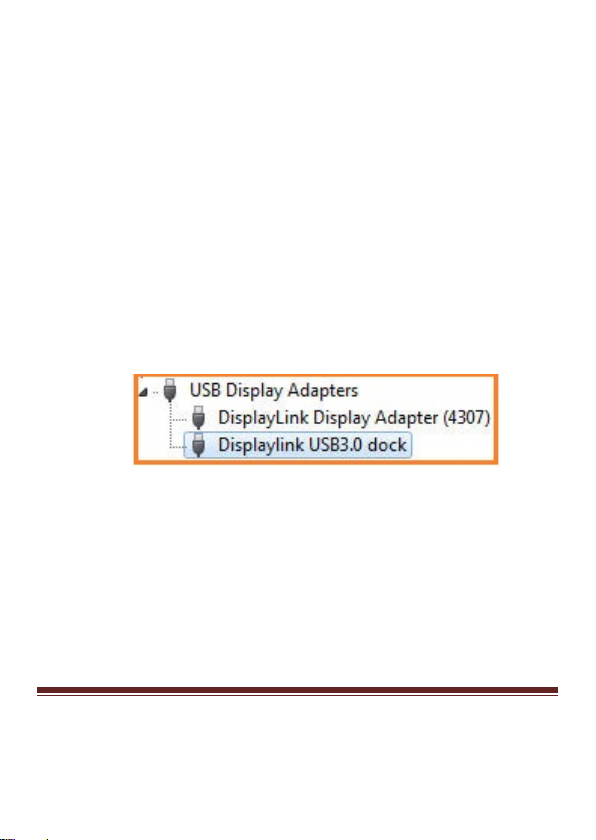
2. In the USB Display Adaptersgroup, an item named Displaylink
USB 3.0 dock should be displayed.
Note: If there is a question or exclamation mark next to that item, then
the driver is not properly installed. Please delete the item, select the
Delete the driver software for this device option (if provided),
unplug the USB 3.0 Dual Video Docking Station from your computer
and then repeat the installation steps.
MN3000100012 Page 10
Table des matières


