StarHub SBG1000 Manuel utilisateur

1

Contents
Overview 4
Powerful Features in a Single Unit 5
Sample LAN 6
Wired Ethernet LAN 7
USB Connection 8
IEEE 802.11b Wireless LAN 9
Security 10
Firewall 10
Wireless Security 10
Virtual Private Networks 11
Print Server 11
Installation
Connecting the SBG1000 to the Cable System 12
Cabling the Ethernet 13
Obtaining an IP address in Windows 98, Windows 98
SE, or Windows Me 13
Obtaining an IP address in Windows 2000 or Windows XP 13
Obtaining an IP address on Macintosh or UNIX Systems 13
Connecting a PC to the USB Port 14
Setting Up the Wireless LAN 14
Connecting the Printer 14
Configuring the SBG1000 15
Starting the SBG1000 Setup Program 16
Changing the Default Password 17
Resetting SBG 1000 18
Configuring the Gateway 19
Gateway > STATUS Page 20
Gateway > WAN Page 21
Gateway > LAN — nat config Page 23
Gateway > LAN — dhcp server config Page 24
Gateway > LAN — dhcp reservations Page 25
Gateway > Virtual Server — Status Page 26
Gateway > Virtual Server — ConfigurationPage 27
Gateway > Port Trigger — Predefined Page 28
Gateway > Port Trigger — Custom Page 29
Setting Up the Wireless LAN 30
Configuring a Unique Wireless Network Name 31
Wireless > SECURITY — basic Page 32
Wireless > SECURITY — advanced Page 33
Wireless > STATISTICS page 34
Setting Up the Firewall
Getting Help 35
Setting the Firewall Policy 35
Firewall Pages in the SBG1000 Setup Program 36
Firewall > POLICY — basic Page 36
Firewall > POLICY — advanced Page 37
Firewall > LOGS Page 38
Configuring the Print Server
Configuring the SBG1000 Print Server 39
Printer > CONFIGURATION — Microsoft smb 40
Printer > CONFIGURATION — Apple Page 41
Printer > CONFIGURATION — lpr Page 42
2

Setting Up a USB Driver 43
Setting Up a USB Driver in Windows 98 43
Setting Up a USB Driver in Windows 2000 47
Setting Up a USB Driver in Windows Me 50
Setting Up a USB Driver in Windows XP 51
Removing the USB Driver from Windows 98 or Windows Me 52
Removing the USB Driver from Windows 2000 56
Removing the USB Driver from Windows XP 60
Configuring TCP/IP 65
Configuring TCP/IP in Windows 95, Windows 98, or Windows Me 66
Configuring TCP/IP in Windows 2000 69
Configuring TCP/IP in Windows XP 74
Verifying the IP Address in Windows 95, Windows 98 or Windows Me 78
Verifying the IP Address in Windows 2000 or Windows XP 79
Frequently-Asked Questions 81
3

Overview
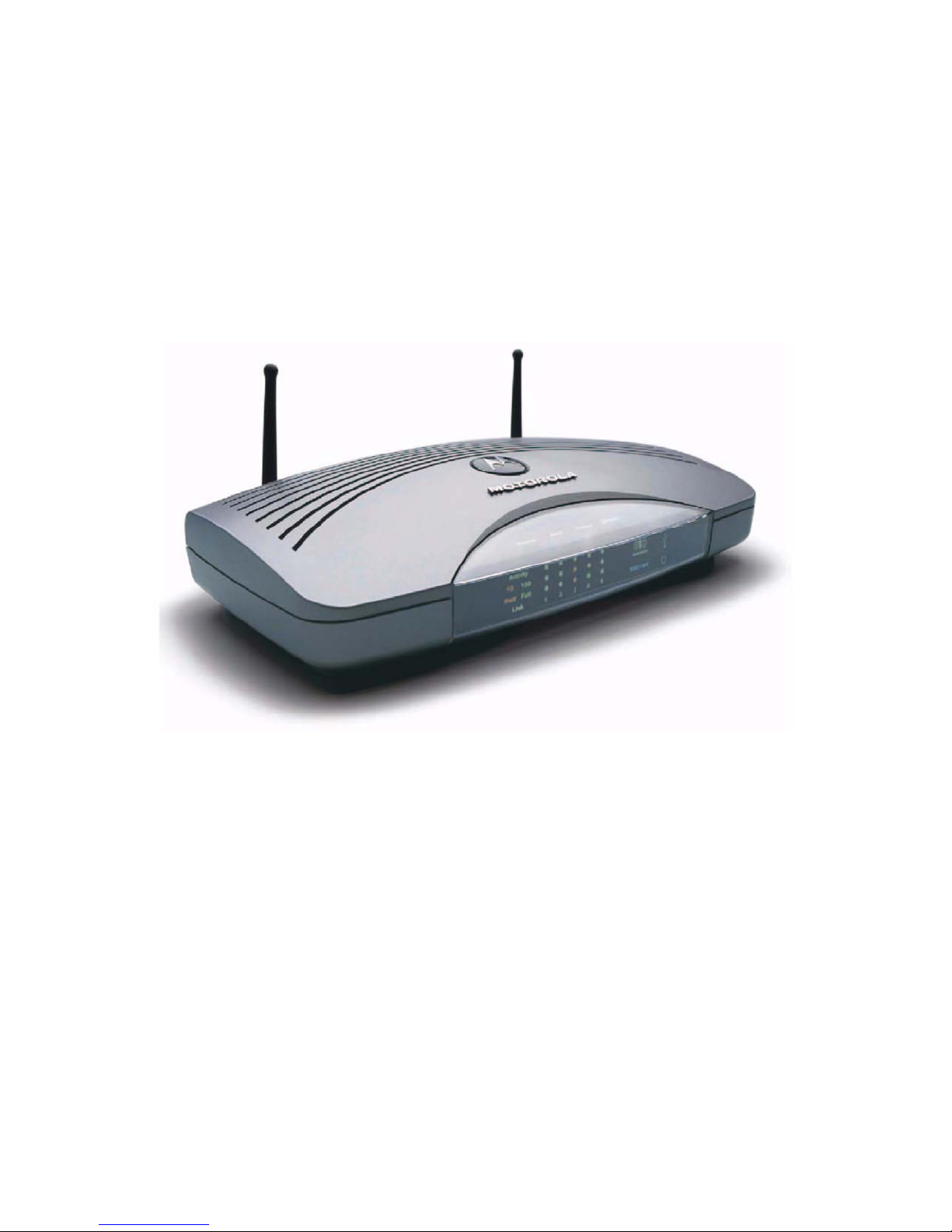
The SBG1000 combines a SURFboard™ cable modem, IEEE 802.11b wireless access point, router with
five-port 10/100Base-T switch, print server, and an advanced firewall into one compact product. It is the
perfect networking solution for the home, home office, or small business/enterprise. You can create a
custom network to share a single broadband connection, files, printers, and other peripherals like scanners,
with or without wires.
The SBG1000:
• Eliminates the need for five separate products, enabling you to maximize the potential of your existing
resources
• Offers enhanced network security for wired and wireless users
The features and physical appearance of your SBG1000 may differ slightly from the picture.
This product is subject to change. Not all features described in this User Guide are available on all SBG1000
models.
4

Powerful Features in a Single Unit
The Motorola SBG1000 Wireless Cable Modem Gateway combines high-speed Internet access, networking,
and computer security for a home or small-office local area network (LAN). It provides:
• An integrated high-speed SURFboard cable modem for continuous broadband access to the Internet and
other online services, with much faster data transfer than traditional dial-up or ISDN modems.
• A router with a five-port 10/100Base-T Ethernet switch, supporting:
— Half- or full-duplex connections
— Five dual-purpose switch/uplink ports
— Auto-MDIX
• An IEEE 802.11b Wi-Fi certified wireless access point to enable laptop users to remain connected while
moving around the home or small office or to connect desktop computers without installing network wiring.
Depending on distance, wireless connection speeds can match that of Ethernet at 11 Mbps.
• A USB connection for a single PC.
• A single broadband connection for up to 253 computers to surf the web; all computers on the Ethernet,
wireless and USB communicate as if they were connected to the same physical network.
• A built-in DHCP server to easily configure a combined wired and/or wireless Class C private LAN.
• An advanced firewall, supporting:
— stateful-inspection
— Intrusion detection
— Denial-of-service attack prevention
— Network Address Translation (NAT)
• Virtual private network (VPN) pass-through operation supporting IPSec, PPTP, or L2TP to securely
connect remote computers over the Internet.
• A print server to enable one or more Windows®computers to share one printers.
Easy Setup
It is much easier to configure a LAN using the Motorola SBG1000 Wireless Cable Modem Gateway than it is
using typical networking equipment:
• The Installation Assistant application on the Motorola SBG1000 Wireless Cable Modem Gateway CD-
ROM enables easy connection to the cable network.
• For basic operation, most default settings require no modification.
• The Setup Program provides a graphical user interface (GUI) for easy configuration of necessary wireless,
Ethernet, router, DHCP, and security settings. For a list of important issues, see “Configuring the SBG1000”
5

Sample LAN
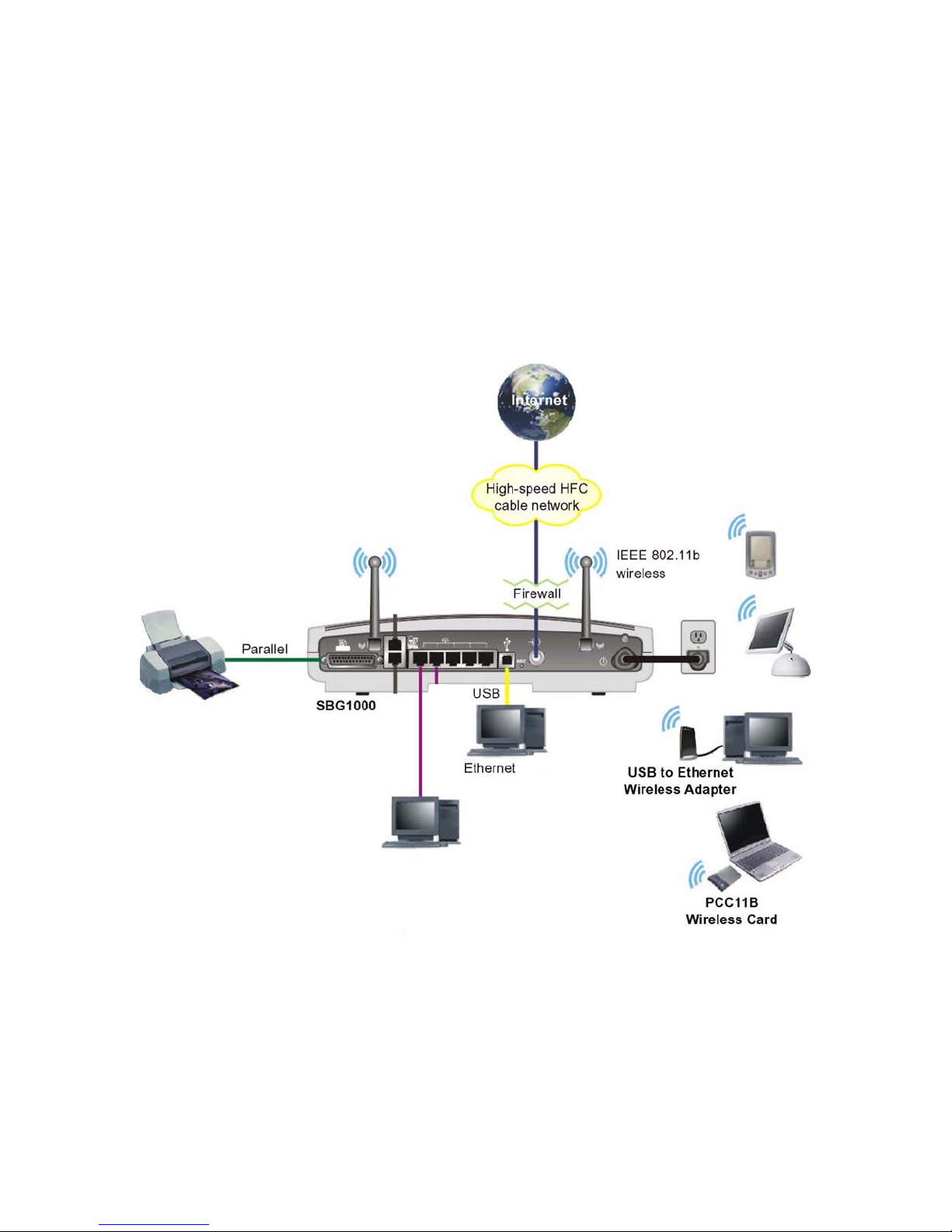
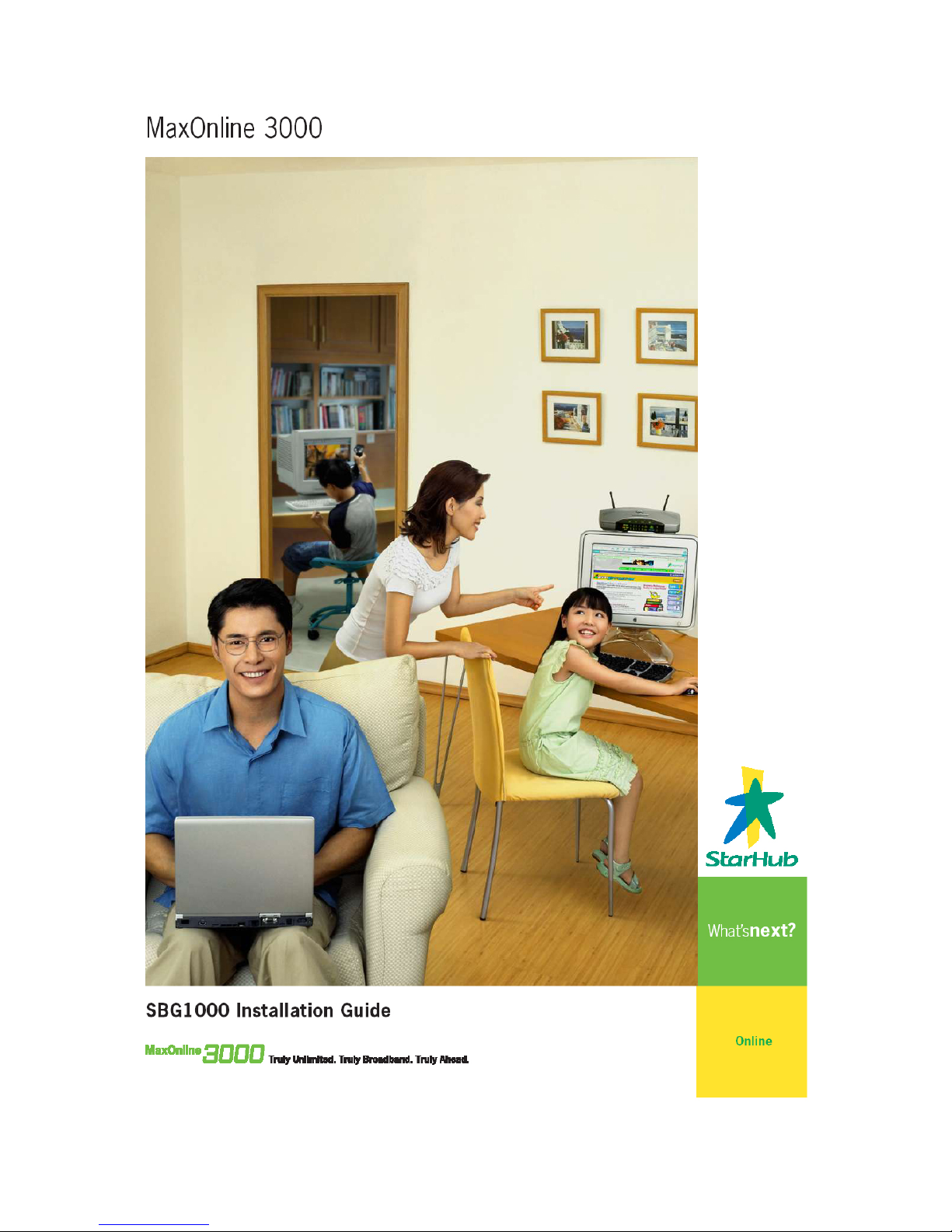
The sample LAN shown in the figure contains the following devices, all protected by the SBG1000 firewall:
• A printer connected to the print server through the parallel connection
• A PDA connected through the wireless IEEE 802.11b connection
• One desktop Macintosh on a wireless connection
• One desktop PC on a wireless connection using a Motorola USB Adapter
• A laptop PC on a wireless connection connected using a Motorola PC Card
• One computer connected directly to Ethernet port one
• Three computers connected to Ethernet port two using a hub or switch
• One PC connected to the USB port
Sample SBG1000 hybrid network
6

Wired Ethernet LAN
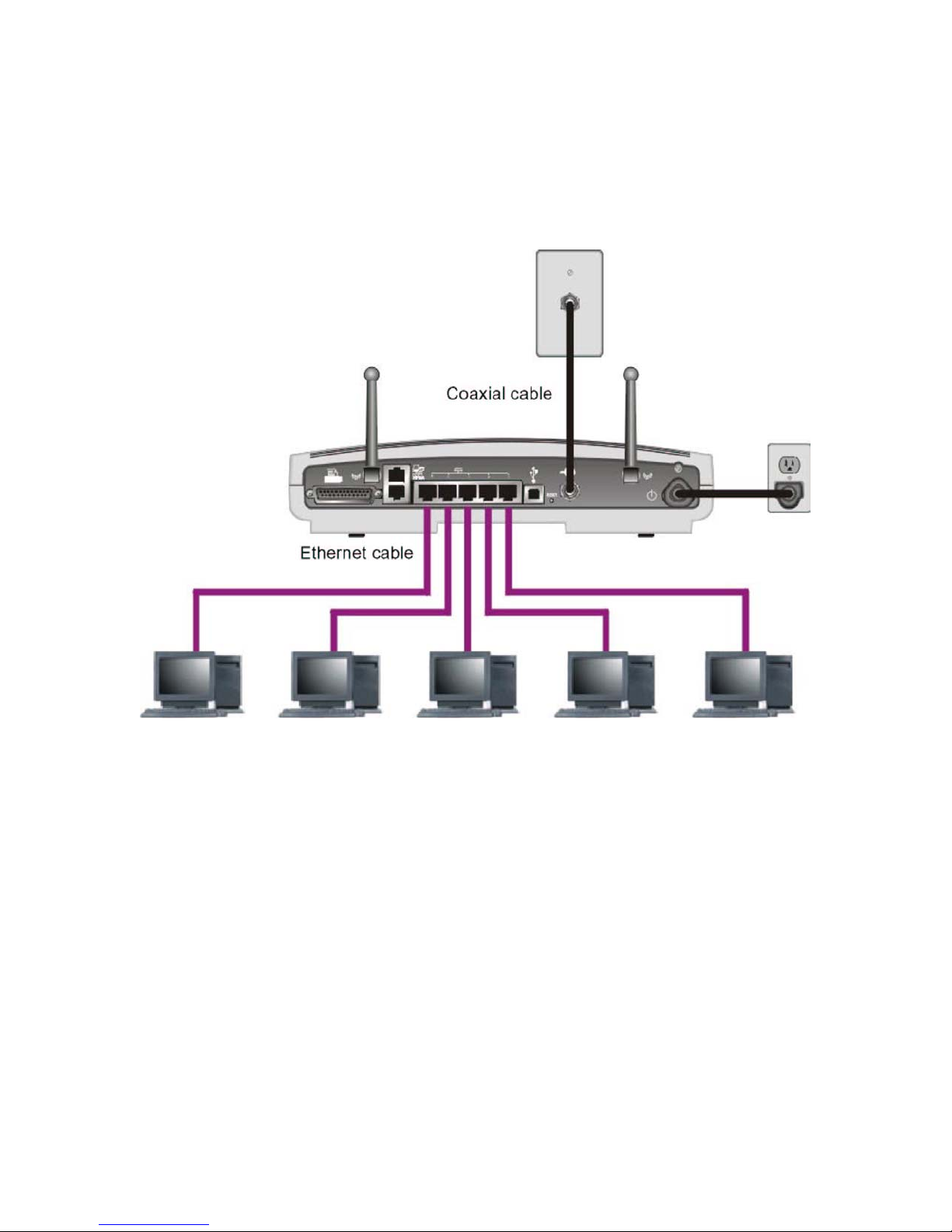
Each computer on the Ethernet LAN requires an Ethernet network interface card (NIC) and driver software
installed. Because the Motorola SBG1000 Wireless Cable Modem Gateway Ethernet ports support auto-
MDIX, you can use either straight-through or cross-over cable to connect a hub, switch, or computer. Use
category 5 cabling for all Ethernet connections.
The physical wiring arrangement has no connection to the logical network allocation of IP addresses.
Sample SBG1000 Ethernet network connections
7

USB Connection
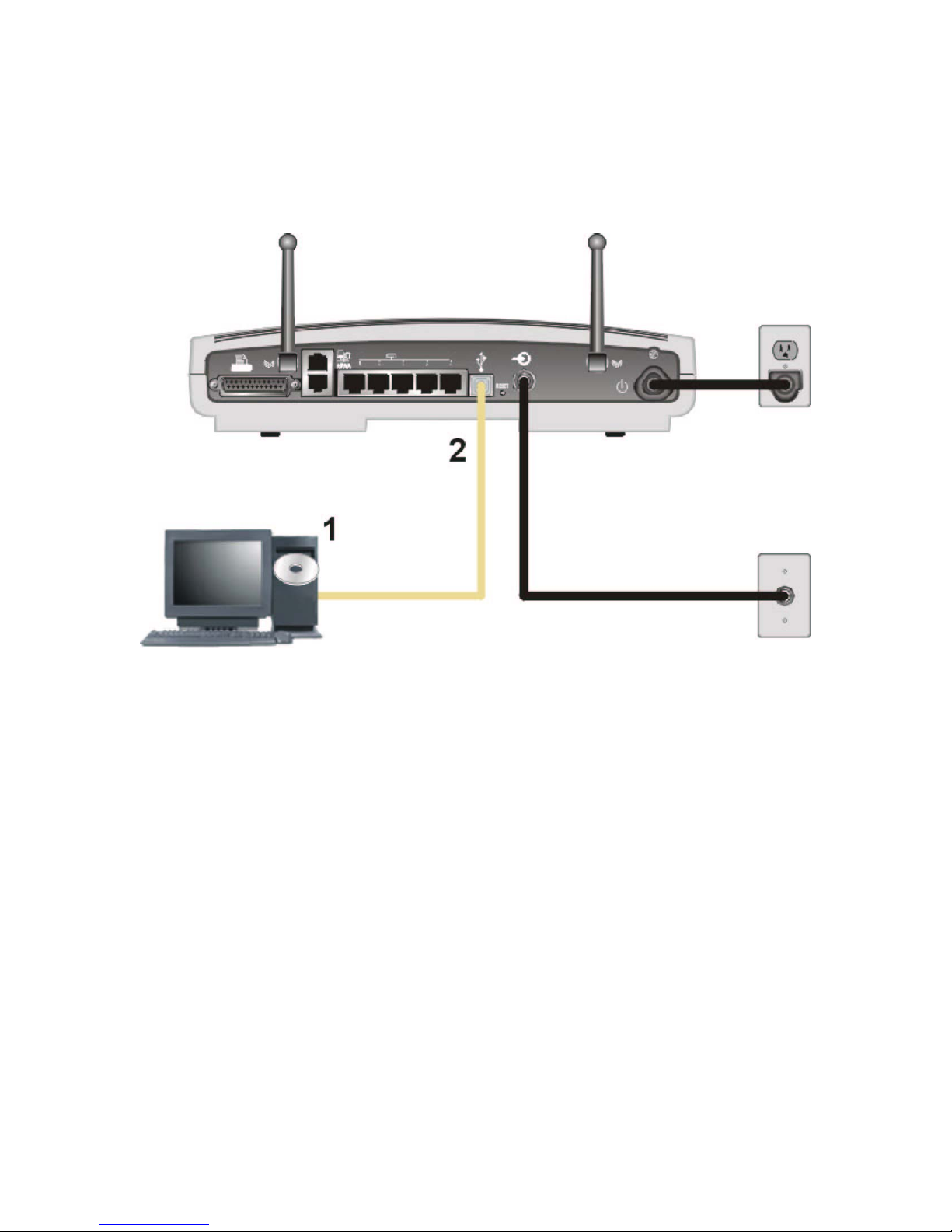
You can connect a single PC running Windows® 98, Windows XP™, Windows Me®, or Windows® 2000 to
the Motorola SBG1000 Wireless Cable Modem Gateway USB port. For cabling instructions, see
“Connecting a PC to the USB Port”
Sample USB connection.
Caution!
Before plugging in the USB cable, be sure the Motorola SBG1000 Wireless Cable Modem Gateway
CD-ROM is inserted in the PC CD-ROM drive.
8

IEEE 802.11b Wireless LAN
Wireless communication occurs over radio waves rather than a wire. Like a cordless telephone, a wireless
LAN uses radio signals instead of wires to exchange data. A wireless network eliminates the need for
expensive and intrusive wiring to connect computers throughout the home or office. Mobile users can remain
connected to the network even when carrying their laptop to different locations in the home or office.
Each computer on a wireless LAN requires a wireless adapter.
9

Security
The Motorola SBG1000 Wireless Cable Modem Gateway provides:
• A firewall to protect the SBG1000 LAN from undesired attacks over the Internet
• Security measures to prevent eavesdropping of wireless data
Network Address Translation (NAT) provides some security because the IP addresses of SBG1000 LAN
computers are not visible on the Internet. The logical network diagram does not necessarily correspond to
the network cabling. A full discussion of network security is beyond the scope of this document.
Firewall
The SBG1000 firewall protects the SBG1000 LAN from undesired attacks and other intrusions from the
Internet. It provides an advanced integrated stateful-inspection firewall supporting intrusion detection,
session tracking, and denial-of-service attack prevention. The firewall:
• Maintains state data for every TCP/IP session on the OSI network and transport layers
• Monitors all incoming and outgoing packets, applies the firewall policy to each one, and screens for
improper packets and intrusion attempts
• Provides comprehensive logging for all:
— User authentications
— Rejected internal and external connection requests
— Session creation and termination
— Outside attacks (intrusion detection)
You can configure the firewall filters to set rules for port usage and to block specific IP domains and
networks.
Wireless Security
To prevent unauthorized eavesdropping of data transmitted over the wireless LAN, you must enable
wireless security. The default Open authentication setting provides no security for transmitted data.
You can encrypt data transmitted over the IEEE 802.11b wireless interface by configuring a WEP key on the
Motorola SBG1000 Wireless Cable Modem Gateway and wireless LAN clients (stations). You can also
define a MAC access control list to restrict wireless LAN access to specified clients based on the client MAC
address. If you enable closed network operation, the network name (ESSID) is not transmitted in the IEEE
802.11b beacon frame. This provides additional network protection because only IEEE 802.11b stations that
are configured with your network name can associate with the SBG1000. Closed network operation is not
part of the IEEE 802.11b standard.
10
Table des matières
Autres manuels StarHub Routeur sans fil