Star systems Dorado Manuel utilisateur

Dorado
Handheld Reader
Wi-Fi User Manual
Dorado Handheld Reader Wi-Fi User Manual
Version 2.0
Copyright © 2017 – 09 – 01
SSI reserves the right to change specifications without prior notice

Dorado Handheld Reader – Wi-Fi - Version 2.0 1
Disclaimer
Star Systems International and the Star Systems International logo are trademarks of Star Systems
International Ltd. in Hong Kong and other countries.
Microsoft, Windows, the Windows logo are trademarks of Microsoft Corporation in the U.S. and other
countries. All other products names mentioned herein may be trademarks of their respective companies.
Star Systems International Ltd. shall not be liable for technical or editorial errors or omissions contained
herein or for incidental or consequential damages in connection with the furnishing, performance, or use of
this material. The information in this document is provided “as is” without warranty of any kind - including
but not limited to, the implied warranties of merchantability and fitness for a particular purpose, and is
subject to change without notice. The warranties for Star Systems International products are set forth in
the express limited warranty statements accompanying such products. Nothing herein should be construed
as constituting an additional warranty.
This document contains proprietary information that is protected by copyright. No part of this document
may be photocopied, reproduced, or translated to another language without the prior written consent of
Star Systems International Ltd.
This product is not designed, intended, authorized or warranted to be suitable for life support applications
or any other life critical applications which could involve potential risk of death, personal injury, property
damage, or environmental damage.

Dorado Handheld Reader – Wi-Fi - Version 2.0 2
Description
The Dorado is your answer to portability in RFID reading and data
collection. About the size of a small mobile phone, it is extremely simple
to use and is small enough to carry around all day. Just use the included
carrying case on your belt or carry it in your pocket!
You can easily connect and download all your collected data files from Dorado directly into your
application via the computer's USB port. Optional Wi-Fi and Bluetooth interface with
corresponding Android and iOS app is also available. RFID can be exported into XML and
transmitted through email or ftp with the phone apps.

Dorado Handheld Reader – Wi-Fi - Version 2.0 3
Content
Wi-Fi Setting Interface................................................................................................................4
1. Work Mode.................................................................................................................................................... 5
2. STA Setting..................................................................................................................................................... 6
3. AP Setting ...................................................................................................................................................... 7
4. Other Setting ................................................................................................................................................. 8
5. Wi-Fi Config Interface Account Setup............................................................................................................. 9
6. Upgrade Wi-Fi Module Firmware ................................................................................................................... 9
Dorado Wi-Fi Android App ....................................................................................................... 10
1. Starting the App............................................................................................................................................10
2. App Settings..................................................................................................................................................11
3. Establishing Connection ................................................................................................................................12
4. Attaching GPS Data/Photo to Record............................................................................................................13
5. Uploading/Sending records through FTP/Email ............................................................................................14
Dorado Wi-Fi iOS App............................................................................................................... 15
1. Starting the App............................................................................................................................................15
2. Reset Wi-Fi....................................................................................................................................................16
3. Export Data Format.......................................................................................................................................17
Hardware Products Warranty Statement.................................................................................. 18
Appendix ................................................................................................................................. 19

Dorado Handheld Reader – Wi-Fi - Version 2.0 4
Wi-Fi Setting Interface
Power up Dorado by holding the MIDDLE button. If Dorado is in AP (default) or APSTA mode, a new access
point can be found in the wireless network.
The default AP name is “DoradoXXXXXX” (XXXXXX is the serial no. found on the back of Dorado) or “HF-LPB”
Connect to the AP, open a browser (e.g. Firefox, Chrome) and enter “10.10.100.254” in the address bar. A
message box will pop up to prompt for user name and password. User Name: admin
Password: admin
You will see the following screen after successfully log into Dorado Wi-Fi interface
If the same interface is shown in Chinese, you can press the “English” button on the upper right corner to
change to an English interface

Dorado Handheld Reader – Wi-Fi - Version 2.0 5
1. Work Mode
Dorado current support 3 work modes: AP, APSTA and STA mode
AP Mode (default)
Dorado will act as an Access Point and broadcast its SSID to the wireless network. User can connect to
Dorado by searching for Dorado’s SSID and connect to it as a client.
STA Mode
Dorado will act as a Client Station in an existing wireless network. User will need to configure Dorado to
connect to a specific access point as client. User can then connect to Dorado by connecting to the same
access point and enter the predefined IP of Dorado within the access point network. Please note that
without proper configuration of which access point the Dorado should join, user cannot enter the wireless
setting interface again unless a “Reset Wi-Fi” is performed. (See Reset Wi-Fi section)
APSTA Mode
Dorado will simultaneously act as an AP and STA. User can connect to Dorado either through Dorado’s own
AP or by joining the same third-party AP.

Dorado Handheld Reader – Wi-Fi - Version 2.0 6
2. STA Setting
Network Name: SSID of the network Dorado will connect to in STA mode. Press “Scan” to scan for existing
networks or enter the SSID manually
Encryption Method: Encryption mode of the network Dorado is connecting to as a client
If the network has DHCP enabled, choose “enable” for “Obtain an IP Address automatically” or else the IP
of Dorado in the network will need to be configured manually.

Dorado Handheld Reader – Wi-Fi - Version 2.0 7
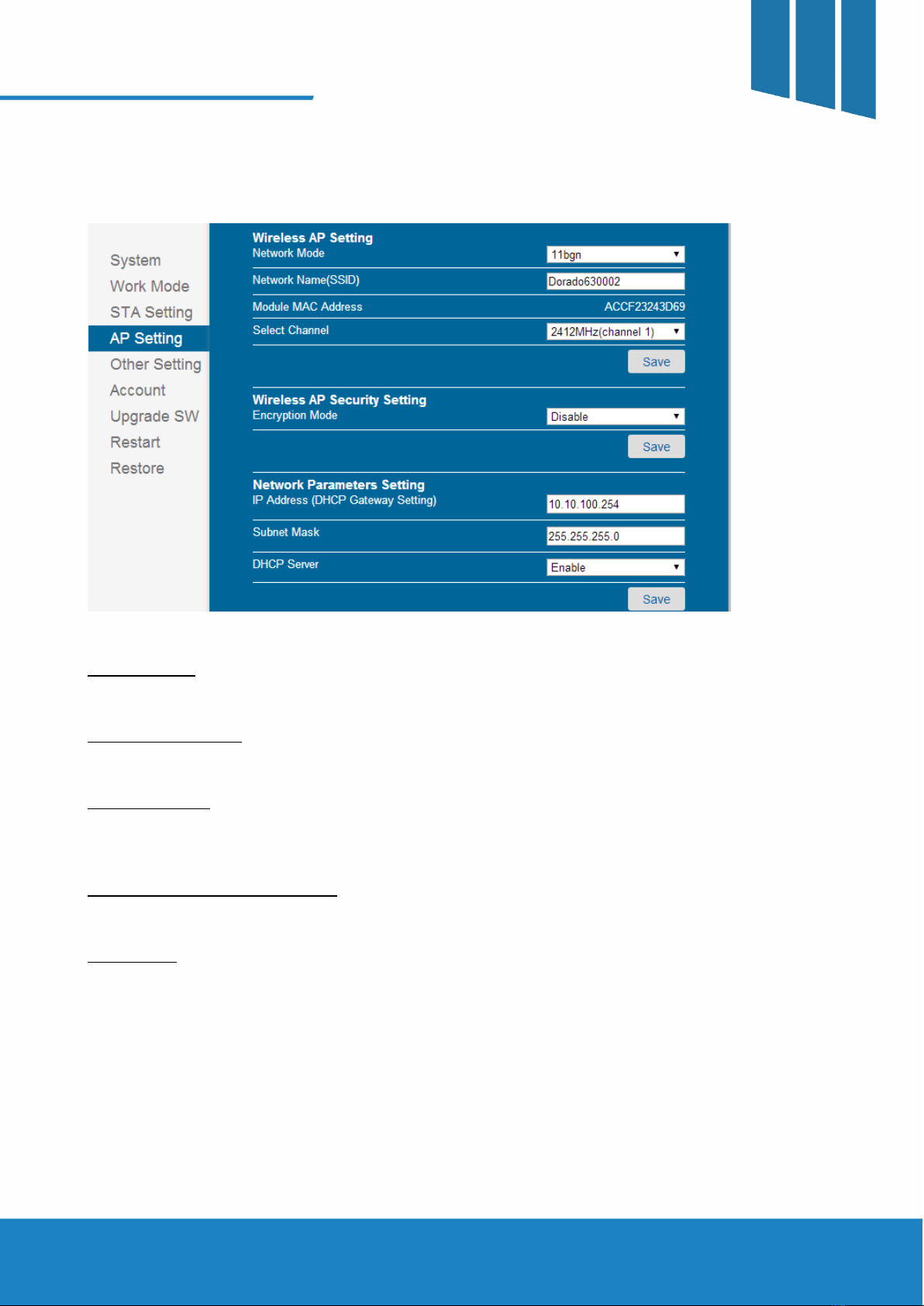
3. AP Setting
Network Mode: Choose between 802.11b/g/n work mode as an access point
Network Name (SSID): The broadcasted name of Dorado as an access point
Encryption Mode: WPA2-PSK encryption could be enabled in AP mode to prevent unauthorized access to
Dorado. Once an encryption mode is selected, additional option for password will be shown in the menu.
IP Address (DHCP Gateway Setting): Default IP of Dorado in AP mode
DHCP Server: Once enabled, clients connected to the Dorado access point will be automatically assigned an
IP. If DHCP is disabled, client will need to manually configure their IP in order to correctly receive data from
Dorado.

Dorado Handheld Reader – Wi-Fi - Version 2.0 8
4. Other Setting
Serial Port Parameters Settings: Serial port settings for Dorado to communicate with the Wi-Fi module,
PLEASE DO NOT CHANGE THIS SETTING
Network Parameters Setting – Port ID: This is the port client listen to when trying to connect to Dorado in
AP or STA mode. If user wants to connect to Dorado with the iOS or Android app, please do not change this
setting.

Dorado Handheld Reader – Wi-Fi - Version 2.0 9
5. Wi-Fi Config Interface Account Setup
User Name and Password to login to this Wi-Fi configuration interface
6. Upgrade Wi-Fi Module Firmware
Firmware upgrade for the Wi-Fi module
Note: This interface does NOT represent the firmware of the RFID module of Dorado. Please refer to the
Dorado Firmware Update Guide for information on updating the RFID module firmware.
Autres manuels pour Dorado
1
Table des matières