Sprint PPC-6700 Manuel utilisateur

Sprint PCS Vision®
Smart Device PPC-6700
www.sprint.com
© 2006 Sprint Nextel. All rights reserved. No reproduction in whole or
in part without prior written approval. SPRINT, the “Going Forward”
logo, the NEXTEL name and logo, and other trademarks are trademarks
of Sprint Nextel.
Printed in the U.S.A.

Welcome to Sprint
Sprint and Nextel have come together offering you more choice
and flexibility to do whatever you want, whenever you want.
This powerful combination brings you access to more products,
more services, and more of what you need to do more of what
you want. Welcome to a future full of possibility. Welcome to the
new Sprint.
Welcome and thank you for choosing Sprint.

Table of Contents
Section 1 Getting Started ................................................ 1
1.1 Setting Up Service ....................................................................2
1.2 Your PPC-6700 ...........................................................................6
1.3 Battery Information ...............................................................11
1.4 Starting Up ...............................................................................13
1.5 The Today Screen ....................................................................15
1.6 Using the Start Menu ............................................................18
Section 2 Entering and Searching Information ............ 21
2.1 Introduction .............................................................................22
2.2 Using the Keyboard ................................................................23
2.3 Using Letter Recognizer ........................................................24
2.4 Using Block Recognizer .........................................................25
2.5 Using Transcriber ....................................................................26
2.6 Using Phone Pad .....................................................................30
2.7 Drawing and Writing on the Screen ..................................32
2.8 Recording a Note ....................................................................34
2.9 Searching Information ..........................................................35
Section 3 Using Phone Features .................................... 37
3.1 Using the Phone .....................................................................38
3.2 Making a Call ...........................................................................40
3.3 Receiving a Call .......................................................................42
3.4 In-Call Options ........................................................................42
3.5 Additional Dialing Information ..........................................44

Section 4 Synchronizing and Setting Up E-mail Security
.. 45
4.1 Using ActiveSync ....................................................................46
4.2 Synchronizing Information ..................................................47
4.3 Synchronizing Via Infrared and Bluetooth .......................52
4.4 Synchronizing Music, Video, and Pictures ........................53
4.5 Setting Up E-mail Security ...................................................54
Section 5 Managing Your PPC-6700 .............................. 57
5.1 Personalizing Your PPC-6700 .................................................58
5.2 Adding and Removing Programs ........................................67
5.3 Managing Memory ................................................................68
5.4 Backing Up Files ......................................................................70
5.5 Protecting Your PPC-6700 ....................................................72
5.6 Resetting Your PPC-6700 ......................................................74
Section 6 Getting Connected ........................................ 75
6.1 Connecting to the Internet ..................................................76
6.2 Internet Explorer Mobile ......................................................78
6.3 Using Bluetooth ......................................................................81
6.4 Using Wireless Modem .........................................................86
6.5 Using Comm Manager ..........................................................90
6.6 Using Terminal Services Client ............................................94
Section 7 Exchanging Messages .................................... 97
7.1 E-mail and Text Messages ....................................................98
7.2 Pocket MSN Messenger ..................................................... 109
7.3 Calendar ................................................................................. 111
7.4 Contacts ................................................................................. 113

7.5 Tasks ........................................................................................ 116
7.6 Notes ...................................................................................... 119
Section 8 Experiencing Multimedia ............................121
8.1 Using Camera and Camcorder ......................................... 122
8.2 Using Pictures & Videos ..................................................... 132
8.3 Using Windows Media Player .......................................... 136
Section 9 Using Other Applications ............................145
9.1 Word Mobile ......................................................................... 146
9.2 Excel Mobile .......................................................................... 148
9.3 Viewing Slide Shows with PowerPoint Mobile ............ 150
9.4 Using Voice Speed Dial ....................................................... 152
Appendix ......................................................................155
A.1 Regulatory Notices .............................................................. 156
A.2 System Requirements for ActiveSync 4.x ...................... 163
A.3 Specifications ....................................................................... 164
A.4 Warranty ................................................................................ 166
A.5 Index ....................................................................................... 168


Section 1
Getting Started
In This Section
1.1 Setting Up Service
1.2 Your PPC-6700
1.3 Battery Information
1.4 Starting Up
1.5 The Today Screen
1.6 Using the Start Menu

2 Section 1: Getting Started
1.1 Setting Up Service
Setting up service on your new PPC-6700 is quick and easy. This
section walks you through the necessary steps to set up your
device's phone, set up your voicemail, establish passwords, and
contact Sprint for assistance with your
Sprint PCS Service.
Setting Up Your Voicemail
All unanswered calls to your PPC-6700 are automatically
transferred to your voicemail, even if your phone is in use or
turned off. Therefore, you will want to set up your voicemail and
personal greeting as soon as your device's phone is activated.
To set up your voicemail:
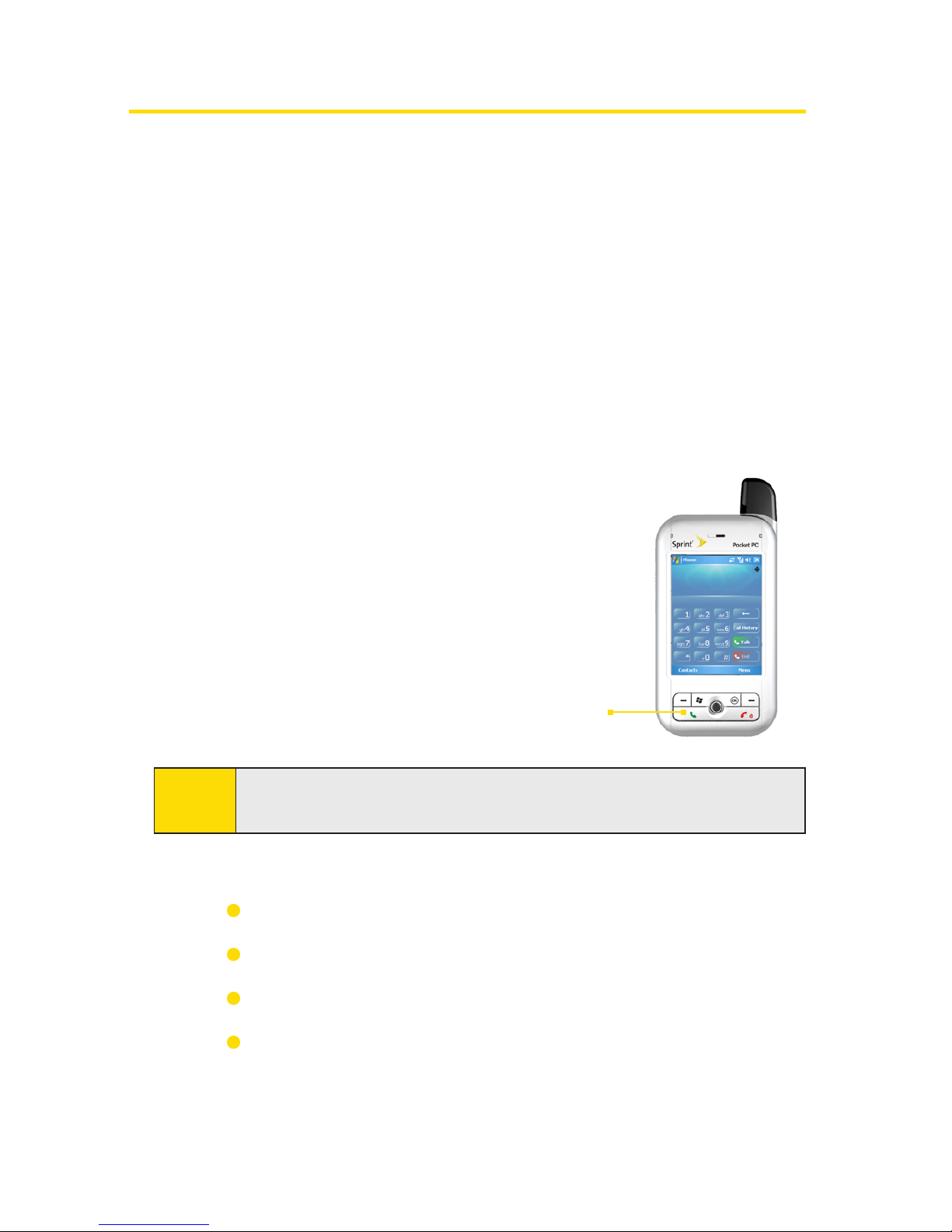
1. Access the Phone screen by
pressing the TALK button.
2. Press and hold the 1 key on the
Phone screen.
Note: This will not work when pressing and holding the 1 key on the
QWERTY keyboard.
3. Follow the system prompts to:
Create your pass code.
Record your greeting.
Record your name announcement.
Choose whether or not to activate One-Touch Message
Access (a feature that lets you access messages simply
by pressing and holding the 1 key, bypassing the need
for you to enter your pass code).
The TALK button

3Section 1: Getting Started
Note:
If you are concerned about unauthorized access to your
voicemail account, Sprint recommends you enable your
voicemail pass code.
Sprint PCS Account Passwords
As a Sprint PCS customer, you enjoy unlimited access to your
personal account information, your voicemail account, and your
Sprint PCS Vision account. To ensure that no one else has access
to your information, you will need to create passwords to protect
your privacy.
Account Password
If you are the account owner, you’ll have an account password
to sign on to www.sprint.com and to use when calling Sprint
Customer Service. Your default account password is the last four
digits of your Social Security number. If you are not the account
owner (if someone else pays for your Sprint PCS Service), you
can get a sub-account password at www.sprint.com.
Voicemail Password
You’ll create your voicemail password (or pass code) when you
set up your voicemail. See “Setting Up Your Voicemail” on
page 2 for more information on your voicemail password.
Sprint PCS Vision Password
With your PPC-6700 and Sprint PCS Vision Service, you can set
up a Sprint PCS Vision Password. This optional password may
be used to authorize purchase of Premium Services content
and to protect personal information on multi-phone accounts.
For more information or to change your passwords, sign
on to www.sprint.com or call Sprint Customer Service at
1-888-211-4PCS (4727).

4 Section 1: Getting Started
Getting Help
To visit our website:
You can get up-to-date information on Sprint PCS Services and
Options by signing onto our website at www.sprint.com.
When you visit us online, you can:
Review coverage maps.
Learn how to use voicemail.
Access your account information.
Purchase accessories.
Add additional options to your service plan.
Check out frequently asked questions.
And more.
To reach Sprint Customer Service:
You can reach Sprint Customer Service many different ways:
From the Phone screen,dial .
Sign on to your account at www.sprint.com.
Call us toll-free at 1-888-211-4727 (Consumer customers)
or 1-888-788-4727 (Business customers).
Write to us at Sprint Customer Service, P.O. Box 8077,
London, KY 40742.
Automated Invoicing Information
For your convenience, your phone gives you access to invoicing
information on your Sprint PCS Account. This information
includes balance due, payment received, invoicing cycle, and
the number of minutes used since your last invoicing cycle.
(Normal airtime usage will apply.)
Autres manuels pour PPC-6700
2
Table des matières
Autres manuels Sprint portable