User Guide and
Technical Information
page 10SOUND DEVICES, LLC
Windows OS
Driver Software Installation
Note: Do not connect the USBPre to a com-
puter without first installing the USBPre drivers
and control software.
The included Windows driver software for the
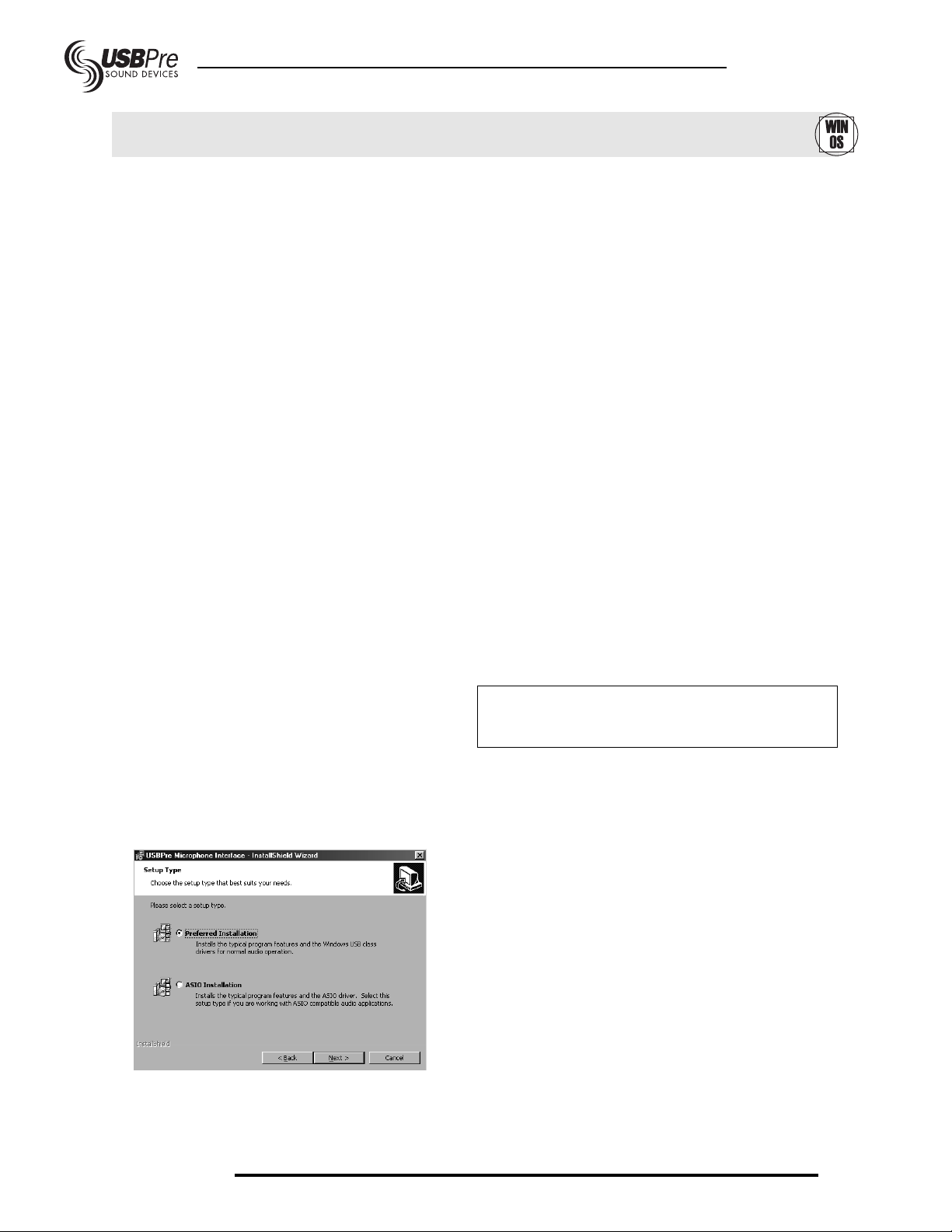
USBPre allows you to select between a “Preferred
Installation” or an “ASIO Installation”. For most
users the Preferred Installation is advised. With it,
the USBPre will act as the audio hardware for all
wave compatible software applications, including
Windows system sounds, Windows Media Player,
DVD players, and most audio recording and play-
back software.
If the ASIO Installation is selected, the USBPre
installs ASIO driver software. ASIO drivers are a
low-level connection to ASIO-compatible audio
applications. With ASIO, a more direct connec-
tion between recording software and the USBPre
is obtained, greatly reducing latency - beneficial
in multi-track music production. Software applica-
tions such as Cubase, Logic, and n-Tracks sup-
port hardware via the ASIO drivers. When ASIO
drivers are installed the USBPre will have limited
functionality with audio applications and system
applications that do not specifically support ASIO.
If you are not certain that you require ASIO driv-
ers, install using the Preferred Installation. You
can only have one type of drivers installed on the
computer at a time. To switch between ASIO and
Preferred audio requires uninstalling and rein-
stalling the driver software.
Preferred Installation
To install the software for the USBPre:
1. Power on your computer and start Microsoft
Windows 98SE, ME, 2000, or XP.
2. Close all open applications.
3 Place the Sound Devices USBPre CD-ROM
in your CD-ROM drive.
4. Run the application D:\setup.exe (where D is
the letter of your CD drive). If you computer
is set to auto launch a CD-ROM, the setup
application will start automatically. Note: The
setup application uses a Windows 2000 ver-
sion of the installer application. You may need
to restart your machine during installation if it
is the first time running this installer applica-
tion in Windows 98SE.
5. Select the Preferred Installation to install the
USBPre for most Windows audio software.
Once the setup program has begun, a series of
on-screen instructions will guide you through the
rest of the installation procedure.
In Windows 2000 and XP, you will be warned that
the USBPre drivers are not digitally signed. Click
“continue anyway” to complete the installation.
Windows ASIO Installation
Follow the same steps as for the Preferred
Installation, but selection ASIO Installation when
prompted.
To verify that the ASIO driver is installed, enter
the Device Manager and view the USB controllers.
When the USBPre is connected to the computer
“USBPre ASIO” will show as the installed device.
(See Windows ASIO.)
Installing Hardware
Once the USBPre drivers have been installed, fol-
low the instructions below to complete the USBPre
hardware installation. These steps will only need to
be performed once. Note: You may need your origi-
nal Windows CD or have the Windows .cab files
loaded on your hard drive to properly install all of
the USBPre hardware drivers.
Select Preferred or ASIO Installation