Solwise A10W Manuel utilisateur

A10W
3G 11n WiFi Router
User Manual

Solwise Ltd, www.solwise.co.uk, [email protected]
2
Table of Contents
CE DECLARATION OF CONFORMITY .......................................................................4
CHAPTER 1 INTRODUCTION .....................................................................................5
1.1 Package Contents............................................................................................................................................... 5
1. Appearance......................................................................................................................................................... 5
CHAPTER 2 PRODUCT INSTALLATION ....................................................................7
.1 Hardware Installation ....................................................................................................................................... 7
CHAPTER 3 HOW TO LOG INTO THE ROUTER........................................................9
3.1 Set up your Wireless network configurations ................................................................................................. 9
3. Go into the Router management interface .................................................................................................... 1
CHAPTER 4 ADVANCED SETTINGS........................................................................16
4.1 Internet settings ............................................................................................................................................... 16
4.1.1 WAN........................................................................................................................................................... 16
4.1.2 LAN............................................................................................................................................................ 18
4.1.3 DHCP clie t ............................................................................................................................................... 19
4.1.4 Adva ced.................................................................................................................................................... 19
4. Wireless Network Settings .............................................................................................................................. 0
4.2.1 Basic Setti gs ............................................................................................................................................. 21
4.2.2 Adva ced Setti gs ...................................................................................................................................... 22
4.2.3 Security Setti gs......................................................................................................................................... 24
4.2.4 WDS Co figuratio s .................................................................................................................................. 27
4.2.5 WPS Co figuratio s................................................................................................................................... 27
4.2.6 AP clie t ..................................................................................................................................................... 29
4.3 Firewall............................................................................................................................................................. 9
4.3.1 Address Filter ............................................................................................................................................. 29
4.3.2 Virtual Server ............................................................................................................................................. 31
4.3.3 DMZ Setti gs ............................................................................................................................................. 31
4.3.4 System Security.......................................................................................................................................... 32
4.3.5 Co te t Filter.............................................................................................................................................. 32
4.4 Admin ............................................................................................................................................................... 33
4.4.1 Status .......................................................................................................................................................... 33

Solwise Ltd, www.solwise.co.uk, [email protected] 3
4.4.2 Ma ageme t ............................................................................................................................................... 34
4.4.3 Upload ........................................................................................................................................................ 36
4.4.4 Setti gs....................................................................................................................................................... 36

Solwise Ltd, www.solwise.co.uk, sales@solwise.co.uk
4
CE Declaratio of Co formity

Solwise Ltd, www.solwise.co.uk, [email protected] 5
Chapter 1 Introduction
1.1 Package Contents
1.1 Package Contents1.1 Package Contents
1.1 Package Contents
3G Router x1
USB cable x1
1500mAh Lithium (Li-io ) battery x1
Quick Start Guide x1
1.2 Appearance
1.2 Appearance1.2 Appearance
1.2 Appearance
1.3 LED i dicators
Name LED Status I dicatio
Power Light Blue light Power is o
Purple light Battery power is chargi g
Blue light Battery power is charged
Red light Battery power is low a d eeds to be charged
Battery Light
Not light Battery has o power or battery ot i serted
WIFI Light Blue light Wi-Fi is o
Blue light Sig al is stro g Sig al Light
Purple light Sig al is average

Solwise Ltd, www.solwise.co.uk, [email protected]
6
Red light Sig al is weak
Red flashi g 1time/Sec No UIM card or Network Registeri g
Blue flashi g
1time/3Sec registered o 3G etwork, but ot diali g
Blue flashi g
1time/Sec
registered o 3G etwork, a d diali g
Network Mode
Light
(3G co ect)
Blue co ti ually o 3G registered etwork a d dialed

Solwise Ltd, www.solwise.co.uk, [email protected] 7
Chapter Product Installation
2
22
2.1 Hardware Installation
Before usi g your ew 3G Router please follow these i itial setup steps. I order to e sure the optimum
co ectio the you eed to place the Router i a positio where it ca pickup the best 3G sig al a d also
give adequate WiFi coverage. The wi dow ledge of the room you are worki g i is probably the best spot.
Step1: Remove the rear cover a d the i sert the UIM card via the slot o the bottom – remove the rubber
cover to gai access to the slot.
Step2: Next insert the battery ensuring the orientation is correct:
Now co ect the USB port to either a USB power adapter (optio al extra) or to a computer with a USB port
to charge the battery. Please allow 8 hours mi imum to i itially charge the battery

Solwise Ltd, www.solwise.co.uk, [email protected]
8
Chargi g method:
(1) If the power switch is off whe chargi g the the the battery power i dicator light is purple. Whe
fully charged, battery i dicator light should cha ge to blue.
(2) If the power switch is o whe chargi g the the battery i dicator light is always purple whe
chargi g. Please ote, if the router is switched o whilst chargi g the the time to fully charge will be
lo ger.
Tip:Whe ot usi g the Router for lo g periods or for storage you are advised to remove the batteries to
preve t damage to the battery.
Step3: Power O .
Steps4: Co ect the PC to the 3G Router WiFi.
Tip:Before co ecti g the computer to the 3G 3G Router please e sure that the computer actually has the
WIFI fu ctio !
From the PC sca for ew WiFi etworks. Locate the etwork comi g from the 3G router a d co ect to it.

Solwise Ltd, www.solwise.co.uk, [email protected] 9
Chapter 3 How to Log into the Router
This chapter i troduces how to log i to the Router set-up page. First of all e sure the router is
fully charged a d switched o . Also check that the WiFi LED o the fro t is alight.
3.1
3.1 3.1
3.1 S
SS
Set up your
et up your et up your
et up your Wireless
WirelessWireless
Wireless network configurations
network configurations network configurations
network configurations
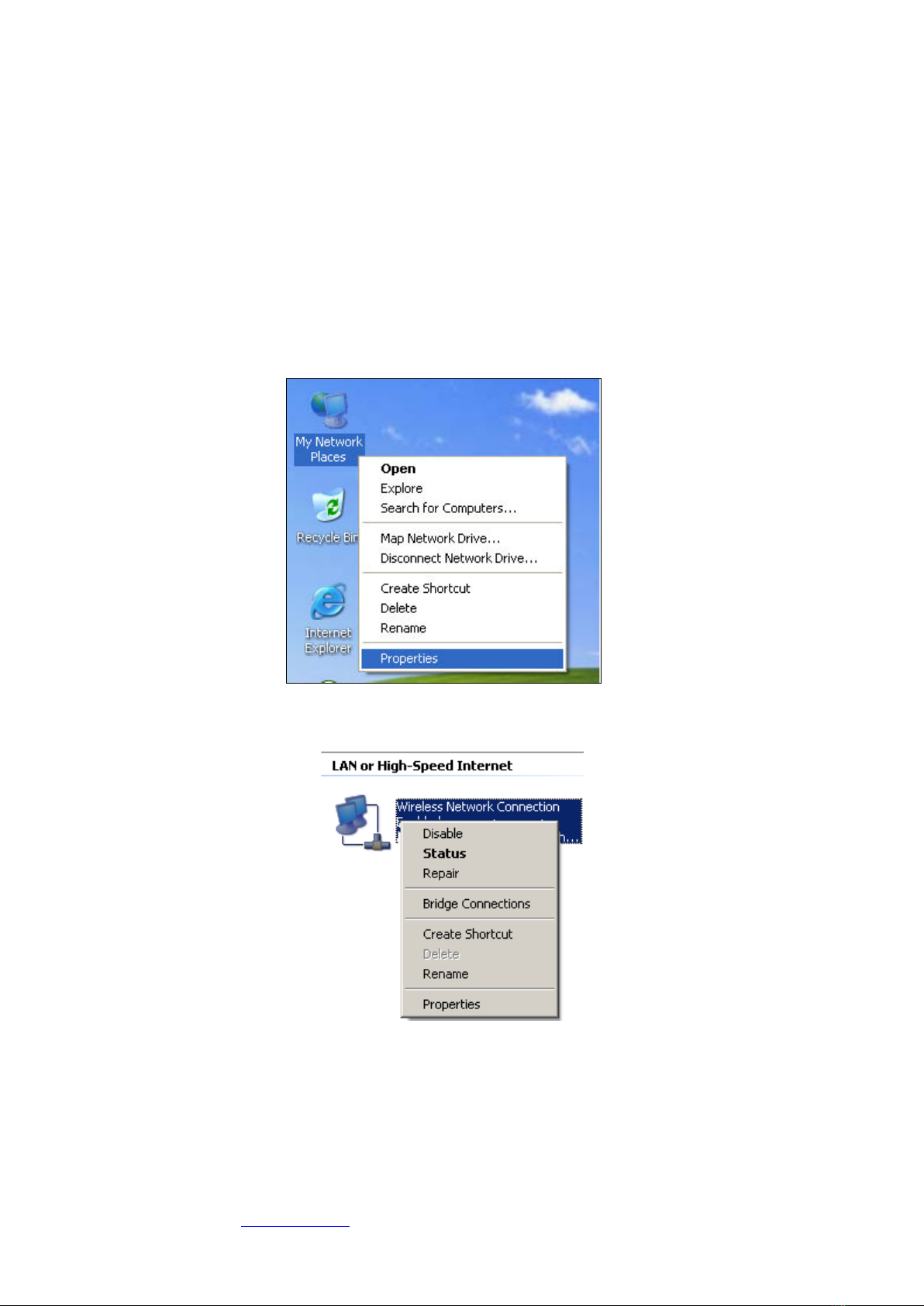
Step1: O the desktop, right-click o “My Network Places”, select “Properties”.
Step : I the pop-up wi dow, right-click o “Wireless Network Co ectio ” a d select “Properties”.
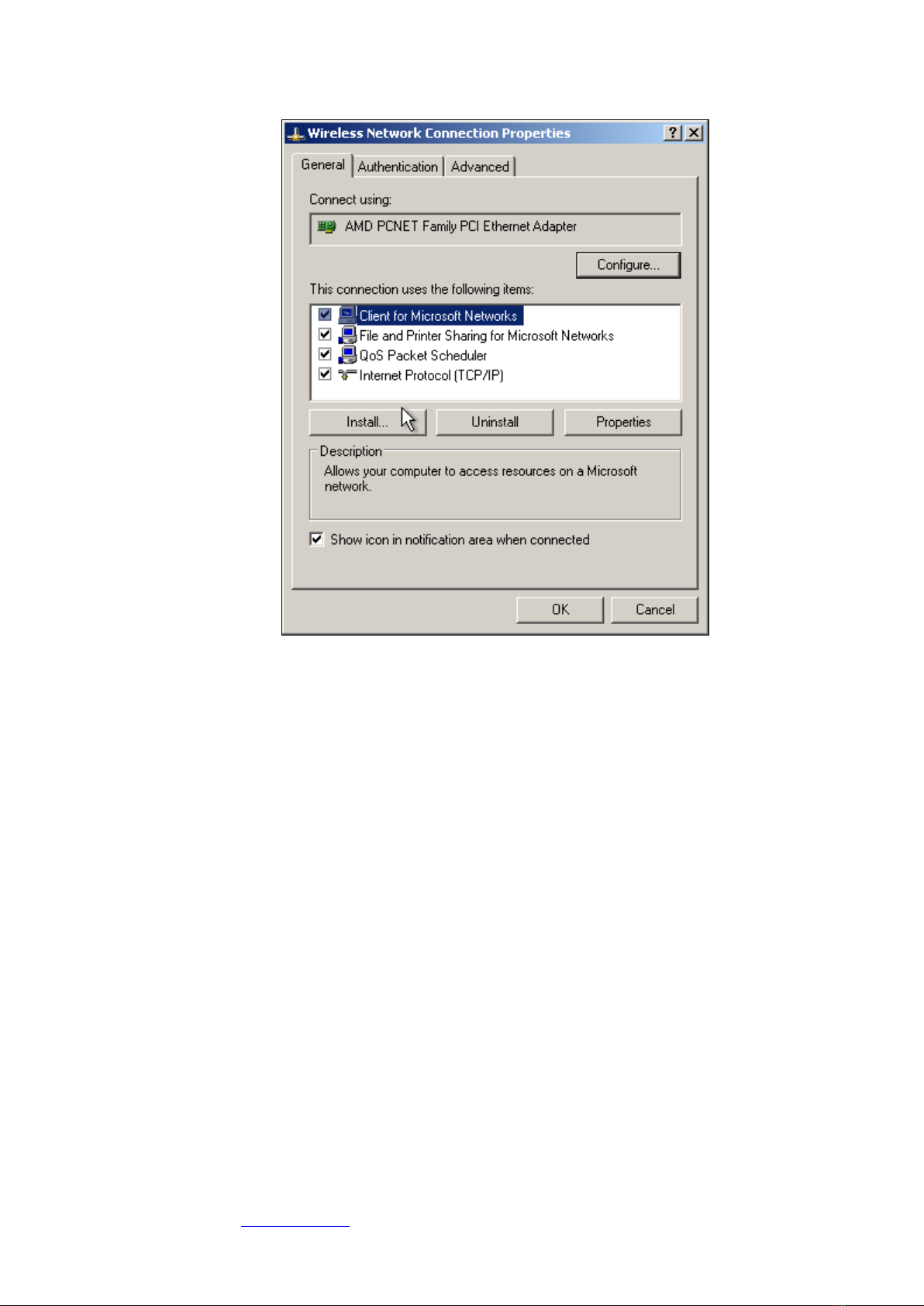
Step3: The select “I ter et Protocol (TCP/IP)” optio , a d the click “Properties”.

Solwise Ltd, www.solwise.co.uk, [email protected]
10
Step4: Make sure “Obtai a IP address automatically” a d “Obtai DNS server address automatically” are
selected. The click “OK”.
Table des matières
Autres manuels Solwise Routeur sans fil

Solwise
Solwise 3G11nMRW Manuel utilisateur

Solwise
Solwise 605EW Manuel utilisateur

Solwise
Solwise PLV-500AV-PEWN Manuel utilisateur

Solwise
Solwise 3G-431R Manuel utilisateur

Solwise
Solwise M18P1 Series Manuel utilisateur

Solwise
Solwise 3GWIFIMRW Manuel utilisateur

Solwise
Solwise NET-PL-200AV11NRT Manuel utilisateur

Solwise
Solwise 3G-431R Manuel utilisateur

Solwise
Solwise 53R-EXT Manuel utilisateur

Solwise
Solwise UltraSkyM18P1 Manuel utilisateur