SoftBank 809SH Manuel utilisateur

809SH
User Guide


1
809SH
809SH User Guide Contents
Introduction
Introduction.........................................................................3
Getting Started
Parts & Functions.............................................................. 8
Home Screen........................................................................ 9
Notifications of Data Usage........................................... 12
SIM Card............................................................................ 13
Charging Battery.............................................................. 15
Charging Mobile Phones or Smartphones........................17
Power On/Off................................................................... 18
Connecting with WLAN
WLAN (Wi-Fi).....................................................................20
Activating WLAN Function.............................................. 20
Connecting Windows PC...................................................21
Connecting Mac.................................................................24
Connecting iPhone/iPad....................................................25
Connecting Android Devices............................................ 28
Connecting Wi-Fi Compatible Devices.............................30
WPS Supported WLAN Device.......................................... 31
Connecting with USB Cable (Windows)
USB Connection with a Windows PC............................... 34
Device Recognition/Removal on Windows PC..................34
Installing/Uninstalling Driver (Windows)........................35
Connecting with USB Cable (Mac)
USB Connection with Mac................................................38
Device Recognition/Removal on Mac...............................38
Installing/Uninstalling Driver (Mac)................................39
Settings (Using Router Touch Menu)
Touch Menu....................................................................... 42
Showing/Setting Data Usage...........................................42
Checking Information of Devices Connected to Wi-Fi
Router................................................................................ 46
Checking Notifications.....................................................46
Setting SSID and Authentication Method.......................49
Setting Power Supply Function....................................... 53
Other Settings.................................................................. 53
Checking Wi-Fi Router Information................................ 68
Operation for Setting Data Traffic............................... 69
Settings (Using PC WEB UI)
Overview of Web UI......................................................... 76
Web UI Window.................................................................79
Checking Connected WLAN Devices.................................81
Setting Mobile Network...................................................85
Setting LAN.................................................................... 103
Setting Wi-Fi.................................................................. 121
Device Settings...............................................................131
Showing Support Information....................................... 157
Showing Wi-Fi Router Information............................... 158

2
Settings (Using Mobile WEB UI)
Overview of Web UI.......................................................160
Web UI Window...............................................................163
Setting Mobile Network.................................................165
Setting Wi-Fi.................................................................. 170
Device Settings...............................................................187
Switching to PC Web UI................................................ 203
Checking Wi-Fi Router Information.............................. 205
Appendix
Troubleshooting.............................................................. 208
Specifications..................................................................210
Specific Absorption Rate (SAR) for This Product (for
Japan).............................................................................. 212
CE/FCC Notice................................................................ 213
Warranty & Service........................................................ 215
Customer Service............................................................215
Safety Precautions
Safety Precautions.........................................................218
General Notes................................................................. 225

3
Introduction 809SH
Introduction
Introduction
Before You Begin
Read "クイックスタート (Quick Start)" (Japanese) and "お願いと
ご注意 (Safety Precautions)" (Japanese) thoroughly beforehand
for proper use.
Accessible services may be limited by contract conditions.
Guide Usage Notes
Most operation descriptions are based on default settings.
Unless noted otherwise, operations are basically described
starting from Home Screen. Operation descriptions may be
abbreviated.
Screenshots & Key Labels
Displays in this guide are provided for reference only. Actual
Display may differ in appearance. Key labels in this guide are
simplified for description purposes and differ with actual
Display.
Other Notations
This product is referred to as "Wi-Fi router" in this guide.
Operating Environment
Use Wi-Fi router in any of these operating environments.
Use outside these environments may affect performance.
Operating environment (hardware, connected peripherals,
installed applications, etc.) may also affect performance.
・For computer support, OS version upgrade information,
etc., see corresponding manufacturer's product support
documentation.
・The information for operating environment listed here is the
current information as of September 2019.
Item Description
Supported
devices
■ Devices that can be connected via Wi-Fi
Wi-Fi router can be connected with WLAN
devices that support WLAN standards
IEEE802.11a/n/ac (5 GHz band), and
IEEE802.11b/g/n (2.4 GHz band).
For operation or operating instructions
of Wi-Fi supported devices, contact the
manufacturer.
■ Devices that can be connected via USB
Supported operating systems are as
follows:
・Windows 10 (32-bit/64 bit)
・Windows 8.11 (32-bit/64 bit)
・Windows 7 SP1 (32-bit/64 bit)
・macOS Mojave 10.14.6 (64 bit)
・macOS High Sierra 10.13.6 (64 bit)
・macOS Sierra 10.12.6 (64 bit)
Wi-Fi router is charged while connecting
via USB.
■ Devices that can change the Wi-Fi
router settings
Supported operating systems2 are as
follows:
・Windows 10 (32-bit/64 bit)
・Windows 8.11 (32-bit/64 bit)
・Windows 7 SP1 (32-bit/64 bit)
・macOS Mojave 10.14.6 (64 bit)
・macOS High Sierra 10.13.6 (64 bit)
・macOS Sierra 10.12.6 (64 bit)
・Android3
・iOS3
Interface USB2.0 or later

4
Compatible
Browser4
■ Windows
・Windows 7 SP1/32 bit and 64 bit:
Microsoft Internet Explorer 11 or later
・Windows 8.1/32 bit and 64 bit:
Microsoft Internet Explorer 11 or later
・Windows 10/32 bit and 64 bit:
Microsoft Edge 44 or later, Microsoft
Internet Explorer 11 or later
・Google Chrome™ 43 or later
■ Mac
・Safari 9.0 or later
・Google Chrome 43 or later
■ Android™ Devices
・Google Chrome 43 or later
■ iPhone/iPod touch/iPad
・Safari 9.0 or later
1 Windows RT is not supported.
2 Japanese edition operating systems are supported.
Operations with upgraded OS or under an added or
modified environment are not guaranteed.
3 Not all the menu items/setting items can be operated.
To show all the items, tap "PC View" tab. For details, see
"Switching to PC Web UI."
4 Even on the supported versions of Microsoft Internet
Explorer or Microsoft Edge, display may be corrupted if
document mode is old. If corruption happens, check that
the document mode is latest.
Package Contents
The following items are included in the package. Please
confirm package contents before use. Contact Customer
Service for missing items.
Keep accessories in a safe place.
AC Charger is not supplied. Purchase AC Charger (optional).
・809SH (Main unit)
・SIM Removal Tool (Complimentary sample)
・クイックスタート (Japanese)
・お願いとご注意 (Japanese)
・Label for WLAN Initial Setting
SSID and Password (Security Key)
When connecting to a Wi-Fi device, SSID (network name) and
password (Security Key: WPA Key or WEP Key) are required.
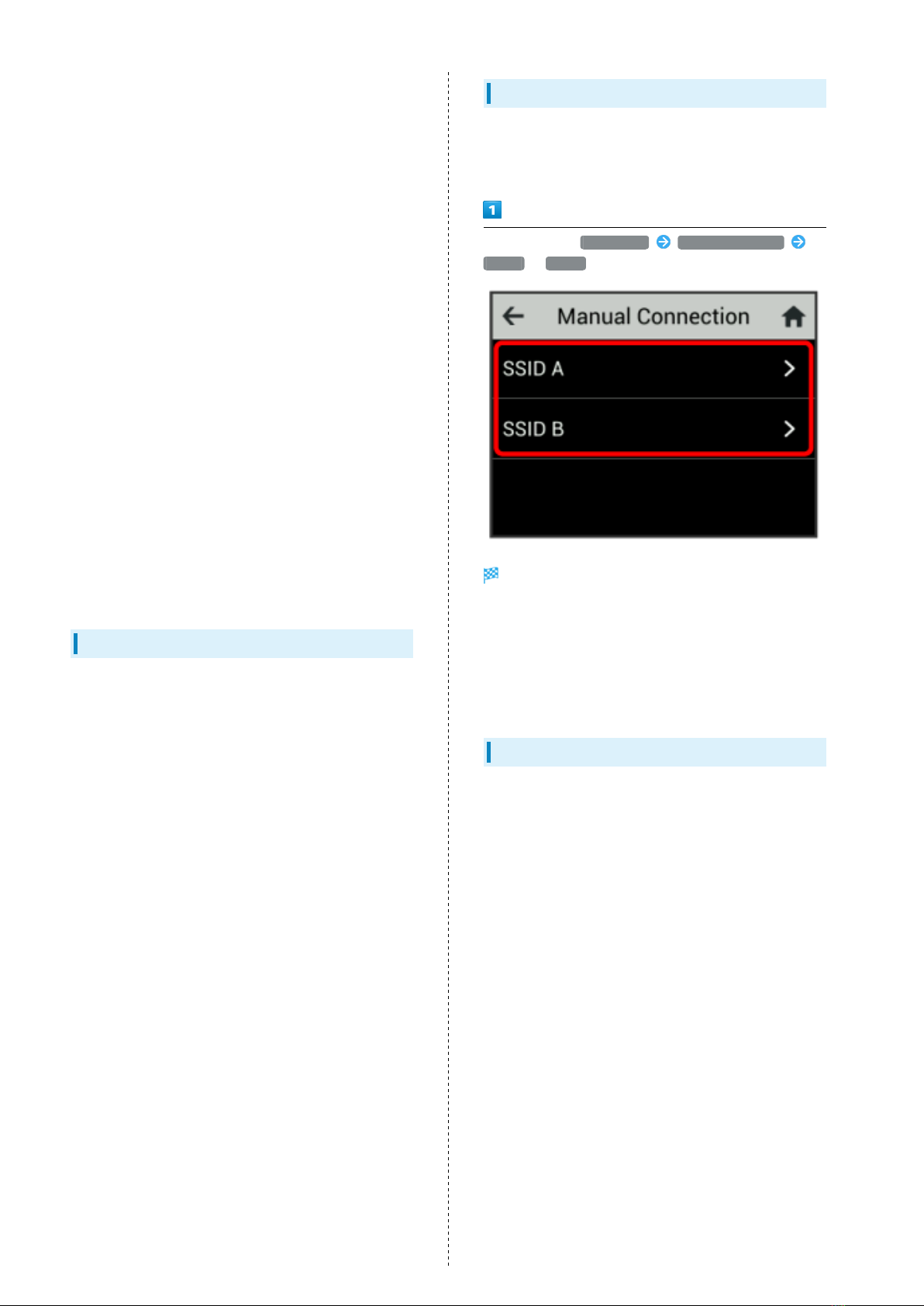
Confirm SSID and password (Security Key) as follows.
In Home Screen, Wi-Fi Guide Manual Connection
SSID A /SSID B
SSID and password (Security Key) appear.
・Two SSIDs are set to Wi-Fi router. By default, a WPA2 key
is set for both SSID A/SSID B.
・For greater security, use WPA/WPA2. However, some game
consoles do not support WPA/WPA2.
・Alternatively, see label for WLAN Initial Setting to check
default SSID and password (Security Key).
Getting Started
・Wi-Fi router accommodates software updates. Use the
latest software.
・Note that connection speeds may drop or connections
may be disabled depending on line traffic or connection
environments. Please be forewarned.
・To enhance security, it is recommended that a password
for unlocking the screen be set. For details on setting Lock
Screen PIN, see "Screen Lock."
・When Wi-Fi router is under a corporate subscription, Wi-
Fi router functionality can be regulated by administrators.
Depending on how functions are regulated, settings or
operations as described herein may not be available.
・Wi-Fi router locks the screen and disconnects communication
when high temperature is detected. Screen lock is
automatically canceled when high temperature state is
resolved.

5
Introduction 809SH
Intellectual Property Rights
・SoftBank, SoftBank's equivalent in Japanese and the
SOFTBANK logo are registered trademarks or trademarks of
SoftBank Group Corp. in Japan and other countries.
・Pocket WiFi is a registered trademark of SoftBank Corp.
・Microsoft®, Windows®. Internet Explorer®, and Microsoft
Edge are trademarks or registered trademarks of Microsoft
Corporation in the United States/other countries.
・iPad, iPhone, Mac, Macintosh, and Safari are trademarks
of Apple Inc. registered in the United States and other
countries. App Store is a service mark of Apple Inc.
・The trademark "iPhone" is used with a license from Aiphone
K.K.
・iOS is a trademark or registered trademark of Cisco in the
U.S. and other countries and is used under license.
・Wi-Fi®, Wi-Fi Protected Access® (WPA), and WPA2™ are
trademarks or registered trademarks of Wi-Fi Alliance.
・Google, Android and Google Chrome are trademarks or
registered trademark of Google LLC.
・QR Code is a registered trademark of DENSO WAVE
INCORPORATED.
・USB Type-C™ is a trademark of USB Implementers Forum.
・The names of the companies, products and services used in
this guide are registered trademarks or trademarks of the
respective companies.

6

Getting Started
Parts & Functions.............................................................. 8
Home Screen........................................................................ 9
Notifications of Data Usage........................................... 12
SIM Card............................................................................ 13
Charging Battery.............................................................. 15
Charging Mobile Phones or Smartphones........................17
Power On/Off................................................................... 18

8
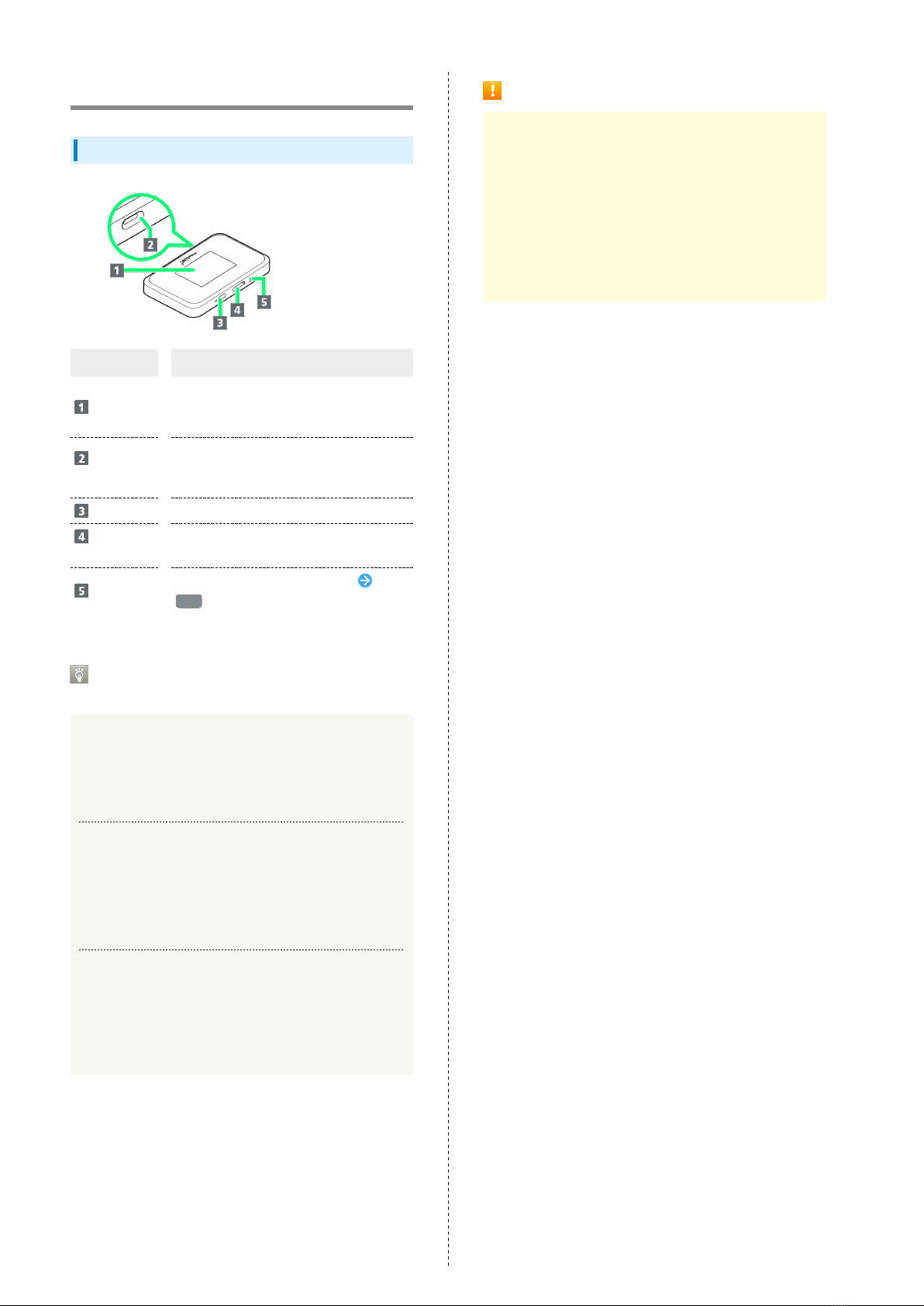
Parts & Functions
Front/Top/Bottom
Part Description
Display
Wi-Fi router status appears. Wi-Fi router
uses a touchscreen-type Display. Operate
with your fingers on Display.
USB Type-
C Port
Connect USB Cable, AC Charger (optional)
and Cradle (optional). Also use to supply
power to other devices (Mobile Charge).
Power Key Turn power and Display on/off.
SIM Card
Tray Install SIM Card.
Reset
Button
Long Press with a pointed object
YES to reset Wi-Fi router to factory
defaults.
Cradle (Optional) and USB Cable
(Optional)
LAN Cable Connection to PC
Set Wi-Fi router on Cradle (optional) and connect to PC
using LAN Cable to perform data communication. For
details, see Cradle (optional) user guide.
USB Connection to PC
Connect Wi-Fi router and PC using USB3.0 Cable A to C
(optional) to charge, perform data communication, and use
Web UI. For details, see USB3.0 Cable A to C (optional) user
guide.
Mobile Charge
Connect USB Conversion Cable C to A (optional) and USB3.0
Cable A to C (optional) to supply power (Mobile Charge) to
smartphones, etc. For details, see USB Conversion Cable C
to A (optional) and USB3.0 Cable A to C user guide.
Notes on Using Reset Button
Note the following for using Reset Button.
・Power on Wi-Fi router in advance.
・Be careful not to be injured when pressing Reset Button.
・Do not Press Reset Button strongly. May cause damage.
・Do not use sharpened object. May cause damage.
・Using pen or pencil may make Reset Button dirty with ink
etc. Use with caution.
・The factory defaults can also be reset from Web UI. For
details, see "Resetting Wi-Fi Router."
Autres manuels pour 809SH
1
Table des matières
Autres manuels SoftBank Routeur sans fil

SoftBank
SoftBank 101SB Manuel utilisateur

SoftBank
SoftBank 304HW Manuel utilisateur

SoftBank
SoftBank 101SI Manuel utilisateur

SoftBank
SoftBank 501HW Manuel utilisateur

SoftBank
SoftBank 101SB Manuel utilisateur

SoftBank
SoftBank 303ZT Manuel utilisateur

SoftBank
SoftBank 101SI Manuel utilisateur

SoftBank
SoftBank 304ZT Manuel utilisateur

SoftBank
SoftBank A004ZT Manuel utilisateur

SoftBank
SoftBank 601HW Mode d’emploi