Snom 100 v1.9a Manuel utilisateur

snom 100
User Manual v1.9a


3
Foreword
Congratulations on the purchase of your snom 100
Voice over IP telephone!
Telephony is part of our every day life. Over a period
of more than 100 years a communication form has
evolved which we feel cannot be dismissed. In spite of
the new technology base of the snom 100 most of its
look and feel will be very familiar and intuitive to you.
On the other hand, the world of the Internet opens a
whole range of new possibilities. A lot of users are
using web browsers and own one or more email ac-
counts. They will find it easy to manage the phone via
its web interface or to make a call to
“sip:[email protected]“ for example.
We are confident that the developments in the com-
puter industry will follow suit in the telecom world.
VoIP is not only about transporting speech over data
networks. It is about interoperability and breaking up
a vertical market as well as streamlining business
processes by seamlessly integrating the telephone into
the computer networks and applications. With its
technical flexibility, our commitment to all open and
relevant standards and our cooperation with other
vendors of the VoIP industry, the snom 100 repre-
sents a safe investment in the future.
Now, we wish you a pleasurable experience in the
VoIP world.
snom technology AG
The current version of this user manual can be ob-
tained from:
http://www.snom.de/download/man_snom100e.pdf

4
Inhalt
Foreword ...................................................................... 3
Installation.................................................................... 7
Delivery Content ........................................................ 8
Safety Notes.............................................................. 8
Power supply.......................................................... 8
Setting up the Phone............................................... 8
Cleaning ................................................................ 9
Connecting the phone ................................................. 9
Dial Pad ...................................................................10
Initialization..............................................................12
Booting.................................................................12
Selecting the language............................................13
Registration...........................................................14
Basic FunctionsIdle State............................................19
Idle State .................................................................20
Statistics...............................................................20
Registrations .........................................................20
Dialing .....................................................................21
Dialing a phone number (E164) ...............................21
Dialing a H.323/SIP Address....................................23
Dialing an IP Address..............................................23
General Input Mode................................................25
Terminating a call......................................................25
Incoming Call............................................................25
Accepting a Call .....................................................26
Denying/Blocking a Call..............................................26
Adjusting the Volume.................................................26
Main Menu................................................................27
Help Function............................................................28
Advanced Functions.......................................................29
Hold and Resume ......................................................30
Toggling between calls ...............................................30
Transfer ...................................................................31
Direct Transfer.......................................................31
Call Divert................................................................31
Diverting all calls ...................................................32
Divert when Busy...................................................32

5
Divert when not answered ......................................32
DTMF Tones..............................................................32
Adjusting the Volume ................................................32
Ring Tones ...............................................................34
About ......................................................................35
Call Register ................................................................36
Phone Book ..............................................................37
Adding an entry.....................................................37
Editing an entry.....................................................38
Call Lists ..................................................................40
Speed Dial................................................................40
Dialing..................................................................41
Editing speed dial entries........................................42
Deny List..................................................................43
Browsing ..............................................................43
Adding a number...................................................43
Removing a number...............................................44
List Views.................................................................44
Modifying the view.................................................45
Sort Criteria ..........................................................45
Settings.......................................................................47
Settings via the Phone Gui .........................................48
Settings via Browser..................................................49
Options....................................................................51
Call Divert.............................................................51
Base ....................................................................52
SIP ......................................................................53
H.323...................................................................55
Codecs .................................................................57
Network................................................................57
Reset Values .........................................................61
Administration..............................................................62
Automatic Installation and Booting ..............................63
Overview..................................................................63
Manual update..........................................................65
Phone settings setup .................................................66
Setting files...........................................................66
Downloading procedure ..........................................67
Available Settings......................................................69
Basic....................................................................69

6
SIP Settings ..........................................................69
Redirection............................................................71
Codec Settings.......................................................71
Network Settings ...................................................71
H.323 Settings.......................................................73
Updating the software................................................74
Case study: com88....................................................75
Scenario ...............................................................75
Behind the scenes .....................................................77
Setting the Network Identity.......................................80
Installing DHCP......................................................80
Appendix .....................................................................85
Technical Data ..........................................................85
Technical Data ..........................................................86
Standard Conformance...............................................87
Index ..........................................................................88

7
Installation

8
Delivery Content
Please check whether the delivery contains the follow-
ing parts:
§The base unit with display and dial pad
§The handset
§The handset cable
§The power supply (optional)
Safety Notes
Please observe the following safety ad-
vice. It is important to observe it in order
to guarantee safe and reliable operation
of the device.
Power supply
You have two possibilities to provide the snom 100
with power:
§Power feeding over the network cable (Power-
LAN via IEEE 802.3af with 48 V)
§An external power supply (24 and 48 V)
If you want to use an external power supply then
please stick to the one that’s included in the package.
Other power supplies may cause damage to the
phone, effect the behavior or induce noise.
Setting up the Phone
Please setup the snom 100 only on even and horizon-
tal surfaces, enabling the rubber pads to ensure a
secure grip. Do not place the snom 100 on carpets or
other materials that contain fibers that can block the
air vents and cause overheating.
!

9
Cleaning
To clean the snom 100 use a slightly moist and anti-
static cloth. Please try to avoid cleaning liquids since
they might damage the surface or internal electronics
of the phone.
Connecting the phone
First connect one end of the handset cable to handset
and then to the jack on the left side of the phone (see
illustration).
Now, plug in the Ethernet (network) cable into the
RJ45 connector on the rear side of the phone as
shown below and the other end into the network side
to establish a data link.
In case you are using an external power supply,
please insert the plug of the power supply into the
connector next to the data line and hook up the casing
into the mains.

10
If you want to use a headset, it can be connected to
the audio jacks on the backside of the snom 100. The
outermost connector is for the microphone.
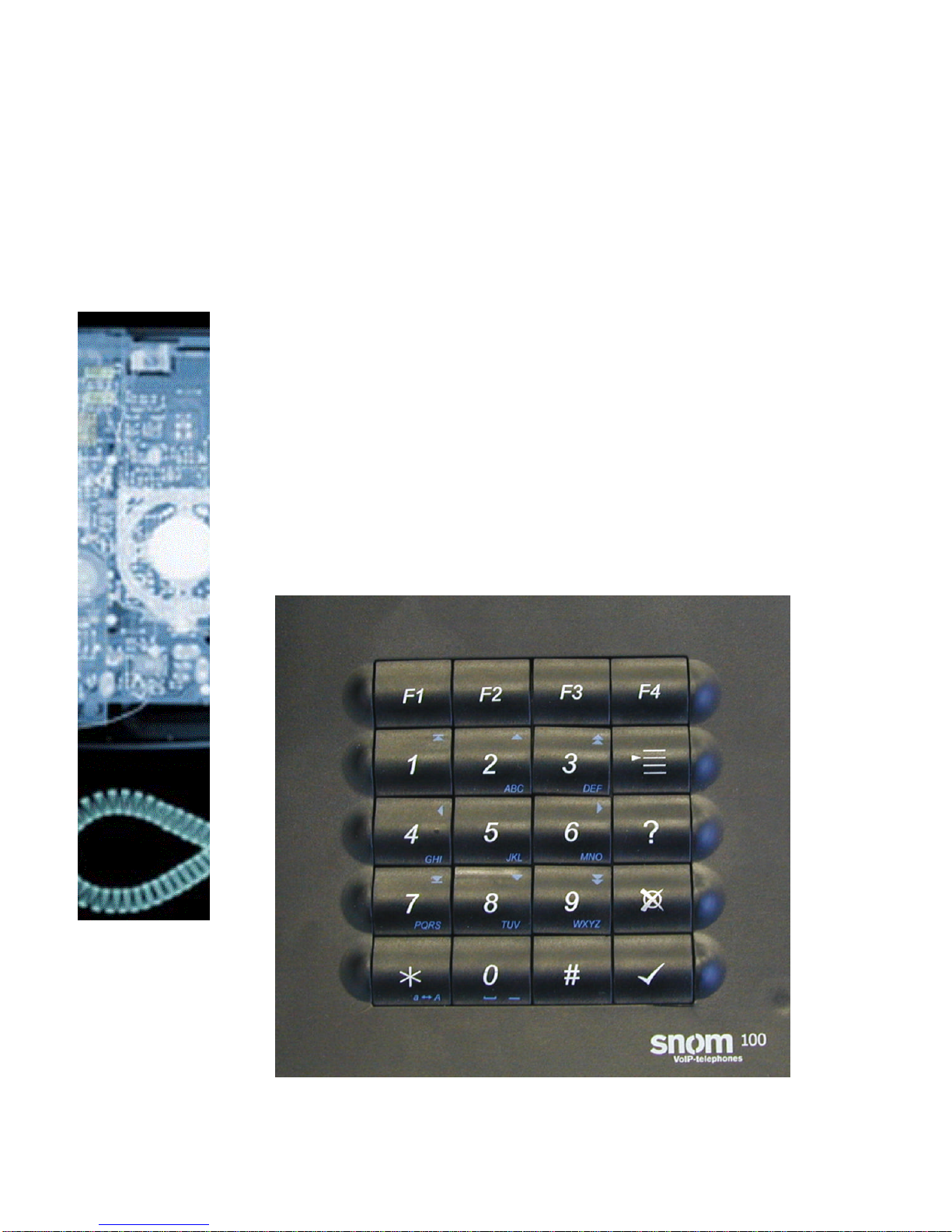
Dial Pad
The numeric key block with the keys 0 to 9, * and #
are used to enter digits and letters. Depending on the
operating mode, different actions can be performed
(see the table below):
§Entry of digits only (e.g. when dialing a phone
number),
§Typing in letters and digits by pressing the
keys repeatedly similar to a cellular phone,
§Or navigate in selection lists. The keys have
arrows printed on them indicating the direc-
tion similar to a numeric block on a computer
keyboard.
Ce manuel convient aux modèles suivants
1
Table des matières
Autres manuels Snom Téléphone IP

Snom
Snom 190 Guide rapide

Snom
Snom 300 Manuel utilisateur

Snom
Snom Mass Deployment V3.4 Mode d’emploi

Snom
Snom 720 Manuel utilisateur

Snom
Snom 190 Guide de démarrage rapide

Snom
Snom 100 Mode d’emploi

Snom
Snom 360 Manuel utilisateur

Snom
Snom 200 Manuel

Snom
Snom 370 Manuel utilisateur

Snom
Snom D315 Manuel utilisateur

Snom
Snom 360 Manuel utilisateur

Snom
Snom D712 Manuel utilisateur

Snom
Snom 720 Manuel utilisateur

Snom
Snom M700 Guide de référence rapide

Snom
Snom 820 Manuel utilisateur

Snom
Snom 320 Manuel utilisateur

Snom
Snom D715 Manuel utilisateur

Snom
Snom Vodafone 821 Manuel utilisateur

Snom
Snom 7 Series Manuel utilisateur

Snom
Snom 715 Manuel utilisateur