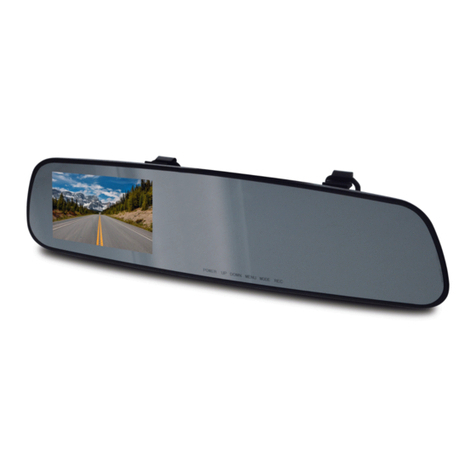
1. The device automatically starts recording video once it automatically
turns on when plugged into your car.
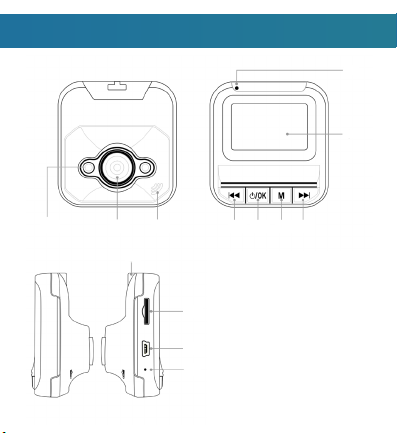
2. To stop/start recording, press the OK button.
1. Long press the Menu/Mode button once to enter photo mode.
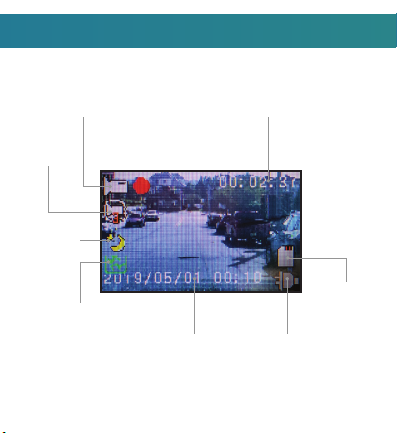
(When in photo mode, the top left of the screen will show a camera icon)
2. Press the OK button to take a picture.
1. Long press the Menu/Mode button again to enter playback mode.
2. When in playback mode, use the arrow buttons to navigate through
recorded videos.
3. Press the OK button to view recordings and photos.
4. To go back to DVR mode, long press the Menu/Mode button again.
1. To access the menu you can press the Menu/Mode button.
(To access the menu, the camera cannot be recording. If motion
detection is on, then camera automatically records. To access menu
when motion detection is on, press OK to stop recording and then
press the Menu/Mode button immediately after. Motion detection is
turned off by default)
2.
To navigate through sections on the menu use the Menu/Mode button.
3. To navigate through settings in the menu you can use the
(UP) and (DOWN) buttons.
4. To confirm a setting press the (OK) button.
In the menu you can access the settings for:
1. Video resolution
2. Turn ON/OFF time and date tag on screen
3. Motion Detection
4. Cycle Recording time
5. Audio
6. EV (Exposure Values)
7. SD Card Formatting
8. Change Language
9. Auto power off setting
10. Screen saver
11. Reset to factory settings
12. Frequency of Infrared Light
13. Set Time and date
14. Video rotate setting
15. Infrared Lamp Status
(Note: If screen on camera turns off
while driving, the screen saver is
turned on. To have screen constantly
on, make sure to have screen saver
turned off)
(Note: If when viewing night files, the
light looks like it flickers on the video,
change frequency of infreared light)