Smart Technologies SMART Hub VE220 Manuel de service

SMART Hub SE240 and VE220
Administrator’s Guide
PLEASE THINK BEFORE YOU PRINT

Product Registration
If you register your SMART product, we’ll notify you of new features and software
upgrades.
Register online at www.smarttech.com/registration.
Keep the following information available in case you need to contact SMART
Technical Support.
Serial Number: ___________________________________________________
Date of Purchase: ___________________________________________________
FCC Warning
This equipment has been tested and found to comply with the limits for a Class A digital device, pursuant to Part 15 of the
FCC Rules. These limits are designed to provide reasonable protection against harmful interference when the equipment is
operated in a commercial environment. This equipment generates, uses and can radiate radio frequency energy and, if not
installed and used in accordance with the manufacturer’s instructions, may cause harmful interference to radio
communications. Operation of this equipment in a residential area is likely to cause harmful interference in which case the
user will be required to correct the interference at his own expense.
Trademark Notice
SMART Board, Actalyst, SMART Podium, SMART Bridgit, Unifi, SMART Notebook, SMART Meeting Pro, the SMART logo
and smarttech are trademarks or registered trademarks of SMART Technologies ULC in the U.S. and/or other countries.
Windows and Internet Explorer are either registered trademarks or trademarks of Microsoft Corporation in the U.S. and/or
other countries. All other third-party product and company names may be trademarks of their respective owners.
Copyright Notice
©2010 SMART Technologies ULC. All rights reserved. No part of this publication may be reproduced, transmitted,
transcribed, stored in a retrieval system or translated into any language in any form by any means without the prior written
consent of SMART Technologies ULC. Information in this manual is subject to change without notice and does not
represent a commitment on the part of SMART.
Patent No. US5448263; US6141000; US6320597; US6326954; US6337681; US6741267; US6747636; US7151533;
US7289113; US7499033; US7626577; CA2058219; and CA2252302. Other patents pending.
03/2010

Contents
1Welcome ............................................................................................................... 1
About This Guide ............................................................................................ 2
SMART Hub Features .................................................................................... 2
Computer Input Formats .......................................................................... 3
Computer Output Formats........................................................................ 3
Firmware Features.......................................................................................... 3
Standard Accessories..................................................................................... 4
Power Supply ........................................................................................... 4
Cables and Adapters................................................................................ 4
2Configuring Your Hub............................................................................................ 7
Orienting Your SMART Product...................................................................... 8
Connecting Your Computer to a Hub.............................................................. 8
Connecting Video Sources to Your Hub ....................................................... 10
Configuring the Display Settings................................................................... 11
Configuring Your Network and Conferencing Settings ................................. 11
SMART Bridgit Software............................................................................... 14
Configuring SMART Bridgit Software ..................................................... 15
Creating a SMART Bridgit Meeting ........................................................ 15
Configuring the SMART Bridgit Software Meeting Settings ................... 16
Leaving a SMART Bridgit Meeting ......................................................... 17
Configuring Room Control Settings .............................................................. 17
Enabling and Using Room Control Settings through the
Serial Interface ....................................................................................... 17
Enabling and Using Room Control Settings through TELNET ............... 19
Command Summary for Your SMART Hub SE40.................................. 19

ii | CONTENTS
Power State Commands ........................................................................ 20
Input Selection Commands .................................................................... 20
Video and Audio Commands. ................................................................ 21
System Information Commands ............................................................. 22
Connecting to Computers and Video Sources.............................................. 22
Configuring Language and General System Settings................................... 23
Disabling Your System Hardware Features.................................................. 24
Configuring your TFTP/SNTP Servers ......................................................... 24
TFTP Server Configuration .................................................................... 24
Configuration Files ................................................................................. 25
Initializing Synchronization ........................................................................... 25
Firmware Updates .................................................................................. 25
Updating Your Hub’s Firmware .............................................................. 26
Configuring SNTP Settings........................................................................... 26
Configuration Settings and Files................................................................... 27
Exporting and Importing Configuration ......................................................... 31
Securing Configuration Settings ................................................................... 32
3Using Your Hub................................................................................................... 33
Basic Tools ................................................................................................... 34
Sidebar................................................................................................... 34
Page Sorter ............................................................................................ 34
SMART Keyboard .................................................................................. 34
Right-Click .............................................................................................. 34
Volume Adjustment ................................................................................ 35
System Help ................................................................................................. 35
Starting Your Hub Session ........................................................................... 35
Whiteboarding............................................................................................... 36
Saving or E-Mailing a File............................................................................. 37
Using Your SMART Product with Computer Inputs ...................................... 38

iii | CONTENTS
4Maintaining Your SMART Hub ............................................................................ 41
Enabling Your Hub’s Audio Feature ............................................................. 42
Updating the SMART Hub SE240’s Firmware.............................................. 43
Upgrading to a SMART Hub SE240 ............................................................. 44
Upgrading Your SMART Hub VE220 Using a Product Key File............. 45
AHardware Environmental Compliance................................................................. 47
Waste Electrical and Electronic Equipment Regulations (WEEE Directive) . 47
Restriction of Certain Hazardous Substances (RoHS Directive) .................. 47
Packaging ..................................................................................................... 48
China’s Electronic Information Products Regulations................................... 48
BCustomer Support ............................................................................................... 49
Online Information and Support.................................................................... 49
Training......................................................................................................... 49
Technical Support......................................................................................... 49
Shipping and Repair Status .......................................................................... 50
General Inquiries .......................................................................................... 50
Warranty ....................................................................................................... 50
Registration................................................................................................... 50

iv | CONTENTS

Chapter 1
Welcome
The SMART Hub SE240 and SMART Hub VE220 are devices you connect to SMART
Board™ interactive whiteboards, SMART Board for Flat-Panel Displays interactive
overlays, SMART Board interactive display frames, Actalyst™ digital signage and
SMART Podium™ interactive pen displays.
The SMART Hub SE240 has the following features:
• Whiteboard capability for writing and drawing digital ink
• SMART Bridgit™ software for collaborating with others
• Digital ink features for working with computer and video source input on your
SMART products’ displays
The SMART Hub VE220 has the following features:
• Whiteboard capability for writing and drawing with digital ink
• Easy upgrade to the SMART Hub SE240
• User-friendly design
• Easy-to-maintain hardware
NOTE
SMART Bridgit isn’t included with the SMART Hub VE220.
IMPORTANT
To ensure your hub functions as expected, immediately update its firmware to
version 3.0.X.X for the SMART Hub SE240, or version 3.0.X.X for the SMART
Hub VE220.

2 | CHAPTER 1 – WELCOME
About This Guide
This guide explains how to install and configure your hub (or multiple hubs), how to
secure network and conferencing settings and how to upgrade your SMART Hub
VE220 to a SMART Hub SE240.
This guide is intended for IT administrators and others experienced with installing
computer hardware and configuring and administering computer networks. To use this
guide, you must be familiar with systems and protocols such as SNMP, TFTP, SMTP,
DHCP, DNS, IP and Subnets. You also need administrative privileges and access
to a hub.
NOTE
For hub installation information see the SMART Hub SE240 Installation and
User’s Guide, (document 122178), or the SMART Hub VE220 Installation and
User’s Guide, (document 135648).
SMART Hub Features
Your hub’s compact size allows you to integrate it into your boardroom or classroom
easily. You can mount the hub in four ways:
• 19" (48.3 cm) rack mounting
• wall mounting
• table top or shelf mounting
• under-shelf mounting
The SMART Hub SE240 includes connectors for:
• SMART products
• speakers
• up to two computers and two video sources
• other peripheral devices (including USB storage devices)
The SMART Hub VE220 includes connectors for:
• SMART products
• one computer
• other peripheral devices (including USB storage devices)

3 | CHAPTER 1 – WELCOME
Computer Input Formats
Computer Output Formats
Firmware Features
Your hub’s main firmware features include whiteboarding for writing and drawing with
digital ink, and saving documents for later use.
•VGA •SVGA
•XGA •WXGA
• SXGA • SXGA+
•MAC
• SVGA • XGA
• WXGA • SXGA
•720p •1080i
• 1080p

4 | CHAPTER 1 – WELCOME
Standard Accessories
SMART provides the following accessories with your hub. If you need to purchase
replacements, contact your authorized SMART reseller.
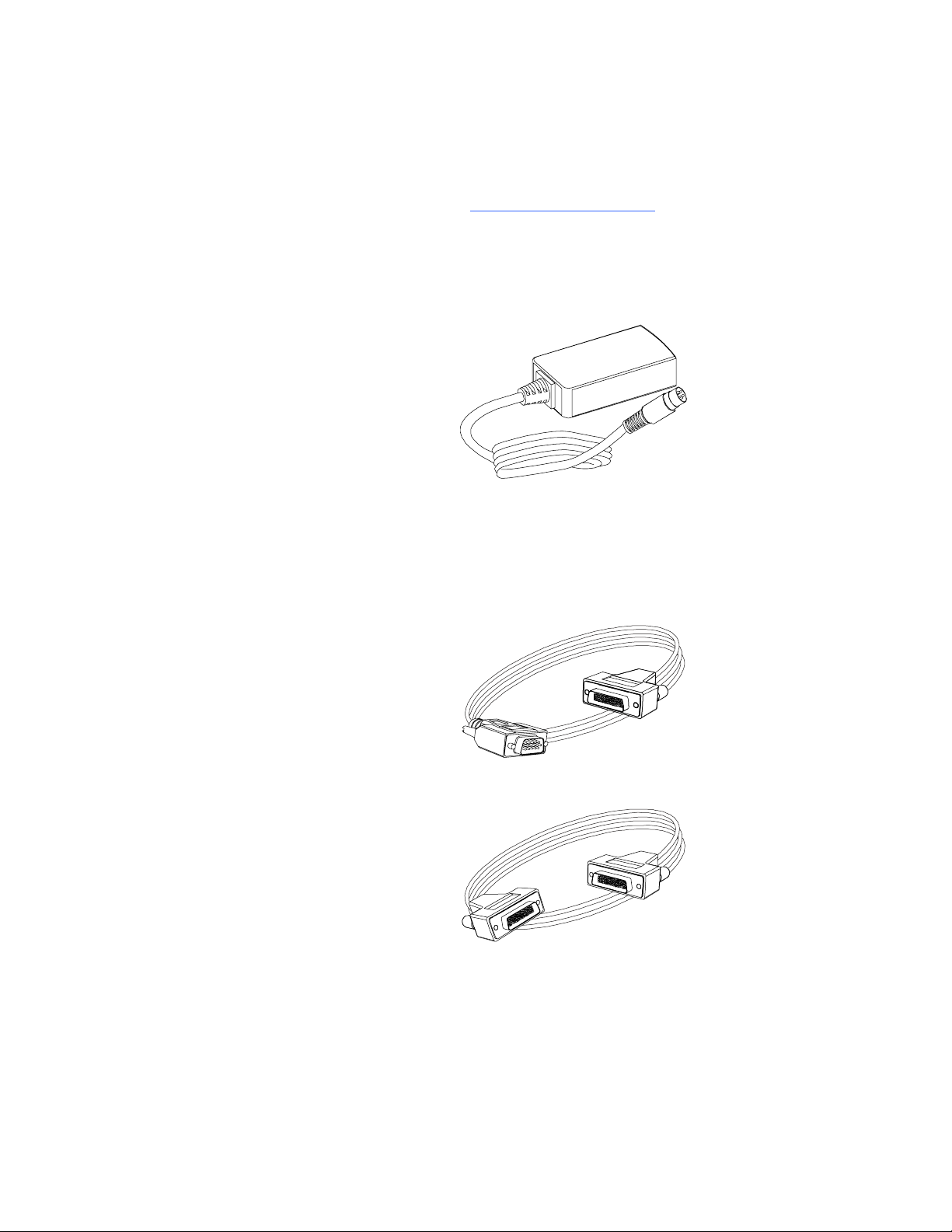
Power Supply
SMART provides a 12V, 5.0A power supply and the cable you need to connect it to a
power outlet (depending on your region).
Cables and Adapters
SMART provides the following cables:
• 6' (1.8 m) DVI male to VGA male cable to connect the Extended Control Panel
(ECP) from the DVI-out port.
• 6' (1.8 m) DVI male to DVI male cable to use if the display supports DVI ports.
Ce manuel convient aux modèles suivants
1
Table des matières
Autres manuels Smart Technologies Changer