smart home EchoVue 405 Manuel utilisateur

Operating Instruction
EchoVue 405
Digital Video Recorder

____________________________________________________________________________________________
DIGITAL VIDEO RECORDER
2
SAFETY PRECAUTIONS
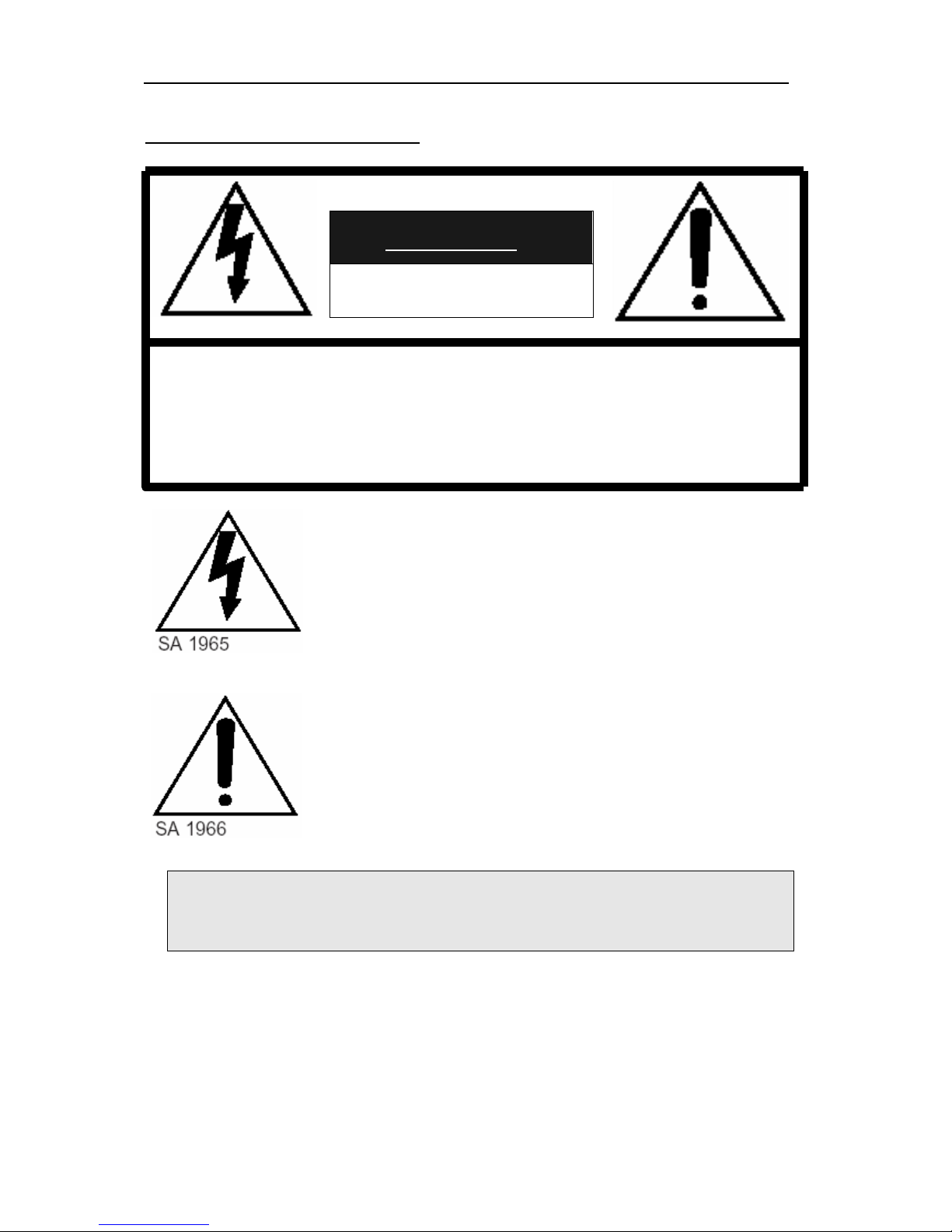
CAUTION
RISK OF ELECTRIC SHOCK
DO NOT OPEN
CAUTION:
TO REDUCE THE RISK OF ELECTRIC SHOCK, DO NOT REMOVE
COVER (OR BACK). NO USER SERVICEABLE PARTS INSIDE.
REFER SERVICING TO QUALIFIED SERVICE PERSONNEL.
The lightning flash with arrowhead symbol, within an
equilateral triangle, is intended to alert the user to the
presence of uninsulated “dangerous voltage” within the
product’s enclosure that may be of sufficient magnitude to
constitute a risk of electric shock to persons.
The exclamation point within an equilateral triangle is
intended to alert the user to the presence of important
operating and maintenance (servicing) instructions in the
literature accompanying the appliance.
WARNING:
TO PREVENT FIRE OR ELECTRIC SHOCK HAZARD, DO NOT EXPOSE
THIS APPLIANCE TO RAIN OR MOISTURE.

____________________________________________________________________________________________
DIGITAL VIDEO RECORDER
3
PRECAUTIONS
• Refer all work related to the installation of this product to qualified service personnel or
system installers.
• Do not block the ventilation opening or slots on the cover.
To prevent the appliance from overheating, place it at least 5 cm (2 inches) away from the wall.
• Do not drop metallic parts through slots.
This could permanently damage the appliance. Turn the power off immediately and contact
qualified service personnel for service.
• Do not attempt to disassemble the appliance.
To prevent electric shock, do not remove screws or covers. There are no user-serviceable parts
inside. Contact qualified service personnel for maintenance.
• Handle the appliance with care.
Do not strike or shake, as this may damage the appliance.
• Fully charge up the backup battery.
Keep the appliance turned on for at least 48 hours to recharge the backup battery. This
procedure is necessary when using the appliance for the firs time or after it has been unplugged
for a long time from the AC outlet. Insufficient charging of the battery may cause erasure of
settings if the AC power supply should fail. The battery, if fully charged, will back up the
settings for 480 hours in an ordinary environment.
• Do not expose the appliance to water or moisture, nor try to operate it in wet areas.
Do take immediate action if the appliance becomes wet. Turn the power off and refer servicing
to qualified service personnel. Moisture may damage the appliance and also cause electric shock.
• Do not use strong or abrasive detergents when cleaning the appliance body.
Use a dry cloth to clean the appliance when it is dirty. When the dirt is hard to remove, use a
mild detergent and wipe gently.
• Do not operate the appliance beyond its specified temperature, humidity or power source ratings.
Do not use the appliance in an extreme environment where high temperature or high humidity exists.
Use the appliance at temperatures within +5°C - +40°C (41°F - 104°F) and humidity below 90 %.
The input power source for this appliance is 110V-220V AC 50/60Hz.


____________________________________________________________________________________________
DIGITAL VIDEO RECORDER
4
Contents
Controls
1. Front Panel
2. Rear Panel
3. Remote Controller
Installation & Connections
1. Camera, Monitor, Microphone, Alarm sensor and Power cord
2. Alarm inputs and Alarm outs
3. External Backup Device.
4. PAN/TILT/ZOOM Camera
5. NETWORK
Programming
1. Main Menu
2. Display Set
3. Record Set
4. Group Recording Set & Motion Detection Set
5. Alarm Recording Set
6. Schedule Recording Set
7. Time & Date Set
8. System Set
9. Network Set
ⅣOperation
1. Live View
2. Basic Recording
3. Alarm Recording
4. Schedule Recording
5. Motion Detection Recording
6. Playback
7. Time & Date Search
8. Alarm List Search
9. Motion Search
10. Information & Log List

____________________________________________________________________________________________
DIGITAL VIDEO RECORDER
5
11. Zoom
12. PAN/TILT/ZOON Camera Control
13. External Backup Device Control (DAT24)
Client Program
1. How to install and connect?
2. Features
3. Image file down load from the DVR server
4. DVR Setting
5. Local Player
How to connect modem
Specification & Contents
1. Specification
2. Contents

____________________________________________________________________________________________
DIGITAL VIDEO RECORDER
6
Controls
1. Front Panel Controls
POWER
LOCK
ZOOM
INFO
BACKUP
RESTORE
P/T/Z/FOCUS
SCHEDULE
CLEAR
MENU
CURSOR
Digital Surveillance Recorder
REC AUDIO-PB
0 STILL
PLAY
STOP
HOLD
SHUTTLE
ALARM
SEARCH
SEARCH
TIME
78
45
9
6
123
LOCK
RECPOWER SCHEDULE
12 3 4 5
678
9
10
11 12
13
14
15 16
17 18
19 20
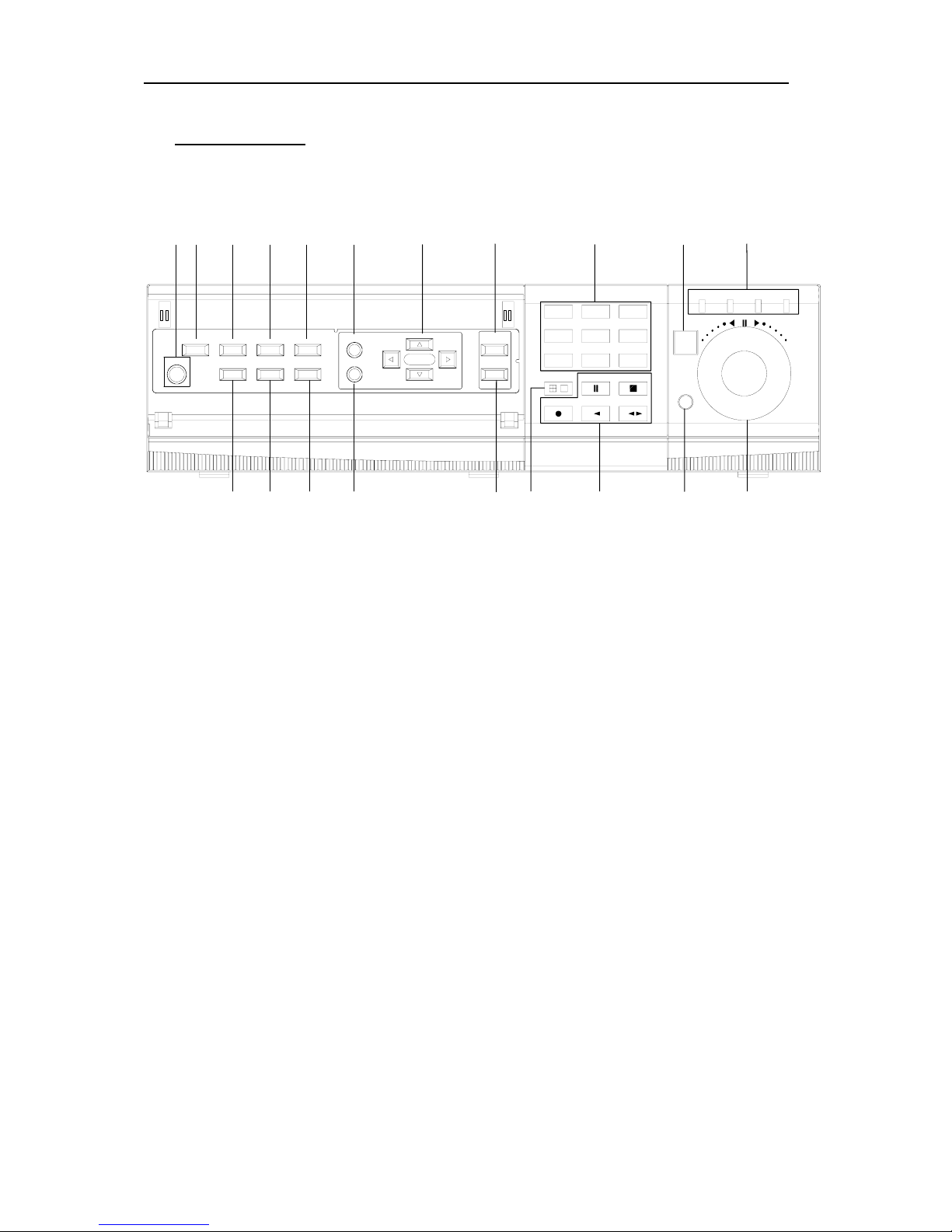
1) POWER button
Press this button to turn the power on; press again to turn the power off. The
POWER LED (red) lights/goes off when the power is on/off. It flashes when
switching during initializing and disk checking.
2) LOCK button
Press this button to lock all unit’s key buttons including the remote controller.
The LOCK LED (green) lights/goes off when the lock is on/off. To release
press it again and enter the password.
3) RESTORE button
Press this button to restore recorded data to the main hard disk from an
archive device only when an external SCSI DAT24 is connected.
4) SCHEDULE button
Press this button to make scheduled recording standby. The SCHEDULE
LED (green) lights/goes off when the schedule is on/off.
5) INFO button
Press the button to display current system information; press again to
display log list.
6) BACKUP button
Press this button to begin making a backup copy of the hard drive. If there is
no peripheral recording device connected, this button cannot be used.
7) PAN/TILT/ZOOM button

____________________________________________________________________________________________
DIGITAL VIDEO RECORDER
7
Press this button to control a PAN/TILT/ZOOM camera via RS-232
connection.
8) ZOOM button
Press this button to display zoom area box; press again to enlarge the image.
Pressing cursors can move this zoom area.
9) MENU button
Press this button to display the MAIN MENU screen.
It is also used as EXIT button to exit all kinds of OSD screen.
10) CLEAR button.
In Zoom mode, pressing this button reduces the image.
In stop mode and playback mode, pressing this button disappears time &
date OSD.
Pressing it again appears the OSD.
On ‘RECORD GROUP SET’ menu, it sets each channel ‘Motion Detection’.
11) Direction (bcef) buttons.
In Menu setup mode, used to move the cursor.
In Zoom mode, used to move the zoom area.
12) TIME SEARCH button
Press this button to display the Time Search menu.
13) ALARM SEARCH button
Press this button to display the Alarm Search menu.
14) Numeric buttons (NO. 1~9)
Used to enter the password and select the camera numbers.
15) Quad/Sequence, 0 button
Press this button to display the cameras in quad mode or to switch sequence
function.
In addition, this button can be used as number 0 to set the password.
16) AUDIO PB button
Press this button to synchronize the sound track with the scenes.
17) Remote control signal receiver.
18) Mode Indicator.
19) SHUTTLE HOLD button
This button retains the selected playback or reverse playback speed.
Rotate the SHUTTLE ring to the desired search speed, and then press the
SHUTTLE HOLD button while holding the SHUTTLE ring at the selected
search speed. Search speed will be maintained even when the SHUTTLE
ring is returned to its original position.

____________________________________________________________________________________________
DIGITAL VIDEO RECORDER
8
20) Jog and shuttle operation
SHUTTLE ring
Use the ring to set various menus and search functions, to adjust the
playback speed, and to rewind or forward the image.
JOG dial
Use the dial to set various menus and search functions, and to forward or
reverse the image during playback (field-by-field).
2. Rear Panel Connectors
REC START
INOUT
SCSI
OUT
IN
CAMERA
CAMERA
AUDIO MIC
1
1
23
23
OFF
ON
75ohm
S-VIDEO
4
4
COMPOSITE
VIDEO
OUT
ALARM IN4
ALARM IN3
ALARM IN2
ALARM IN1
GND
POWER ON
POWER OFF
ALARM OUTPUT
GND
ETHERNET RS-232C
REC END
GND
1 2
3 4567 8 9 10 11 12
13
14
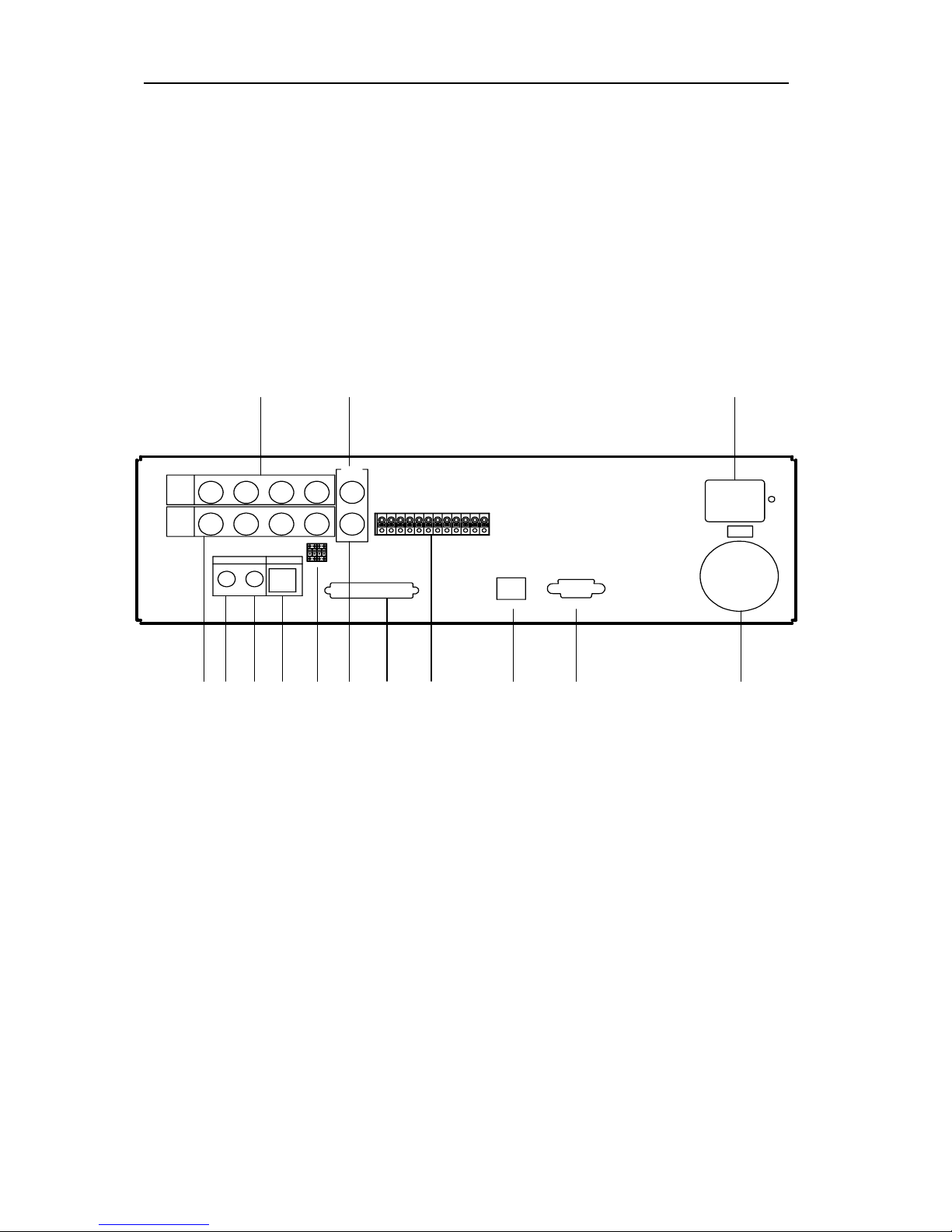
1) CAMERA IN connectors
These are BNC input connectors for 4 cameras
2) VIDEO OUT connectors
A BNC standard composite video output connector
3) CAMERA OUT connectors
These are BNC output (looping) connectors for cameras.
4) S-VHS OUT connector
An S-VHS connector for separate luminance and chrominance (Y/C) signals
5) AUDIO OUT connector
This is an RCA output connector for an audio signal.
6) AUDIO IN connector
This is an RCA input connector for an audio signal.
7) MIC jack
This is an input connector for a microphone.
8) 75 Ohm Termination switch.

____________________________________________________________________________________________
DIGITAL VIDEO RECORDER
9
9) SCSI-2 connector
This connector is for peripheral recording device.
10) ALARM IN/OUT terminal.
11) RJ-45 ETHERNET connector
12) RS-232C
13) AC power socket
14) Power Fan
3. Remote Controller

____________________________________________________________________________________________
DIGITAL VIDEO RECORDER
10
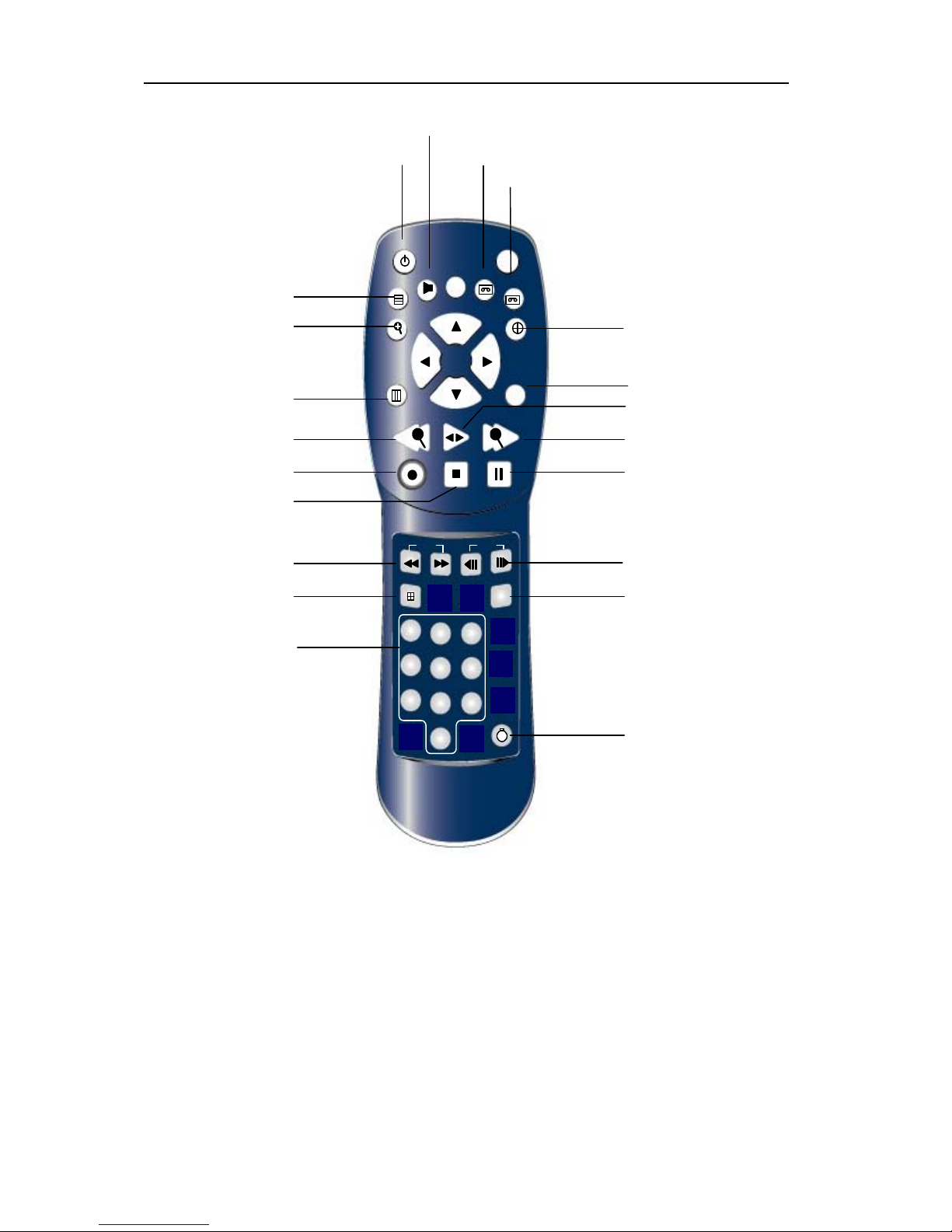
POWER
MENU
PLAYT-SEARCH A-SEARCH
REC STOP STILL
STEP
QUAD
123
456
789
0
ZOOM
INFO
SCH
CLEAR
BACKUPAUDIO-PB
P/T/Z
SCH
T
RESTORE
LIGHT
A
FAST
POWER
AUDIO-PB
BACKUP
RESTORE
INFORMATION
ZOOM PAN/TILT/ZOOM
MENU CLEAR
TIME SEARCH
PALYBACK
ALARM SEARCH
REC STILL
STOP
FAST VIEW FIELD BY FIELD
QUAD SCHEDULE REC ON/OFF
NUMBER
LIGHT
Table des matières
Autres manuels smart home DVR