smart home 3838 Manuel utilisateur

User’s Manual 8CH DVR
- 0 -
3
38
83
38
8&
&3
38
83
38
8V
V
U
US
SE
ER
R’
’S
S
M
MA
AN
NU
UA
AL
L
8-Channel Standalone DVR
Installation Guide & User’s Manual
V
ersion 2.54

User’s Manual 8CH DVR
- 1 -
Directory
1. DVR FEATURE..............................................................................................................3
2. OUTLOOK.....................................................................................................................3
2.1 FRONT PANEL .............................................................................................................3
2.2 REAR PANEL ...............................................................................................................4
2.3 REMOTE CONTROLLER.................................................................................................5
3. DVR INSTALLATION.....................................................................................................5
3.1 INSTALL HARD DISK .....................................................................................................5
3.2 CONNECT CAMERA AND MONITOR .................................................................................6
3.3 CONNECT POWER CORD..............................................................................................6
4. DVR SYSTEM BOOT ....................................................................................................6
4.1 DETECT INSTALLED HARD DISK.....................................................................................6
4.2 MAIN SCREEN .............................................................................................................6
5. DVR SETUP...................................................................................................................7
5.1 CAMERA .....................................................................................................................7
5.2 RECORD .....................................................................................................................8
5.2.1 Record Framerate...............................................................................................8
5.2.2 Record Quality ....................................................................................................8
5.2.3 Record Schedule ................................................................................................8
5.3 ALARM ........................................................................................................................9
5.3.1 Sensor ..............................................................................................................10
5.3.2 Motion ............................................................................................................... 11
5.4 AUDIO.......................................................................................................................12
5.5 SYSTEM....................................................................................................................12
5.5.1 Password Setup................................................................................................12
5.5.2 Hard Disk Setup................................................................................................13
5.5.3 Time Setup........................................................................................................14
5.5.4 Event List ..........................................................................................................14
5.5.5 Network Settings...............................................................................................14
5.5.6 PTZ Setup.........................................................................................................15
5.5.7 Screen Adjustment............................................................................................17
5.5.8 Key lock ............................................................................................................17
5.5.9 Border ...............................................................................................................17
5.5.10 Auto sequence ................................................................................................17
5.6 SEARCH....................................................................................................................17

User’s Manual 8CH DVR
- 2 -
5.7 LANGUAGE................................................................................................................18
5.8 EXIT .........................................................................................................................18
5.9 NTSC/PAL OUTPUT SELECT .....................................................................................18
6. RECORD......................................................................................................................19
6.1 START RECORDING ....................................................................................................19
6.2 STOP RECORDING .....................................................................................................19
6.3 RECORDING LENGTH .................................................................................................20
7. PLAYBACK .................................................................................................................21
8. BACKUP......................................................................................................................21
9. NETWORK...................................................................................................................22
9.1 HARDWARE INSTALL...................................................................................................22
9.2 SETUP IP ADDRESS OF DVR ......................................................................................22
9.3 CONFIGURE IP ADDRESS OF PC .................................................................................22
9.4 CONNECT PC TO DVR—NET VIEWER ........................................................................23
9.4.1 Install ................................................................................................................23
9.4.2 Program Interface .............................................................................................24
9.4.3 Button Function.................................................................................................26
9.4.4 Local Recording ................................................................................................27
9.4.5 Play Local Recording ........................................................................................27
9.5. CONNECT PC TO DVR — IE BROWSER.....................................................................28
OPTIONAL .......................................................................................................................30
11. APPENDIX.................................................................................................................31
11.1 SYSTEM CONNECT SKETCH MAP ..............................................................................31
11.2 FITTINGS COME ALONG WITH DVR ...........................................................................31

User’s Manual 8CH DVR
- 3 -
1. DVR Feature
8 Channel BNC Camera Input.
2 Channel BNC Monitor Output.
Support Network: Static, DHCP.
USB 2.0 Port For Backup And Playback With PC.
VGA Output (Optional).
NTSC / PAL.
Video Loss Alarm.
Motion Detection With Area Setting.
PTZ Control With RS485 Port.
4 Sets NO/NC Sensor Input.
1 Alarm Output (2A 28VDC / 2A 125 VAC).
One IDE (ATA-100) or SATA Hard Disk Interface, Support Over 500G Bytes.
Time Schedule Record / Sensor Triggered Record / Motion Triggered Record / Motion and
Sensor Triggered Record.
IR Remote Controller.
This DVR is provided with double function. That means when it’s recording, user can play
back or handle menu bar simultaneously.
2. Outlook
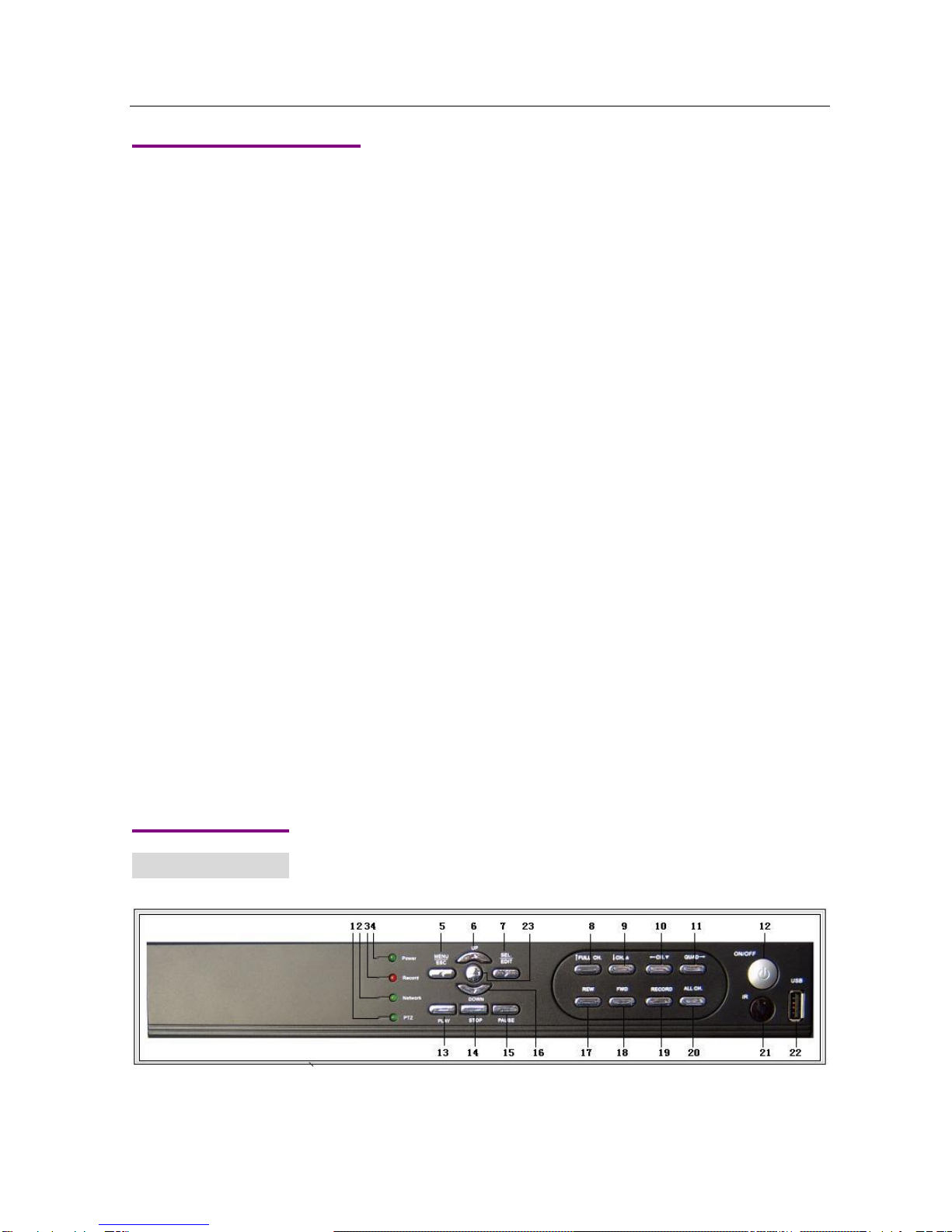
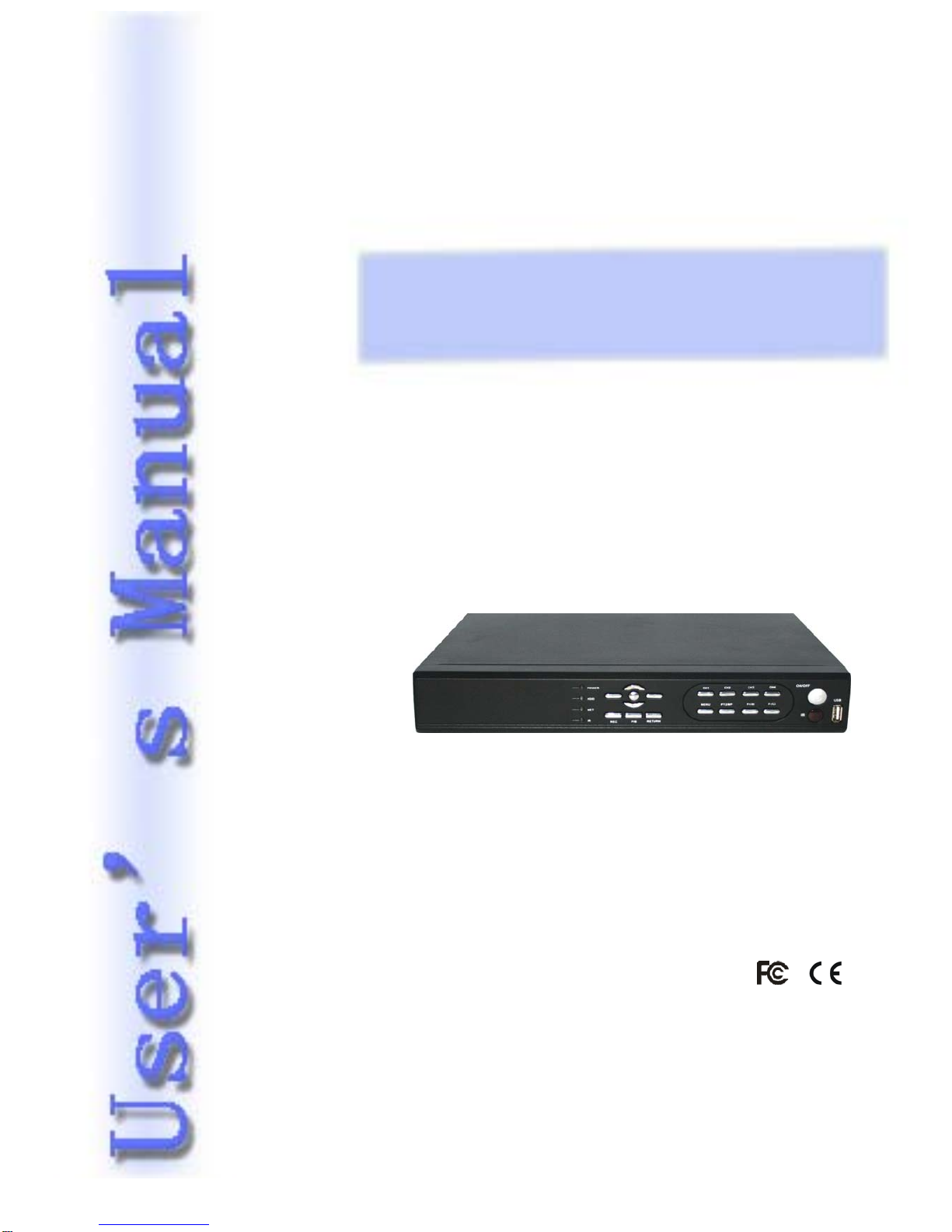
2.1 Front Panel

User’s Manual 8CH DVR
- 4 -
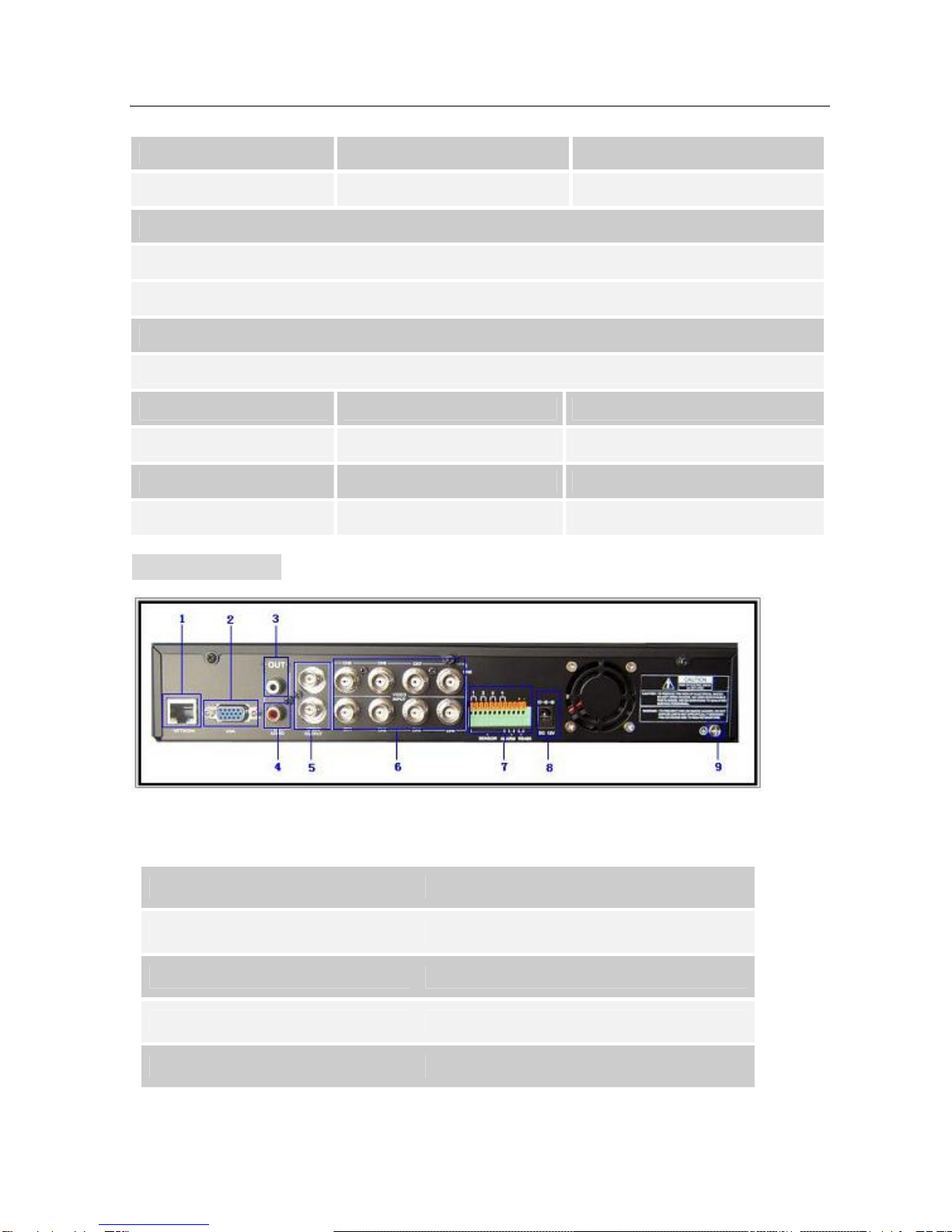
2.2 Rear Panel
1. PTZ Indicator 2. Network Indicator 3. HDD Access Indicator
4. Power Indicator 5. Enter/Exit Menu Setup 6. Move Prompt Up
7. Modify Item
8. Full Screen /Move Dome UP/Move Prompt Up In Motion Area
9. Channel Up/Move Dome Down/Move Prompt Down In Motion Area
10. Channel Down /Move Dome Left/Move Prompt Left In Motion Area
11. Quad View/Move Dome Right/Move Prompt Right In Motion Area
12. Power Switch 13. Play Record or Focus+ 14. Stop Playing or Dome running
15. Pause or Focus- 16. Move Prompt Down 17. Rewind or Zoom-
18. Forward or Zoom+ 19. Record or Stop Recording 20. All Channel
21. IR Window 22. USB Port 23. PTZ Switch
1. Network 2. VGA Output (Optional)
3. Audio Output 4. Audio Input
5. Video Output 6. Video Input
7. Sensor/ Alarm/RS485 8. DC Input (12V)
9. Grounding

User’s Manual 8CH DVR
- 5 -
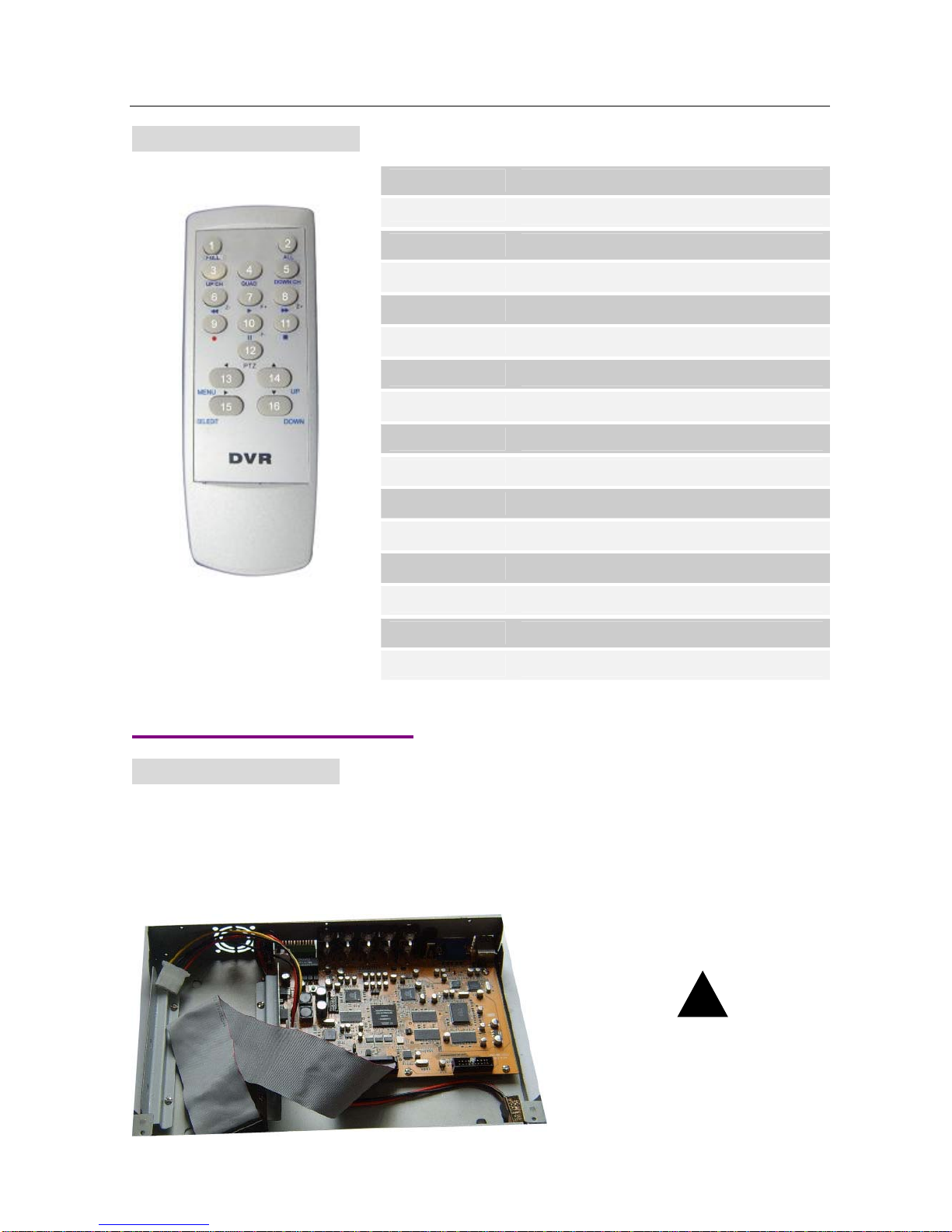
2.3 Remote Controller
1. FULL One CH View or Move Dome Up
2. ALL All CH View
3. UP CH. UP CH View or Move Dome Down
4. QUAD Quad View or Move Dome Right
5. DOWN CH. DOWN CH View or Move Dome Left
6. REW Rewind or Zoom-
7. PLAY Play record list or Focus+
8. FWD Forward or Zoom+
9. RECORD Record or Stop Record or Reduce Value
10. PAUSE Pause or Focus-
11. STOP Stop Playing or Stop Dome Running
12. PTZ PTZ Switch
13. MENU Enter or Exit Setup Menu
14. SEL/EDIT Modify Item or Increase Value
15. UP Move Prompt Up
16. DOWN Move Prompt Down
3. DVR Installation
3.1 Install Hard Disk
Connect power cord and data cable to hard disk drive, use screw to fix hard disk with the iron of DVR
housing.
(HDD is recommend to be provided by user)
CAUTION
Do not open the cove
r
when DVR running!
!

User’s Manual 8CH DVR
- 6 -
3.2 Connect Camera and Monitor
There are eight cameras input and two monitors output with BNC connector.
3.3 Connect Power Cord
Please use the power adapter supplied with DVR.
4. DVR System Boot
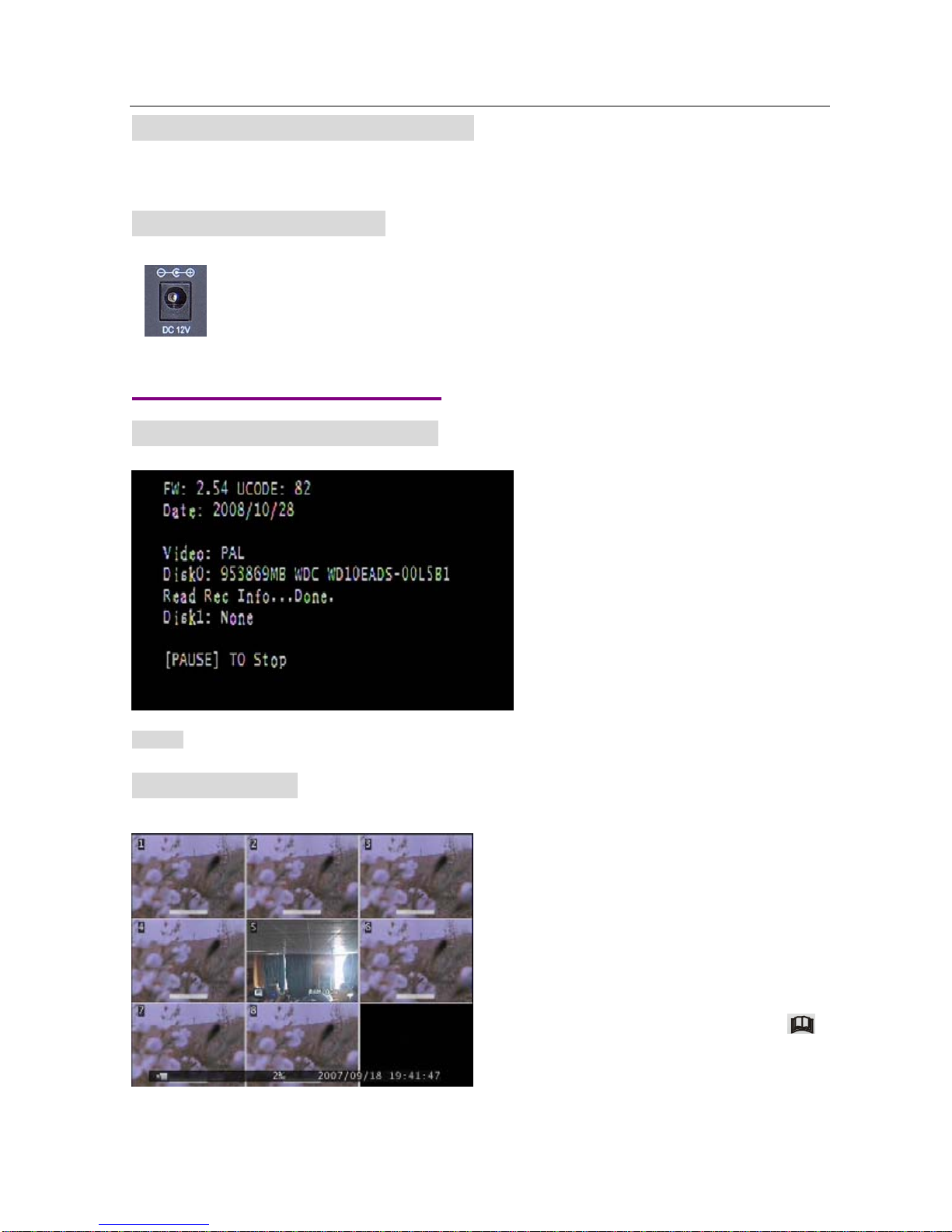
4.1 Detect Installed Hard Disk
After connecting the power, system will
boot-up firmware, date, video and detect
installed hard disk. Hard-disk information will
show up on monitor.
If use IDE hard disk drive, please make
reference to hard disk manual to configure
hard disk sequence. (Master)
Notice: When user uses IDE hard disk drive, make sure the HDD is master.
4.2 Main Screen
Firstly, start the DVR system. DVR will be
sense of eight cameras shown on the
monitor.
Name:(CH1 ~CH8).
Bottom rightDate and Time shown on there.
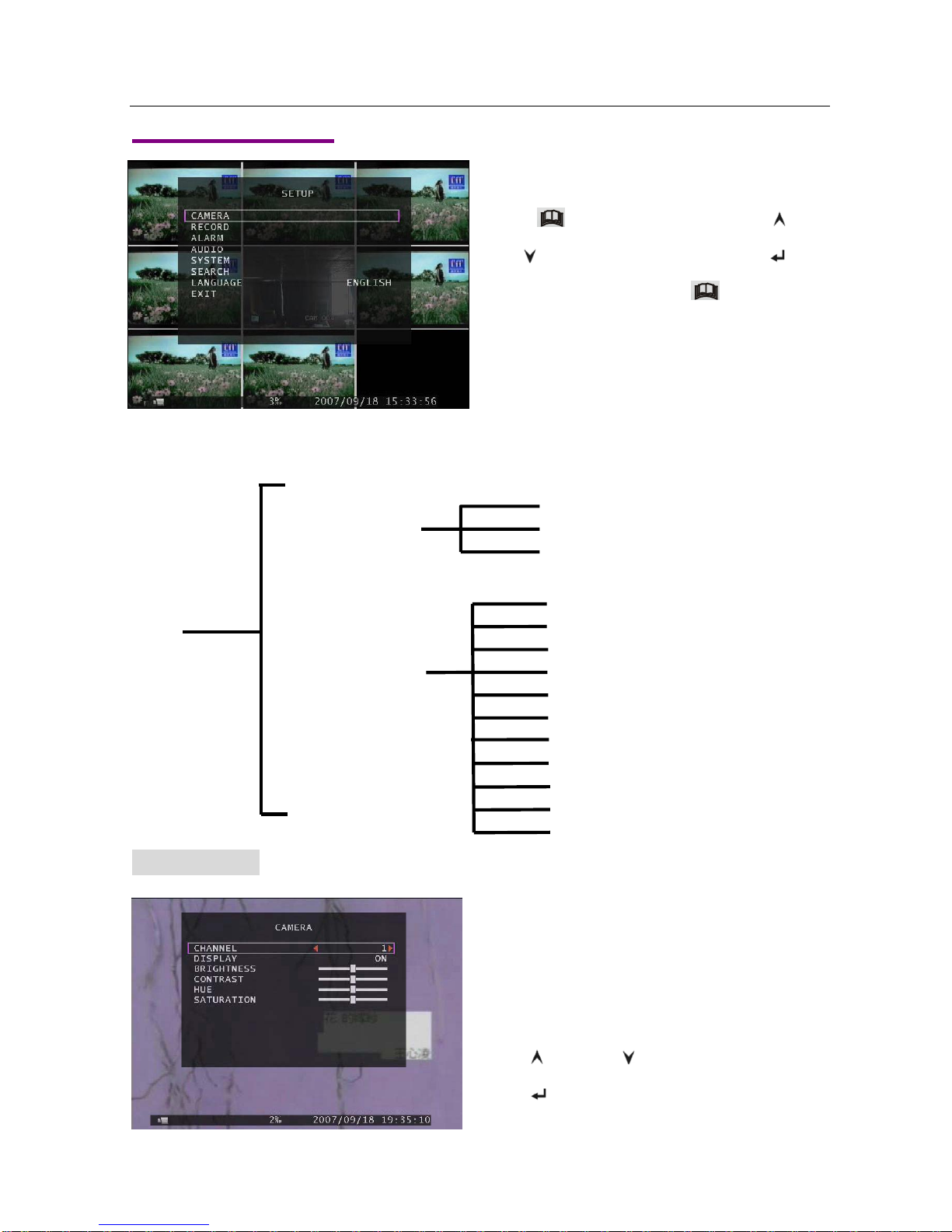
DVR is waiting for key function, Press “
Menu” into DVR setup process.

User’s Manual 8CH DVR
- 7 -
5. DVR Setup
MenuDirectory
Camera
Record
Alarm
Audio
System
Search
Language
Exit
5.1 Camera
DVR system can display eight cameras and videos
in one picture. User can configure which camera to
display. If the order of “Display” for one channel is
OFF, system will display black on monitor.
Press「Up」or 「Down」to move the prompt.
Press「Select」or 「REC」to modify setting.
Press “ Menu” into setup menu, use “ Up”
and “ Down” to select item, then press“
Select” to modify setting and “ Menu” to
confirm and exit.
Password Setup
Hard Disk Setup
Time Setup
Event List
Network Settings
PTZ Setup
Screen Adjustment
Key lock
Border
Record Frame Rate
Record Quality
Record Schedule
Setup

User’s Manual 8CH DVR
- 8 -
The button 「Select」can increase value and the button 「REC」can reduce value.
5.2 Record
5.2.1 Record Framerate
second at most.
5.2.2 Record Quality
There are three level of record quality, High, Normal and Low. Higher quality cost more hard disk
space. In Chinese captions the best record quality is three, and the worst record quality is one.
Record frame rate, record quality and hard disk space will affect total record time of DVR system.
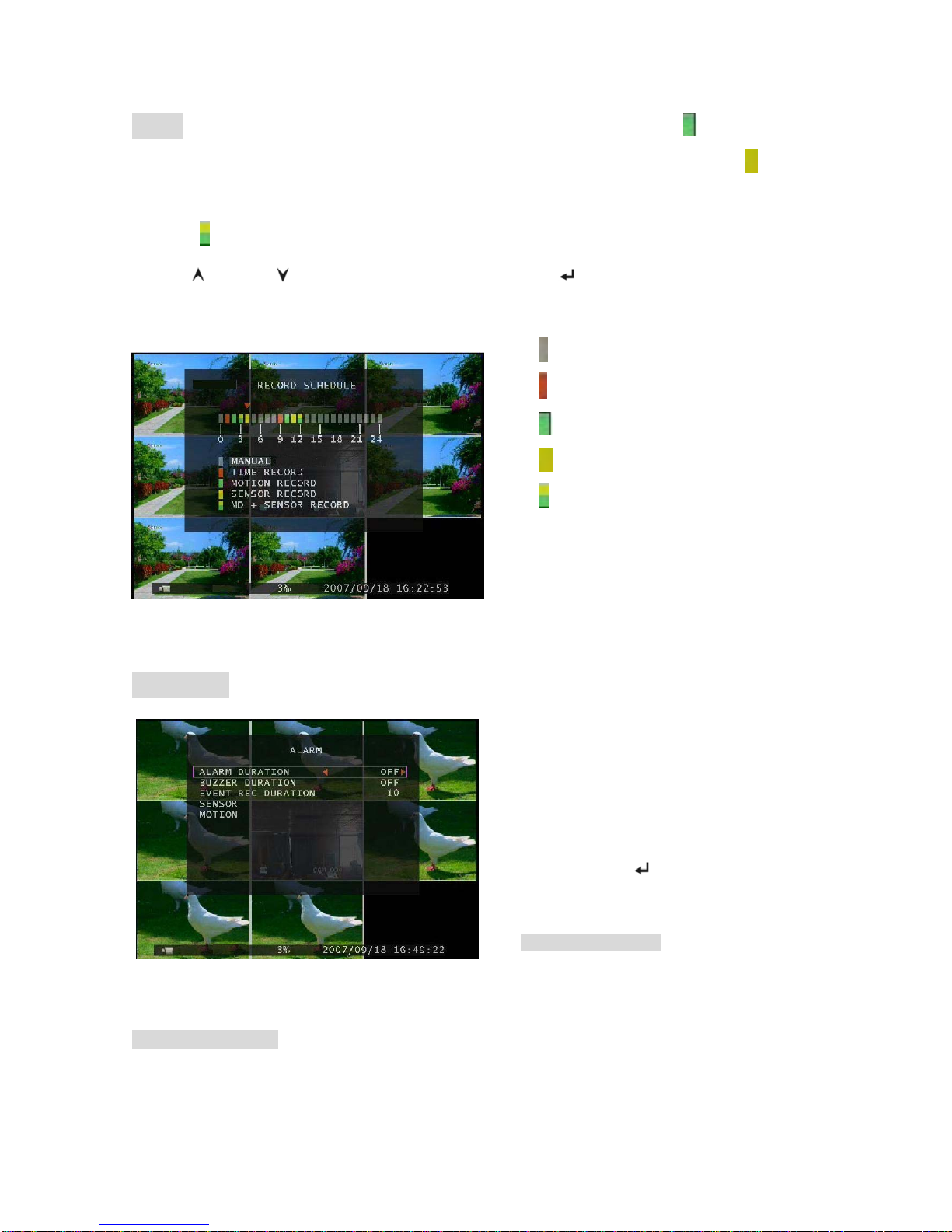
5.2.3 Record Schedule
User can setup video record method by time, sensor triggered, motion triggered or motion
&sensor triggered.
Press「Up」or「Down」to move the prompt.
Press 「Select」to enter each sub menu,
and press 「Select」or 「REC」to modify
each parameter.
Record frame rate will affect the movement of
object in recorded video. More frames means
more smooth movement and cost more hard
disk space. System default value is 48 FPS.
That means system will record 48 frames per
second. Total used frame is 50 FPS. That
means system can record 50 frames per

User’s Manual 8CH DVR
- 9 -
Notice: To start motion record, make sure the period that you intend to record is “ ” in the “record
schedule” menu. To start sensor record, make sure the period that you intend to record is “ ”in the
“record schedule” menu. And to start motion & sensor record, make sure the period that you intend to
record is “ ”in the “record schedule” menu.
Press 「Up」or 「Down」to move the prompt ,and press「SEL」to select video record method.
User can press the button 「ALL」to set up the same record method during the whole time.
and output signal to notify DVR during this specified period of time.
5.3 Alarm
It controls how long (in seconds) the alarm lasts after the system is triggered.
BUZZER DURATION
When Buzzer Duration is “OFF”, all the buzzers will be shut off. When “Buzzer Duration” is “CONT”, the
buzzer will work continuously.
λ “”Manual Record(System Default)
λ “” Time Record.
λ “” Motion Triggered.
λ “” Sensor Triggered.
λ “” Motion & Sensor Triggered.
Cooperate with many kinds of external sensor
equipment like PIR, Gas sensor. DVR will not
record video until external sensor was triggered
The order of “Alarm duration” & “Buzzer
duration” has “OFF, 05,10,15,20,25,30 and
CONT” to select, and the order of “Event REC
Duration” has “05,10,15,20,25,30” to select.
User can press [ Select] or [ REC ] to set the
time.
ALARM DURATION
Ce manuel convient aux modèles suivants
1
Table des matières
Autres manuels smart home DVR