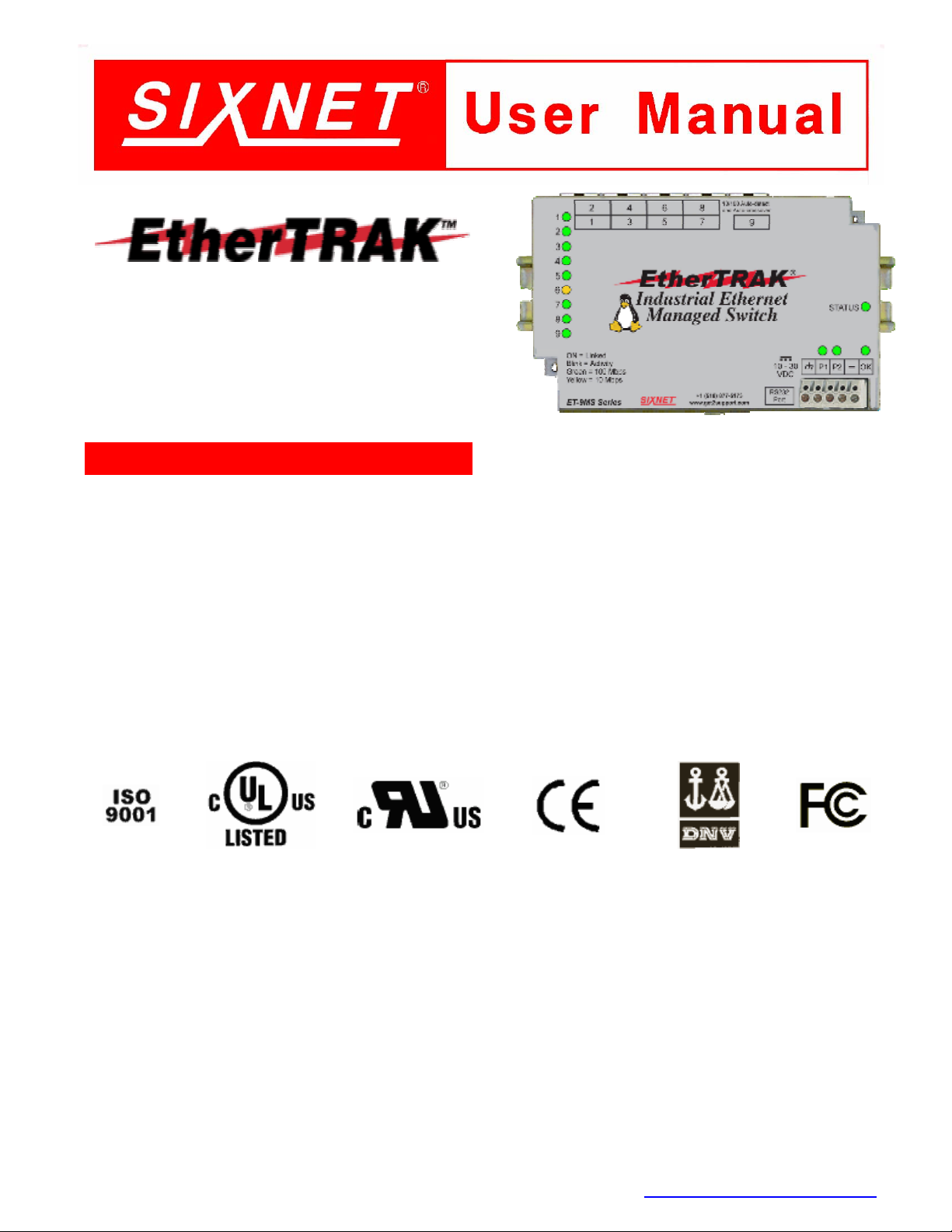
Sixnet EtherTRAK ET-5MS Series Manuel utilisateur

Managed Switch Hardware Manual Page 1 of 18 Last Revised: 16-Nov-06
SIXNET •331 Ushers •Box 767 •Clifton Park, NY 12065 USA •+1 (518) 877-5173 •mailto: [email protected]
Industrial Ethernet
Managed Switches
Contents at a Glance:
Section 1 General Information Page 3
Section 2 LED Indicators Page 4
Section 3 Installation / Mounting Page 5
Section 4 Power Wiring Page 10
Section 5 Communication Wiring Page 11
Section 6 Technical Specifications Page 13
Section 7 Service Information Page 15
Applicable standards and certifications:
Total Quality Hazardous Locations Standard Locations European Directives Marine & Offshore US Emissions
This manual applies to the following products:
•ET-5MS-# 5-port managed Ethernet switch with 5 10/100 ports
•ET-5MS-MDM-# 5-port managed Ethernet switch with integrated telephone modem
•ET-9MS-# 9-port managed Ethernet switch with 9 10/100 ports
•ET-9MG-# 9-port managed Ethernet switch with 6 10/100 and 3 Gigabit ports
•ET-10MG-# 10-port managed Ethernet switch with 8 10/100 and 2 Gigabit ports
•ET-16MS-# 16-port managed Ethernet switch with 16 10/100 ports
•ET-18MG-# 18-port managed Ethernet switch with 16 10/100 and 2 Gigabit ports

Managed Switch Hardware Manual Page 2 of 18 Last Revised: 16-Nov-06
SIXNET •331 Ushers •Box 767 •Clifton Park, NY 12065 USA •+1 (518) 877-5173 •mailto: [email protected]
SIXNET Protected Technology Policy - SIXNET protects your investment in SIXNET systems with long-
term planned technology and our unique Protected Technology Policy. We will continue to support the specified
capabilities of standard SIXNET products for at least five years (twenty years for Industrial Managed Switches). We
plan each product improvement and new feature to be upward compatible with existing designs and installations. Our
goals are to make each new software release bring new power to your SIXNET systems and have every existing
feature, applications program and data file continue to work. We protect your investment even further with a liberal
five-year trade-in policy. Exchange standard products for upgraded versions of the same product to take advantage of
new features and performance improvements at any time for five years. A prorated trade-in allowance will be given for
your existing equipment. SIXNET protects your long-term productivity with state-of-the-art planned technology and
continued support.
SIXNET Statement of Limited Warranty - SIXNET, manufacturer of SIXNET products, warrants to Buyer
that products, except software, manufactured by SIXNET will be free from defects in material and workmanship.
SIXNET's obligation under this warranty will be limited to repairing or replacing, at SIXNET's option, the defective
parts within one year of the date of installation, or within 18 months of the date of shipment from the point of
manufacture, whichever is sooner. Products may be returned by Buyer only after permission has been obtained from
SIXNET. Buyer will prepay all freight charges to return any products to the repair facility designated by SIXNET.
This limited warranty does not cover losses or damages which occur in shipment to or from Buyer or due to improper
installation, maintenance, misuse, neglect or any cause other than ordinary commercial or industrial applications. In
particular, SIXNET makes no warranties whatsoever with respect to implied warranties of merchantability or fitness
for any particular purpose. All such warranties are hereby expressly disclaimed. No oral or written information or
advice given by SIXNET or SIXNET’s representative shall create a warranty or in any way increase the scope of this
warranty. This limited warranty is in lieu of all other warranties whether oral or written, expressed or implied.
SIXNET's liability shall not exceed the price of the individual units, which are the basis of the claim. In no event shall
SIXNET be liable for any loss of profits, loss of use of facilities or equipment, or other indirect, incidental or
consequential damages.
INSTALLATION AND HAZARDOUS AREA WARNINGS - These products should not be used to
replace proper safety interlocking. No software-based device (or any other solid-state device) should ever be
designed to be responsible for the maintenance of consequential equipment or personnel safety. In particular,
SIXNET disclaims any responsibility for damages, either direct or consequential, that result from the use of
this equipment in any application. All power, input and output (I/O) wiring must be in accordance with Class I,
Division 2 wiring methods and in accordance with the authority having jurisdiction.
WARNING
(EXPLOSION HAZARD) SUBSTITUTION OF COMPONENTS MAY IMPAIR SUITABILITY FOR CLASS 1,
DIVISION 2 (ZONE 2).
WARNING
(EXPLOSION HAZARD) WHEN IN HAZARDOUS LOCATIONS, DISCONNECT POWER BEFORE REPLACING
OR WIRING UNITS.
WARNING
(EXPLOSION HAZARD) DO NOT DISCONNECT EQUIPMENT UNLESS POWER HAS BEEN SWITCHED OFF
OR THE AREA IS KNOWN TO BE NONHAZARDOUS.
FCC Statement - This equipment has been tested and found to comply with the limits for a Class B digital device, pursuant
to Part 15 of the FCC Rules. These limits are designed to provide reasonable protection against harmful interference in a
residential installation. This equipment generates, uses and can radiate radio frequency energy and, if not installed and used in
accordance with the instructions, may cause harmful interference to radio communications. However, there is no guarantee that
interference will not occur in a particular installation. If this equipment does cause harmful interference to radio or television
reception, which can be determined by turning the equipment off and on, the user is encouraged to try to correct the interference
by one or more of the following measures: Reorient or relocate the receiving antenna; Increase the separation between the
equipment and receiver; Connect the equipment into an outlet on a circuit different from that to which the receiver is connected;
Consult the dealer or an experienced radio/TV technician for help.
Copyright & Trademarks - Copyright ©2005 SIXNET, All Rights Reserved. EtherTRAK is a registered
trademark of SIXNET.
Note: All information in this document is subject to change without notice.

Managed Switch Hardware Manual Page 3 of 18 Last Revised: 16-Nov-06
SIXNET •331 Ushers •Box 767 •Clifton Park, NY 12065 USA •+1 (518) 877-5173 •mailto: [email protected]
Section 1 General Information
Overview
This manual will help you install and maintain the Managed Switches. Installation of these
managed switches will enable the user to wire redundant connections between nodes, manage the
network by monitoring/gathering network data, allow for browser or telnet configuration, increase
network performance, and more.
Note: This manual only covers the installation and wiring of these switches. Refer
to the separate Software User Manuals for details on configuring and using any of
the management functions such as SNMP, RSTP, IGMP, port mirroring, etc.
Operation
Unlike an Ethernet hub that broadcasts all messages out all ports, the Managed Switches will
intelligently route Ethernet messages only out the appropriate port. Most importantly, unlike a
regular Ethernet switch, very resilient networks can be implemented because the Managed Switch
has the intelligence to detect and allow for ring and mesh Ethernet topologies. In other words,
implementing this switch will optimize the network for optimal bandwidth conditions, reduce the
number of collisions, and allow for redundant data path connections to reduce/eliminate downtime.
To further aid in network reliability and performance, SNMP is available to extract and exchange
network statistical information. Through the use of SNMP, various groups of statistical information
can be obtained such as TCP, RMON, IP, and more to aid the user’s job to extrapolate the “health”
of the network.
The Managed Switches can support 10BaseT (10 Mbps), 100BaseT (100 Mbps) and 1000BaseT
(1000Mbps) on their RJ45 ports (depending on the model). Each of these ports will independently
auto-sense the speed, allowing you to interface to regular, fast or gigabit Ethernet devices. Some
models also have one or two 100BaseF (100 Mbps) or 1000BaseF (1000 Mbps) fiber optic ports.
Performance
Specifications
These general specifications apply to the Managed Switches. Refer to Section 7 for complete
technical specifications.
5, 9, 10, 16 or 18 Ethernet ports
Ethernet Switch Type: Managed with SNMP, RSTP, IGMP, VLANs and much more
Ethernet Protocols: All standard IEEE 802.3
RJ45 Ports (shielded): 10/100 or 10/100/1000 (with auto-negotiation, auto-crossover and auto-polarity)
Fiber optic port speed: 100 or 1000 Mbps depending on transceiver installed
Fiber optic wavelength: 850, 1300, 1310 or 1550 nm depending on transceiver installed
Standards
and Safety
The Managed Switches meet the following standards plus others:
Electrical safety - UL 508, CSA C22; EN61010-1 (IEC1010)
EMI emissions - FCC part 15, ICES 003, EN55022; Class B
EMC immunity – IEC61326-1
Hazardous locations – UL 1604, CSA C22.2/213 (Class 1, Div. 2), Groups A, B, C, D; Cenelec
EN50021 and ATEX (Zone 2)
Install the Managed Switches in accordance with local and national electrical codes.
Lightning Danger: Do not work on equipment during periods of lightning activity.
Do not connect a telephone line into one of the Ethernet RJ45 connectors.

Managed Switch Hardware Manual Page 4 of 18 Last Revised: 16-Nov-06
SIXNET •331 Ushers •Box 767 •Clifton Park, NY 12065 USA •+1 (518) 877-5173 •mailto: [email protected]
Section 2 LED Indicators
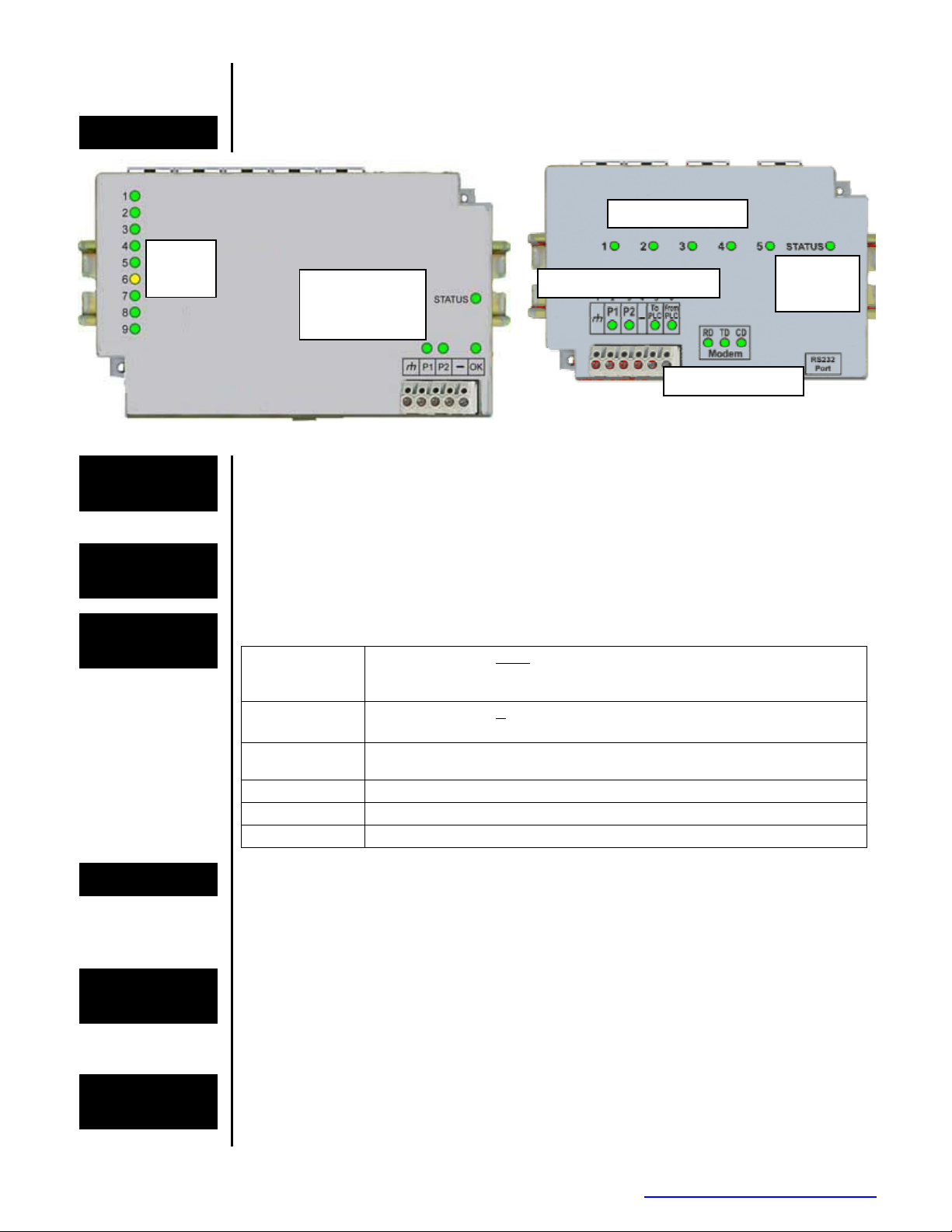
Overview The Managed Switches have communication LEDs for each port, an “OK” output LED, a status
LED and power LEDs. Refer to the sample pictures below for the location of these LEDs.
Typical LED Location on the Managed Switches (varies with model)
Status LED
The Status LED indicates the overall health of the switch. It is normally ON solid indicating that no
internal CPU or software problems are detected. It will flash when loading firmware and briefly on
power up or reset. Otherwise, if it is OFF or flashing for an extended period of time then a problem
is detected. In this case, please contact your switch supplier for support.
Power LEDs
There are two Power LEDs on the Managed Switch that are above the P1 and P2 terminals. P1 is
used for primary power and P2 is used for secondary power. Both indicate if there is power applied
to the respective terminal.
ACT / LNK /
(10/100) LEDs
The port LEDs are multifunctional and indicate link confirmation, activity, and speed.
Off Indicates that there is not a proper Ethernet connection (Link) between the
port and another Ethernet device. Make sure the cable has been plugged
securely into the ports at both ends.
On Solid
(not flashing) Indicates that there is a proper Ethernet connection (Link) between the port
and another Ethernet device, but no communications activity is detected.
Flashing Indicates that there is a proper Ethernet connection (Link) between the port
and another Ethernet device, and that there is communications activity.
Red A 1000 Mbps (1000BaseT) connection is detected.
Green A 100 Mbps (100BaseT) connection is detected.
Yellow A 10 Mbps (10BaseT) connection is detected.
OK LED This LED indicates the status of the power inputs. There is an output screw terminal that can be
connected as shown in Figure 4A and 4B. The output voltage from the screw terminal marked ‘OK’
will be the same as the applied switch input voltage. The output will be ON when both the PI and
P2 terminals have power applied to them. It will be OFF if either input does not have power or the
switch software is not running.
To / From
PLC LEDs
These LEDs are found on the Ethernet Modem managed switch only. The “To PLC” output LED
indicates the status of the corresponding output signal. The LED will be ON when the output is true.
The “From PLC” output LED indicates the status of the corresponding input signal. The LED will
be ON when the input signal is true. Refer to the Software User Manual for details on when these
signals are true or false.
Modem LEDs
These LEDs are found on the Ethernet Modem managed switch only. There are three LEDs: RD
(Receive Data), TD (Transmit Data) and CD (Carrier Detect). The RD and TD LEDs will flash
when data is received or sent, respectively. The CD LED will be ON when a valid dial-in or dial-out
connection is detected. Refer to the Software User Manual for details on the modem capabilities.
P
o
w
e
r
&
I
/O
LED
s
Port
LEDs
Port LEDs
Power,
Status and
OK LEDs
Status
LED
M
ode
m LED
s

Managed Switch Hardware Manual Page 5 of 18 Last Revised: 16-Nov-06
SIXNET •331 Ushers •Box 767 •Clifton Park, NY 12065 USA •+1 (518) 877-5173 •mailto: [email protected]
Section 3 Installation
Overview
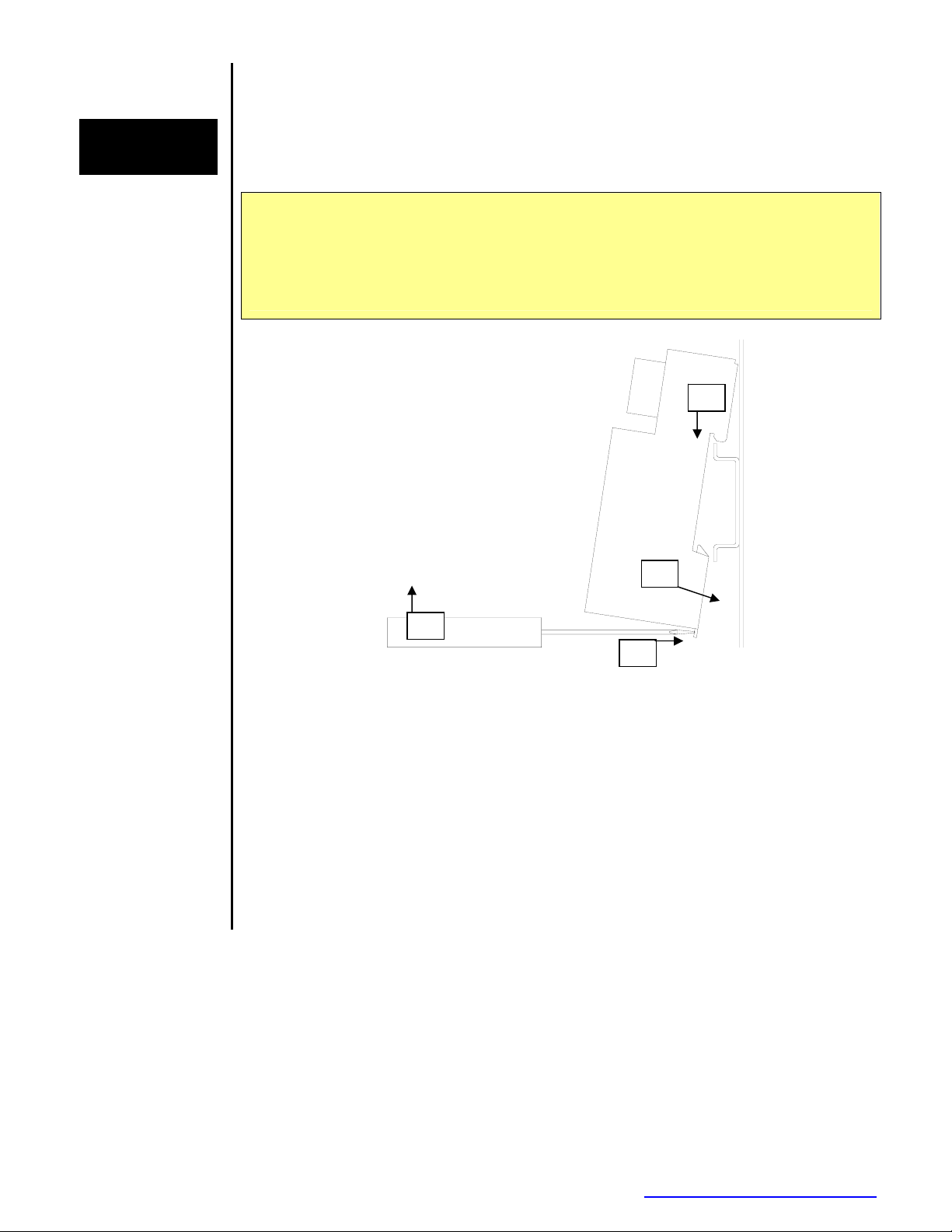
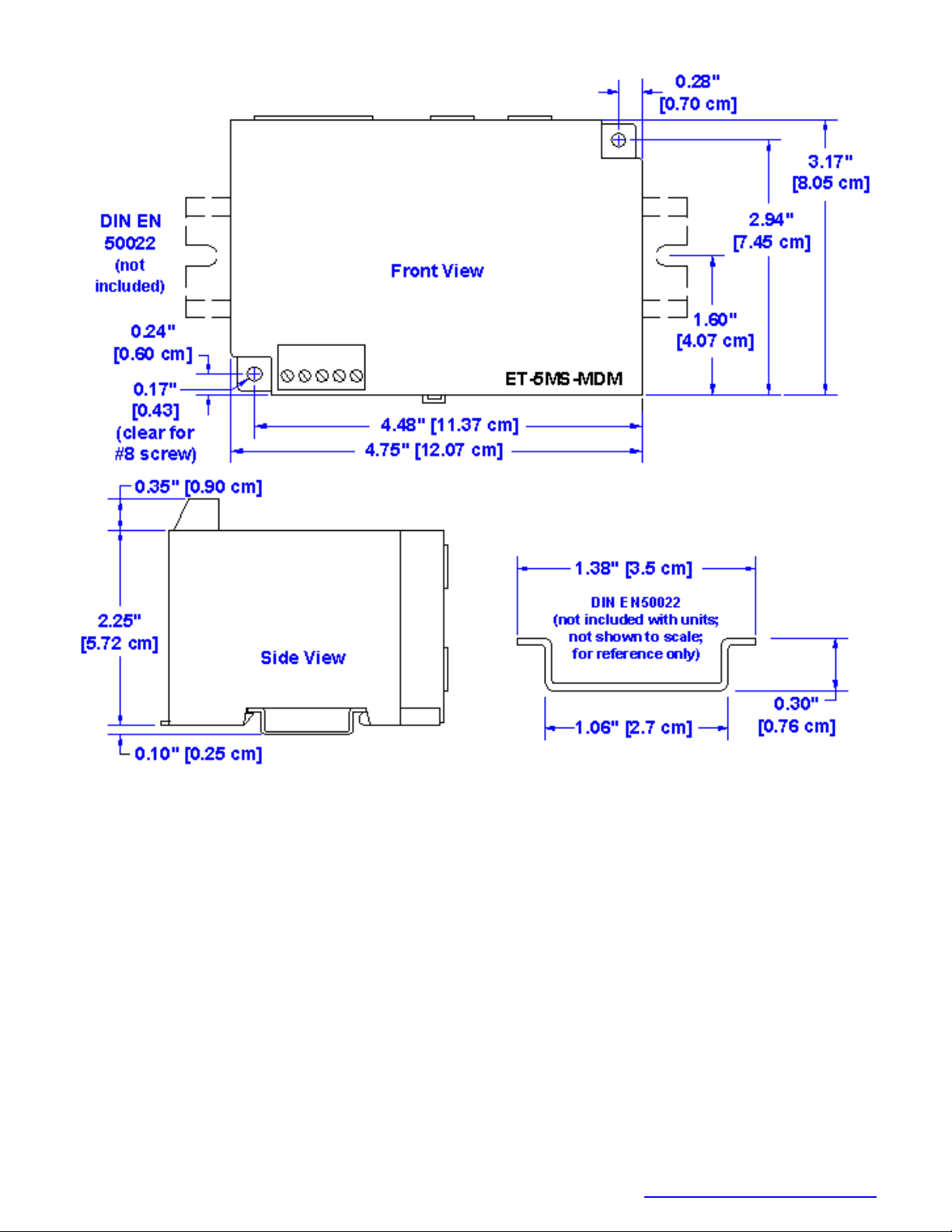
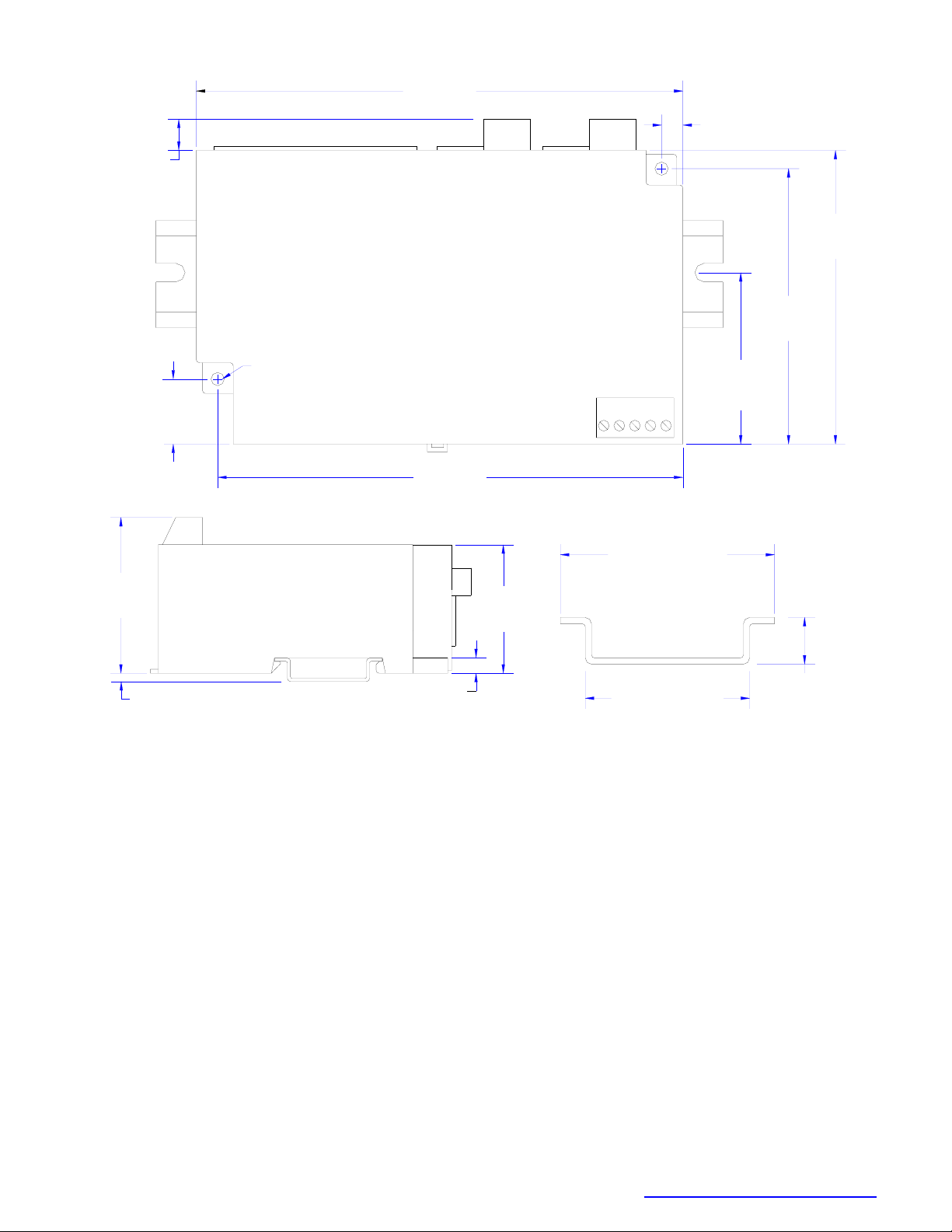
The Managed Switches can be snapped onto a standard DIN rail (EN50022) or screwed directly to a
flat panel. Refer to the mechanical drawing below. Note: Make sure to allow enough room to route
your Ethernet and/or fiber optic cables.
Note: The Managed Switches are designed to snap tightly to a standard 35mm DIN
rail. This is done by hooking the top (connector side) of the switch on the DIN rail
first and then pushing in on the bottom side until you hear a click. However, if the
DIN rail is misshapen or bent you may need to use a screwdriver to slide the
integral clip away from the switch as you install it to the DIN rail. Once the switch is
flat to the DIN rail then you can release the clip for proper attachment. See below.
Recommended mounting steps:
1. Hook top back of unit over the din rail.
2. Insert screwdriver into the din clip and pry it away from the unit.
3. Push bottom back onto the din rail and release clip.
4. The unit is now mounted.
Recommended dismounting steps:
1. Insert screwdriver into din clip and pry it away from the unit.
2. Pull bottom of unit away from din rail and release clip.
3. Unhook top of unit from din rail.
4. The unit is now removed.
1
2
3
2

Managed Switch Hardware Manual Page 6 of 18 Last Revised: 16-Nov-06
SIXNET •331 Ushers •Box 767 •Clifton Park, NY 12065 USA •+1 (518) 877-5173 •mailto: [email protected]
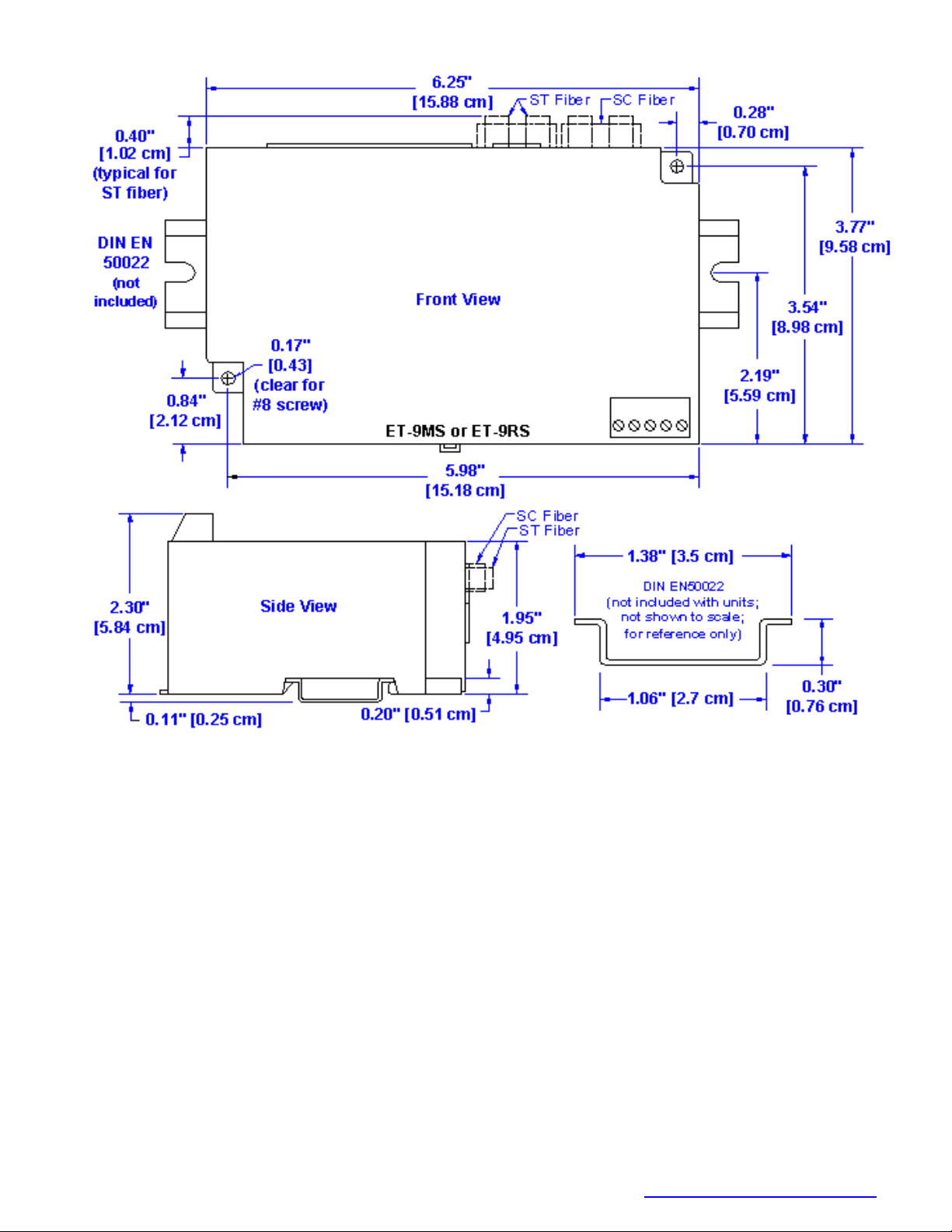
Mechanical Dimensions for 9-Port 10/100 Models

Managed Switch Hardware Manual Page 7 of 18 Last Revised: 16-Nov-06
SIXNET •331 Ushers •Box 767 •Clifton Park, NY 12065 USA •+1 (518) 877-5173 •mailto: [email protected]
Mechanical Dimensions for 9-port Models with Gigabit
Note: Some SFP (Mini-Gbic) modules (copper
or fiber) may protrude more than shown in this
drawing. Make sure you allow enough room for
the pluggable module and cable you are using.

Managed Switch Hardware Manual Page 8 of 18 Last Revised: 16-Nov-06
SIXNET •331 Ushers •Box 767 •Clifton Park, NY 12065 USA •+1 (518) 877-5173 •mailto: [email protected]
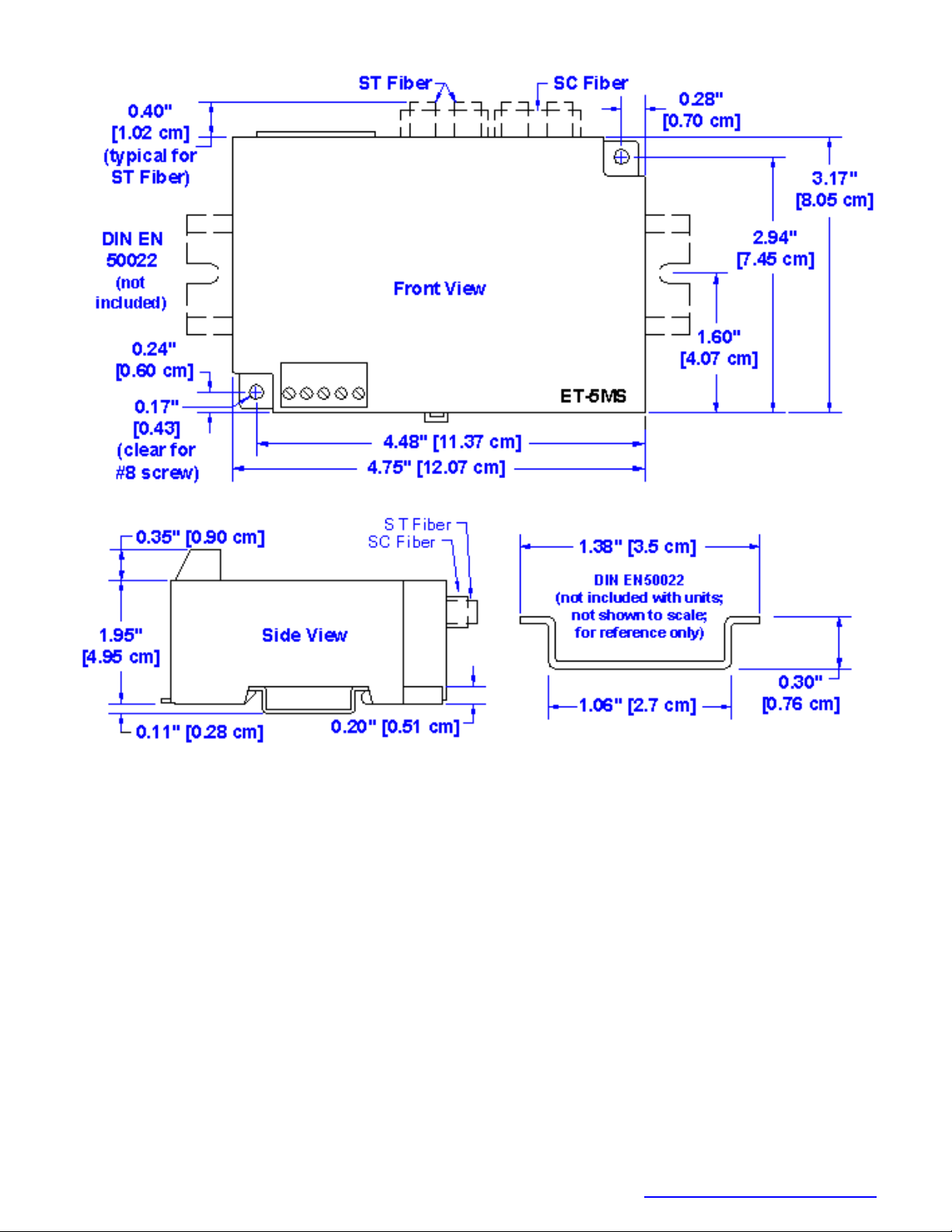
Mechanical Dimensions for 5-Port 10/100 Models

Managed Switch Hardware Manual Page 9 of 18 Last Revised: 16-Nov-06
SIXNET •331 Ushers •Box 767 •Clifton Park, NY 12065 USA •+1 (518) 877-5173 •mailto: [email protected]
Mechanical Dimensions for 5-Port Model with Modem

Managed Switch Hardware Manual Page 10 of 18 Last Revised: 16-Nov-06
SIXNET •331 Ushers •Box 767 •Clifton Park, NY 12065 USA •+1 (518) 877-5173 •mailto: [email protected]
0.84"
[2.12 cm]
2.30"
[5.84 cm] DIN EN50022
(not included with units;
not shown to scale;
for reference only)
0.30"
[0.76 cm]
1.06" [2.7 cm]
1.38" [3.5 cm]
Side View
DIN EN
50022
(not
included)
0.60"
[1.52 cm]
(typical for
SFP fiber)
Front View
1.95"
[4.95 cm]
2.20"
[5.59 cm]
0.10" [0.25 cm]
ET-10MG
Note: Some SFP (Mini-Gbic) modules (copper
or fiber) may protrude more than shown in this
drawing. Make sure you allow enough room for
the pluggable module and cable you are using.
0.20" [0.51 cm]
0.17"
[0.43]
(clear for
#8 screw)
5.98"
[15.18 cm]
6.25"
[15.88 cm]
3.54"
[8.98 cm]
3.77"
[9.58 cm]
0.28"
[0.70 cm]
Mechanical Dimensions for 10-Port Models with Gigabit
Ce manuel convient aux modèles suivants
6
Table des matières
Autres manuels Sixnet Changer