
Simmons CaptureView CV-4 Manuel utilisateur
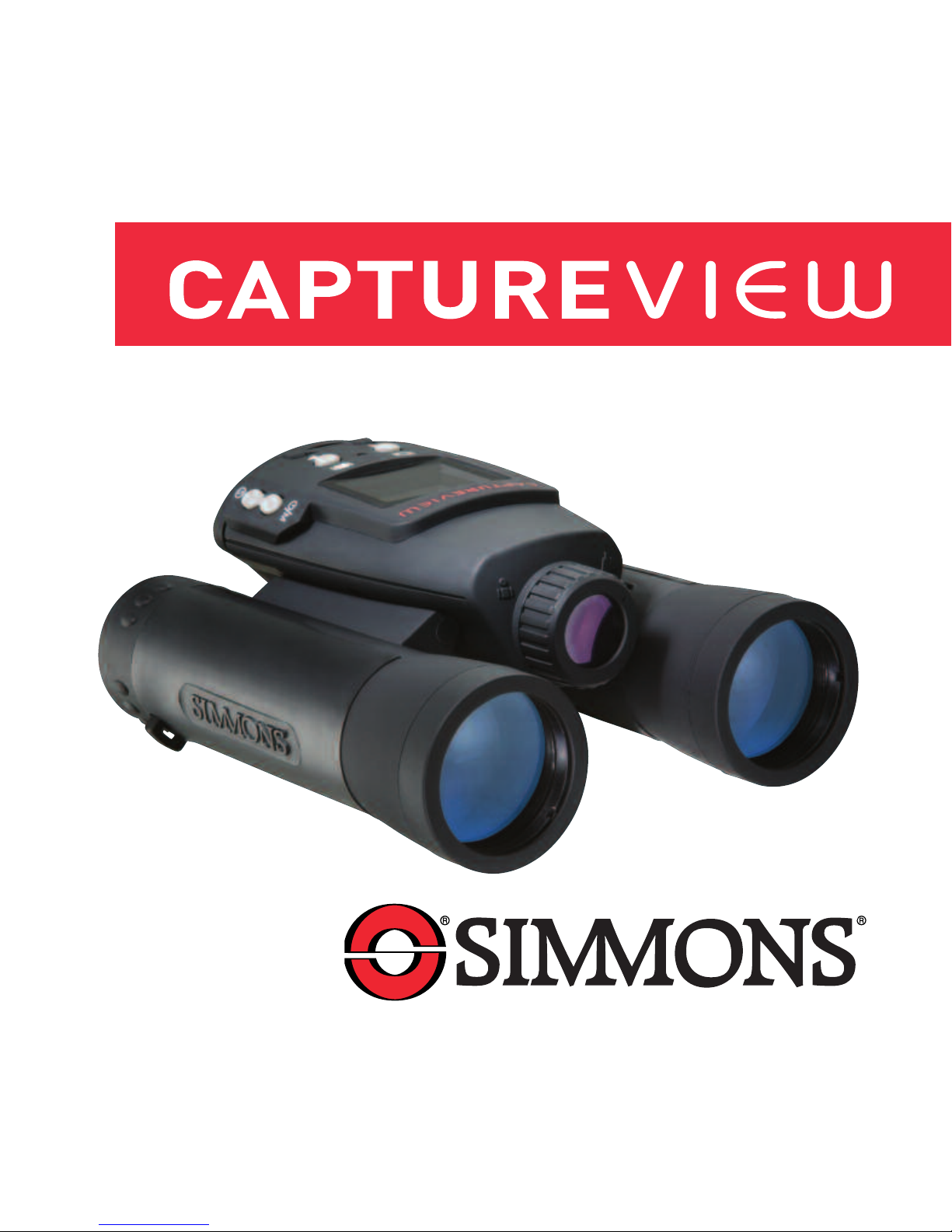
CV-4 8 x 30 Digital Camera Binocular
®


Contents
Quick Start ........................................................................................ 4
Features ............................................................................................ 7
Introduction........................................................................................ 9
How to Use Your Binocular................................................................10
Adjust Eye Relief, Adjust the Barrels............................................10
Focus the Binocular ......................................................................11
Seal Your Camera, Insert Batteries ..................................................12
Camera Modes..................................................................................13
Move through Menus ........................................................................14
Near and Far Focus ..........................................................................15
Take a Picture ..................................................................................16
Capture Video ..................................................................................17
Use Flashback..................................................................................18
Some suggestions for using Flashback ............................................19
Playback............................................................................................20
Playback Options ..............................................................................21
Use the Zoom Function ................................................................21
Delete Images, Format Storage Media..........................................22
Change Resolution ........................................................................23
Change the Exposure Setting........................................................24
Other Menu Options..........................................................................25
Use the Setting Menu, Set the Current Time and Date ................25
Adjust the Beep, Select an Effect, Turn Icons On or Off ..............26
The Date Stamp, the Flicker Rate..................................................27
The Flashback Period, the Factory Default Settings......................27
Mass Storage, Card Present, Battery Life ....................................28
Install the Image Editing Software ....................................................29
A Word About Waterproofing ............................................................30
Other Software and System Requirements ......................................31
Maintenance and Troubleshooting ....................................................32
Specifications ....................................................................................33 3
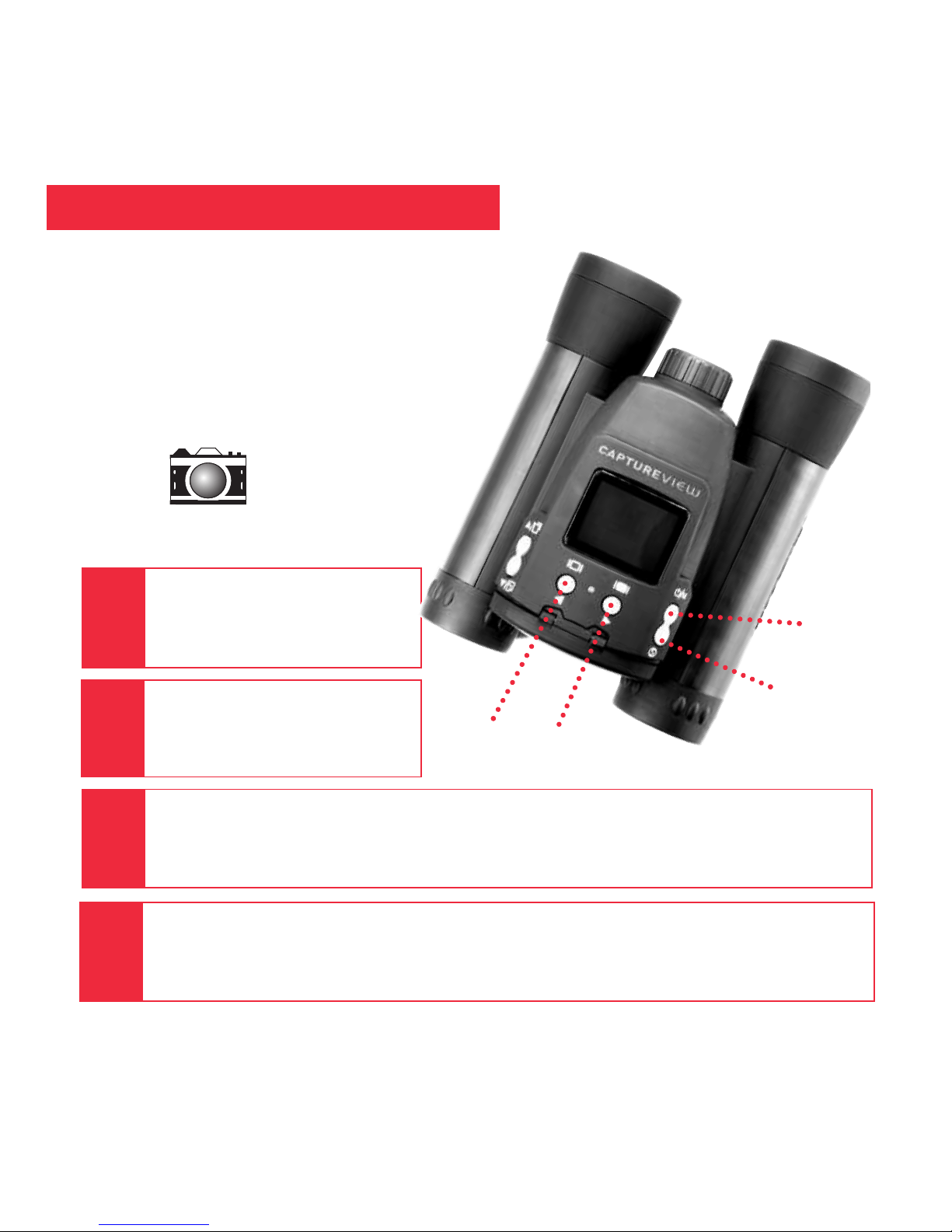
Quick Start
Turn on camera.
Press and hold down the Menu
button for 3 seconds.
Point at something interesting and press the Shutter button.
You’ve taken a picture!
2
Install 2 AAA batteries.
(Not included.)
1
4
Select the Still Camera Mode. Press the Menu button. Use the Right and Left buttons
to move the selection box over the DSC (Digital Still Camera) icon and press the Menu
button—this will allow you to take still pictures. Press the Shutter button to exit menu.
Menu
Button
Left
Button
Shutter
Button
DSC Icon
Right
Button
3
How to start taking pictures...
4
5
Quick Start
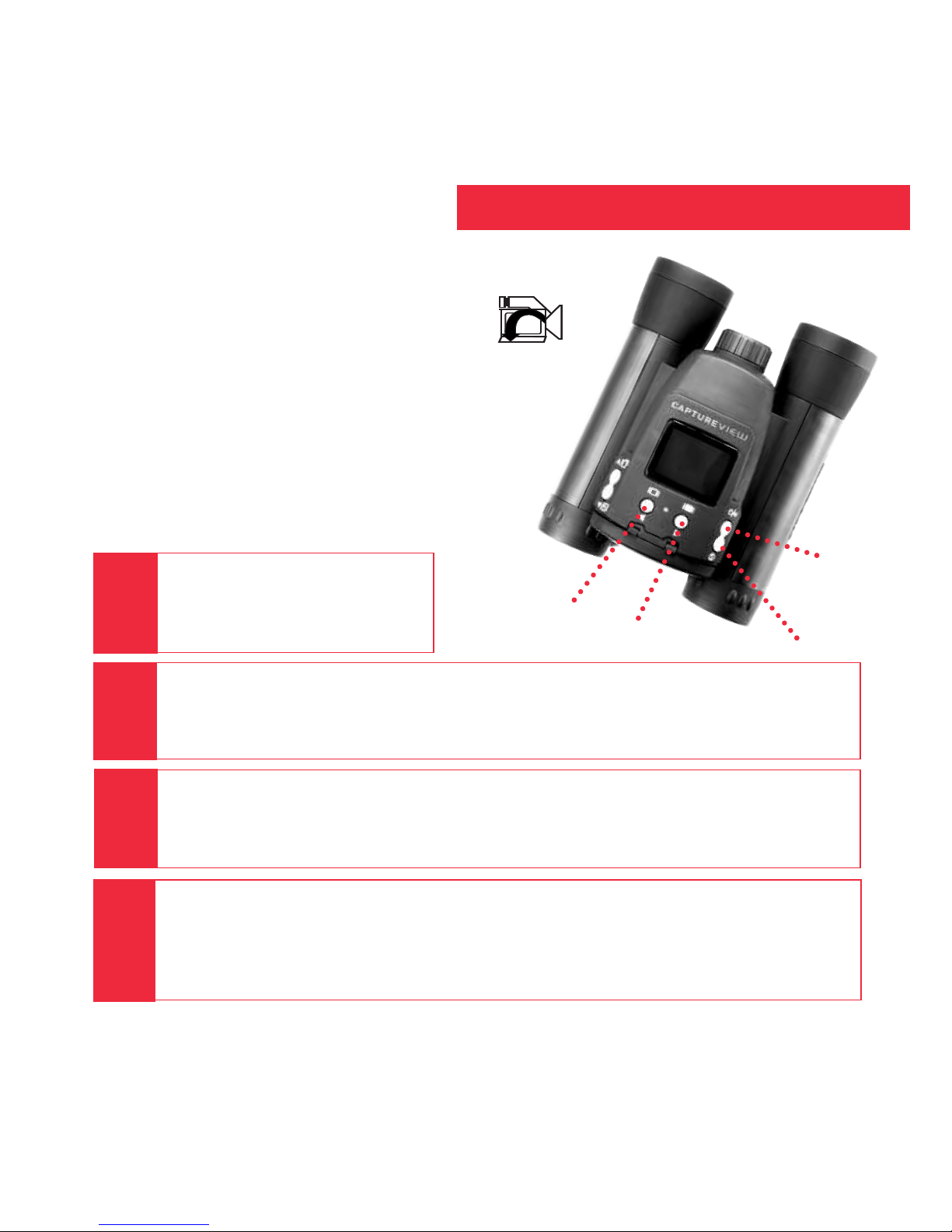
Select the Flashback Mode.
Press the Menubutton. Use the Right or Left button to move the selection box over
the Flashback icon. Press the Menubutton to enter Flashback mode.
Press the Shutter button again to stop recording.
CaptureView has recorded only the last 10 seconds of the activity. See FLASHBACK,
SUGGESTED USES FOR FLASHBACK and FLASHBACK PERIODS pages 18, 19 and 27 for
more information.
6
Turn on camera.
Press and hold down the
Menubutton for 3 seconds.
5
8
Point at an interesting activity and press the Shutter button to enter the
record mode.
Menu
Button
Left
Button Shutter
Button
Flashback
icon
Right
Button
7
How to use Flashback...
Have you ever wanted to record just the play
of the game (your daughter kicking the winning
goal) or capture just the highlight of an event
(your son receiving his diploma)?
Use Flashback when you want to capture
video of short activities like these—without
using up all your memory. You’ll begin
recording, but with Flashback selected, you’ll
only save the last 10 seconds of video (or if
you prefer, you can also select 5, 15 or 20 sec-
onds of recording time from the Flashback
Period menu option).
Quick Start
Sit back and relax a minute.
If using Windows 98ME or higher, CaptureView
automatically installs on your PC. No drivers are needed. If
using Windows 98SE or lower, drivers must be installed on
your PC and can be found on the included CD-Rom.
Enjoy your photos.
Open Ulead Photo Express to view, edit and print
your pictures.
Install Ulead Photo Express.
Insert the CD, click on Ulead Photo Express and follow
the on-screen instructions.
10
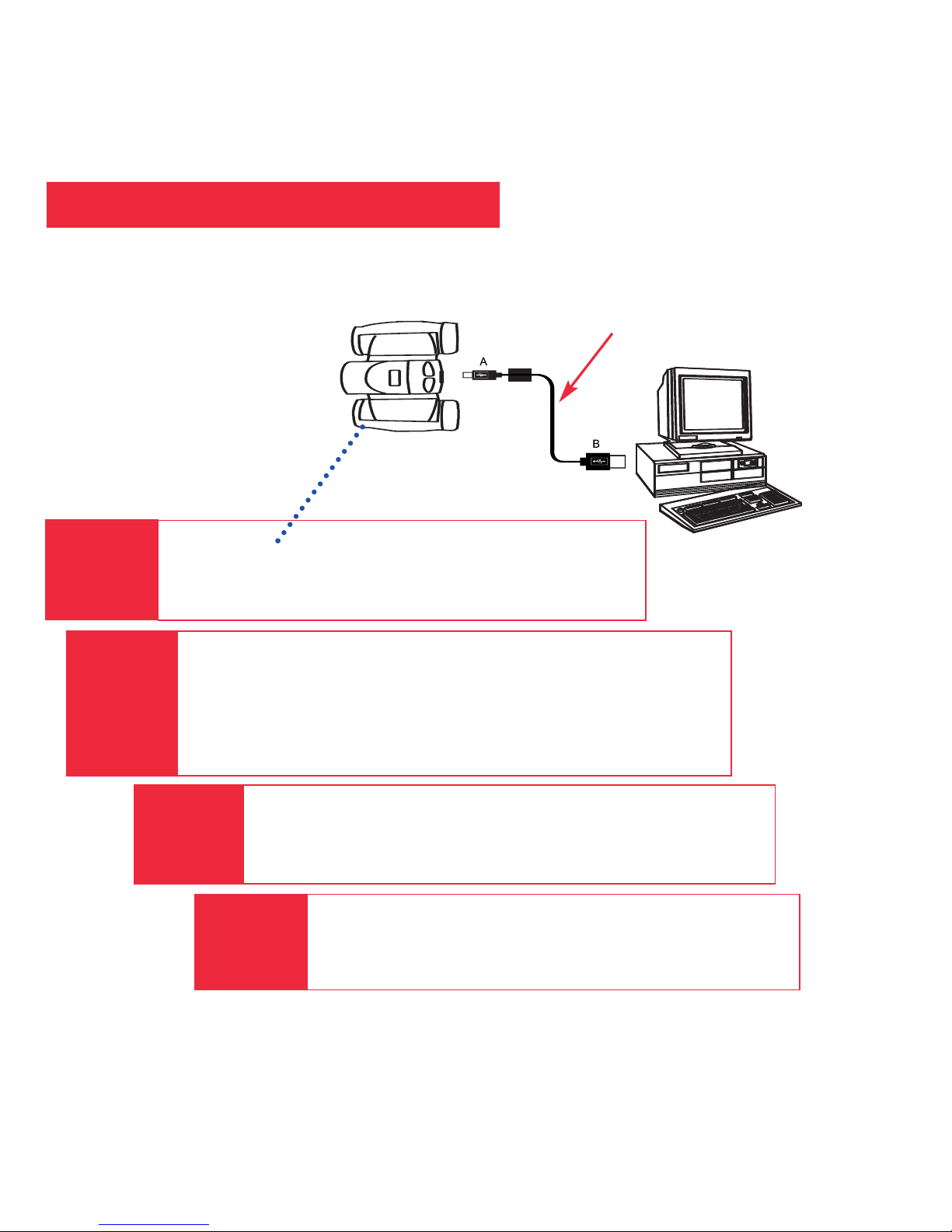
Plug in.
Connect CaptureView to your PC or Mac (OS 9.0
or higher) using the included USB cable.
9
1
12
How to download your pictures...
USB Cable
6
7
Features
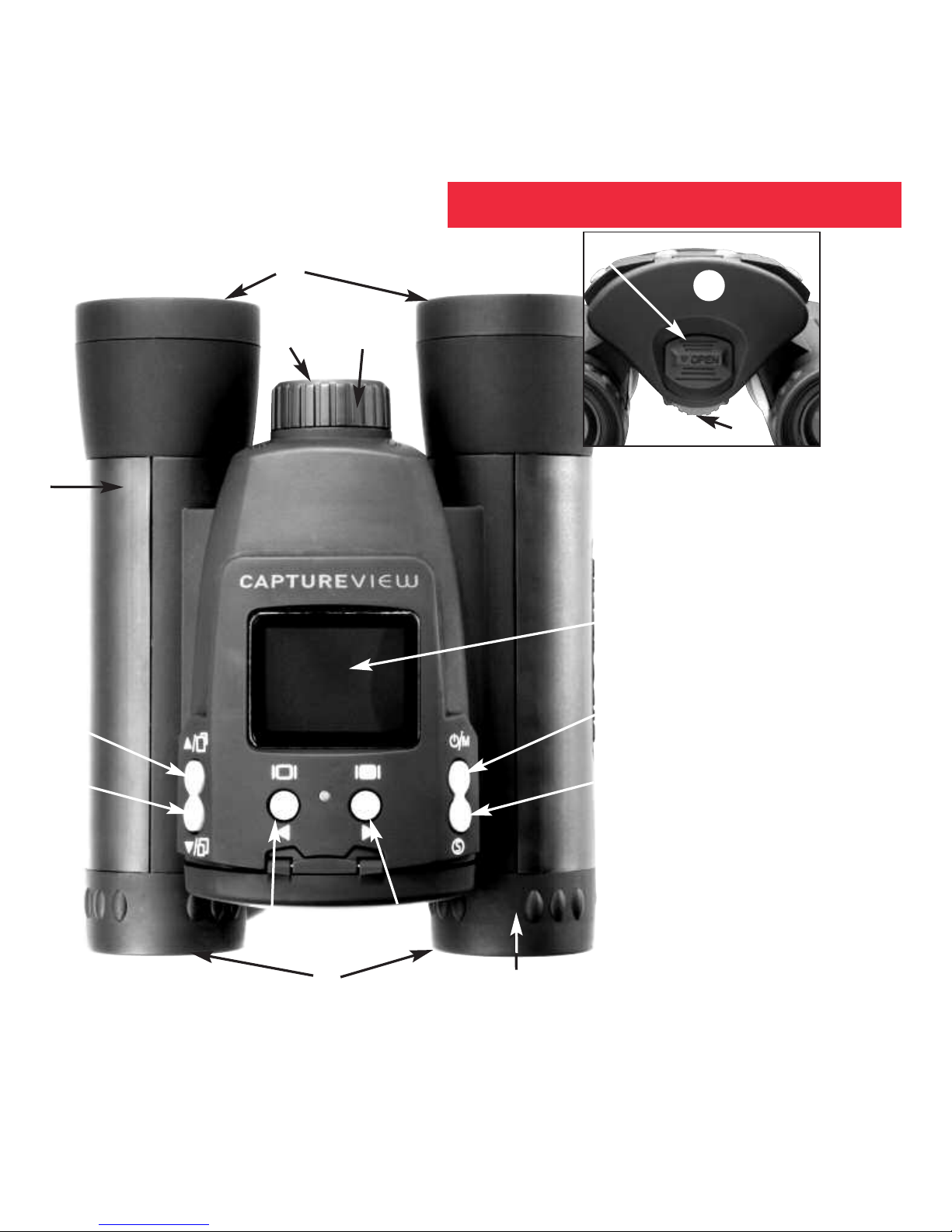
Fig. 1: Top View
1. Eyepieces
2. Up Button
3. Down Button
4. Left Button
5. Right Button
6. Shutter
7. Menu Button
(Power)
8. LCD
9. Barrel
10. Camera Lens
11. Focus Ring
12. Objective Lens
13. Diopter Scale
Fig. 2: Rear View
14. Battery
compartment tab
15. Battery
Compartment
16. Binocular Focus
Knob (on
underside)
j
g
b
I
1) 1!
h
1@
1#
1$
1^
Fig. 1
Fig. 2
1%
d
c
f
e
Features
8
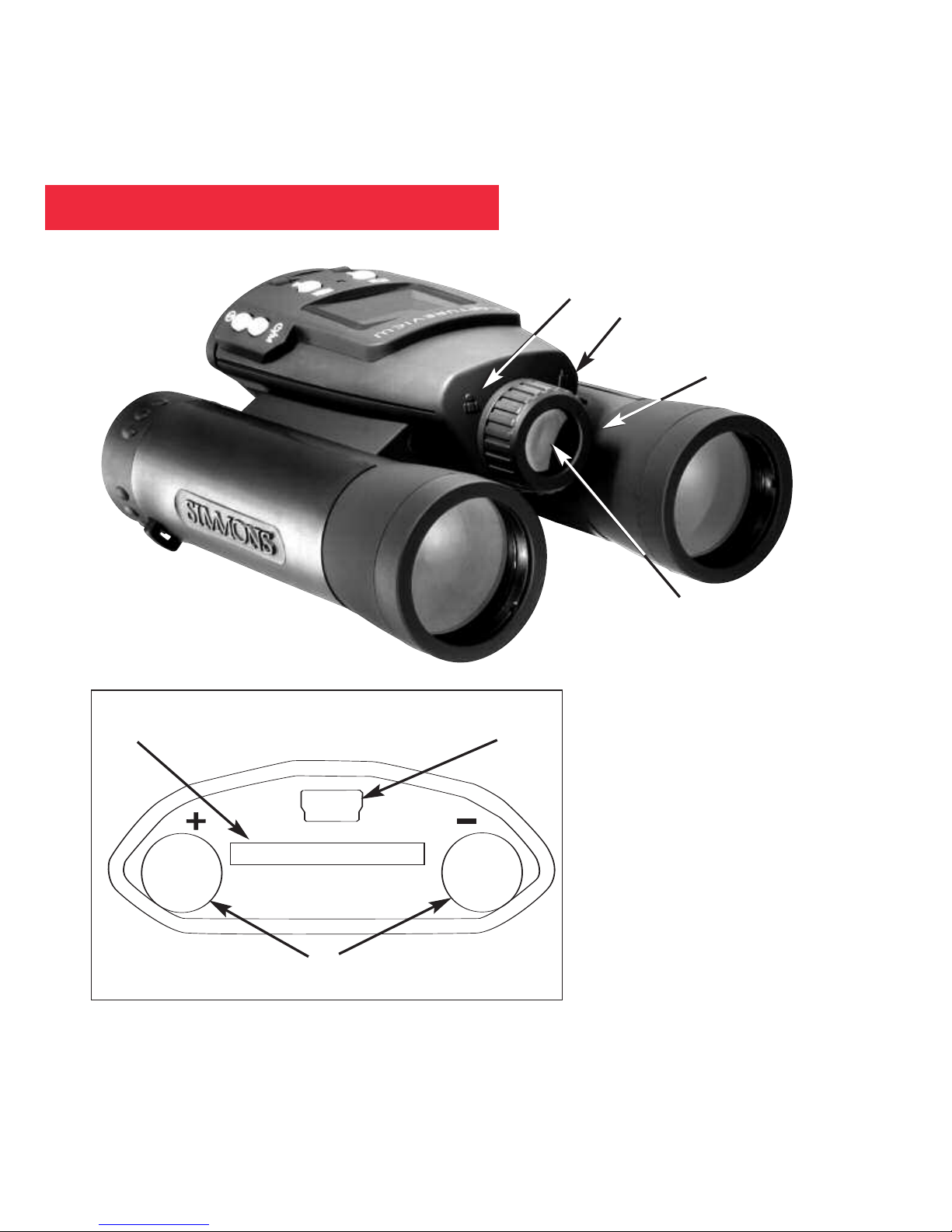
Fig. 3: Front View
10. Camera Lens
11. Focus Ring
17. Far Focus indicator
18. Near Focus indicator
Fig. 4: Inside Battery
Compartment
19. USB Port
20. SD Card Port
21. Slots for Batteries
(battery polarity indicated)
1!
1)
1* 1&
2) 1(
2!
Fig. 3
Fig. 4

9
Introduction
Congratulations on purchasing a Simmons®CaptureView®CV-4. CV-4 is an
8 x 30mm full-featured binocular. It is integrated with a waterproof digital camera that
requires no film to capture pictures or video. This manual is designed to quickly guide
you through the operation of your CaptureView CV-4. For best results, take a few
moments to become familiar with the operation of your device, and be sure to save
this manual for future reference.
A few of CaptureView’s many features include:
• Fully functional binocular.
• Digital camera that captures pictures and video.
• Color LCD display panel allows you to easily navigate the operational menus.
• Flashback feature allows you to easily record just the highlight of an activity.
• Designed to be used in a water environment. See A WORD ABOUT WATERPROOFING,
page 30, for important information on this topic.
WARNING! Never use your binocular to look at the Sun! Looking at or near
the Sun will cause instant and irreversible damage to your eye. Eye damage is
often painless, so there is no warning to the observer that damage has occurred
until it is too late. Do not point the binocular at or near the Sun. Children should
always have adult supervision while observing.
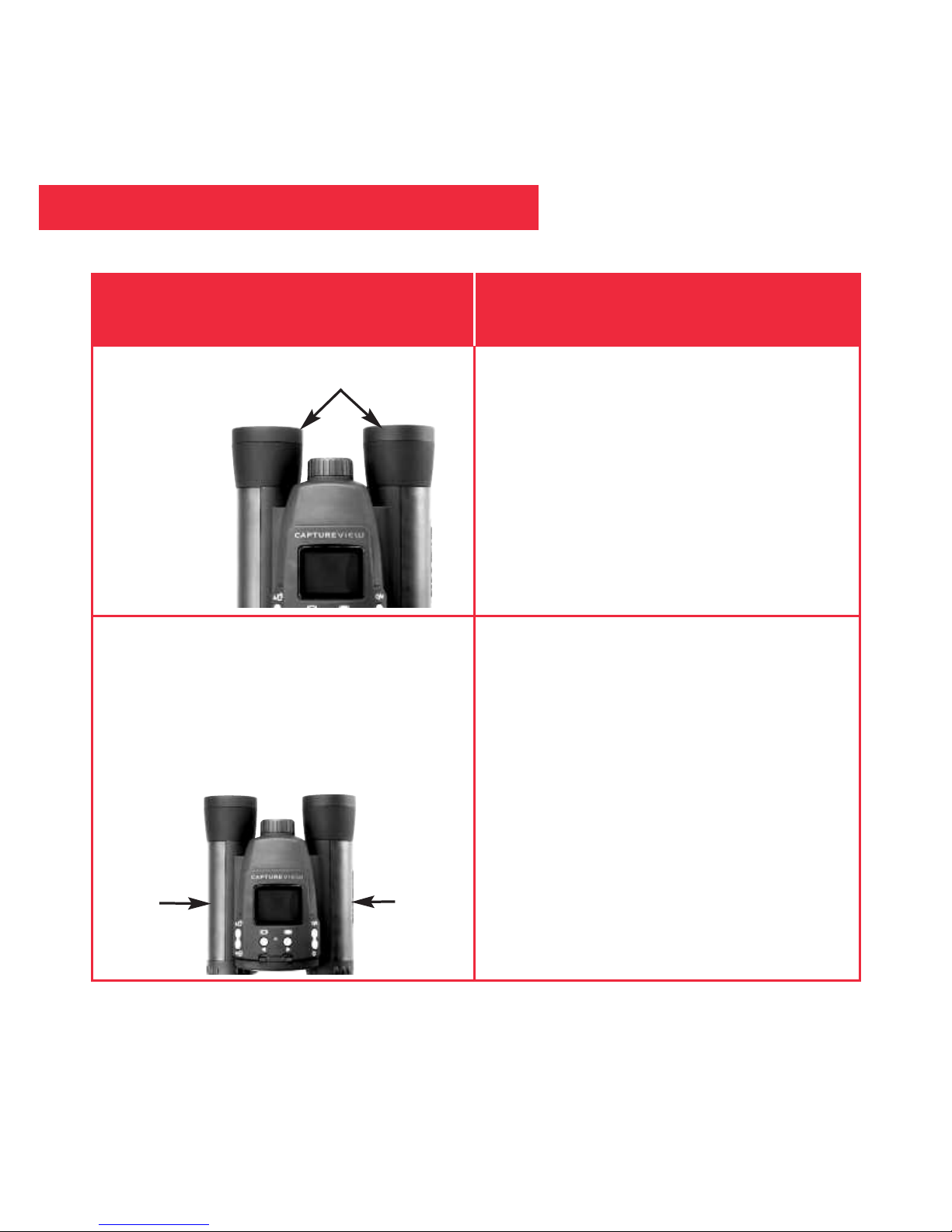
Adjust Eye Relief
Adjust the Barrels
You will need to adjust the barrels as
the distance between your eyes is
usually different than the distance
between another person’s eyes.
If you wear eyeglasses, fold down the
rubber eyecups and hold the
eyepieces up against your glasses.
Using Your Binocular
If you want to... Do this...
Fold down
1. Hold CaptureView up to your eyes in
the normal viewing position. Use
both hands to hold each barrel firmly.
2. Pull the barrels apart or push the
barrels together until you see a
single circular field with both of your
eyes.
Barrel
Barrel
10
Table des matières
Autres manuels Simmons Jumelles


