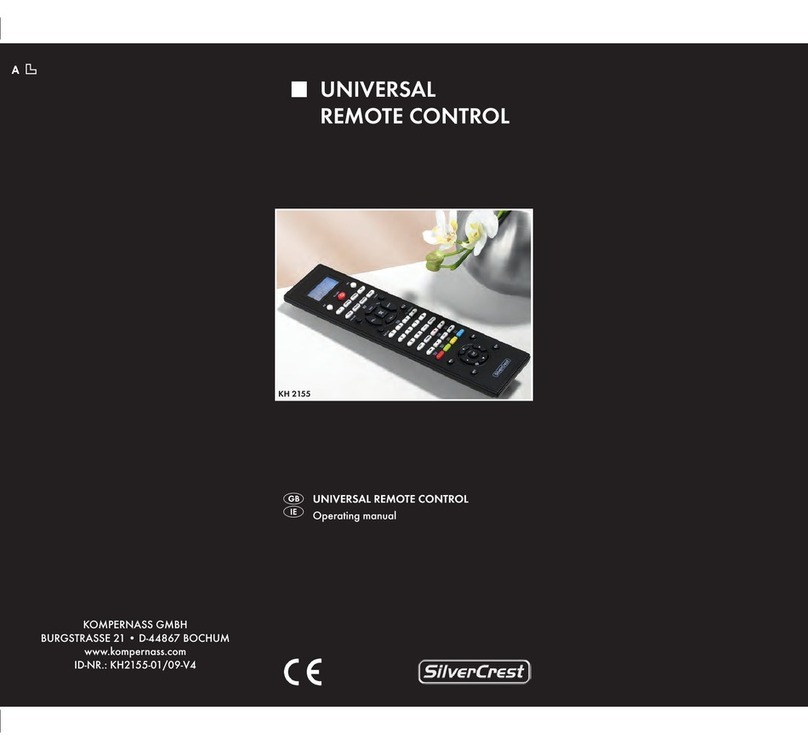
Silvercrest SILVERCREST KH 2156 Manuel utilisateur

UNIVERSAL REMOTE CONTROL
KOMPERNASS GMBH
BURGSTRASSE 21 ⋅ D-44867 BOCHUM
www.kompernass.com
ID-Nr.: KH2156-08/09-V3
UNIVERSAL REMOTE CONTROL
Operating manual
3 A
08/2009
KH 2156

KH 2156

- 1 -
INDEX PAGE
Important safety instructions 2
Device summary 3
Initial use 4
Unpacking the device / checking the
package contents 4
Inserting the batteries 4
Operating components 5
LCD display 5
Buttons 6
SETUP - System settings 8
Code Setup (Programming the remote control) 10
Programming by brand code search 10
Programming by manual code input 11
Programming by automatic code search 11
System-Setup 13
Setting the time 13
Setting the date 13
Adjust contrast 14
Background Illumination 14
System reset 14
Timer Setup 15
Sleep timer 15
Event timer 15
Learn Setup 16
Code learn function 16
Macro Setup 17
Favourites channel 19
Volume control 20
Vol +/—, (Mute switching) 20
For operation 21
All OFF 21
Faults / Remedies 21
Disposal 22
CE- Conformity 23
Importer 23
Technical data 23
Important Warranty Notices 23

- 2 -
Universal remote control KH2156
Read the operating instructions carefully before using the de-
vice for the rst time and preserve this booklet for later refer-
ence. Pass this manual on to whoever might acquire
the device at a future date.
Important safety instructions
Proper use
Children may only operate the remote control under adult
supervision.
The universal remote control can replace a maximum of ten
remote controls. It can only be used for entertainment elec-
tronics with infrared receivers. The functions of the Universal
remote control essentially correspond to those of the original
remote control. The universal remote control is intended for
private use. It is not suitable for commercial use.
Any other use is considered improper use. The manufacturer
declines to accept responsibility for damage(s) arising from
improper use.
There is a danger of injury in the event of
improper handling of batteries!
Batteries must be handled with special care. Take note of the
following safety instructions:
Take the batteries out of the battery compartment as soon
•
as they are depleted.
Do not throw batteries into a re. Never subject batteries
•
to high temperatures.
If you will not be using the device for a long period of time,
•
remove the batteries to prevent them from discharging.
Explosion hazard! Non-rechargeable batteries must never
•
be recharged.
Do not open the batteries or short-circuit them.
•
Battery acid leaking from a battery can cause inamma-•
tion of the skin. In event of contact with the skin, rinse with
large amounts of water. If the liquid comes into contact
with your eyes, rinse thoroughly with water, do not rub
and immediately consult a doctor.
Always change all batteries at the same time and always
•
use batteries of the same type.
Keep batteries well away from children. Children can
•
put batteries into their mouths and swallow them. If a bat-
tery is swallowed medical assistance must be sought IM-
MEDIATELY.
Laser
The Universal remote control contains an infrared diode
of laser class 1. A safety system prevents the emmision of
dangerous laser radiation during use. To prevent eye injuries,
do not modify or damage the safety system of the device.

- 3 -
Damage to the device
If the device is defective, do not attempt to repair it your-•
self. In case of damage, contact the manufacturer or the
manufacturer's service hotline (see Warranty information).
If liquid escapes from the device or if the device has been
•
otherwise damaged, it must be inspected by the manufac-
turer or the manufacturer's service hotline.
Contact the manufacturer or the manufacturer's service
hotline (see Warranty information).
Device summary
qLCD display
w/ALL OFF button
eDevice buttons
rS button
tArrow buttons
yEXIT button
uCH +/— buttons
iMACRO button
oNumber buttons
aButton for one or two digit programme numbers
sTeletext function buttons
dAV button
fRecord/Playback buttons
gMute switching
hVOL +/— buttons
jMENU button
kOK button
lFAV / EPG button
1( Infrared sender/receiver
2) Battery compartment cover
Tips:
The functions described here pertain to the theoretically•
ideal circumstance that the button structure of the respec-
tive original remote control is identical to this universal
remote control. This only occurs, however, in rare cases. If,
therefore, not all of the original remote control's functions
can be reproduced it is not due to a diciency in the Uni-
versal remote control.
All the brand names used in these instructions or in the
•
accompanying code list are trademarks of the correspond-
ing companies.

- 4 -
Initial use
Unpacking the device / checking the package
contents
Important!
Keep the plastic packaging well away from small children.
There is a risk of suocation!
Unpack the device and accessories.
•
Check the package contents•
- Universal remote control (URC),
- Operating instructions,
- Manufacturers directory with device code list:
- 2 x 1,5 V Batteries, type AAA/LR03 (Micro)
Remove the protective foil from the LCD display
• q.
Note: Transport damage
If you notice any transport damage contact the manufacturer or
the manufacturer's Service-Hotline (see warranty information).
Inserting the batteries
Attention!
The Universal remote control must only be operated with
1.5 Volt batteries (Type AAA, LR03).
Carry out the battery change as quickly as possible. Preset
settings will remain saved for approx. 1 minute. If new batter-
ies have not been installed within this time all of the settings
will have to be carried out again. The time of day will, how-
ever, in any case be deleted.
1.Open the battery compartment cover 2) in the direction
of the arrow.
2. Insert the batteries as shown in the diagram and close the
battery compartment.
The LCD display qis activated as long as batteries are
installed. The following diagram shows the LCD display q
after the batteries have been installed or changed.

- 5 -
Note:
If no LCD display qis visible check the polarity of the
batteries or install new ones.
Operating components
LCD display
The LCD display q is divided into elds.
Text field 2!
Here is shown the currently selected device, for example
DVD, TV VCR etc.
Infrared symbol 2@
Every time a button is pressed, with which an infrared signal
is to be sent the Infrared symbol illuminates.
Code/Time field 2#
Here is shown the device code of the relevent selected de-
vice or the time of day. With the time of day indicator ":" the
numbers blink in the middle.
Day of the week field 2$
Here you can read the English shortened form of the current
day of the week after you have entered the date.
MON = Monday
Tue =Tuesday
WED = Wednesday
THU = Thursday
FRI =Friday
SAT = Saturday
SUN = Sunday
Standard display:

- 6 -
The standard readout of the LCD display qconsists of the
details for the relevent device, for example, "TV", the initial
for the day of the week and the time of day indicator.
Buttons
Note:
All the functions described here can, of course, only be used
if they are supported by the device being controlled.
/ALL OFF button. w
Switch device on/o. hold down for approx.
5 seconds to switch all devices on/o.
Device buttons e
The device buttons are used to select the device that should
be operated.
Television
Video recorder
Accessory unit 1
Cable receiver
CD player
Analogue satellite receiver
Audio amplier
DVD player
Digital satellite receiver
Accessory unit 2
"S" button r
Hold down for 3 seconds to access the
SETUP menu.
Arrow buttons t
Move up, right, left and down in menus.
EXIT button y
Move a level backward in the menu.

- 7 -
CH +/— buttons u
Change the reception channel.
MACRO button i
MACRO button ifollowed by a number
button o1-4 activates a previously saved
chain of commands.
Number buttons o
Enter programme and device code numbers.
Button for one/two digit programme numbers a
For two digit programme numbers (depend-
ing on the device type) rst press
the abutton then via the number buttons o
enter the programme number.
When pressed again the display becomes
single digit once more.
Teletext function buttons s
In teletext operation the buttons have the following
functions:
Access the teletext function
Stop automatic paging forward for
multi-page teletexts.
Enlarge page presentation
Screen text and TV image one upon
the other
To end the teletext function.
Note:
The function is only available in the European TV mode
and your TV device must have a teletext module.
In addition the CH+/- buttons ucontrol the following
teletext functions:
CH + Leaf one page forward
CH — Leaf one page backwards
AV button d
Switch to the AV input.

- 8 -
Record/playback buttons f
The playback buttons fcontrol devices such as DVD/CD
players and video recorders:
Record
Start playback
Stop Playback/Record/Wind
Pause playback
Wind forward
Rewind
Mute switching g
Switch sound on/o.
VOL+/— buttons h
Set volume (Volume).
MENU button j
Access the menu of the controlled device.
OK button k
You can conrm a menu selection with the OK
button.
FAV/EPG button l
The FAV/EPG button accesses the electronic pro-
gramme guide of the device and/or your previously
programmed favourite
stations.
SETUP - System settings
In the system settings you undertake the following:
Programming the remote control to the devices to be con-
•
trolled
Settings for time of day, date, display contrast and
•
background illumination
Timer settings
•
The "learning" of designated button commands•
Setting up Macros•
Assigning favourites•
etc.•
On the following page you can see a summary of the menu
structure.
Table des matières
Autres manuels Silvercrest Télécommande universelle

Silvercrest
Silvercrest KH 2155 Manuel utilisateur

Silvercrest
Silvercrest KH 2158 Manuel utilisateur

Silvercrest
Silvercrest KH 2157 Manuel utilisateur

Silvercrest
Silvercrest SFB 10.1 C3 Feuille d'instructions

Silvercrest
Silvercrest KH 2159 Manuel utilisateur

Silvercrest
Silvercrest KH 2159 Manuel utilisateur

Silvercrest
Silvercrest KH2150 Manuel utilisateur

Silvercrest
Silvercrest URC 101 DT Manuel utilisateur