
Silex technology WM-100 Mode d'emploi

How to use the WM-100 and Wave
Navigator for troubleshoong

Contents
Contents........................................................................................................................................................2
0. Pre-requision...........................................................................................................................................3
1. How to use data for WLAN troubleshoong.............................................................................................4
1.1 Wireless radio signal issue ..................................................................................................................4
1.2 Wi-Fi link associaon issue .................................................................................................................5
2. Data monitored by the WM-100 and Wave Navigator .............................................................................6
2.1 Floor Wireless Condions ...................................................................................................................6
2.1.1 Wireless anomaly – resoluon informaon.................................................................................6
2.1.2 Wireless Usage.............................................................................................................................7
2.1.3 Wireless monitoring: Radio wave intensity..................................................................................8
2.2 Wireless Monitoring............................................................................................................................9
2.2.1 Floor informaon .........................................................................................................................9
2.2.2 Survey.........................................................................................................................................10
2.2.3 Radio wave intensity ..................................................................................................................12
2.2.4 Spectrum informaon................................................................................................................12
2.3 Measurement data analysis..............................................................................................................15
2.4 Report ...............................................................................................................................................16
2.4.1 Warning history..........................................................................................................................16
2.4.2 Bandwidth informaon..............................................................................................................17
2.4.3 Radio wave intensity ..................................................................................................................17
2.5 Record ...............................................................................................................................................19
3. How to capture the wireless packet........................................................................................................21
3.1 Wireless packet capturing with the WM-100 and the Wave Navigator............................................21
3.2 Open the captured le......................................................................................................................26
About Silex Technology America, Inc. .........................................................................................................27

0. Pre-requision
This document is to explain
•data monitored by the WM-100 and Wave Navigator, and
•How to use the data
Refer to “How to install the WM-100 and Wave Navigator” (“Installaon Guide”) document for the
installaon process of the system. The Installaon Guide is to connect the WM-100 to a computer
directly, as below.
( )
( )
( )
Firewall seng
、 、 、
、 、 、 、
LAN

1. How to use data for WLAN troubleshoong
1.1 Wireless radio signal issue
No
Yes
Yes
No
Yes
No
Yes
No
Start
Resolved?
Is a device acve? → 2.2.1
or Device list
Check bandwidth utilization
→ 2.4.2
High?
Possible causes:Interference from other Wi-Fi devices
⚫Check if same radio channel is used by APs placed closely
⚫
Check if there is unmanaged device is introduced or if too
many devices are operating in the same band.
⚫Check if too many stations are connected in the same AP.
Check radio signal strength
→ 2.4.3
Strong signal
(over -60dBm)
Possible cause:Interference from other radio devices
⚫2.2.4 Check if there is non-WLAN frame signal source
Weaker from
multiple devices
Activate the device.
Possible cause:Obstacle around the devices, or the AP
⚫2.4.3
Check if there is a sudden drop in the signal strength from
mulple devices placed nearby.
Possible cause:
Radio signal issue with the device
(damaged antenna or an obstacle)
⚫2.4.3
Check if only specic device shows a
sudden drop in the signal strength

1.2 Wi-Fi link associaon issue
If there is no issue idened but the Wi-Fi link is not established between an access point and a staon,
it may encounter a Wi-Fi authencaon issue. In this case, wireless packets capturing is the powerful
tool to idenfy a packet level issue.
The WM-100 can be used as the packet capture tool and it transfers the data to the Wave Navigator. It
can also store the captured data into an USB drive.
Secon 3 explains how to capture the wireless packet with the WM-100 and the Wave Navigator.
WM-100 standalone
WM-100
・
Wave Navigator
2. Data monitored by the WM-100 and Wave Navigator
2.1 Floor Wireless Condions
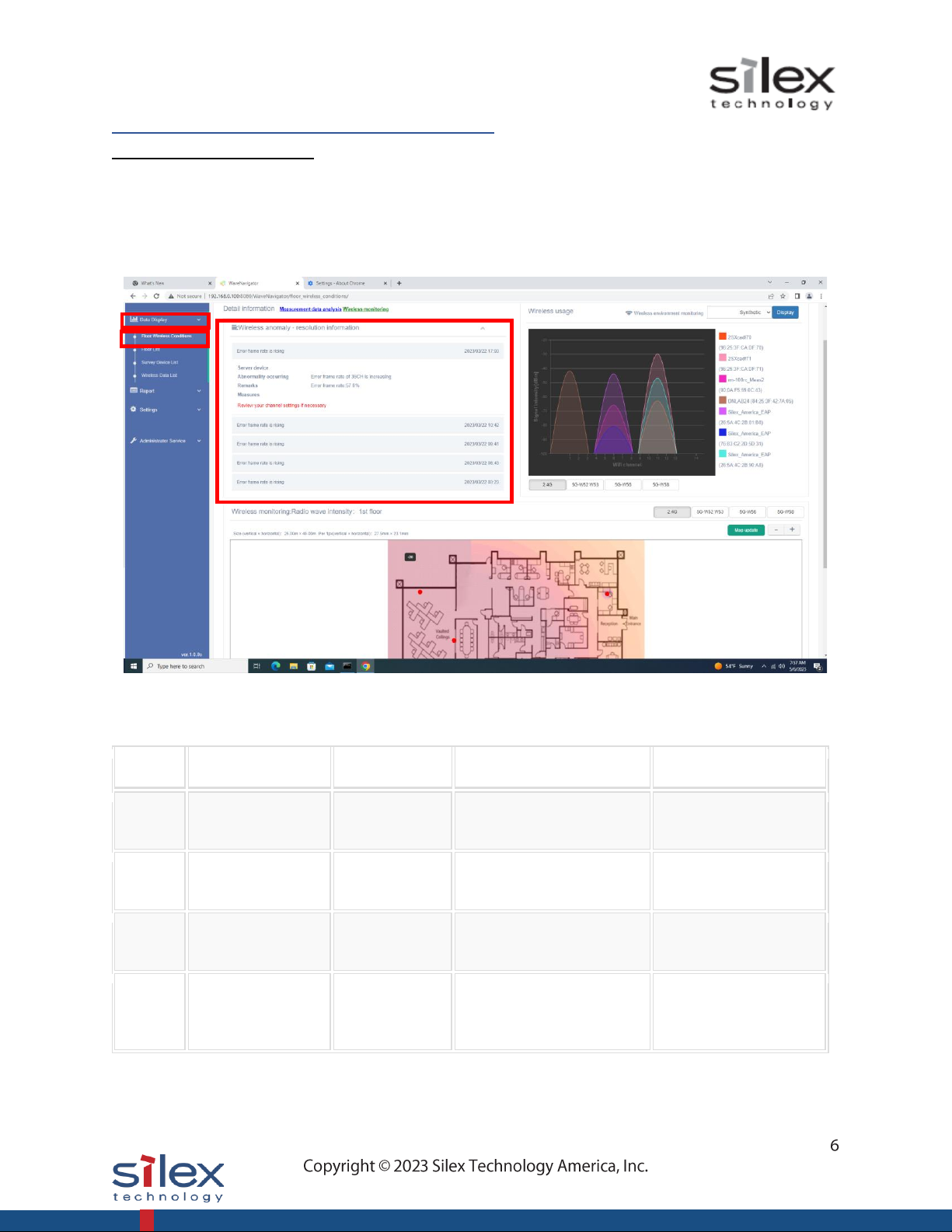
The “Floor Wireless Condions” page is a dashboard showing useful informaon indicang the status of
managed wireless devices such as Wi-Fi access points and staons.
2.1.1 Wireless anomaly – resoluon informaon
This page secon shows the history of alarms in your wireless environment. There are four warning
condions, as shown in the table below:
No.
Warning type
Contents
Wording
Measures
1
Increased
bandwidth rate
Bandwidth rate
is rising
Bandwidth rate
of %(channel) is increasing
Review your channel
settings if necessary
2
Increased error
frame rate
Error frame
rate is rising
Error frame rate
of %(channel) is increasing
Review your channel
settings if necessary
3
Increased resend
frame rate
Resend frame
rate is rising
Resend frame rate
of %(channel) is increasing
Review your channel
settings if necessary
4
Reduced signal
strength
The signal
strength of the
device is low
The signal strength
of %(machine) is low
Review the antenna
status of the device if
necessary
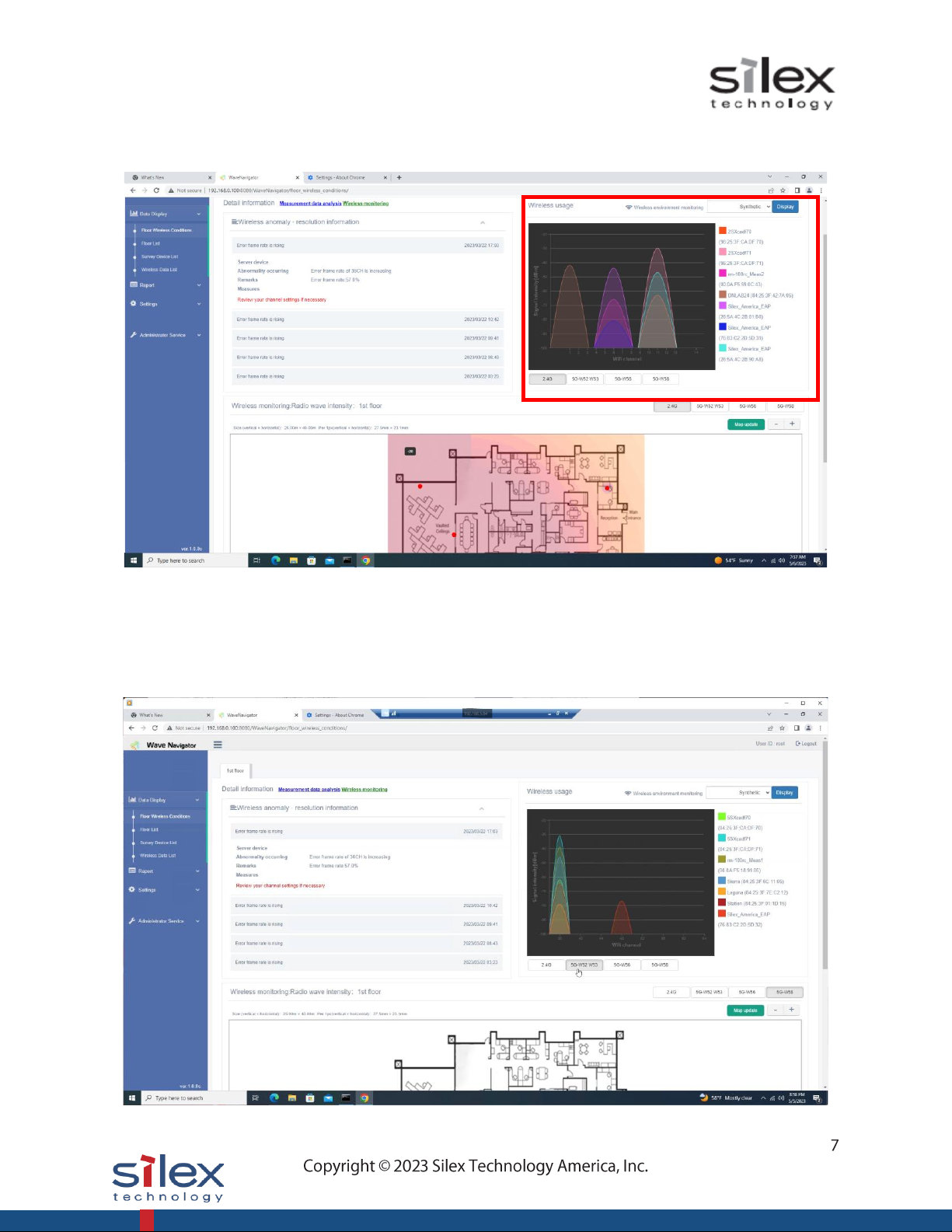
2.1.2 Wireless Usage
This page secon shows the registered devices’ signal strength in their operang channel measured by
the WM-100. If you nd that mulple access points placed nearby operate in the same channel, you may
want to change the operang channel of some of them.
You can choose from 2.4GHz, 5GHz W52/W53, 5GHz W56 or 5GHz W58 to display as below.
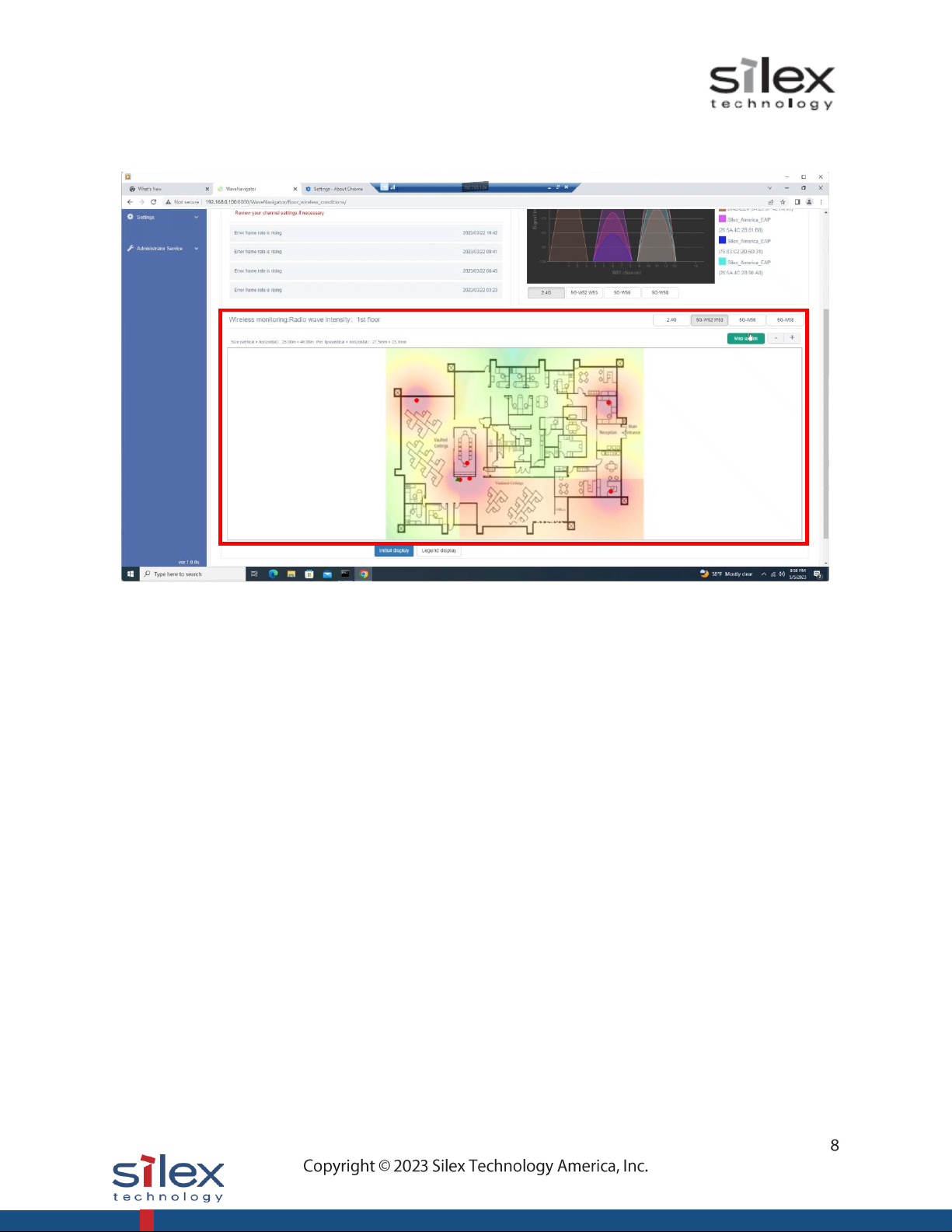
2.1.3 Wireless monitoring: Radio wave intensity
This page secon shows the heatmap of the radio signal strength from the registered devices in your
environment. The heatmap and channel informaon help check if the Wi-Fi access points are properly
installed to cover the enre oor.
You can monitor the heatmap of 2.4GHz, 5GHz W52/W53, 5GHz W56 or 5GHz W58 radio band.
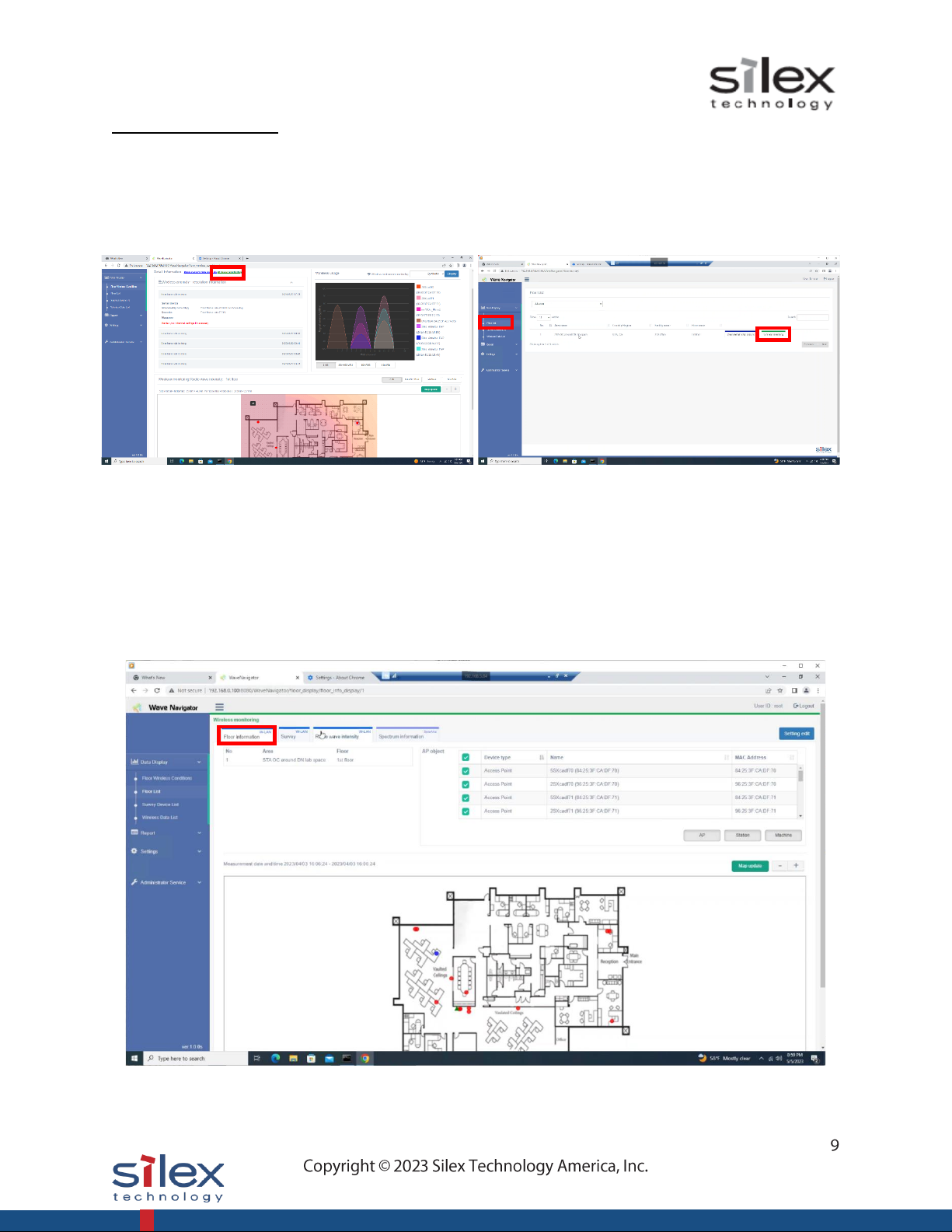
2.2 Wireless Monitoring
The recent wireless status can be checked on the “Wireless monitoring” page. There are two ways to get
to this page.
1. “Wireless monitoring” link on the top of the “Floor wireless condions” page
2. “Floor List” > “Wireless monitoring” of your oor to check
2.2.1 Floor informaon
The “Floor informaon” tab provides the device list and its locaon on your oor. You can review your
seng to see if all devices are correctly registered. If other devices need to be added, you can go to the
device registraon page by clicking “Seng edit” on the top of the page.
When the mouse cursor points to a specic device on the oor map, the icon blinks if the Wi-Fi
communicaon is acve. It does not blink if there is no Wi-Fi trac with the device.
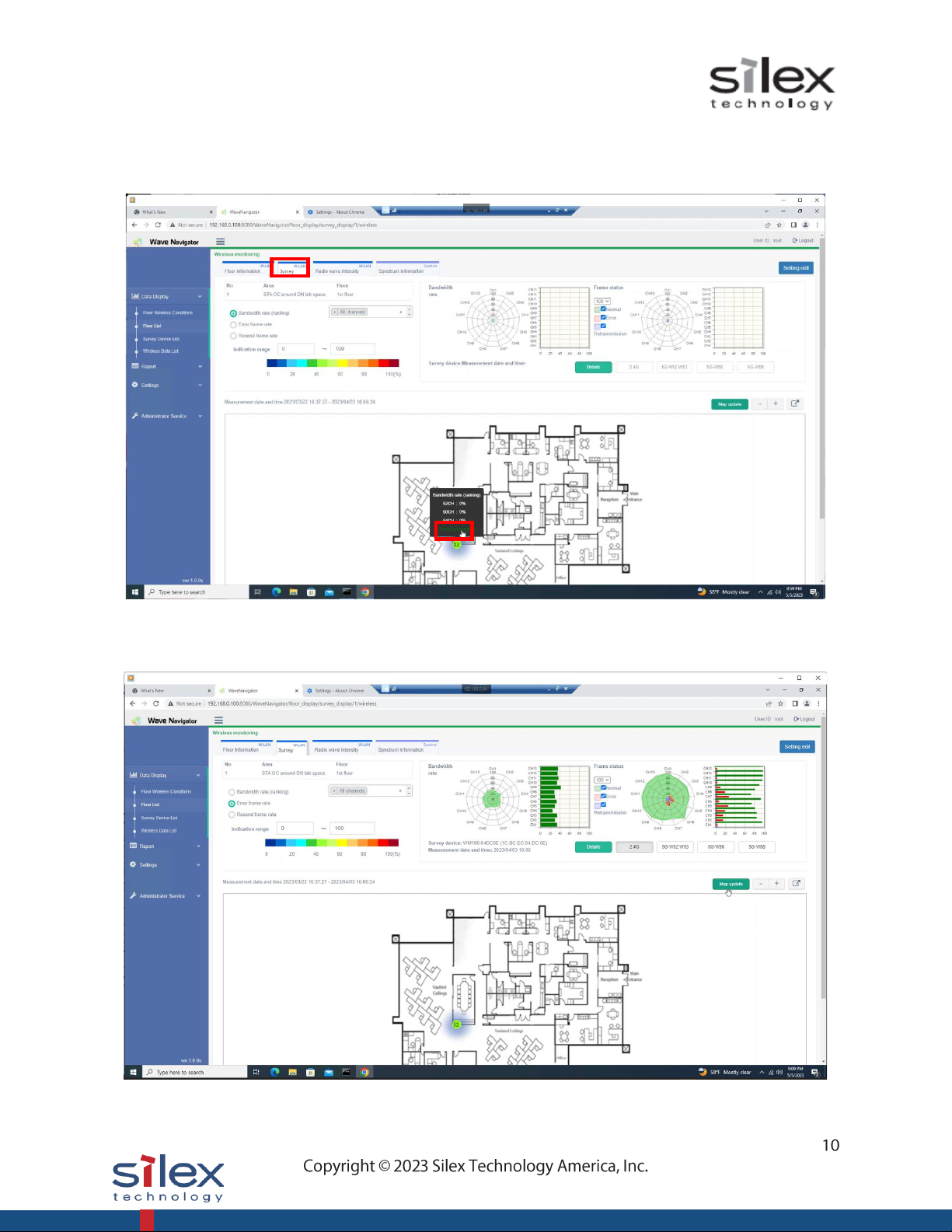
2.2.2 Survey
The “Survey” tab shows the bandwidth ulizaon and the wireless data frame status (normal frame rate,
error frame rate, and resend frame rate) of the channels being monitored by a selected WM-100.
Once “Survey Informaon” of a WM-100 is clicked, a chart and a graph are shown. These show
informaon on the selected radio band.
Table des matières
Manuels Instrument de mesure populaires d'autres marques


Endress+Hauser
Endress+Hauser Proline Promag 50 Caractéristiques techniques

Siemens
Siemens SITRANS F Coriolis FCT030 Manuel de la liste des pièces

KLINGER
KLINGER CMF V Series Manuel utilisateur

EXFO
EXFO FTB-2 Manuel d'exploitation et d'entretien

Keysight
Keysight M8290A Manuel utilisateur

ADTEK
ADTEK MW-5 Manuel utilisateur