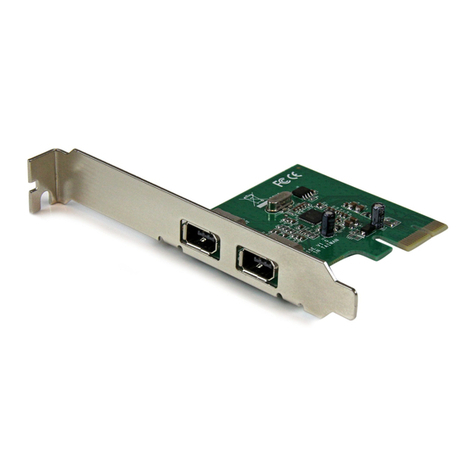
SIIG 1 FireWire 800 CardBus DV-Ki Manuel utilisateur

1
FireWire 800 CardBus DV-Kit
Quick Installation Guide
04-0461B
Introducing the FireWire 800 DV-Kit
The FireWire 800 Cardbus DV-Kit is designed to add
FireWire 800 (1394b) and 1394a (6-pin) interfaces to your
notebook computer. For your convenience, one FireWire
(1394a) 6-pin/4-pin DV cable is included for connecting
DV camcorders and other 1394 devices using 4-pin
connector. Ulead VideoStudio video editing software is
also included for producing greeting cards, video
e-mails, or home videos complete with attractive titles,
effects, and background music.
Features and Benefits
• Provides 2 FireWire 800 (9-pin) and 1 FireWire 400
(6-pin) ports for multiple device connections
• Supports serial bus data transfer rates of 100, 200,
400 and 800 Mbps
• Hot-swappingallowsyoutoconnect/detachdevices
without turning your system off
• Works with DV camcorders, CD-RW/DVD-ROM
drives, scanners, FireWire hard disks, digital
cameras, video game systems and other
audio/video devices
System Requirements
• Pentium®III or equivalent notebook PC with an
available PC Card slot
• Windows®2000/XP (32-/64-bit)/Server 2003 (32-/
64-bit)/Vista (32-/64-bit)

2
For video capturing/editing:
•Pentium 4 or equivalent notebook PC
•256MB RAM (512MB for Vista) and 5GB or more
available hard disk drive space
PackageContents
•FireWire 800 CardBus DV-Kit adapter
•Driver CD
•Ulead VideoStudio DV editing software CD
•1394 6-pin/4-pin DV cable
•Quick Installation Guide
Layout
Figure 1. Layout
Note: 1394 devices that have their own power supply
donot require theoptional power adapterto be connected
in order to work. However, non-powered 1394 devices
require this optional power adapter to work. The power
adapter can be purchased at SIIG's online store.
FireWire 400
(6-pin)
Power Adapter Jack
FireWire 800
(9-pin)
FireWire 800
(9-pin)

3
Hardware Installation
General instructions for installing the card are provided
below. Since the design of notebook computers may
vary, refer to your system’s reference manual for further
information, if needed.
1. Power off your notebook computer and any other
connected peripheral devices.
2. Insert the PC Card into the CardBus Type II slot of
your notebook computer with its 68-pin connector
facing the slot. Make sure it is inserted all the way
in for a solid connection.
3. Power on your notebook computer.
Software Installation
This section provides information on how to install the
FireWire 800 CardBus DV-Kit software.
Windows 2000
Windows2000automatically installsit's built-inFireWire
400 driver for the FireWire 800 CardBus DV-Kit. To get the
full speed out of this controller, install the Firewire 800
driver using the directions below.
1. Insert the driver CD. Click Start, then click Run.
Type D:\setup.exe, click OK. (Change D: to match
your CD-ROM drive letter)
2. At the Welcome screen, click Next.
3. At the License Agreement screen, click Yes.
4. Type in your customer information, then click Next.
5. At the Destination Location screen, click Next.
6. Select Complete, then click Next.
7. At the Select Program Folder screen, click Next.

4
8. At the Digital Signature screen, click Yes, then click
Finish.
9. Select the restart Windows option, then click Finish.
Windows XP
Windows XP automatically installs it's built-in FireWire
400 driver for the FireWire 800 CardBus DV-Kit. To get the
full speed out of this controller,install the Firewire 800
driver using the directions below.
1. Insert the driver CD. Click Start, Run. Type
32-bit : Type D:\setup32.exe, click OK. (Change D:
to match your CD-ROM drive letter)
64-bit: Type D:\setup64.exe, click OK. (Change D:
to match your CD-ROM drive letter)
2. At the Welcome screen, click Next.
3. At the License Agreement screen, click Yes.
4. At the Destination Location screen, click Next.
5. Select Complete, then click Next.
6. At the Select Program Folder screen, click Next.
7. At the Software Installation screen, click Continue
Anyway, then click Finish.
8. Select the restart Windows option, then click Finish.
Windows Server 2003
Windows Server 2003 automatically installs it's
built-in FireWire 400 driver for the FireWire 800 CardBus
DV-Kit. To get the full speed out of this controller,install
the FireWire 800 driver using the directions in the next
page.

5
.
1. Insert the driver CD. Click Start, Run.
32-bit : Type D:\setup32.exe, click OK. (Change D:
to match your CD-ROM drive letter)
64-bit: Type D:\setup64.exe, click OK. (Change D:
to match your CD-ROM drive letter)
2. At the Welcome screen, click Next.
3. At the License Agreement screen, click Yes.
4. At the Destination Location screen, click Next.
5. Select Complete, then click Next.
6. At the Select Program Folder screen, click Next.
7. At the Security Alert box, click Yes. This step is for
32-bit operating system only.
8. At the Software Installation screen, click Continue
Anyway, then click Finish.
9. Select the restart Windows option, then click Finish.
Windows Vista™
WindowsVistaautomaticallyinstalls it's built-inFireWire
400 driver for the FireWire 800 CardBus DV-Kit. To get the
full speed out of this controller,install the FireWire 800
driver using the directions below.
1. Insert the driver CD. Click Start, in the Start Search
box.
32-bit : Type D:\setup32.exe, press Enter. (Change
D: to match your CD-ROM drive letter)
64-bit: Type D:\setup64.exe, press Enter. (Change
D: to match your CD-ROM drive letter).
2. Click Allow.
3. At the Welcome screen, click Next.
4. At the License Agreement screen, click Yes.
5. At the Destination Location screen, click Next.

6
6. Select Complete, then click Next.
7. At the Select Program Folder screen, click Next.
8. At the Windows Security box, click Install three
times, then click Finish.
9. Select the restart Windows option, then click Finish.
Verify Windows Installation
1. Check Device Manger for proper installation.
For 2000/XP/Server 2003: Right click My Computer,
click Manage, then click Device Manager.
For Window Vista: Right click Computer, click
Manage, click Continue, click Device Manager.
2. Double click 1394 Bus host controllers. Unibrain
driver/OHCI Compatible Board should be
displayed.

7
Connecting Devices
General driver installation steps are provided below.
Please review your device's user manual for more details.
Windows 2000
1. At the Found New Hardware Wizard, click Next.
2. Select Search for a suitable driver..., then click Next.
3. Uncheck all check boxes, then click Next.
4. Click Next, then click Finish.
Windows XP
1. At the Found New Hardware Wizard.
For XP w/SP2 or later: Select No, not this time, then
click Next.
For XP w/SP1 or earlier: Go directly to step #2.
2. SelectInstalltheSoftwareAutomatically,clickNext.
3. Click Continue Anyway. (Skip if not prompted).
4. Click Finish to complete the installation.
Server 2003
1. At the Found New Hardware Wizard.
For 2003 w/SP1 or later: Select No, not this time, then
click Next.
For 2003 no service pack installed: Go to step #2.
2. SelectInstalltheSoftwareAutomatically,clickNext.
3. At the Security Alert box click Yes, or the Hardware
Installation box click Continue Anyway, then click
Finish to complete the installation.

8
Windows Vista™
Windows Vista will automatically detect and install
most FireWire devices when connected. For devices that
do not install automatically, follow the steps below.
Refer to the device's users manual for more information.
1. Click Locate and install driver software.
2. Click Continue to complete the installation.
Ulead VideoStudio Installation
The FireWire 800 CardBus DV-Kit includes Ulead
VideoStudio digital video editing software for producing
home videos complete with attractive titles, transitions
and sounds.
1. Insert the Ulead VideoStudio DV software CD. The
installation should start automatically. If not, click
Start, Run, type in X:\Autorun.exe, then click OK.
(Replace X: with the drive letter of your CD-ROM)
2. Follow the on-screen instructions to complete.
Note: For instructions on how to use Ulead
VideoStudio, refer to the VStudio.pdf file located
in the Document\Manual directory on the Ulead
VideoStudio DV editing software CD.

9
ubSwitch Utility
In order to use a DV camcorder with this controller,
Microsoft's FireWire 400 driver must be installed in the
system. We have supplied an easy to use utility that
allows switching between Microsoft's driver and the
FireWire 800 driver. Before using this utility, unplug all
devices from the FireWire 800 cardbus.
1. Click Start, Programs, Unibrain ubcore, Tools then
ubSwitch.
2. Right click the ubSwitch icon located in the system
tray by the clock.
3. Click the 1394 adapter that you want to switch, then
click on Microsoft 1394 Drivers.
Note: If your system has multiple 1394 adapters
installed, make sure that you click on the 1394
adapter that the camcorder will be plugged into.
4. Windows will display an information box when the
driver is ready for use. It may take a few seconds for
this box to appear. Wait for this box to appear then
connect your DV camcorder.
Note: To switch back to the FireWire 800 driver,
follow the same procedures, but in step 3 instead of
clickingonMicrosoft1394Drivers, clickonUnibrain
1394 Drivers.

10
Connecting a DV Camcorder
Before setting up the digital video camcorder, verify the
Microsoft FireWire 400 driver has been successfully
installed in your system, then follow the procedures
below.
1. Connect the 4-pin connector of the provided
FireWire 400 (1394a) DV cable to your camcorder.
2. Connect the 6-pin connector to the FireWire 400
(1394a) port.
3. Power on the camcorder. The camcorder should
appear in Device Manager.
Verify DV Camcorder Setup
1. Right click My Computer, click Manage,then click
Device Manager.
2. Double click Imaging Device(s), and Microsoft DV
Camera and VCR or DV Camcorder should be
displayed.
Autres manuels pour 1 FireWire 800 CardBus DV-Ki
3
Ce manuel convient aux modèles suivants
1
Table des matières
Autres manuels SIIG Firewire

SIIG
SIIG FireWire 2-Port CardBus Manuel utilisateur

SIIG
SIIG FireWire 800 ExpressCard Manuel utilisateur

SIIG
SIIG DP FireWire PCIe Manuel utilisateur

SIIG
SIIG FireWire 800 DV Kit Manuel utilisateur

SIIG
SIIG 1 FireWire 800 CardBus DV-Ki Manuel utilisateur

SIIG
SIIG DP FireWire 800 PCI-32T Manuel utilisateur

SIIG
SIIG DP FireWire 800 PCI-32T Manuel utilisateur

SIIG
SIIG FireWire ExpressCard Manuel utilisateur

SIIG
SIIG FireWire 3-Port CardBus Manuel utilisateur

SIIG
SIIG FireWire 800 2-Port ExpressCard/34 Manuel utilisateur