
Shure ANIUSB-Matrix Manuel utilisateur

© 2017 Shure Incorporated
27A33717 (Rev. 1)
Printed in U.S.A.
ANIUSB-MATRIX
USER GUIDE
AUDIO PROCESSING
Le Guide de l’Utilisateur
Guia del Usuario
Guida dell’Utente
Bedienungsanleitung
Manual do Usuário
Gebruikershandleiding
*27A33717*


3
IMPORTANT SAFETY INSTRUCTIONS
1. READ these instructions.
2. KEEP these instructions.
3. HEED all warnings.
4. FOLLOW all instructions.
5. DO NOT use this apparatus near water.
6. CLEAN ONLY with dry cloth.
7. DO NOT block any ventilation openings.
Allow sufficient distances for adequate
ventilation and install in accordance with
the manufacturer’s instructions.
8. DO NOT install near any heat sources
such as open flames, radiators, heat
registers, stoves, or other apparatus
(including amplifiers) that produce heat.
Do not place any open flame sources on
the product.
9. DO NOT defeat the safety purpose of
the polarized or grounding type plug. A
polarized plug has two blades with one
wider than the other. A grounding type
plug has two blades and a third grounding
prong. The wider blade or the third
prong are provided for your safety. If the
provided plug does not fit into your outlet,
consult an electrician for replacement of
the obsolete outlet.
10. PROTECT the power cord from being
walked on or pinched, particularly at plugs,
convenience receptacles, and the point
where they exit from the apparatus.
11. ONLY USE attachments/accessories
specified by the manufacturer.
12. USE only with a cart, stand, tripod,
bracket, or table specified by the
manufacturer, or sold with the apparatus.
When a cart is used, use caution when
moving the cart/apparatus combination to
avoid injury from tip-over.
13. UNPLUG this apparatus during lightning
storms or when unused for long periods
of time.
14. REFER all servicing to qualified service
personnel. Servicing is required when
the apparatus has been damaged in any
way, such as power supply cord or plug
is damaged, liquid has been spilled or
objects have fallen into the apparatus, the
apparatus has been exposed to rain or
moisture, does not operate normally, or
has been dropped.
15. DO NOT expose the apparatus to dripping
and splashing. DO NOT put objects
filled with liquids, such as vases, on the
apparatus.
16. The MAINS plug or an appliance coupler
shall remain readily operable.
17. The airborne noise of the Apparatus does
not exceed 70dB (A).
18. Apparatus with CLASS I construction shall
be connected to a MAINS socket outlet
with a protective earthing connection.
19. To reduce the risk of fire or electric shock,
do not expose this apparatus to rain or
moisture.
20. Do not attempt to modify this product.
Doing so could result in personal injury
and/or product failure.
21. Operate this product within its specified
operating temperature range.
This symbol indicates that
dangerous voltage constituting a
risk of electric shock is present
within this unit.
This symbol indicates that there
are important operating and
maintenance instructions in the
literature accompanying this unit.
WARNING: This product contains a chemical known to the State of California to cause cancer and birth
defects or other reproductive harm.

4
Getting Started
This device features a browser-based web application, which controls audio and network
properties. Upon completing this basic setup process, you will be able to:
• Access the web application to customize audio settings, signal routing, and network
properties
• Use Dante™ Controller software to connect with other Dante devices and pass audio
• Access additional configuration information
Step 1: Connect to a Network
1. Use an Ethernet cable (CAT5e or higher) to connect the ANIUSB-MATRIX to a network
switch.
Note: The network switch must provide Power over Ethernet (PoE). Make sure to
connect to a PoE port, since many switches do not supply power on all ports.
2. Connect a computer to the network switch with an Ethernet cable
sig/clip
power
reset
PoE
network
networkaudio
encryption
line in
in
out
usb
line out usb
Step 2: Access the Web Application
1. Download and install the Shure Device Discovery application (http://www.shure.com)
2. Open the Shure Device Discovery application
3. Double-click the device to open the web application.
Tip: If setting up multiple Shure devices, use the Identify button in the application to
flash the lights on the device.
Select the device
Identify

5
Step 3: Connect Devices in Dante Controller Software
1. Download and install Dante Controller Software from http://www.audinate.com
2. Use Dante Controller to create connections with other Dante devices
Note: Refer to the Dante Controller user guide for more information on channel routing
(available at http://www.audinate.com/resources/technical-documentation)
Example: Connecting the ANIUSB-MATRIX and Shure MXA310
sig/clip
power
reset
PoE
network
networkaudio
encryption
linein
in
out
usb
lineout usb
MXA310
ANIUSB-MATRIX
1. Find the MXA310 in the list of Dante transmitters, and select the plus sign (+) to show all
channels.
2. Find the ANIUSB-MATRIX in the list of Dante receivers, and select the plus sign (+) to
show all channels.
3. Check the box where the MXA310 AUTOMIX OUT and the ANIUSB-MATRIX DANTE
INPUT 1 intersect

6
Step 4: Configure Audio
The final configuration steps will vary, depending on the devices used with the ANIUSB-
MATRIX. These steps may include:
• Connecting analog and USB audio devices
• Using the matrix mixer to customize signal routing
• Adjusting input and output levels
• Viewing the entire signal path and modifying settings in schematic view
• Applying equalization to maximize speech clarity
For these steps, comprehensive information is available in the help section of the web
application.
Access the help section

7
Example: Connecting Loudspeakers, Wireless Microphones, and a Computer
ULXD4
DigitalWireless Receiver
push
control
ENTER
EXIT
SCAN
RF
A B
OL
OL
gain poweraudio
IR
on
ULXD2
sig/clip
power
reset
PoE
network
network audio
encryption
INPUT
in
out
usb
OUTPUT USB
1. Connect analog equipment (such as loudspeakers or wireless microphone systems) to
the analog input and output. Refer to the hardware section in this guide for information on
connections and LED metering.
2. Connect a computer to the USB port
3. In the ANIUSB-MATRIX web application, open the matrix mixer to make connections
between devices.
Note: Some connections are established in the matrix mixer by default. Refer to the
matrix mixer help topic in the web application for additional information.
4. In the ANIUSB-MATRIX web application, adjust input and output levels and perform a
sound check. Refer to the help topics in the web application for additional information.
Get More Information
Now that the basic setup is complete, you should have access to the web application and
be able to pass audio between devices. More comprehensive information is available online
and in the help section, including:
• Maximizing audio quality with the built-in
parametric equalizer
• External control system command strings
• Signal routing
• System scenario diagrams
• Software configuration
• Networking information
• Troubleshooting
• Replacement parts and
accessories
The complete user guide is available at http://pubs.shure.com/guide/ANIUSB-MATRIX
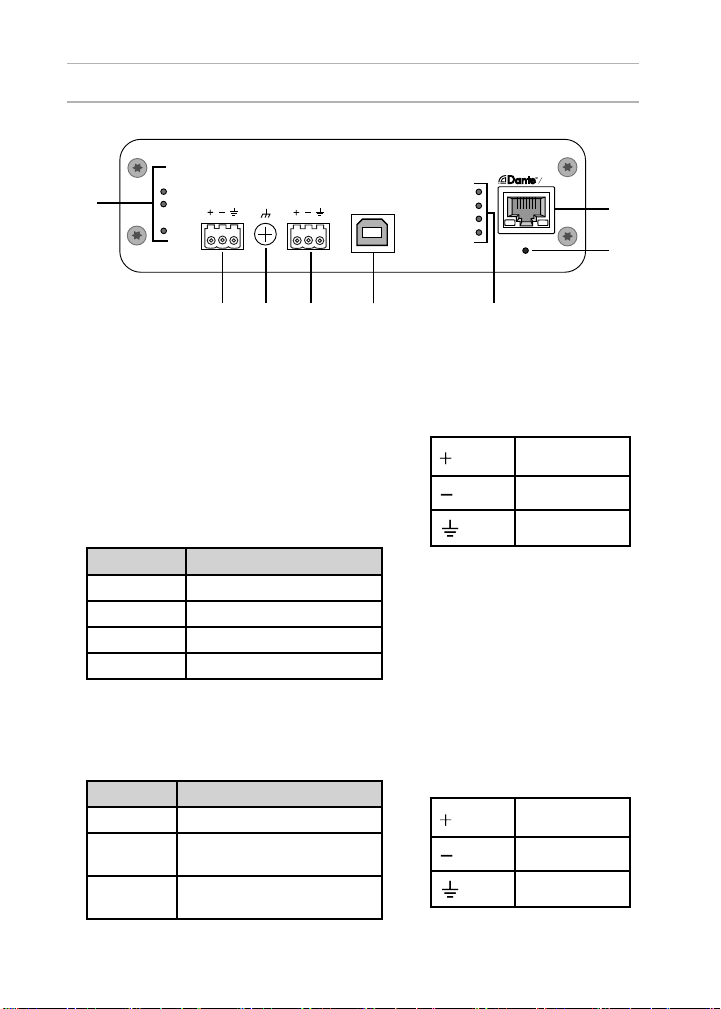
8
Rear Panel
sig/clip
power
reset
PoE
network
network audio
encryption
INPUT
in
out
usb
OUTPUT USB
௦
① Level Indicators (Signal/Clip)
Tri-color LEDs indicate the audio
signal level for the analog channels
and connectivity status for the USB
channel. Adjust output levels in the web
application to avoid clipping.
Analog Input/Output
LED State Audio Signal Level
Off less than -60 dBFS
Green -60 dBFS to -18 dBFS
Yellow -18 dBFS to -6 dBFS
Red -6 dBFS or more
Note: The input and output LEDs stay off
when metering is set to Post Fader and the
channel is muted in the web application.
USB Audio
LED State Status
Off No USB device connected
Green USB device operating
successfully
Red
(flashing)
Problem detected with
connected USB audio device
② Audio Input (Block Connector)
Block Pin Assignments:
Audio +
Audio -
Audio ground
③ Chassis Ground Screw
Provides an optional connection
for microphone shield wire to
chassis ground.
④ Audio Output (Block Connector)
Balanced audio output connects
to an analog device. Set the
output level in the web application
to match the input sensitivity of
the analog device.
Audio +
Audio -
Audio ground

9
⑤ USB Port
Connects to a computer to send and
receive any combination of input and
output audio channels.
⑥ LED Indicators
Power: Power over Ethernet (PoE)
present
Note: Note: Use a PoE injector if your
network switch does not supply PoE.
Network: Network connection active
Network Audio: Dante™ audio
present on the network
Note: Error details are available in the
event log in the web application.
Network Audio LED Behavior
LED Status Activity
Off No active signal
Green Device is operating
successfully
Red Error has occurred. See
event log for details.
Encryption:
LED Status Activity
Off Audio not encrypted
Green Successful encrypted
audio connection with
another device
Red Encryption error.
Possible causes:
• Encryption is enabled on
one device and not on
another
• Passphrase mismatch
⑦ Dante Network Port
Connects to a network switch to
receive Dante™ audio, Power
over Ethernet (PoE), and data
from the control software.
⑧ Reset Button
Resets the device settings back to
the factory default
Power Over Ethernet
(PoE)
This device requires PoE to operate. It is
compatible with both Class 0 and Class 3
PoE sources.
Power over Ethernet is delivered in one of
the following ways:
• A network switch that provides PoE
• A PoE injector device

10
Reset
The reset button is located inside a small hole
in the rear panel. Use a paperclip or other
small tool to press the button.
There are two hardware reset functions:
Network reset (press button for 4-8
seconds)
Resets all Shure control and audio
network IP settings to factory
defaults
Full factory reset (press button for
longer than 8 seconds)
Restores all network and web
application settings to the factory
defaults.
Software Reset Options
To simply revert settings without a
complete hardware reset, use one of the
following options:
Reboot Device: In the web application
(settings > factory reset), there is a
Reboot Device button, which simply
power-cycles the device as if it were
unplugged from the network. All
settings are retained when the device is
rebooted.
Default Settings: To revert audio
settings back to the factory configuration
(excluding Device Name, IP Settings,
and Passwords), select Load Preset and
choose the default settings preset.
Installation and Rack Mounting
Two mounting solutions are available for installing the Audio Network Interface:
CRT1 19" Rack Tray (optional accessory): Supports up to 3 devices; mountable in a rack
or under a table
Single-unit Mounting Tray (included accessory): Supports a single device for mounting
under a table
Securing the Devices
Use the included screws from the mounting hardware kit to secure the Audio Network
Interfaces. Audio Network Interfaces can be mounted to face either direction. Insert the
screws from the bottom in the appropriate holes, according to the following diagrams:
Align the holes as shown for securing a single device in the
single-unit mounting tray
Autres manuels pour ANIUSB-Matrix
3
Table des matières
Langues :
Autres manuels Shure Matériel réseau


Manuels Matériel réseau populaires d'autres marques

Matrix Switch Corporation
Matrix Switch Corporation MSC-HD161DEL Manuel utilisateur

B&B Electronics
B&B Electronics ZXT9-IO-222R2 Manuel utilisateur

Yudor
Yudor YDS-16 Manuel utilisateur

D-Link
D-Link ShareCenter DNS-320L Manuel utilisateur

Samsung
Samsung ES1642dc Instructions d'utilisation

Honeywell Home
Honeywell Home LTEM-PV Instructions de montage


